
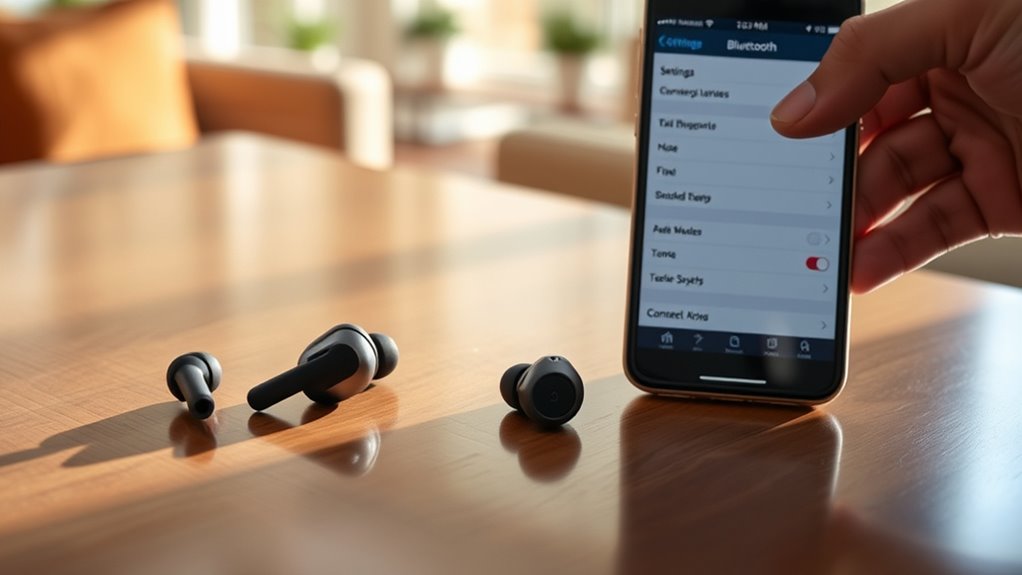

To connect your Skullcandy wireless earbuds, first charge them fully and place them in pairing mode by holding the power button until the LED light flashes. Next, go to your device’s Bluetooth settings and search for the earbuds in the device list. Select them to establish a connection. If you face any issues, check the battery level and verify no interference. There’s more to know about using and maintaining your earbuds for the best experience.
Unboxing Your Skullcandy Wireless Earbuds
Unboxing your Skullcandy wireless earbuds is an exciting moment that sets the stage for your listening experience. As you peel back the packaging, you’ll first notice the sleek design that Skullcandy is known for. The earbuds come neatly tucked in their case, showcasing their compact size and portability. Alongside, you’ll find a quick-start guide and various earbud tips to guarantee a perfect fit. These product features enhance comfort and sound quality, allowing you to enjoy your favorite tunes like never before. The unboxing experience isn’t just about the product; it’s about embracing the freedom these wireless earbuds provide. So take a moment to appreciate the sleek design and thoughtful accessories before diving into your new audio adventure.
Charging Your Earbuds
To keep your Skullcandy wireless earbuds powered up, you’ll need to know how to use the charging case effectively. Pay attention to the battery indicator lights, as they’ll let you know when it’s time to recharge. For the best performance, aim for the ideal charging time recommended in the user manual.
Charging Case Usage
Charging your Skullcandy wireless earbuds is a breeze thanks to the included charging case. This compact case not only protects your earbuds but also keeps them powered up for your on-the-go lifestyle. To use the charging case, simply place your earbuds inside; the case’s smart design guarantees they’re securely held in place while charging.
For peak performance, regular charging case maintenance is essential. Keep the charging contacts clean and free from debris to guarantee a reliable connection. Additionally, store the case in a cool, dry place to prevent any damage. With proper care, your charging case will continue to enhance your freedom to enjoy music anytime, anywhere, making sure your earbuds are always ready for action.
Battery Indicator Lights
After placing your Skullcandy earbuds in the charging case, you’ll want to keep an eye on the battery indicator lights. These LED signals give you a clear indication of your earbuds’ battery life, helping you stay aware of when they need a recharge. Below is a quick reference table to help you interpret the indicator lights:
| LED Signal | Meaning |
|---|---|
| Solid Green | Fully charged |
| Flashing Green | Charging |
| Solid Red | Low battery |
| Flashing Red | Critical low battery |
Optimal Charging Time
Getting the most out of your Skullcandy earbuds involves understanding their ideal charging time. To guarantee peak charging techniques, aim to charge your earbuds for about one to two hours. Overcharging can negatively impact battery lifespan management, so it’s best to unplug them once they’re fully charged. If you notice the battery depleting faster than usual, consider resetting your charging habits. Avoid letting the battery drop below 20% frequently; this can strain the battery’s health over time. Instead, keep them topped off when you can. Remember, a little attention to charging practices can greatly enhance your listening experience and extend the life of your earbuds, giving you the freedom to enjoy your music without interruptions.
Activating Pairing Mode
To activate pairing mode on your Skullcandy wireless earbuds, start by ensuring they’re powered on. Most models require you to press and hold the power button until you see a flashing LED light, indicating they’re ready to connect. This feature enhances your sound quality, providing a seamless listening experience.
Here’s a quick reference to help you understand the earbud features during pairing:
| Earbud Feature | Action | Indicator |
|---|---|---|
| Power On | Press and hold button | LED lights up |
| Enter Pairing Mode | Hold for 5 seconds | LED flashes rapidly |
| Ready to Connect | Look for Bluetooth signal | LED stabilizes or changes color |
Now you’re all set to connect your earbuds to any device! Enjoy wireless freedom!
Connecting to Bluetooth Devices
Now that you’ve activated pairing mode, it’s time to check if your device is compatible with your Skullcandy wireless earbuds. Once you’ve confirmed compatibility, you’ll want to look for indicators that show a successful connection. Let’s go through these steps to guarantee a smooth pairing experience.
Pairing Mode Activation
Activating pairing mode on your Skullcandy wireless earbuds is a straightforward process that allows you to connect them to your Bluetooth devices. Here are the steps to get you started:
- Charge Your Earbuds: Verify your earbuds are charged for peak performance.
- Turn on Your Earbuds: Press and hold the power button until you see the LED light flash.
- Activate Pairing Mode: Keep holding the power button until the LED light starts blinking rapidly. This indicates it’s in pairing mode.
- Connect to Your Device: On your Bluetooth device, look for your Skullcandy earbuds in the list and select them.
If you run into issues, refer to troubleshooting tips or try different pairing techniques to successfully connect. Enjoy your freedom to listen!
Device Compatibility Check
Once your Skullcandy wireless earbuds are in pairing mode, it’s important to confirm they’re compatible with the Bluetooth device you want to connect to. Check the compatibility list provided by Skullcandy to verify your device meets the necessary requirements. Most smartphones, tablets, and laptops should work seamlessly, but it’s wise to check if there are any specific device requirements that might affect connectivity. If you’re using an older device, compatibility could be an issue, so a quick online search can save you some frustration. Once confirmed, you can enjoy the freedom of wireless listening without interruptions. Always keep your earbuds updated for peak performance and compatibility with new devices.
Successful Connection Indicators
When you successfully connect your Skullcandy wireless earbuds to a Bluetooth device, you’ll notice a few clear indicators. These signs help you confirm that your connection is solid and can prevent common connection errors. Here are some successful connection tips to look for:
- LED Indicator Light: Your earbuds will typically show a steady light, indicating they’re connected.
- Audio Confirmation: You might hear a voice prompt or sound confirming the connection.
- Device Display: Your Bluetooth device will show your earbuds as connected in its settings.
- Sound Quality: You’ll experience clear audio without interruptions or drops, confirming a stable connection.
Troubleshooting Connection Issues
Although connecting your Skullcandy wireless earbuds is usually straightforward, you might encounter some connection issues that require troubleshooting. Here are common problems and tips to improve connection stability:
| Problem | Possible Cause | Solution |
|---|---|---|
| Earbuds won’t connect | Bluetooth off | Enable Bluetooth on device |
| Audio dropouts | Signal interference | Move away from obstacles |
| One earbud not working | Battery low | Charge both earbuds fully |
If you’re experiencing audio dropouts, check for signal interference from other devices. Verify your earbuds are charged and within range of your device. Following these tips can help you enjoy seamless listening freedom without interruptions.
Using Touch Controls
Skullcandy wireless earbuds come equipped with intuitive touch controls that enhance your listening experience. To make the most of these features, familiarize yourself with the gesture controls and touch sensitivity settings. Here’s how to navigate your earbuds effortlessly:
- Play/Pause: Double-tap the right earbud to play or pause your music.
- Skip Tracks: Swipe forward on the right earbud to skip to the next track.
- Volume Control: Swipe up or down on the left earbud to adjust the volume.
- Voice Assistant: Tap and hold the right earbud to activate your voice assistant.
Maintaining Your Earbuds
To guarantee your Skullcandy wireless earbuds last as long as possible, it’s important to establish a regular maintenance routine. Start with some cleaning tips: gently wipe the earbuds with a soft, damp cloth to remove dirt and sweat. For the ear tips, consider using mild soap and water, then let them air dry completely before reattaching.
When it comes to storage solutions, always keep your earbuds in their case when not in use to protect them from dust and damage. Avoid exposing them to extreme temperatures or moisture, as this can affect their performance. By following these simple maintenance steps, you’ll ascertain your earbuds stay in top shape, providing you with the freedom to enjoy your music anytime, anywhere.
Updating Firmware for Optimal Performance
After verifying your earbuds are clean and properly stored, it’s time to focus on keeping their software up to date. Regular firmware updates can greatly enhance your earbuds’ performance and provide you with maximum sound quality. Here’s how to do it:
Keeping your earbuds clean and their software updated ensures optimal performance and sound quality.
- Download the Skullcandy App: This app notifies you of available firmware updates.
- Connect Your Earbuds: Make sure your earbuds are connected to your device.
- Check for Updates: Open the app and follow prompts to check for any available firmware updates.
- Install Updates: If updates are found, install them to improve performance.
Keeping your firmware current guarantees you’re getting the best experience from your Skullcandy wireless earbuds. Enjoy the freedom of great sound!
Frequently Asked Questions
Can I Connect Skullcandy Earbuds to Multiple Devices Simultaneously?
No, you can’t connect Skullcandy earbuds to multiple devices simultaneously. During the pairing process, they typically connect to one device at a time. Check device compatibility for seamless switching between your preferred devices.
How Do I Reset My Skullcandy Wireless Earbuds?
To reset your Skullcandy earbuds, hold the power button for about ten seconds until they flash red and blue. This earbud troubleshooting tip can help resolve Bluetooth pairing issues, restoring your freedom to connect seamlessly.
Are Skullcandy Earbuds Water-Resistant or Sweat-Proof?
Skullcandy earbuds typically feature water-resistant capabilities and sweat-proof materials, making them ideal for workouts and outdoor activities. Just be sure to check the specific model’s ratings for maximum protection against moisture.
What Is the Battery Life of Skullcandy Wireless Earbuds?
Like a trusty companion, Skullcandy wireless earbuds typically offer about 24 hours of battery performance with the charging case. Each charge lasts around 3-5 hours, ensuring you’re never far from your favorite tunes.
Can I Use My Earbuds While Charging?
No, you can’t typically use your earbuds while they’re charging. Charging tips suggest letting them fully charge for best performance, but be aware of usage limitations during this time to guarantee longevity and sound quality.
