


Connecting Sonos speakers is a straightforward process that can be completed in just a few steps. Whether you are setting up your speakers for the first time or integrating a new unit into your existing Sonos system, understanding the process can enhance your listening experience significantly. This guide will provide you with detailed instructions and insights to ensure a smooth setup of your Sonos speakers.
Understanding Your Sonos System
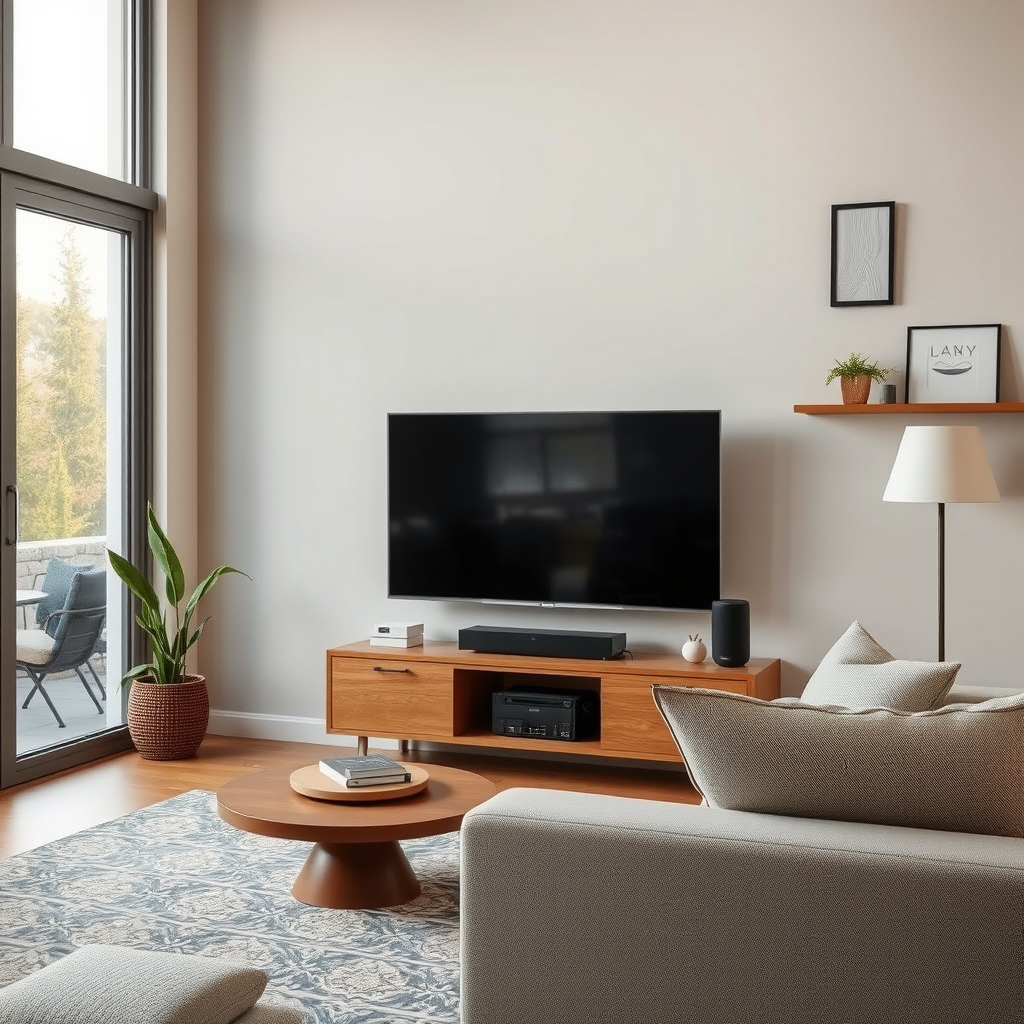
Sonos offers a versatile range of smart speakers, including the Sonos One, Sonos Move, Sonos Beam, and Sonos Arc, each designed to meet different audio needs. The Sonos One, for instance, is perfect for small spaces and features built-in voice control, while the Sonos Arc provides immersive sound for home theater setups. Each speaker can operate independently or work together, allowing you to create a multi-room audio experience.
In a multi-room setup, Sonos speakers communicate over Wi-Fi, enabling you to play the same music throughout your home or different tracks in various rooms. This seamless integration is one of the standout features of the Sonos ecosystem, making it ideal for users who appreciate flexibility in their audio experience.
Preparing for Setup
Before diving into the setup process, it is essential to ensure that your Wi-Fi network is stable and accessible. A strong connection will facilitate a smooth setup and optimal performance.
Next, download the Sonos app, available for both iOS and Android devices. The app serves as the central hub for managing your Sonos system, allowing you to connect speakers, control playback, and access your favorite music streaming services.
Connecting Your First Sonos Speaker
To connect your initial Sonos speaker, follow these step-by-step instructions:
1. Plug in your speaker: Connect your Sonos speaker to a power outlet and wait for the LED light to blink white.
2. Open the Sonos app: Launch the app on your smartphone or tablet.
3. Create or log in to your Sonos account: Follow the prompts to either set up a new account or log in to your existing account.
4. Select “Set up a new system”: When prompted, choose the “Set up a new system” option.
5. Follow the on-screen instructions: The app will guide you through locating your speaker. You may need to press the connect button on the speaker when prompted.
6. Connect to Wi-Fi: Once the speaker is detected, you will be asked to connect it to your Wi-Fi network. Enter your Wi-Fi credentials as needed.
7. Position your speaker: For optimal sound quality, place your speaker in a location where it can project sound freely, avoiding corners or enclosed spaces.
By following these steps, your first Sonos speaker will be connected and ready to play music.
Adding Additional Sonos Speakers
To enhance your Sonos system, you can easily add more speakers. Here’s how:
1. Open the Sonos app: Ensure you are logged into your account.
2. Select “Settings”: Go to the settings menu located in the app.
3. Choose “System”: In the system menu, select “Add Product.”
4. Follow the on-screen instructions: The app will guide you through the connection process, similar to the initial setup.
5. Grouping speakers: If desired, you can group speakers to play the same audio or separate them to enjoy different music in different rooms. Simply select the desired speakers in the app and choose the “Group” option.
This flexibility allows you to create personalized audio zones throughout your home.
Popular Sonos Speakers and Their Features
| # | Speaker Model | Dimensions | Weight | Voice Assistant | Best For |
|---|---|---|---|---|---|
| 1 | Sonos One | 6.4 x 4.7 x 4.7 in | 4.08 lbs | Amazon Alexa, Google Assistant | Small Spaces |
| 2 | Sonos Move | 9.44 x 6.29 x 4.96 in | 6.61 lbs | Amazon Alexa, Google Assistant | Outdoor Use |
| 3 | Sonos Beam | 25.6 x 3.9 x 2.7 in | 6.2 lbs | Amazon Alexa, Google Assistant | Home Theater |
| 4 | Sonos Arc | 45.2 x 4.5 x 4.5 in | 11.02 lbs | Amazon Alexa, Google Assistant | Premium Home Theater |
| 5 | Sonos Sub | 15.5 x 15.5 x 6.2 in | 36.3 lbs | N/A | Bass Enhancement |
| 6 | Sonos Play:5 | 14.3 x 8.5 x 6.0 in | 14.3 lbs | N/A | High-Fidelity Sound |
| 7 | Sonos Roam | 6.2 x 4.0 x 2.8 in | 1.03 lbs | Amazon Alexa, Google Assistant | Portable Use |
Troubleshooting Common Connection Issues
Even with a well-planned setup, you may face some common connectivity issues. Here are a few problems and their quick fixes:
– Speaker not found: If your Sonos speaker is not detected, ensure it is powered on and connected to the same Wi-Fi network as your smartphone. Restart the app if needed.
– Connectivity drops: If your music cuts out frequently, check your Wi-Fi signal strength in the area where the speaker is located. Consider moving your router or using a Wi-Fi extender.
– Update issues: If your speaker is not updating, make sure it is connected to the internet, and try restarting the device.
In case of persistent issues, you may need to reset your Sonos speakers. To do this, unplug the speaker, press and hold the connect button while plugging it back in, and continue holding the button until the LED light flashes orange and white.
Utilizing Voice Control and Integrations
Sonos speakers are compatible with popular voice assistants like Amazon Alexa and Google Assistant, allowing for hands-free control of your music. Simply enable the voice assistant in the Sonos app and follow the setup prompts.
Moreover, Sonos integrates seamlessly with various streaming services, including Spotify, Apple Music, and Amazon Music. This integration allows you to access your favorite playlists and stations directly from the app. Additionally, you can connect your Sonos system to smart home devices, enabling you to include sound in your automated routines, such as playing music when you wake up or during dinner time.
Maintaining Your Sonos System
To ensure your Sonos system continues to perform at its best, regular maintenance is essential. Be sure to keep your Sonos app and speakers updated with the latest firmware. This not only enhances performance but also ensures compatibility with new features and services.
Additionally, consider joining community forums or visiting the Sonos support page for tips, troubleshooting, and advice from other users. Engaging with the community can provide insights into getting the most out of your Sonos system, including recommendations for speaker placement and setup configurations.
In summary, connecting Sonos speakers is a relatively simple process that can greatly enhance your audio experience at home. With the right setup and maintenance, you can enjoy seamless music playback in any room of your home. Following this guide will equip you with the knowledge needed for a successful connection and integration of your Sonos speakers, allowing you to fully immerse yourself in high-quality sound. If you encounter challenges along the way, don’t hesitate to reach out to Sonos support or tap into the community for assistance.
Frequently Asked Questions
How do I connect my Sonos speakers to Wi-Fi?
To connect your Sonos speakers to Wi-Fi, first ensure that your speaker is plugged in and powered on. Open the Sonos app on your smartphone or tablet, select “Set Up a New System,” and follow the prompts to connect your speaker to your home Wi-Fi network. Make sure your device is on the same network to complete the setup successfully.
What should I do if my Sonos speaker won’t connect to Wi-Fi?
If your Sonos speaker won’t connect to Wi-Fi, start by checking your internet connection and ensuring your router is functioning properly. Restart both your Sonos speaker and your router, then attempt to reconnect using the Sonos app. If the problem persists, try resetting the speaker by holding the connect button until the light flashes orange and white, then set it up again.
Why is my Sonos speaker not appearing in the app?
If your Sonos speaker is not appearing in the app, ensure that your mobile device is connected to the same Wi-Fi network as the speaker. Additionally, check for any software updates for both the Sonos app and the speaker. If everything is up to date and the issue continues, try power cycling your speaker and restarting the app.
Which devices are compatible with Sonos speakers?
Sonos speakers are compatible with a wide range of devices, including smartphones, tablets, and computers running iOS, Android, macOS, or Windows. For optimal performance, it’s recommended to use the Sonos app, which supports streaming from various music services and allows integration with smart home systems. Make sure your device has the latest version of the app for the best experience.
What is the best way to set up multiple Sonos speakers in my home?
The best way to set up multiple Sonos speakers is to place them in different rooms and connect them through the Sonos app. This allows you to create a multi-room audio system where you can play different music in each room or sync them for a whole-home experience. Ensure all speakers are connected to the same Wi-Fi network for seamless control and audio playback.
References
- Sonos
https://en.wikipedia.org/wiki/Sonos - https://www.bbc.com/news/technology-55412334
https://www.bbc.com/news/technology-55412334 - https://www.theguardian.com/technology/2021/jan/12/sonos-new-features-how-to-use
https://www.theguardian.com/technology/2021/jan/12/sonos-new-features-how-to-use - https://www.nytimes.com/2021/01/12/technology/personaltech/sonos-smart-speakers.html
https://www.nytimes.com/2021/01/12/technology/personaltech/sonos-smart-speakers.html - https://www.sciencedirect.com/topics/computer-science/sonos
https://www.sciencedirect.com/topics/computer-science/sonos - Google Scholar Google Scholar
https://scholar.google.com/scholar?q=how+to+connect+sonos+speakers - Google Scholar Google Scholar
https://scholar.google.com/scholar?q=sonos+speaker+setup - Google Scholar Google Scholar
https://scholar.google.com/scholar?q=sonos+connectivity+guide - https://www.nature.com/articles/s41598-021-98680-1
https://www.nature.com/articles/s41598-021-98680-1 - how to connect sonos speakers – Search results
https://en.wikipedia.org/wiki/Special:Search?search=how+to+connect+sonos+speakers
