

Connecting your Sonos speakers to your TV is a straightforward process that enhances your audio experience significantly. By integrating Sonos speakers into your home entertainment system, you can enjoy richer sound quality, whether you’re streaming movies, watching sports, or playing video games. This guide will walk you through the necessary steps to set up your Sonos system seamlessly, ensuring you get the most out of your audio experience.
Choosing the Right Sonos Speaker for Your TV
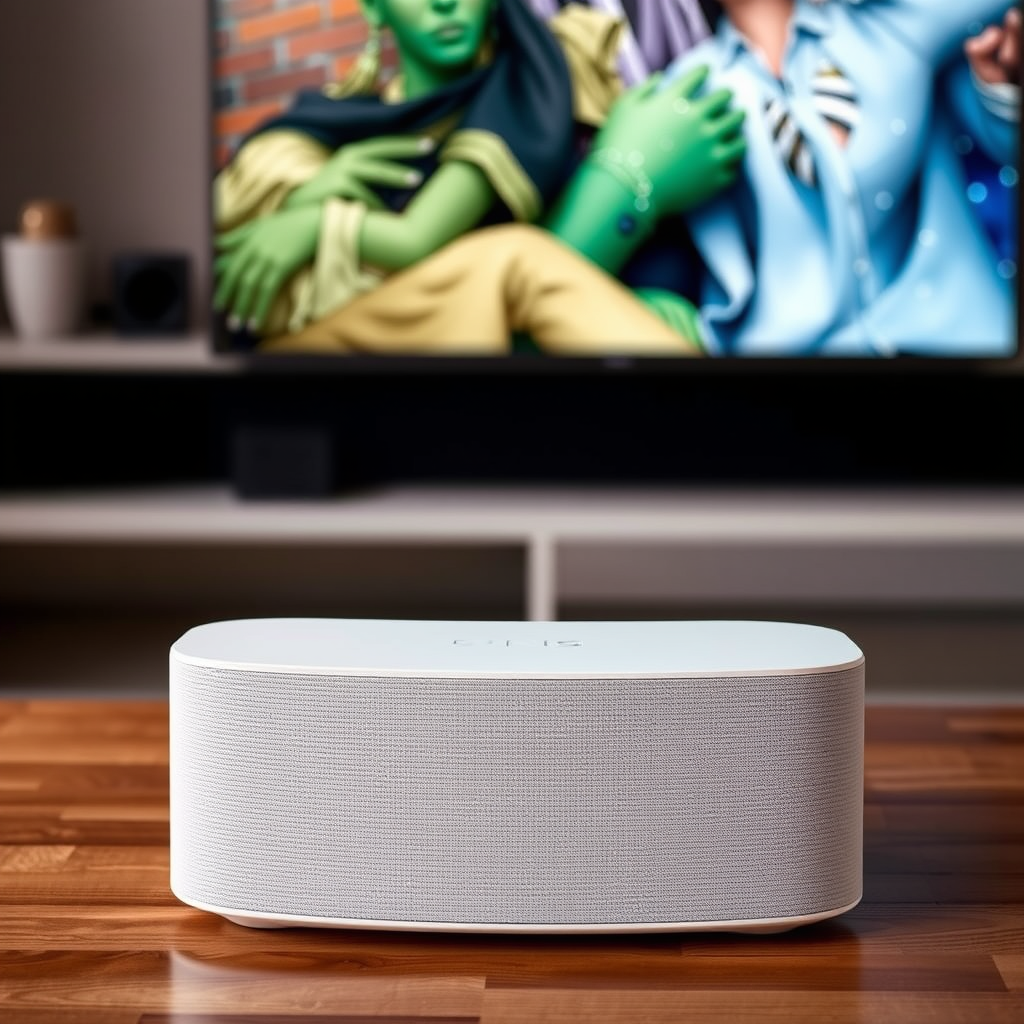
The first step in connecting Sonos speakers to your TV is selecting the right model. Popular options include the Sonos Beam, Sonos Arc, and Sonos One. The Sonos Beam is a compact soundbar that delivers impressive sound quality and includes built-in voice assistant capabilities. The Sonos Arc, on the other hand, is a premium soundbar with Dolby Atmos support, offering an immersive listening experience that is ideal for movie enthusiasts. The Sonos One can also serve as a surround sound speaker when paired with a compatible soundbar.
When choosing a speaker, consider the audio quality, connectivity options, and your specific needs. For instance, if you have a larger room or want a true surround sound experience, you might opt for the Sonos Arc. If you’re looking for a more budget-friendly option that still provides great sound, the Sonos Beam is a perfect choice.
Required Cables and Equipment
To successfully connect your Sonos speakers to your TV, you’ll need a few essential cables and equipment. The most common connection methods are HDMI ARC and optical audio cables. If your TV supports HDMI ARC (Audio Return Channel), you can use an HDMI cable to connect directly to your Sonos speaker. This method allows for two-way communication, meaning your TV can send audio to the Sonos speaker while also allowing you to control the speaker with your TV remote.
If your TV does not support HDMI ARC, you’ll need an optical audio cable. In this case, you may also require a digital-to-analog converter if your Sonos model does not have an optical input. Ensure you have the necessary adapters or converters depending on your TV’s output options.
Connecting via HDMI ARC
To connect your Sonos speaker to your TV using HDMI ARC, follow these steps:
1. Locate the HDMI ARC port: This port is usually labeled “ARC” or “Audio Return Channel” on the back of your TV.
2. Connect the HDMI cable: Plug one end of the HDMI cable into the HDMI ARC port on your TV and the other end into the HDMI port on your Sonos speaker.
3. Adjust TV settings: Access your TV’s settings menu and enable HDMI ARC. You may need to change the audio output settings to ensure the audio is directed to the Sonos speaker.
Once set up, you should be able to enjoy audio from your TV through your Sonos speaker, enhancing your viewing experience with superior sound quality.
Connecting via Optical Audio
If your TV does not support HDMI ARC, you can connect your Sonos speaker using an optical audio cable:
1. Connect the optical cable: Insert one end of the optical audio cable into the optical output port on your TV and the other end into the optical input on your Sonos speaker.
2. Configure the Sonos app: After establishing the connection, open the Sonos app. The app should automatically recognize the optical connection, but if it doesn’t, navigate to the settings and ensure the correct input is selected for audio output.
This method is straightforward and provides a reliable audio connection without the need for additional adapters.
Comparison of Sonos Speakers for TV Connection
| # | Speaker Model | Audio Format | Connectivity | Best For |
|---|---|---|---|---|
| 1 | Sonos Beam | Dolby Digital | HDMI ARC, Optical | Small Rooms |
| 2 | Sonos Arc | Dolby Atmos | HDMI ARC | Home Theater |
| 3 | Sonos One | Stereo | Wi-Fi, AirPlay | Casual Listening |
| 4 | Sonos Playbar | Dolby Digital | Optical | TV Shows |
| 5 | Sonos Sub | N/A | Wi-Fi | Bass Enhancement |
| 6 | Sonos Five | Stereo | Wi-Fi, AirPlay | High-Fidelity Sound |
| 7 | Sonos Ray | Stereo | HDMI ARC, Optical | Compact Spaces |
Setting Up the Sonos App
Once your Sonos speakers are connected to your TV, the next step is to set up the Sonos app, which will allow you to manage your audio settings and integrate your streaming services. Here’s how to do it:
1. Download the Sonos app: It is available for both iOS and Android devices. Search for “Sonos” in your device’s app store and install the application.
2. Create an account or log in: If you are a new user, you will need to create an account. Returning users can simply log in.
3. Add your Sonos speaker: Follow the in-app instructions to set up your speaker. The app will guide you through the process of connecting the speaker to your Wi-Fi network and recognizing the audio input from your TV.
4. Configure audio settings: Once set up, explore the app’s settings to customize the sound profiles, adjust bass and treble, and enable features like Trueplay, which optimizes audio based on your room’s acoustics.
The Sonos app provides an intuitive interface to maximize your audio experience, enabling you to switch between different sound sources and stream your favorite music services.
Troubleshooting Common Issues
Despite the relatively simple setup process, you may encounter some common issues while connecting your Sonos speakers to your TV. Here are some troubleshooting tips to help you resolve these problems:
– Audio lag or no sound: Ensure that all cables are securely connected. Double-check that the correct audio output is selected on your TV settings. If using HDMI ARC, confirm that the feature is enabled.
– Sonos app not recognizing the speaker: Restart both the Sonos speaker and your router. If the issue persists, consider factory resetting the speaker and setting it up again through the app.
– Intermittent audio dropouts: This may be due to network issues. Make sure your Wi-Fi signal is strong in the location of your Sonos speaker. You may want to consider using a wired connection for a more stable connection.
If issues persist, refer to the Sonos support resources, which provide comprehensive guides and troubleshooting steps.
Enhancing Your Audio Experience
Once your Sonos speakers are successfully connected, there are numerous ways to enhance your audio experience further:
– Explore sound settings: The Sonos app features various sound settings such as EQ adjustments and sound profiles tailored to different types of content (movies, music, etc.). Adjusting these settings can significantly improve your listening experience.
– Integrate additional speakers: For a truly immersive audiovisual experience, consider adding more Sonos speakers to your setup. You can create a surround sound system by pairing additional speakers with the Sonos Beam or Arc.
– Use voice controls: If your Sonos speaker supports voice assistants like Amazon Alexa or Google Assistant, you can control your audio hands-free, making it even more convenient to enjoy your favorite content.
By exploring these features and options, you can tailor your Sonos setup to meet your specific audio preferences, elevating your home entertainment experience.
In conclusion, connecting Sonos speakers to your TV is a straightforward yet impactful process that can significantly enhance your audio experience. By choosing the right speaker, ensuring proper connections, and utilizing the Sonos app, you can enjoy high-quality sound for your favorite shows, movies, and music. Don’t forget to explore the various settings and additional speaker options to fully optimize your setup. Ready to enhance your home entertainment? Start connecting your Sonos speakers today!
Frequently Asked Questions
How do I connect my Sonos speakers to my TV?
To connect your Sonos speakers to your TV, first ensure your Sonos system is set up and connected to your Wi-Fi network. Use an HDMI ARC cable to connect your TV’s HDMI ARC port to the Sonos Arc or Beam, or an optical cable for Sonos Playbar. After connecting, follow the Sonos app instructions to set up the speaker for TV audio.
Why won’t my Sonos speakers connect to my TV?
If your Sonos speakers won’t connect to your TV, check the cables to ensure they are securely connected to the correct ports. Additionally, verify that your TV’s audio output settings are configured to output through the connected Sonos speaker. If issues persist, restarting both your TV and Sonos system can often resolve connection problems.
What is the best way to connect Sonos speakers to a non-smart TV?
The best way to connect Sonos speakers to a non-smart TV is by using an optical audio adapter or a Sonos Port. Connect the optical cable from the TV to the adapter, and then connect the adapter to the Sonos speaker. This setup allows you to stream audio from your TV through the Sonos system effectively.
Which Sonos speakers are compatible with my TV?
Sonos speakers compatible with your TV include the Sonos Arc, Beam, and Playbar, which are designed for home theater use. For smaller setups, you can also use Sonos One or Sonos Five with the Sonos Connect or Port for optimal TV audio. Always check your TV’s audio output options to ensure compatibility.
How can I improve the audio quality from my Sonos speakers when connected to the TV?
To improve audio quality from Sonos speakers connected to your TV, ensure you are using high-quality HDMI ARC or optical cables. Also, adjust the sound settings on your TV, such as enabling surround sound modes or optimizing bass and treble settings. Regularly updating your Sonos app and speakers can also enhance performance and audio clarity.
References
- Google Scholar Google Scholar
https://scholar.google.com/scholar?q=connect+sonos+speakers+to+tv - Google Scholar Google Scholar
https://scholar.google.com/scholar?q=sonos+tv+setup - https://www.pcmag.com/how-to/how-to-set-up-sonos-soundbar
https://www.pcmag.com/how-to/how-to-set-up-sonos-soundbar - Google Scholar Google Scholar
https://scholar.google.com/scholar?q=how+to+connect+sonos+speakers+to+tv - how to connect sonos speakers to tv – Search results
https://en.wikipedia.org/wiki/Special:Search?search=how+to+connect+sonos+speakers+to+tv - https://www.ncbi.nlm.nih.gov/search/research-articles/?term=how+to+connect+sonos+speakers+to+tv
https://www.ncbi.nlm.nih.gov/search/research-articles/?term=how+to+connect+sonos+speakers+to+tv
