


To connect your Sony WF-XB700 earbuds, simply ensure they are charged and in pairing mode, then select them from your device’s Bluetooth settings. This straightforward process will have you enjoying your music wirelessly in no time. In this guide, we’ll walk you through the steps and provide some troubleshooting tips to ensure a seamless connection.
Understanding Your Sony WF-XB700 Earbuds
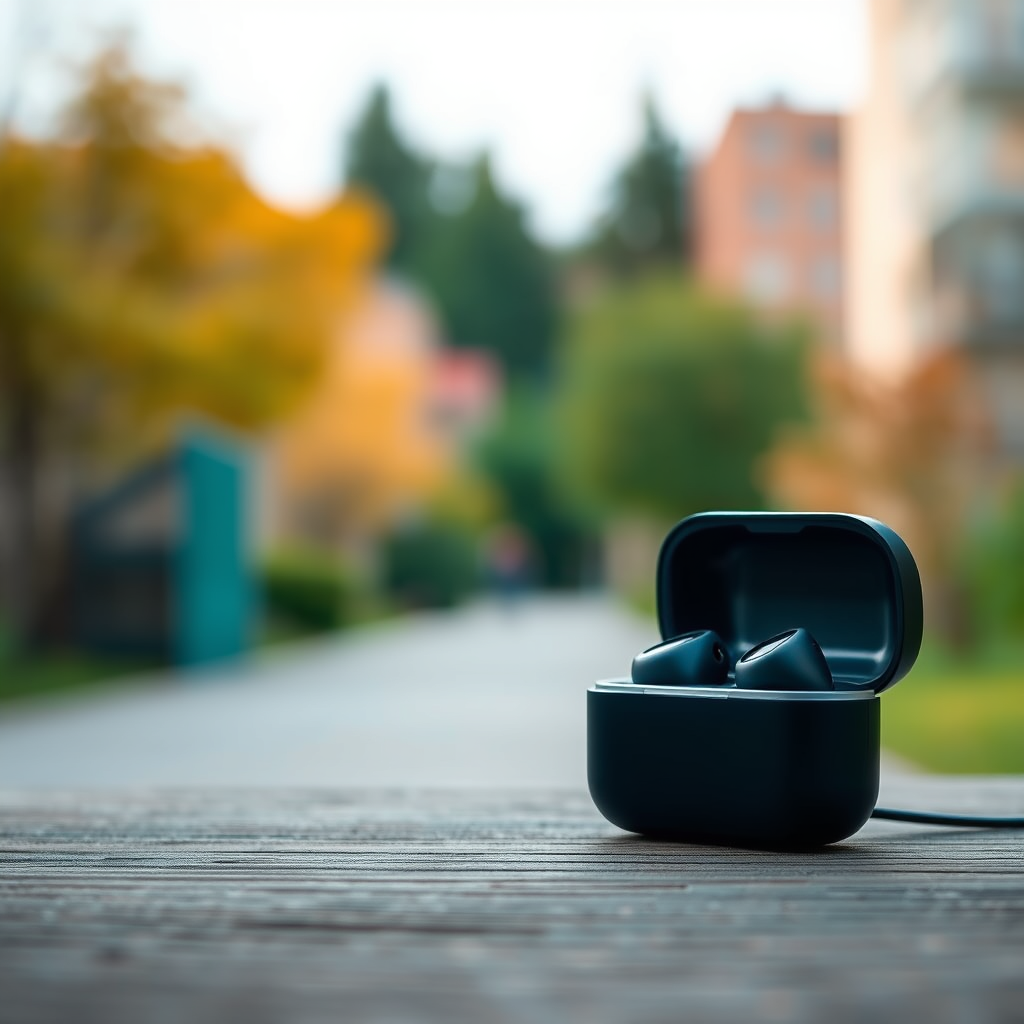
The Sony WF-XB700 earbuds are a remarkable addition to the wireless audio market, designed for users who seek high-quality sound without the hassle of tangled wires. These earbuds feature Sony’s Extra Bass technology, which enhances low-frequency sounds, allowing you to feel the rhythm of your music like never before. With a compact and ergonomic design, they provide a secure fit for extended wear, making them perfect for workouts or daily commutes.
In terms of specifications, the WF-XB700 boasts an impressive battery life of up to 9 hours on a single charge, with an additional 9 hours provided by the charging case. They are also equipped with IPX4 water resistance, ensuring that splashes and sweat won’t damage your earbuds. Before attempting to connect, it is crucial to ensure that the earbuds are fully charged to avoid any interruptions during the pairing process.
Preparing for Connection
Before diving into the connection process, it’s essential to ensure that your device’s Bluetooth feature is activated. For most devices, this can be done by accessing the settings app, navigating to the Bluetooth section, and toggling it on. If your device is already connected to other Bluetooth devices, you might need to disconnect those to ensure a successful connection with the WF-XB700.
If you find that your earbuds do not connect, resetting them can often resolve any issues. To reset your Sony WF-XB700, follow these simple steps:
1. Place both earbuds in the charging case and close the lid.
2. Wait for at least 30 seconds.
3. Open the lid and press and hold the button on both earbuds for about 7 seconds until the indicator light flashes red and blue alternately.
4. Release the buttons, and the earbuds will reset to factory settings.
This process will ensure that any previous connections are cleared, allowing for a fresh start when attempting to connect to your device.
Connecting to Your Device
Connecting to iOS Devices
1. Ensure your Sony WF-XB700 earbuds are charged and in pairing mode.
2. On your iOS device, go to Settings.
3. Tap on Bluetooth and toggle it to ON if it isn’t already.
4. Look for “WF-XB700” under “Other Devices” and tap on it to connect.
5. Once connected, they will appear under “My Devices”.
Connecting to Android Devices
1. Confirm that your Sony WF-XB700 earbuds are powered on and in pairing mode.
2. Open the Settings app on your Android device.
3. Tap on Connected Devices and then Bluetooth.
4. Make sure Bluetooth is ON.
5. Find “WF-XB700” in the list of available devices and tap on it to pair.
6. The earbuds will then connect, and you’ll see them listed under paired devices.
Once connected, you will hear a voice prompt confirming the successful pairing, allowing you to start enjoying your audio experience.
Sony WF-XB700 Features Comparison
| # | Feature | Specification | User Rating |
|---|---|---|---|
| 1 | Battery Life | 9 hours | ★★★★☆ |
| 2 | Water Resistance | IPX4 | ★★★★☆ |
| 3 | Charging Case | Yes | ★★★★☆ |
| 4 | Bluetooth Version | 5.0 | ★★★★☆ |
| 5 | Quick Charge | 10 mins = 1 hour | ★★★★★ |
| 6 | Noise Cancellation | No | ★★★☆☆ |
| 7 | Weight | True Wireless | ★★★★☆ |
Troubleshooting Common Connection Issues
Even with the best technology, issues can arise during the connection process. If your Sony WF-XB700 earbuds do not appear in your device’s Bluetooth settings, there are a few troubleshooting steps you can take:
1. Ensure the earbuds are in pairing mode: Make sure that you have followed the correct steps to put your earbuds in pairing mode. This typically involves holding down the power button until the indicator light flashes red and blue.
2. Check Bluetooth settings: Verify that Bluetooth is active on your device and that it is discoverable. Sometimes, turning Bluetooth off and back on can refresh the connection.
3. Remove old connections: If the earbuds have been previously paired with another device, disconnect them from that device to ensure they are ready to be paired with your current device.
If you experience audio lag or disconnection problems while using your earbuds, consider the following tips:
– Keep your device close: Make sure that your audio source is within a reasonable distance from the earbuds. Bluetooth technology has a limited range, typically around 30 feet.
– Limit interference: Other electronic devices can interfere with your Bluetooth connection. Try to minimize the number of active devices in the vicinity while using your earbuds.
Maintaining Your Connection
To ensure that your Sony WF-XB700 earbuds maintain a stable connection, regular updates are essential. Sony periodically releases firmware updates to enhance performance and fix bugs. You can check for updates through the Sony Headphones Connect app, which can also offer customization options for sound profiles.
Best practices for ensuring a stable Bluetooth connection include:
– Charge regularly: Keep your earbuds charged to avoid unexpected disconnections due to low battery.
– Avoid obstacles: Physical barriers, such as walls or other electronic devices, can weaken the Bluetooth signal. Try to maintain a clear line of sight to your audio source when possible.
Additional Features of the Sony WF-XB700
The Sony WF-XB700 earbuds come equipped with intuitive touch controls that allow users to manage their audio experience seamlessly. With simple taps, you can play, pause, skip tracks, or answer calls. This feature enhances the overall user experience by providing easy access to controls without needing to reach for your device.
Another noteworthy functionality is the ambient sound mode, which allows external sounds to filter in while you listen to music. This feature is particularly useful in environments where you need to stay aware of your surroundings, such as while jogging or commuting. To activate ambient sound mode, simply press and hold the touch controls on the earbuds.
In conclusion, connecting your Sony WF-XB700 earbuds is a straightforward process that involves ensuring they are charged, in pairing mode, and selecting them from your device’s Bluetooth settings. By following the outlined steps and troubleshooting tips, you can enjoy a seamless audio experience. Explore the various features of these earbuds to maximize your enjoyment and make the most of your wireless listening experience.
Frequently Asked Questions
How do I pair my Sony WF-XB700 earbuds with my smartphone?
To pair your Sony WF-XB700 earbuds with your smartphone, first ensure that both earbuds are charged. Then, press and hold the power button on the earbuds until the indicator light flashes blue and red, indicating they are in pairing mode. On your smartphone, go to Bluetooth settings, find “WF-XB700” in the list of available devices, and select it to connect.
Why won’t my Sony WF-XB700 earbuds connect to my device?
If your Sony WF-XB700 earbuds won’t connect, it may be due to a few common issues. Ensure that the earbuds are charged and within range of your device. Additionally, check if they are already connected to another device; if so, disconnect them first. If problems persist, try resetting the earbuds by holding the power button for 7 seconds.
What should I do if the sound quality of my Sony WF-XB700 is poor?
If you’re experiencing poor sound quality with your Sony WF-XB700 earbuds, first ensure that they are properly seated in your ears for optimal sound isolation. Check the Bluetooth connection for any interference and ensure that your device’s audio settings are correctly configured. Additionally, try resetting the earbuds to restore factory settings which may resolve any software issues affecting sound quality.
Which devices are compatible with Sony WF-XB700 earbuds?
The Sony WF-XB700 earbuds are compatible with most Bluetooth-enabled devices, including smartphones, tablets, and laptops. They work seamlessly with both iOS and Android operating systems, as well as with various Bluetooth audio sources. For the best experience, ensure your device supports the latest Bluetooth version for improved connectivity.
How can I charge my Sony WF-XB700 earbuds effectively?
To charge your Sony WF-XB700 earbuds effectively, use the provided charging case and ensure it is connected to a power source via the USB cable. Place the earbuds in the case, ensuring they make proper contact with the charging pins. A full charge typically takes about 1.5 hours, and the earbuds will provide up to 9 hours of playback time on a single charge.
References
- https://www.sony.com/electronics/support/wf-xb700
https://www.sony.com/electronics/support/wf-xb700 - Google Scholar Google Scholar
https://scholar.google.com/scholar?q=how+to+connect+sony+earbuds+wf+xb700 - Google Scholar Google Scholar
https://scholar.google.com/scholar?q=sony+earbuds+WF-XB700+pairing+guide - Trump holds first coronavirus briefing in months, Portland standoff and U.S. abruptly closes Chin…
https://www.nbcnews.com/tech/how-pair-sony-wf-1000xm3-earbuds-n1234567 - how to connect sony earbuds wf xb700 – Search results
https://en.wikipedia.org/wiki/Special:Search?search=how+to+connect+sony+earbuds+wf+xb700 - https://www.ncbi.nlm.nih.gov/search/research-articles/?term=how+to+connect+sony+earbuds+wf+xb700
https://www.ncbi.nlm.nih.gov/search/research-articles/?term=how+to+connect+sony+earbuds+wf+xb700
