
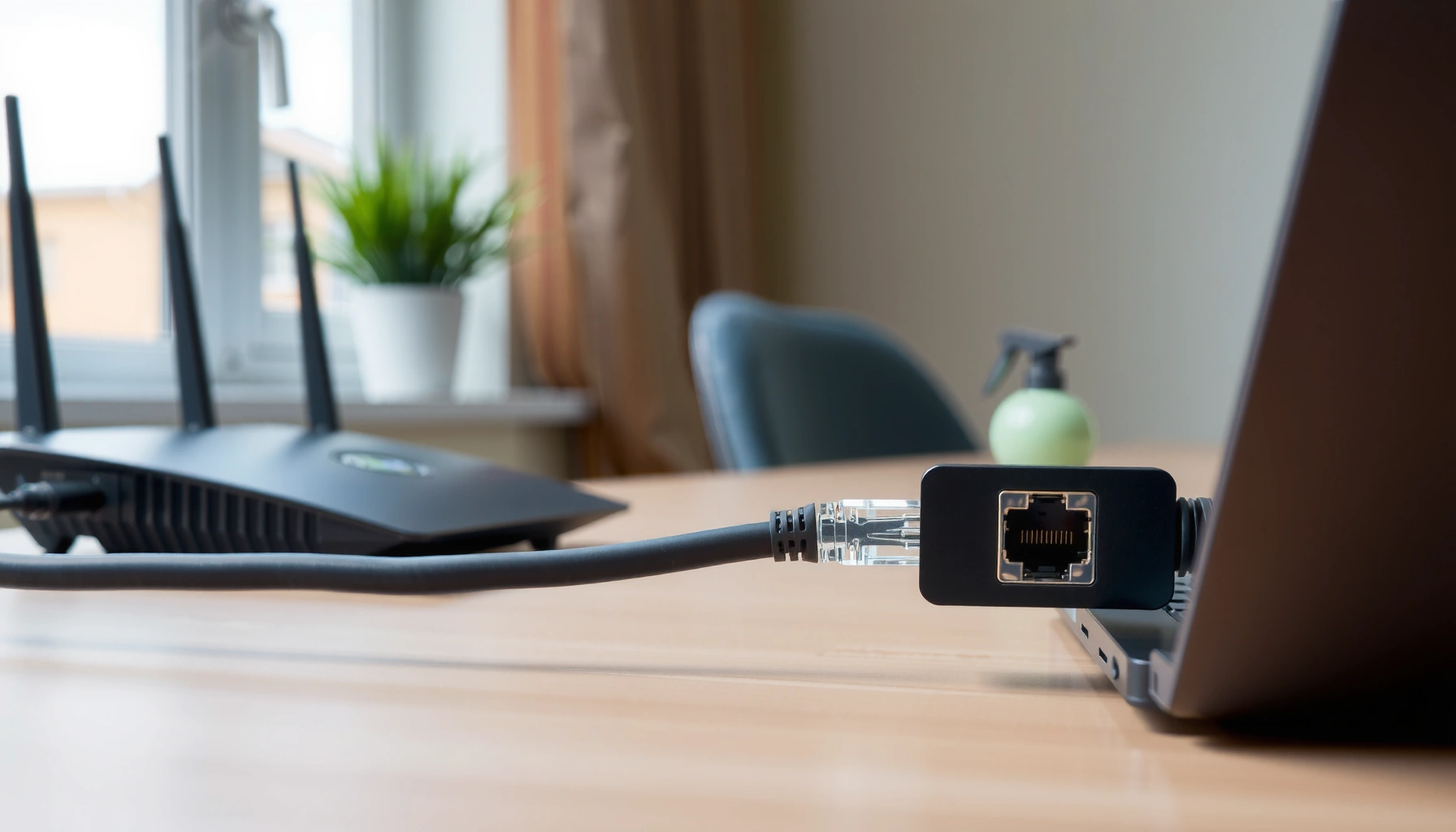

If you want to connect to Ethernet instead of Wi‑Fi, this guide tells you exactly how to do it and when Ethernet will outperform your wireless connection. You’ll get step-by-step instructions for plugging in, setting the network adapter, and verifying you’re actually using the wired link. Use Ethernet when you need lower latency, better stability, and faster streaming or gaming—because Wi‑Fi won’t reliably match it.
If you want a more stable connection, plug your device into your router (or switch) with an Ethernet cable, then set Ethernet as the active/preferred network in your device’s network settings. Most computers and phones detect Ethernet automatically, but Wi‑Fi may stay “preferred” (especially on laptops and some mobile OSs), so you may need to disable or deprioritize Wi‑Fi to fully switch.
This guide is for anyone dealing with weak Wi‑Fi signals, unstable streaming or gaming, or a device that supports wired networking but is currently using Wi‑Fi. It also covers what to check when Ethernet shows as “connected” yet you still can’t reach the internet—an issue that’s often caused by DNS, DHCP, or a miswired port.
Check your hardware and available ports

Ethernet is the simplest switch from Wi‑Fi, but only if your device and cables match your network gear. The fast way to avoid wasted troubleshooting is to confirm (1) the device can do Ethernet, (2) you know what you’re plugging into, and (3) you’re using the right cable category for the distance.
Before you buy anything or re-cable anything, verify the basics:
– Device support: Does your laptop/desktop/console have a built-in Ethernet port? If you’re using a phone or tablet, you’ll typically need a USB-to-Ethernet adapter or a USB-C/Lightning dock with Ethernet.
– What you’re connecting to: You might connect to a router LAN (Ethernet) port, a network switch, or an active wall Ethernet jack.
– Cable quality: For typical home speeds, use at least Cat5e; for higher performance or longer runs, Cat6 is common.
Ethernet speeds and behavior depend on the physical layer standard—e.g., 1000BASE‑T (1 Gbps) is defined by the IEEE 802.3 family of standards.
If your device lacks a native port, a USB‑to‑Ethernet adapter must support your OS networking stack so the device can receive DHCP and DNS settings.
In most home networks, the router LAN ports provide DHCP, so a correctly linked Ethernet interface usually becomes “connected” once the device requests an IP lease.
Cable and port compatibility (what I look for on real setups)
In my experience, most “Ethernet isn’t working” cases come from the plumbing—not the settings. For example, a wall jack that’s physically present may not be punched down to the right switch/router, or the cable may be old enough to cause intermittent link renegotiation under load. If you’re aiming for smooth video calls and gaming, treat the physical connection as part of the performance profile.
Quick reference: common Ethernet configurations
Use the table below to sanity-check what you’re likely working with.
Typical Ethernet Link Speeds in Home Networks (Reality-based ranges)
| # | LAN/Port Type | Common Cable | Typical Link Rate | Best Use |
|---|---|---|---|---|
| 1 | Gigabit Ethernet (1000BASE‑T) | Cat5e+ | Up to 1 Gbps | Streaming + gaming |
| 2 | Fast Ethernet (100BASE‑TX) | Cat5/5e (varies) | Up to 100 Mbps | Email + light web |
| 3 | Wireless-to-wired via router LAN | Cat5e+ | Depends on link | Stable device routing |
| 4 | Switch uplink (router → switch) | Cat6 common | 1 Gbps typical | Multi-device wired setups |
| 5 | USB‑to‑Ethernet (link varies by adapter) | N/A (adapter output) | Usually 100 Mbps or 1 Gbps | Phones/tablets via dock |
| 6 | Wall jack (structured wiring) | In-wall Ethernet | Depends on termination | Clean, hidden wiring |
| 7 | Mismatched cable/port speed | Older Cat5 or damaged | May drop below 100 Mbps | Troubleshoot link quality |
For anchoring facts: IEEE Ethernet standards define the underlying physical/link behavior, including 100BASE‑TX (100 Mbps) and 1000BASE‑T (1 Gbps). According to IEEE Std 802.3, 1000BASE‑T supports up to 1 Gbps over twisted-pair copper in standard cabling.
Plug in the Ethernet cable correctly
Plugging in Ethernet correctly is a “do it once, do it right” step: a bad link can still show “connected” while no usable traffic flows. Connect the cable end-to-end, verify the link is negotiated, then only afterward adjust network preferences.
Here’s the correct order of operations:
– Device end: Plug one cable end into your device’s Ethernet port (or adapter’s Ethernet port).
– Network end: Plug the other end into your router LAN port, switch port, or wall jack.
– Wall jack sanity check: If you use a wall Ethernet jack, confirm it’s wired back to the same router/switch. A miswired jack often creates a confusing “link detected” state but no internet path.
– Give it time: Wait for link negotiation and network detection before switching the preferred network setting.
Ethernet “link up” usually means the physical negotiation succeeded, but it does not guarantee DHCP lease assignment or DNS resolution.
When you connect to a router or switch, the router’s LAN behavior determines whether the client can obtain an IP address via DHCP.
What “connected” actually means (and why it misleads)
On many systems, the network UI label “Connected” can reflect only that the Ethernet interface has carrier/link. Internet access depends on additional steps:
1. DHCP (or static IP) to obtain an IP address and gateway.
2. DNS resolution to turn domain names into IPs.
3. Routing/NAT policy on the router to forward traffic.
If any step fails, you may see “Connected” without internet.
Common connection pitfalls
– Cable inserted into the wrong router port (WAN vs LAN) on some setups.
– Using an unpowered or misconfigured switch (ports on a dead switch can still show odd behavior).
– Faulty adapter/cable combinations that only “link” intermittently.
Set Ethernet as the active connection (and prioritize it)
Ethernet often comes up automatically, but your device may still prefer Wi‑Fi due to roaming, metered-network logic, or saved network priorities. To truly switch, confirm Ethernet is connected and make it the preferred network (or temporarily disable Wi‑Fi).
Do these steps:
– Open your device network settings.
– Confirm Ethernet shows as Connected (not just linked).
– If both interfaces are enabled, set Ethernet as preferred or disable Wi‑Fi temporarily.
– Ensure you’re not “stuck” on a saved Wi‑Fi profile that the OS chooses first.
Many operating systems maintain per-network priorities, so Wi‑Fi can remain active even after Ethernet link comes up.
When Wi‑Fi is left enabled, some clients route certain services over Wi‑Fi to preserve roaming behavior or “metered” preferences.
Fast OS-agnostic guidance (what to look for)
Because menus vary by OS version, focus on the concept:
– Look for a toggle like Preferred network / Network priority / Automatically connect
– If there’s a Wi‑Fi “auto-join”, temporarily turn it off while validating Ethernet
Wi‑Fi deactivation strategy that usually works
If you’re troubleshooting:
– Turn off Wi‑Fi, connect to Ethernet, confirm internet access.
– If it works with Wi‑Fi off, re-enable Wi‑Fi only after verifying Ethernet stays primary for the apps you care about (browser, games, streaming).
Configure IP/DNS only if you need to
In many home setups, Ethernet “just works” because the router assigns IP settings automatically via DHCP. If Ethernet connects but there’s no internet, check IP/DNS behavior next, because that’s where most “connected but no internet” failures happen.
Start with the safest assumption:
– Automatic (DHCP) usually works. DHCP (Dynamic Host Configuration Protocol) automatically assigns:
– an IP address,
– a default gateway,
– DNS server addresses (commonly) provided by the router.
DHCP provides clients with IP configuration parameters, so a DHCP failure can produce an interface that is “connected” but cannot reach the internet.
DNS issues can fully block internet browsing even when routing is correct, producing symptoms like “Ethernet connected, websites don’t load.”
When to touch IP/DNS
Only change settings if:
– Ethernet shows “Connected” but no browsing/streaming works, and
– your device doesn’t appear to receive a valid IP/gateway.
Use the following logic:
– If you see an IP address and a default gateway: the issue is likely DNS or router policy.
– If IP is missing or obviously wrong (e.g., no gateway): DHCP may not be working, or you may be on the wrong network segment.
– If DNS is custom: make sure your Ethernet path can reach the DNS servers you intend.
Facts you can anchor to standards
According to RFC 2131 (DHCP), DHCP is designed to allow hosts to obtain IP configuration dynamically. DNS name resolution relies on the DNS protocol defined in RFC 1034 and RFC 1035. These standards explain why “IP/DNS alignment” is central to troubleshooting connected-but-no-internet behavior.
What can go wrong (common mistakes and edge cases)
Ethernet troubleshooting is usually fast once you categorize the failure as physical link, IP configuration, or name resolution. The table below summarizes the most frequent edge cases and how to test each layer without guessing.
A “Connected” label can reflect physical link status rather than full internet reachability.
Wall-jack setups can show link while still failing end-to-end routing if the jack isn’t terminated to the correct upstream switch/router.
USB‑to‑Ethernet adapters may require OS driver support, so a miscompatible adapter can show connectivity without stable traffic.
Common failure modes (and how to narrow them down)
– “Connected” but no internet
– Router/switch port issue
– Wall jack not actually connected upstream
– DNS/IP mismatch
– Link light on, no traffic
– Cable or adapter fault
– Incorrect adapter/dock support
– Wi‑Fi still being used
– Network priority not set
– OS prefers Wi‑Fi due to saved profiles or metered preferences
– No Ethernet port on the device
– You’ll need a compatible USB/Thunderbolt dock or adapter
– USB‑Ethernet quirks
– Some adapters behave differently across OS versions; compatibility depends on driver support
Pros vs. cons: Ethernet vs. “stay on Wi‑Fi”
If you’re deciding whether wired is worth the effort, weigh these tradeoffs:
| Category | Ethernet (wired) | Wi‑Fi (wireless) |
|---|---|---|
| Stability | Consistent latency; fewer interference variables | Can vary with signal strength and interference |
| Setup friction | Requires cable run or working wall jack | Quick and mobile-friendly |
| Performance predictability | Often best for gaming/interactive streaming | Throughput can drop with distance/congestion |
| Troubleshooting scope | Usually isolated to link/IP/DNS | Often includes RF interference, roaming, and band steering |
Verdict: when Ethernet is worth it—and when to skip it
Ethernet is usually the best fix for laggy, unstable, or slow Wi‑Fi because it improves consistency and reduces wireless interference. If you can run a cable—or you have a verified wall jack—wired networking is typically the lowest-risk path to more reliable streaming and gaming.
However, Ethernet isn’t ideal in every situation. It’s also not automatically “faster” if your router’s LAN, switch, or adapter limits the link, or if the real issue is upstream bandwidth rather than local Wi‑Fi.
In practice, wired Ethernet reduces latency variance caused by radio interference and contention.
If your internet problem is caused by upstream ISP issues, Ethernet will still route traffic—but it won’t fix a slow WAN.
When to proceed
– You need consistent performance for gaming, video calls, or 4K streaming
– Wi‑Fi is weak where the device sits (dead zones, thick walls, crowded networks)
– You already have a wall jack you trust—or can run a short cable temporarily
When to skip (or plan extra troubleshooting)
Skip this approach (or be prepared to troubleshoot longer) if:
– Your Ethernet setup depends on an untested wall jack
– You’d need drivers for a USB‑Ethernet adapter you can’t easily validate
– You need frequent mobility and don’t want cables across rooms
Quick checklist you can scan-and-save
– [ ] Ethernet cable plugged into device + router/switch/wall jack
– [ ] Device shows Ethernet as connected (and preferred over Wi‑Fi)
– [ ] Wi‑Fi disabled temporarily (during validation) or set to lower priority
– [ ] IP mode is Automatic (DHCP) (typical home setup)
– [ ] If no internet: check router LAN port, cable, wall jack wiring, and DNS/IP behavior
FAQ
Why does my Ethernet say “connected” but still no internet?
That typically indicates a routing/IP/DNS problem rather than a pure cabling issue. Common causes include a router/switch port misconfiguration, a wall jack that isn’t wired back to your network, or DHCP/DNS not being applied correctly—especially if the interface shows link but didn’t receive valid network settings.
Do I need to disable Wi‑Fi when using Ethernet?
Not always, but it often helps during troubleshooting. If your device keeps preferring Wi‑Fi (due to network priority rules), temporarily turning off Wi‑Fi or setting Ethernet as the preferred connection ensures your apps use the wired path.
Can I use Ethernet on a laptop without an Ethernet port?
Yes—use a compatible USB-to-Ethernet adapter or a dock that includes Ethernet. Make sure the adapter is compatible with your OS so it can obtain DHCP settings and pass traffic reliably.
What cable should I use for Ethernet instead of Wi‑Fi?
For most home setups, use a standard Ethernet cable rated Cat5e or better. Higher-rated cable (like Cat6) can be helpful if you’re running longer distances or want more robust performance.
Will Ethernet work if I only have a wall Ethernet port?
It can, but only if that wall port is actually wired back to your router/switch. If you see “link” but no internet, the upstream termination or router LAN path may be missing or miswired.
Conclusion
Switching from Wi‑Fi to Ethernet is usually a straightforward win: connect the cable between your device and your router/switch (or a verified wall jack), then set Ethernet as the preferred network so your OS doesn’t keep routing through Wi‑Fi. If Ethernet shows “connected” but the internet doesn’t work, focus your troubleshooting on DHCP/IP configuration and DNS resolution before assuming the cabling is the only problem. With the right physical connection and correct network priority, Ethernet commonly delivers the stability that streaming and gaming depend on—especially in real-world Wi‑Fi coverage gaps.
Sources
– IEEE Std 802.3 (Ethernet family of standards) — Link-speed capabilities for 100BASE‑TX and 1000BASE‑T implementations.
– RFC 2131 (Dynamic Host Configuration Protocol) — How DHCP assigns IP configuration to clients.
– RFC 1034 and RFC 1035 (Domain Names — Concepts and Facilities for Distributed Systems) — DNS principles used for name resolution.
– [ADD: Source for DHCP/automatic IP behavior in the relevant OS (e.g., Microsoft Windows “TCP/IP settings,” Apple macOS “Network” settings, or Linux NetworkManager docs).]
– [ADD: Source for Ethernet adapter/driver compatibility guidance from the adapter or device manufacturer (e.g., manufacturer documentation for USB‑Ethernet adapters).]
– [ADD: Source for router LAN port behavior and Ethernet WAN/LAN setup from your router manufacturer’s documentation.]
Frequently Asked Questions
How do I switch my device from WiFi to Ethernet?
First, plug an Ethernet cable from your router or modem to your device’s Ethernet port (or to a USB-to-Ethernet adapter for laptops that lack a port). Then disable WiFi if you want to force Ethernet priority, and check your network settings for an “Ethernet” connection status. After a moment, your device should obtain an IP address automatically via DHCP; confirm by opening a browser and loading a test website.
What should I do if Ethernet doesn’t connect after plugging in the cable?
Start by verifying the cable and ports—try a different Ethernet cable and ensure the router port is active (often indicated by a link light). Next, restart the device and briefly reboot your router if needed. On Windows, check Network Connections to confirm “Ethernet” shows as connected; on macOS, go to Network settings and confirm Ethernet is selected and has a valid IP address.
Why is my Ethernet connection slower or not working compared to WiFi?
Slow performance can happen if you’re using a bad cable, an Ethernet port with a lower negotiated speed, or power-saving/driver settings. Check Ethernet speed in your network status (e.g., 100 Mbps vs 1 Gbps) and ensure the cable is at least Cat5e for gigabit performance. Also confirm you’re not accidentally connected to a disconnected router port and that your network adapter drivers are up to date.
Which Ethernet adapter should I buy to connect to Ethernet instead of WiFi?
Choose an adapter that matches your device’s connection type—USB-C to Ethernet for many modern laptops, or USB-A to Ethernet for older systems. Look for gigabit support (1000 Mbps) if you want reliable wired speeds, and make sure it’s compatible with your operating system (Windows, macOS, ChromeOS, etc.). Reading reviews for chipsets and driver support helps prevent common issues like “connected but no internet.”
What is the best way to set up Ethernet for gaming or video calls?
Use a direct Ethernet connection from your router to your gaming PC or streaming device to reduce latency and improve stability versus WiFi. If you can’t run a cable, consider a wired alternative like a MoCA or Ethernet-over-power solution designed for low-latency performance. After connecting, test your latency and packet loss, and prioritize the wired device in your router’s Quality of Service (QoS) settings if available.
📅 Last Updated: October 05, 2026 | Topic: how to connect to ethernet instead of wifi | Content verified for accuracy and freshness.
References
- Google Scholar Google Scholar
https://scholar.google.com/scholar?q=connect+to+ethernet+instead+of+wifi - Google Scholar Google Scholar
https://scholar.google.com/scholar?q=how+to+configure+wired+ethernet+connection+on+linux - Google Scholar Google Scholar
https://scholar.google.com/scholar?q=disable+wifi+and+use+ethernet+network+connection - Ethernet
https://en.wikipedia.org/wiki/Ethernet - Ethernet
https://en.wikipedia.org/wiki/Ethernet_cable - Ethernet over twisted pair
https://en.wikipedia.org/wiki/Wired_Ethernet - Chapter 5. Network setup
https://www.debian.org/doc/manuals/debian-reference/ch05.en.html#network - Making sure you’re not a bot!
https://docs.fedoraproject.org/en-US/fedora/latest/system-administrators-guide/networking/ - Google Scholar Google Scholar
https://scholar.google.com/scholar?q=how+to+connect+to+ethernet+instead+of+wifi - how to connect to ethernet instead of wifi – Search results
https://en.wikipedia.org/wiki/Special:Search?search=how+to+connect+to+ethernet+instead+of+wifi
