
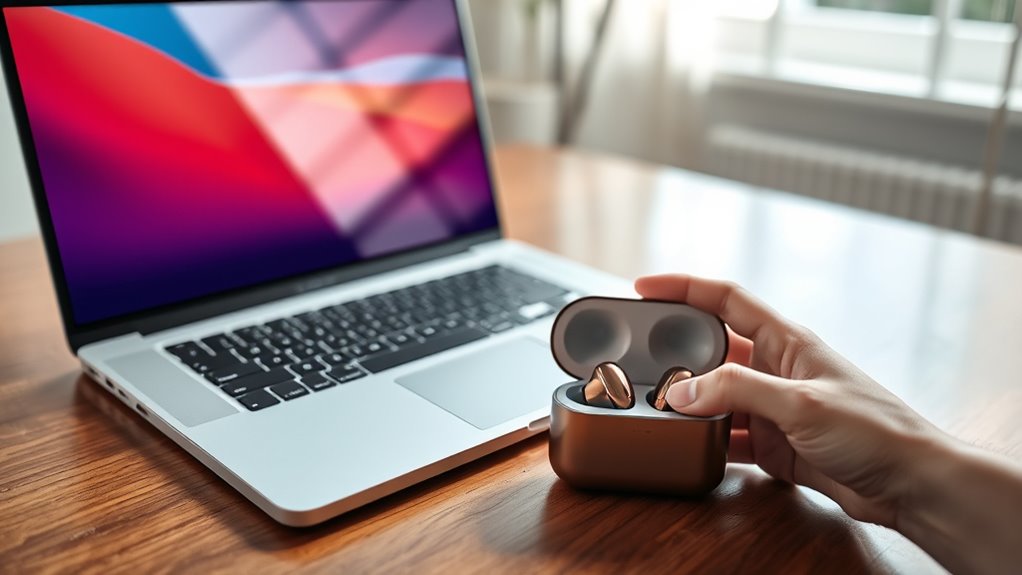

To connect your Tozo earbuds to your laptop, first, verify Bluetooth is enabled on your laptop. Then, put the earbuds in pairing mode by pressing and holding the touch sensors until the light blinks. In your laptop’s Bluetooth settings, locate your Tozo earbuds in the list of available devices and click to connect. Once paired, you can enjoy high-quality audio. For more tips on maintaining your earbuds and optimizing your audio experience, keep exploring!
Understanding Bluetooth Technology
When you want to connect your Tozo earbuds to your laptop, it helps to understand Bluetooth technology, which allows devices to communicate wirelessly. Bluetooth fundamentals are based on short-range radio waves, enabling seamless connections between your earbuds and your laptop. This technology provides the freedom to enjoy wireless audio without tangled cords, enhancing your listening experience.
When you activate Bluetooth on your laptop, it scans for discoverable devices nearby, like your Tozo earbuds. Once paired, you can enjoy high-quality sound without physical limitations. The beauty of Bluetooth lies in its convenience; you can move around freely while still enjoying your favorite music or podcasts. Understanding these basics will make connecting your Tozo earbuds a breeze!
Preparing Your Tozo Earbuds
Before connecting your Tozo earbuds to your laptop, make sure they’re fully charged for peak performance. Once they’re charged, you’ll need to enter pairing mode to establish a Bluetooth connection. Let’s get started with these essential steps.
Charging Your Tozo Earbuds
To guarantee your Tozo earbuds are ready for use, it’s essential to charge them properly. You have a few charging methods at your disposal. The simplest is using the provided charging case. Just place your earbuds inside and connect the case to a power source via the USB cable. Make sure the LED indicators show they’re charging.
If you’re on the go, you can also charge them with a portable power bank. Remember, keeping an eye on the battery life is vital; fully charged earbuds can last several hours, ensuring you enjoy your music without interruptions. For peak performance, always charge your Tozo earbuds when they’re low on battery. This way, you’ll have the freedom to listen whenever you want.
Entering Pairing Mode
Getting your Tozo earbuds ready to connect to your laptop is a straightforward process. First, confirm your earbuds are charged. Then, take them out of the charging case. To enter pairing mode, press and hold the touch sensors on both earbuds until you see a blinking light, indicating they’re ready for Bluetooth pairing.
Here’s a quick reference table:
| Step | Action |
|---|---|
| 1 | Charge your Tozo earbuds |
| 2 | Remove them from the charging case |
| 3 | Press and hold the touch sensors |
| 4 | Wait for the blinking light |
Once in pairing mode, your laptop should detect the earbuds, allowing you to connect easily. Enjoy your newfound freedom!
Enabling Bluetooth on Your Laptop
To connect your Tozo earbuds, you’ll first need to enable Bluetooth on your laptop. Start by accessing the Bluetooth settings in your system. Once you’re there, simply turn on Bluetooth to get things ready for pairing.
Access Bluetooth Settings
Accessing the Bluetooth settings on your laptop is essential for connecting your Tozo earbuds. Once you’re in the settings, you’ll be able to manage Bluetooth devices and guarantee connection stability. Here’s how to visualize it:
- A sleek window opening, showcasing available Bluetooth devices
- Icons lighting up as you scan for your Tozo earbuds
- A simple toggle switch ready to activate Bluetooth
Navigating to these settings is straightforward, and once you’re there, you’ll have the freedom to connect to your earbuds without hassle. Remember, being in the right spot not only simplifies the process but also enhances your audio experience. So, let’s get ready to embrace the wireless world with your Tozo earbuds!
Turn On Bluetooth
Before you can connect your Tozo earbuds, you’ll need to guarantee Bluetooth is turned on your laptop. Start by clicking the Start menu, then select Settings. From there, choose Devices, and look for the Bluetooth section. If Bluetooth isn’t already enabled, toggle the switch to turn it on. This allows your laptop to discover and connect to Bluetooth devices, enabling seamless wireless audio. Once Bluetooth is activated, your laptop will automatically search for available devices. Make sure your Tozo earbuds are in pairing mode, and they should appear in the list of devices on your screen. Select them, and you’re all set to enjoy your favorite tunes without any wires getting in the way!
Putting Your Earbuds in Pairing Mode
Once you’ve taken your Tozo earbuds out of their charging case, you’ll need to put them in pairing mode to connect them to your laptop. This step is essential for enjoying high-quality audio without any wires holding you back.
To activate pairing mode, follow these simple steps:
- Press and hold the touch control on both earbuds simultaneously for a few seconds.
- Look for a flashing LED light, signaling they’re ready to pair.
- You’ll hear a prompt confirming they’re in pairing mode.
Once you see the lights and hear the prompt, your earbuds are ready to connect. Enjoy the freedom of wireless listening with your Tozo earbuds as you immerse yourself in your favorite tunes or podcasts!
Connecting Your Earbuds to the Laptop
Now that your Tozo earbuds are in pairing mode, it’s time to connect them to your laptop. First, open your laptop’s Bluetooth settings. You can usually find this by clicking on the Bluetooth icon in the system tray or going through the settings menu. Once there, enable Bluetooth if it’s not already on. Your laptop will search for devices, and you should see your Tozo earbuds listed. Click on them to initiate the connection. Enjoy the wireless convenience and great sound quality that these earbuds offer. With their impressive earbud features, you can move freely without being tethered to your laptop. Once they’re connected, you’re all set to immerse yourself in your favorite music or videos!
Confirming the Connection
After connecting your Tozo earbuds to your laptop, it’s essential to confirm that the connection is successful. You’ll want to make certain you’re getting the sound you expect. Here’s how to verify your connection:
- Play a favorite song and listen for clear audio.
- Check your Bluetooth settings to see if your earbuds are listed as connected.
- Try a video call to ascertain the microphone works properly.
Adjusting Audio Settings
To guarantee you’re getting the best sound experience from your Tozo earbuds, adjusting audio settings on your laptop is key. Start by checking the audio quality settings in your system’s audio preferences. You can tweak options like equalizer settings to enhance sound balance, ensuring each note resonates beautifully.
Here’s a quick reference table for setting adjustments:
| Setting | Recommended Value | Purpose |
|---|---|---|
| Bass Boost | +3dB | Enhance low frequencies |
| Treble Boost | +2dB | Sharpen high frequencies |
| Balance | Centered | Equalize left/right sound |
Experiment with these settings to find what suits your taste, and enjoy your music like never before!
Troubleshooting Common Connection Issues
If you’re having trouble connecting your Tozo earbuds to your laptop, don’t worry—it’s a common issue. First, check your Bluetooth settings to verify everything’s in order. If that doesn’t work, we’ll go through re-pairing steps and how to select the right audio output.
Bluetooth Settings Check
Checking your Bluetooth settings is crucial when you’re facing connection issues with your Tozo earbuds. First, confirm your laptop’s Bluetooth is enabled and compatible with your earbuds. Sometimes, device interference can cause connectivity problems, so it’s important to minimize disruptions.
Here’s what to check:
- Bluetooth visibility: Make sure your laptop is discoverable by nearby devices.
- Device pairing: Verify that your Tozo earbuds are in pairing mode and close to your laptop.
- Interference sources: Look for other Bluetooth devices nearby that might disrupt the connection.
Re-pairing Earbuds Steps
Sometimes, even after verifying your Bluetooth settings are correct, you might still encounter issues connecting your Tozo earbuds to your laptop. To troubleshoot, start with an earbud reset. Turn off both the earbuds and your laptop, then turn them back on. Next, navigate to your laptop’s Bluetooth settings, remove the earbuds from the list of paired devices, and attempt to pair them again. Ascertain your laptop is compatible with the earbuds, as some older devices may have trouble connecting. If issues persist, try pairing the earbuds with another device to confirm they’re functioning correctly. Following these steps should help you re-establish a stable connection and enjoy your audio experience without interruptions.
Audio Output Selection
Many users overlook the importance of selecting the correct audio output when connecting Tozo earbuds to a laptop. This step is essential for optimizing sound quality and can save you from frustration. Here are some audio output selection tips to keep in mind:
- Check your sound settings: Make sure your laptop recognizes the Tozo earbuds as the output device.
- Adjust volume levels: Sometimes, the earbuds are connected, but the volume is too low to hear.
- Restart your laptop: A quick reboot can resolve any temporary glitches.
Maintaining Your Tozo Earbuds
To keep your Tozo earbuds performing at their best, regular maintenance is essential. Here are some simple earbud maintenance tips to guarantee longevity and peak sound quality:
| Task | Frequency |
|---|---|
| Wipe the exterior | Weekly |
| Clean ear tips | Every few days |
| Check for debris | Before use |
| Charge case regularly | After each use |
| Store properly | After each use |
Use a soft, dry cloth to wipe the exterior and avoid moisture. For cleaning tips, gently remove ear tips and clean them with mild soap and water. Keeping your earbuds clean helps you enjoy clearer sound and prolongs their life.
Enjoying Your Audio Experience
While listening to your favorite music or podcast, you’ll want to guarantee your audio experience is as immersive as possible. Tozo earbuds provide exceptional audio quality, allowing you to feel every beat and word. Plus, their design emphasizes user comfort, making long listening sessions a breeze.
To enhance your experience, consider these tips:
- Find the perfect fit: Experiment with different ear tips for ideal sound isolation.
- Adjust your audio settings: Tweak your laptop’s equalizer to match your music genre for richer tones.
- Eliminate distractions: Create a quiet environment to fully engage with your audio.
Frequently Asked Questions
Can I Connect Multiple Tozo Earbuds to One Laptop?
You can’t connect multiple Tozo earbuds to one laptop due to Bluetooth limitations. Doing so may also compromise audio quality, making it less enjoyable. Stick to one pair for the best listening experience.
How Do I Reset My Tozo Earbuds?
To reset your Tozo earbuds, try this troubleshooting technique: press and hold both buttons for about 10 seconds until you see a flashing light. That’ll initiate the reset process, restoring your earbuds to freedom!
Will Tozo Earbuds Work With Non-Bluetooth Laptops?
Tozo earbuds won’t work with non-Bluetooth laptops directly. However, you can use Bluetooth adapters to enable compatibility. This way, you’ll enjoy your earbuds without restrictions, connecting seamlessly to your laptop for a better experience.
How Can I Check Battery Life on Tozo Earbuds?
You can check battery life on Tozo earbuds by observing the battery indicators on the charging case. For better longevity, remember to follow charging tips like keeping them charged between 20% and 80%.
Can I Use Tozo Earbuds During Phone Calls on My Laptop?
Yes, you can use Tozo earbuds during phone calls on your laptop. Just verify compatibility with your device. The phone call quality should be decent, allowing you to communicate freely without interruptions. Enjoy your conversations!
