
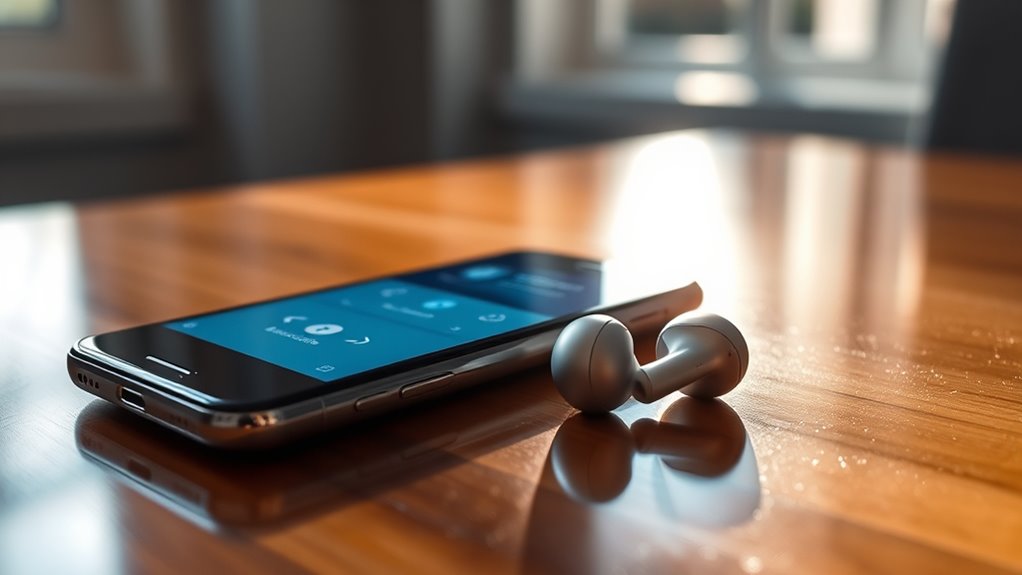

To connect your true wireless earbuds, first, make sure they’re charged. Turn them on by pressing the power button until the indicator light appears. Enable Bluetooth on your device, then remove the earbuds from the charging case to enter pairing mode. Select the earbuds from your device’s Bluetooth settings to pair them. Once connected, you can enjoy your favorite audio hassle-free. Want to learn more about maintaining and optimizing your earbuds?
Understanding True Wireless Earbuds
When you think about modern audio technology, true wireless earbuds stand out for their convenience and sleek design. These compact devices offer a features overview that includes seamless connectivity, touch controls, and impressive battery life. You’ll love how easy they are to use—just pop them in your ears and enjoy your favorite tunes without the hassle of tangled wires. The sound quality is another highlight, providing rich audio with deep bass and clear highs, perfect for any genre. Whether you’re commuting, exercising, or just relaxing at home, true wireless earbuds give you the freedom to move without restrictions. With their stylish look and impressive performance, they’re a great companion for your audio needs, enhancing your listening experience like never before.
Charging Your Earbuds
Charging your true wireless earbuds is a straightforward process, guaranteeing you stay connected to your favorite sounds. Most earbuds come with a compact charging case, which is the primary charging method. Simply place your earbuds inside the case, and they’ll begin charging automatically. Some models also support wireless charging, allowing you to power up without any cables.
To maximize your battery lifespan, avoid letting the earbuds completely die before recharging. Aim to charge them when they drop below 20%. Additionally, keep the charging contacts clean to guarantee a proper connection. By following these simple tips, you can enjoy uninterrupted listening and get the most out of your true wireless earbuds, giving you the freedom to roam without missing a beat.
Turning On Your Earbuds
To get your true wireless earbuds ready, you’ll need to know where the power button is located. Most models allow for automatic pairing once they’re turned on, making the setup process a breeze. Let’s explore how to power them up and start enjoying your music!
Power Button Location
Finding the power button on your true wireless earbuds is essential for getting started. The location of the power button can vary based on the earbud design, but it’s typically found on one of the earbuds or inside the charging case. Some models feature a touch-sensitive area, while others have a physical button. To power on, simply press and hold the designated button for a few seconds until you see an indicator light. If you’re using touch controls, a gentle tap may be all it takes. Familiarizing yourself with the power button’s location not only guarantees a smooth start but also enhances your overall experience, giving you the freedom to enjoy your favorite tunes without complications.
Automatic Pairing Process
Once you’ve powered on your true wireless earbuds, the automatic pairing process kicks in, making it easy to connect to your device. This feature guarantees seamless connectivity, allowing you to enjoy your music or calls without hassle. In just a few moments, your earbuds will search for previously connected devices, making your listening experience truly liberating. Here’s a quick look at the steps involved:
| Step | Description |
|---|---|
| 1. Power On | Turn on your earbuds. |
| 2. Search Device | Earbuds will automatically search. |
| 3. Connect | Select your earbuds from the device. |
| 4. Ready to Use | Enjoy your audio experience! |
With automatic pairing, you’ll be ready to go in no time. Enjoy the freedom of wireless sound!
Enabling Bluetooth on Your Device
To connect your true wireless earbuds, you’ll need to enable Bluetooth on your device. Start by accessing your device settings, where you can easily find the Bluetooth option. Once you locate it, just toggle the Bluetooth switch to activate it and get ready to pair your earbuds.
Access Device Settings
Before you can enjoy your favorite tunes or take calls hands-free, you’ll need to activate Bluetooth on your device. Start by accessing your device settings; this varies slightly depending on whether you’re using a smartphone, tablet, or computer. Look for the Bluetooth option, which might be under ‘Connections’ or ‘Wireless & Networks.’ Make certain your device’s compatibility aligns with your true wireless earbuds. Once in the Bluetooth settings, you may need to grant permissions to allow connections. This step guarantees your earbuds can communicate seamlessly with your device. Remember, each device has unique settings, so don’t hesitate to explore. Once Bluetooth is activated, you’ll be one step closer to enjoying your music and calls without the hassle of wires!
Toggle Bluetooth Option
Enabling Bluetooth on your device is a straightforward process that can usually be accomplished in just a few taps. First, go to your device’s Bluetooth settings. You’ll find toggle options that you can easily switch on or off. Once Bluetooth is enabled, your device will start scanning for nearby wireless devices, including your true wireless earbuds.
Here’s a quick reference to guide you:
| Step | Action |
|---|---|
| 1. Open Settings | Go to your settings app |
| 2. Find Bluetooth | Look for Bluetooth settings |
| 3. Toggle On | Switch on the Bluetooth |
| 4. Pair Devices | Select your earbuds |
Now you’re ready to enjoy your favorite tunes wirelessly!
Pairing Your Earbuds With Your Device
While connecting your true wireless earbuds may seem intimidating at first, it’s actually a straightforward process that anyone can master. First, verify your earbuds are compatible with your device. Check the specifications on both your earbuds and your device to confirm earbud compatibility. Once confirmed, go to your device’s Bluetooth settings and select the option to pair a new device. Remove your earbuds from their charging case; they should automatically enter pairing mode. If not, press and hold the pairing button until you see a flashing light. Now, on your device, you should see your earbuds listed. Select them, and in just a moment, you’ll be connected. Enjoy the freedom of wireless audio!
Testing the Connection
Once your true wireless earbuds are paired with your device, it’s time to test the connection to confirm everything’s working smoothly. Start by playing your favorite music or a podcast. Pay attention to the audio quality—crystal-clear sound is what you’re after. Move around a bit to check connection stability; you shouldn’t experience any drops or interruptions. If you do, consider the distance between your earbuds and the device, as well as any obstacles in the way. Switching to a different audio source can also help you gauge performance. Enjoy the freedom of movement your earbuds provide, and remember, a reliable connection enhances your listening experience, so take a moment to ascertain everything’s just right!
Troubleshooting Common Issues
If you encounter issues with your true wireless earbuds, don’t worry—many problems have straightforward solutions. First, if you’re facing earbud connectivity issues, try resetting your earbuds by placing them back in their case and holding the pairing button. This often resolves pairing glitches. If you’re experiencing sound quality problems, check your device’s volume settings and make sure it’s not muted. Additionally, verify no interference from other Bluetooth devices, as this can affect performance. Cleaning your earbuds and charging case can also help maintain sound clarity. Finally, if issues persist, consider updating your earbuds’ firmware through the manufacturer’s app. With these tips, you’ll be back to enjoying your music in no time!
Maintaining Your True Wireless Earbuds
To guarantee your true wireless earbuds last as long as possible, regular maintenance is key. Start with effective cleaning techniques; gently wipe down the ear tips and charging ports with a soft, dry cloth to remove dirt and grime. Avoid using harsh chemicals that could damage the materials.
For ideal battery care, charge your earbuds properly. Don’t let them drain completely before recharging, as this can diminish battery life. Instead, aim to keep the battery between 20% and 80%.
Store your earbuds in their case when not in use to protect them from dust and accidental damage. By implementing these simple practices, you’ll guarantee your earbuds not only sound great but also serve you well for years to come.
Frequently Asked Questions
Can I Use My Earbuds While Charging?
No, you can’t use your earbuds while they’re charging. The charging duration affects battery life, and using them simultaneously might lead to overheating or damage. It’s best to wait until they’re fully charged for peak performance.
How Far Can I Be From My Device?
You can roam up to about 30 feet from your device, like a bird taking flight. Just remember, Bluetooth range can shrink depending on obstacles and device compatibility. Enjoy your freedom, but stay within reach!
Are True Wireless Earbuds Water-Resistant?
Yes, many true wireless earbuds have water resistance features, often rated with IPX ratings. These ratings indicate how well they can withstand moisture, giving you peace of mind during workouts or rainy days.
How Do I Reset My Earbuds?
To reset your earbuds, press and hold the power button for about ten seconds until you see a flashing light. This earbud troubleshooting step often resolves connectivity issues, giving you the freedom to enjoy your music again.
Can I Connect My Earbuds to Multiple Devices?
Yes, you can connect your earbuds to multiple devices, but most models don’t support simultaneous connection. Multi-device pairing allows you to switch between devices easily, giving you the freedom to enjoy seamless audio experiences.
