
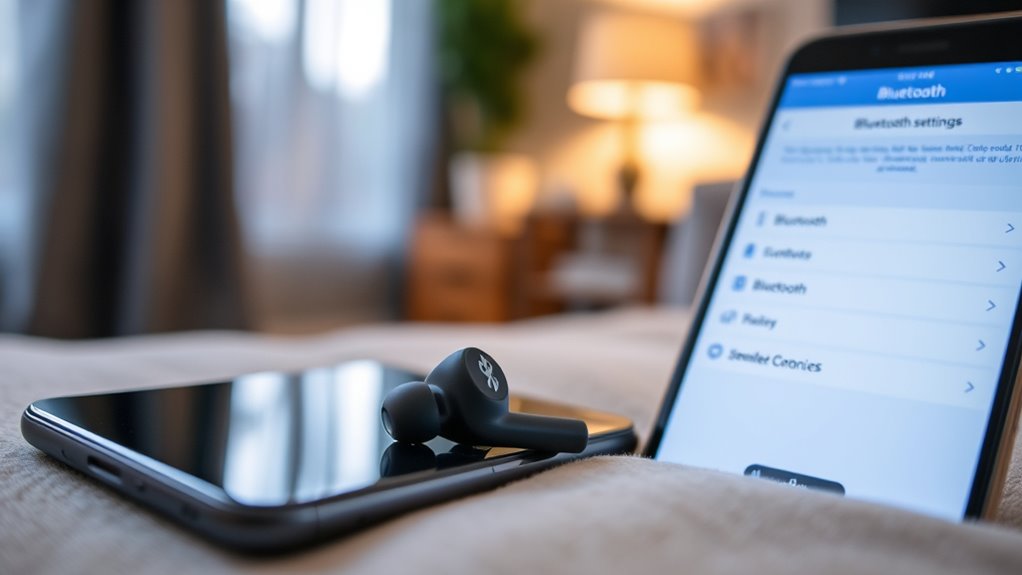

To connect your Skullcandy wireless earbuds, start by ensuring they’re fully charged. Turn them on by pressing and holding the power button until the LED light flashes. Next, activate pairing mode by holding the power button again until the light indicates it’s searching. On your device, enable Bluetooth and select the earbuds from the list. If there are any connection issues, try unpairing and re-pairing them. There’s more to learn about managing settings and troubleshooting, so keep exploring!
Understanding Your Skullcandy Earbuds
To get the most out of your Skullcandy earbuds, it’s essential to understand their features and functions. These earbuds offer various features like noise isolation, customizable sound settings, and a comfortable fit. The noise isolation helps you immerse yourself in your music, blocking out distractions. You can also adjust the sound quality through the companion app, tailoring your listening experience to your liking. With built-in controls, you can easily manage playback and calls without reaching for your device. Plus, many models include a long battery life, ensuring you enjoy your favorite tunes without interruption. Familiarizing yourself with these earbud features will elevate your audio experience, allowing you to enjoy the freedom of wireless listening.
Preparing Your Device for Connection
Before diving into the connection process, make certain your device is ready to pair with your Skullcandy earbuds. First, check for device compatibility; your smartphone, tablet, or laptop should support Bluetooth. Most modern devices use Bluetooth 4.0 or higher, which is vital for ideal performance. If you’re using an older device, it may not support the latest Bluetooth versions, leading to connection issues. Verify your device’s Bluetooth is turned on and not connected to any other devices. This step is important since multiple connections can interfere with pairing. Once you’ve confirmed compatibility and Bluetooth settings, you’re all set to move forward with connecting your Skullcandy earbuds for that freedom of wireless sound.
Turning On Your Skullcandy Earbuds
Power on your Skullcandy earbuds by locating the power button, usually found on one of the earbuds. Press and hold the button until you see a light indicator flash, signaling that they’re powered on. This simple step activates the earbud features designed to enhance your listening experience. Remember, your earbuds’ battery life will vary depending on usage and volume levels, so it’s wise to keep an eye on the battery status. For peak performance, make sure they’re fully charged before use. With your Skullcandy earbuds powered on, you’re one step closer to enjoying your favorite tunes wirelessly. Embrace the freedom of movement and sound quality that comes with these sleek, portable earbuds.
Entering Pairing Mode
To connect your Skullcandy earbuds, you’ll first need to power them on. Once they’re on, you can activate pairing mode to make them discoverable by your device. This step is essential for establishing a successful connection.
Power On Earbuds
Turn on your Skullcandy earbuds by pressing and holding the power button for a few seconds until you see the indicator light flash. This signifies that the earbuds are powered on and ready for use. Knowing your earbud features can enhance your listening experience, especially regarding battery life.
| Feature | Description |
|---|---|
| Battery Life | Up to 24 hours with case |
| Fast Charging | 10 minutes for 2 hours playback |
| Water Resistance | IPX4 rating for sweat & splash |
With a quick power on, you’re one step closer to enjoying your favorite tunes without the hassle of wires. Make sure to keep your earbuds charged, so you can enjoy uninterrupted music freedom!
Activate Pairing Mode
Once your Skullcandy earbuds are powered on, you’ll need to activate pairing mode so they can connect to your device. To do this, press and hold the power button until the LED light flashes. This indicates they’re ready to pair.
Here are some pairing tips to guarantee a smooth connection:
- Stay close: Keep your earbuds and device within a few feet for the best connection.
- Forget previous connections: If you’re having trouble, remove any old connections in your Bluetooth settings.
- Reset if needed: If you encounter common issues, resetting your earbuds can help restore functionality.
Connecting to Your Smartphone
Connecting your Skullcandy earbuds to your smartphone is a straightforward process that can be done in just a few simple steps. First, verify your smartphone is compatible with Bluetooth devices. Open your smartphone’s Bluetooth settings and make sure Bluetooth is activated. Once your earbuds are in pairing mode, they’ll appear in the list of available devices. Tap on the earbuds’ name to connect. You’ll hear a confirmation sound, indicating a successful connection. Enjoy the superior audio quality that Skullcandy earbuds deliver, allowing you to experience music and calls like never before. If you run into any issues, double-check your smartphone compatibility and try reconnecting. You’re now ready to enjoy your favorite tunes wirelessly!
Connecting to Your Computer
To connect your Skullcandy earbuds to your computer, you’ll first need to enable the Bluetooth settings on your device. Next, activate the pairing mode on your earbuds to make them discoverable. Finally, select your earbuds from the list of available devices on your computer.
Enable Bluetooth Settings
While it may seem challenging at first, enabling Bluetooth settings on your computer is a straightforward process that allows you to connect your wireless Skullcandy earbuds effortlessly. Start by checking your device for Bluetooth compatibility; most modern computers have this feature.
Once confirmed, access your computer’s settings, usually found in the system tray or through the control panel. Turn on Bluetooth, and you’re ready to enjoy the freedom of wireless listening within the connection range of your earbuds.
- Experience the joy of untethered movement.
- Enjoy high-quality sound without the hassle of wires.
- Discover the freedom to connect multiple devices seamlessly.
Now, you’re one step closer to immersing yourself in your favorite tunes!
Pairing Mode Activation
Activating pairing mode on your Skullcandy earbuds is essential for connecting them to your computer. To do this, start by confirming your earbuds are powered on. Next, press and hold the power button until you see a blinking LED light—this indicates they’re in pairing mode. If you encounter issues, try resetting your earbuds by turning them off and back on, or consult troubleshooting methods specific to your model. For best results, keep your earbuds within a few feet of your computer during this process. Remember these pairing tips: always confirm your computer’s Bluetooth is turned on and that no other devices are connected to the earbuds. This will help guarantee a smooth and hassle-free connection!
Select Device From List
Once your Skullcandy earbuds are in pairing mode, you can connect them to your computer by selecting them from the Bluetooth device list. Follow these steps to guarantee a smooth connection and avoid compatibility issues:
- Experience your favorite music without distractions.
- Enjoy the freedom of wireless listening wherever you are.
- Feel the exhilaration of seamless connectivity.
To select your earbuds, open your computer’s Bluetooth settings, and look for your Skullcandy model in the list of available devices. Click on it to connect. If you encounter any compatibility issues, double-check that your computer’s Bluetooth is enabled and that your earbuds are still in pairing mode. Enjoy the liberation of wireless sound!
Troubleshooting Connection Issues
If you’re experiencing connection issues with your wireless Skullcandy earbuds, it’s essential to troubleshoot effectively to restore functionality. Start by ensuring your earbuds are fully charged; low battery can lead to common problems. Next, check if your device’s Bluetooth is enabled and within range. If they’re still not connecting, try unpairing your earbuds and then re-pairing them. Sometimes, simply turning the Bluetooth off and on again can resolve connectivity issues. Additionally, check for any interference from other devices, as this can disrupt the connection. If problems persist, resetting your earbuds to factory settings might be necessary. Employ these troubleshooting techniques to regain your freedom of movement and enjoy uninterrupted listening.
Updating Firmware for Optimal Performance
After resolving any connection issues, keeping your wireless Skullcandy earbuds updated is key to guaranteeing they perform at their best. Firmware updates can provide significant performance enhancements, leading to a smoother listening experience. To get the most out of your earbuds, consider these benefits:
- Enjoy crystal-clear sound quality that makes every note resonate.
- Experience improved battery life, giving you more freedom to roam without interruptions.
- Access new features that elevate your audio experience to new heights.
Regularly checking for firmware updates not only optimizes your earbuds but also guarantees you stay in tune with the latest advancements. Embrace the freedom of high-quality sound by keeping your earbuds current and ready for any adventure.
Managing Bluetooth Settings
How can you assure your Skullcandy earbuds connect seamlessly? Start by managing your Bluetooth settings effectively. Make sure your device’s Bluetooth is turned on and that it’s compatible with your earbuds. This prevents connection issues and enhances your experience.
| Action | Purpose |
|---|---|
| Turn on Bluetooth | To enable device pairing |
| Forget previous devices | To avoid connection conflicts |
| Update Bluetooth settings | To assure compatibility |
Enjoying Your Music and Calls
Once your Skullcandy earbuds are connected, you can fully immerse yourself in music and take calls with ease. The exceptional music quality will make every beat resonate, turning mundane moments into experiences you’ll cherish. Whether you’re at home or on the go, you’ll feel the freedom of not being tethered by wires.
- Enjoy crystal-clear call clarity, making conversations feel more personal.
- Experience rich sound that elevates your favorite tracks.
- Embrace the freedom to move while staying connected with loved ones.
With your Skullcandy earbuds, you’ll enjoy an unparalleled auditory experience, allowing you to escape into your music or engage in seamless conversations without missing a beat. Embrace the sound and let it elevate your day!
Frequently Asked Questions
Can I Connect My Skullcandy Earbuds to Multiple Devices Simultaneously?
No, you can’t connect your Skullcandy earbuds to multiple devices at once. They typically support one connection at a time, ensuring ideal audio quality and device compatibility. Switching devices requires disconnecting from the current one first.
How Can I Reset My Skullcandy Earbuds to Factory Settings?
To reset your Skullcandy earbuds to factory settings, hold the power button for about 10 seconds until you see the LED flash red and blue. This reset process clears previous connections, granting you freedom to reconnect.
What Is the Battery Life of Skullcandy Earbuds During Playback?
Skullcandy earbuds typically offer impressive battery performance, providing around six to eight hours of playback duration on a single charge. With the charging case, you can extend that time considerably for uninterrupted listening enjoyment.
Are Skullcandy Earbuds Water-Resistant or Sweat-Proof?
Yes, many Skullcandy earbuds come with water resistance features and sweat protection capabilities. This means you can enjoy your workouts or outdoor activities without worrying about damage from moisture or sweat. Go ahead, enjoy!
How Do I Know When My Skullcandy Earbuds Need Charging?
You’ll know your Skullcandy earbuds need charging when the battery indicator flashes red or you hear an audio prompt. Just connect them to a charging cable, and you’re good to go for more listening freedom.
