
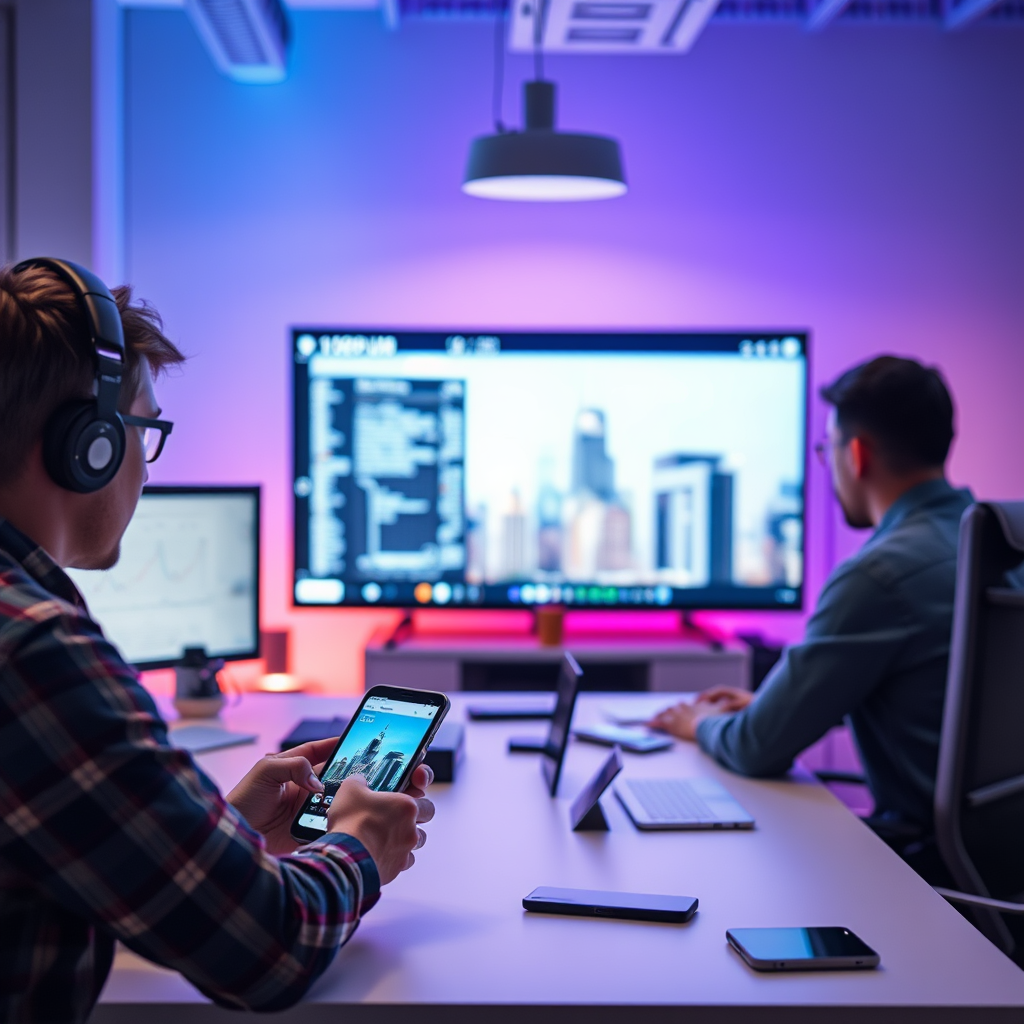

Connecting your smartphone to your smart TV is simple and can significantly enhance your viewing experience by allowing you to share content seamlessly. Whether you want to stream videos, display photos, or use your phone as a remote control, there are various methods available ranging from wireless options like Wi-Fi Direct and Bluetooth to wired connections like HDMI. This article will guide you through each connection method step-by-step, ensuring you can enjoy your multimedia content on a larger screen.
Wireless Connection Methods
Wi-Fi Direct
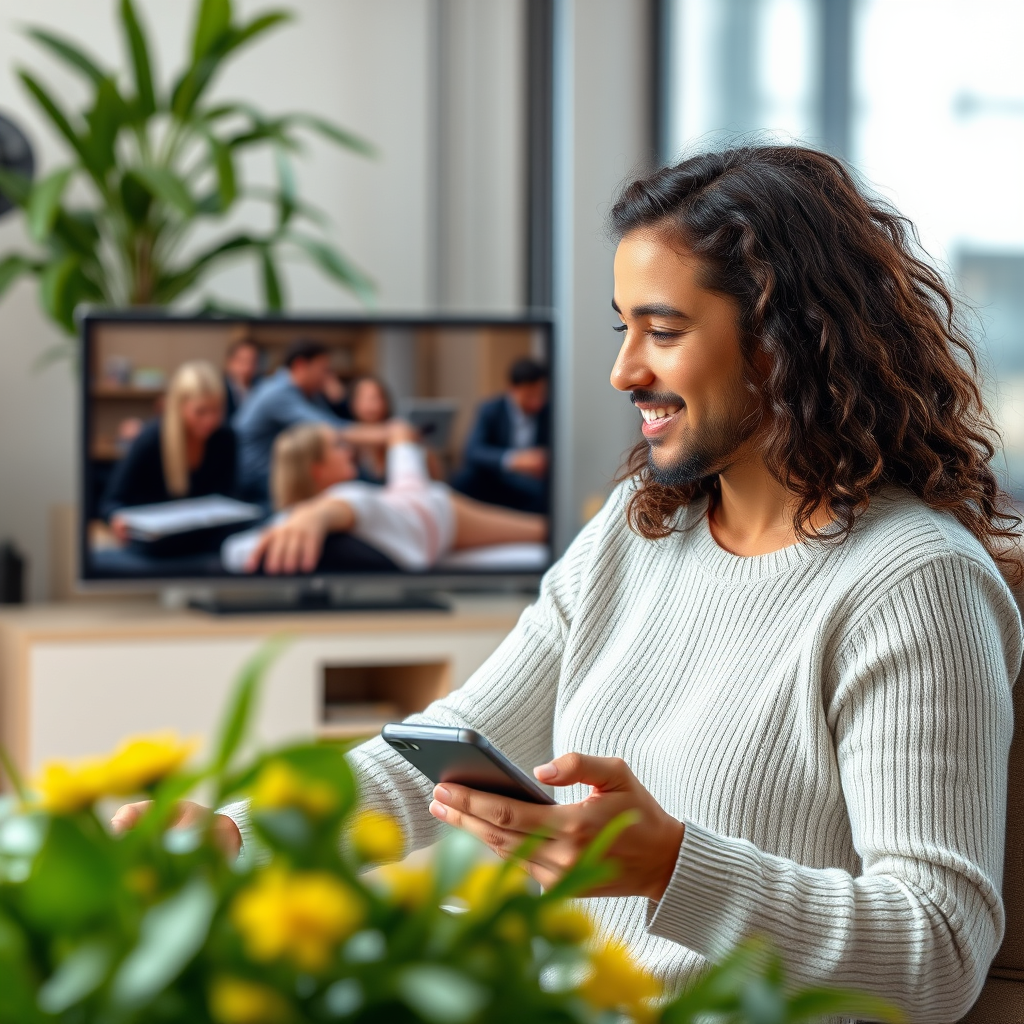
Wi-Fi Direct is a technology that allows devices to connect directly to each other without needing a wireless router. Many modern smart TVs support this feature, allowing for easy and quick connections. To use Wi-Fi Direct, ensure your smart TV is powered on and navigate to its settings to enable Wi-Fi Direct. On your smartphone, go to the Wi-Fi settings, search for available networks, and select your smart TV from the list. Once connected, you can stream videos and photos directly to your TV without any lag.
Screen Mirroring
Screen mirroring is another popular method for connecting your smartphone to your smart TV. Features like Miracast for Android devices and AirPlay for Apple devices make it easy to mirror your smartphone screen onto the TV wirelessly. To use this feature, enable screen mirroring on your TV through the settings menu. On your smartphone, access the screen mirroring option (found in the quick settings or display settings) and select your TV from the list of available devices. This method is ideal for presentations, gaming, or sharing content with friends and family.
Using Bluetooth
Pairing Devices
Bluetooth provides a convenient way to connect your smartphone to your smart TV, especially for audio streaming. To pair the devices, first, ensure that Bluetooth is enabled on both your smartphone and your smart TV. On your TV, navigate to the Bluetooth settings and set it to discoverable mode. On your smartphone, go to the Bluetooth settings and select your smart TV from the list of available devices. Once paired, you can enjoy streaming music, podcasts, and other audio content directly from your smartphone to your TV’s speakers.
Streaming Audio
Using Bluetooth to stream audio offers a hassle-free way to enjoy music or podcasts on a larger sound system. This method is particularly useful when hosting gatherings or simply enjoying a personal listening experience. Additionally, some smart TVs support advanced audio features that allow you to adjust sound settings directly from your smartphone, providing enhanced audio quality.
HDMI Connection
Cables Needed
For a more stable connection, an HDMI cable is an excellent choice. If your smartphone has a USB-C or Lightning port, you will need an appropriate adapter to connect it to the HDMI input of your smart TV. These adapters are widely available and easy to use. Simply connect the adapter to your smartphone, plug in the HDMI cable, and connect the other end to the TV.
Switching Input
After connecting your smartphone to the TV via HDMI, you will need to switch the TV’s input source to the corresponding HDMI port. This can usually be done using the remote control. Once switched, your smartphone’s display should appear on the TV screen, allowing you to enjoy your content in high definition.
Utilizing Streaming Devices
Smart Devices
Devices such as Chromecast, Roku, and Amazon Fire Stick can serve as intermediaries between your smartphone and smart TV. These devices often come with dedicated apps that simplify the connection process and enhance functionality. For instance, using Chromecast, you can cast content from supported apps directly to your TV without any complicated setup.
App Integration
Many streaming devices offer app integration features that allow for easy control and content sharing. For example, with Roku, you can use the Roku mobile app to browse channels, search for content, and even use your smartphone as a remote control. This integration makes it easier to manage your viewing experience without juggling multiple remotes.
Apps for Easy Connection
Manufacturer Apps
Most smart TV manufacturers provide proprietary apps designed to facilitate seamless connections between smartphones and TVs. For instance, Samsung SmartThings allows users to connect their Samsung smartphones to Samsung smart TVs effortlessly. These apps typically feature user-friendly interfaces that simplify the entire process, making it accessible for users of all technical backgrounds.
Third-Party Options
In addition to manufacturer apps, there are third-party applications like AllCast and LocalCast that allow you to send media from your smartphone to your TV easily. These apps can support various file formats and offer additional features, such as the ability to cast to multiple devices simultaneously, giving you more flexibility in how you share content.
Top Smart TV Connection Methods (2024)
| # | Connection Method | Ease of Use | Setup Time | Best For |
|---|---|---|---|---|
| 1 | Wi-Fi Direct | Easy | 5 mins | Quick Sharing |
| 2 | Screen Mirroring | Moderate | 10 mins | Real-Time Sharing |
| 3 | Bluetooth | Easy | 5 mins | Audio Streaming |
| 4 | HDMI Cable | Moderate | 5 mins | Stable Connection |
| 5 | Chromecast | Easy | 5 mins | Versatile Streaming |
| 6 | Roku | Easy | 5 mins | User-Friendly |
| 7 | Apple AirPlay | Very Easy | 2 mins | Apple Users |
Troubleshooting Connection Issues
Check Compatibility
One common issue when connecting your smartphone to a smart TV is compatibility. Ensure both devices support the connection method you intend to use. For example, not all smart TVs support screen mirroring or Wi-Fi Direct. Refer to the user manuals or the manufacturer’s website for detailed compatibility information.
Network Issues
If you encounter connectivity problems, restarting your Wi-Fi router and both devices can often resolve the issue. Additionally, ensure that your smartphone and TV are connected to the same Wi-Fi network when attempting to use wireless methods. If problems persist, consider checking for firmware updates for both devices, as updates often resolve connectivity bugs.
Additional Features to Explore
Casting and Streaming
Many apps, such as Netflix and YouTube, have built-in casting features that allow you to send videos directly to your smart TV from your smartphone. This method typically requires you to tap the cast icon within the app and select your TV from the list of available devices. This direct integration simplifies the process and enhances the viewing experience.
Remote Control Options
Numerous apps allow you to use your smartphone as a remote control for your smart TV. Manufacturer apps often include this feature, but there are also third-party options available. This capability is particularly useful if you misplace your remote or prefer the convenience of controlling your TV through your smartphone.
By following these methods, you can easily connect your smartphone to your smart TV and enjoy a more integrated multimedia experience. Whether you prefer wireless or wired connections, there are plenty of options available to suit your needs. Take the time to explore these methods today and enhance your entertainment setup! With the right connection, you can transform your smartphone into a powerful tool for a richer viewing experience.
Frequently Asked Questions
How can I connect my smartphone to my smart TV using Wi-Fi?
To connect your smartphone to your smart TV via Wi-Fi, ensure both devices are on the same network. On your smart TV, activate the screen mirroring or casting feature, often found in the settings menu. Then, on your smartphone, open the casting option in the settings or notification panel, select your TV, and follow the prompts to establish the connection.
What is the best way to connect my smartphone to a smart TV without Wi-Fi?
The best way to connect your smartphone to a smart TV without Wi-Fi is by using an HDMI adapter. Plug the adapter into your smartphone’s charging port and connect it to your TV’s HDMI port. This method provides a stable connection and allows you to mirror your smartphone screen directly onto the TV.
Why is my smartphone not connecting to my smart TV?
If your smartphone is not connecting to your smart TV, first check if both devices are updated to the latest software version. Ensure that both devices are on the same Wi-Fi network and that any necessary features, like Bluetooth or screen mirroring, are enabled on your TV. Restarting both devices can also resolve connectivity issues.
Which apps can I use to connect my smartphone to my smart TV?
You can use several apps to connect your smartphone to your smart TV, including Google Home for Chromecast-enabled TVs, Apple AirPlay for compatible devices, and third-party apps like AllCast or LocalCast. These apps allow you to stream content and mirror your smartphone’s display seamlessly.
How do I troubleshoot connection issues between my smartphone and smart TV?
To troubleshoot connection issues between your smartphone and smart TV, start by ensuring that both devices are connected to the same Wi-Fi network. Check for any software updates, as outdated firmware can cause connectivity problems. Additionally, try restarting both devices and disabling any VPNs or firewalls that may be interfering with the connection.
References
- Screencast
https://en.wikipedia.org/wiki/Screencasting - https://www.lifewire.com/how-to-connect-smartphone-to-smart-tv-5072766
https://www.lifewire.com/how-to-connect-smartphone-to-smart-tv-5072766 - https://www.bbc.com/news/technology-46375384
https://www.bbc.com/news/technology-46375384 - Google Scholar Google Scholar
https://scholar.google.com/scholar?q=connect+smartphone+to+smart+tv - Google Scholar Google Scholar
https://scholar.google.com/scholar?q=smartphone+screen+mirroring+techniques - Google Scholar Google Scholar
https://scholar.google.com/scholar?q=how+to+cast+smartphone+to+tv - Google Scholar Google Scholar
https://scholar.google.com/scholar?q=how+can+i+connect+my+smartphone+to+my+smart+tv - how can i connect my smartphone to my smart tv – Search results
https://en.wikipedia.org/wiki/Special:Search?search=how+can+i+connect+my+smartphone+to+my+smart+tv - https://www.ncbi.nlm.nih.gov/search/research-articles/?term=how+can+i+connect+my+smartphone+to+my+smart+tv
https://www.ncbi.nlm.nih.gov/search/research-articles/?term=how+can+i+connect+my+smartphone+to+my+smart+tv
