
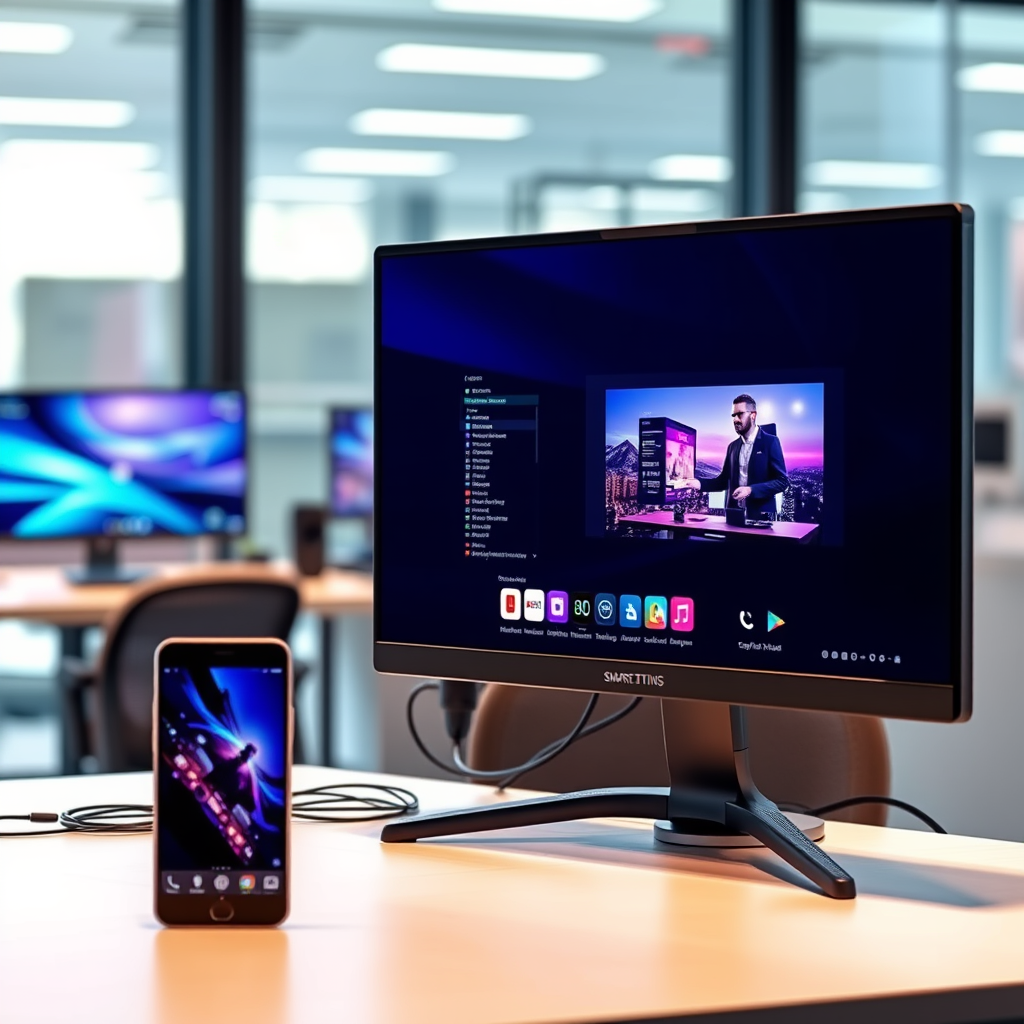

To convert your computer monitor into a smart TV, you can utilize various devices and methods that enable streaming and connectivity. This guide will explore different options available, from streaming devices to software solutions, allowing you to enjoy your favorite shows and movies on a larger screen. By leveraging these technologies, you can turn your existing monitor into a versatile entertainment hub without the need for a dedicated smart TV.
Understanding Monitor Capabilities
Before embarking on your journey to convert a computer monitor into a smart TV, it is essential to understand the capabilities of your monitor. The first step is to ensure that your monitor has the necessary ports for connectivity, specifically HDMI or DisplayPort. These ports are crucial as they allow you to connect various streaming devices or computers that can facilitate smart TV functions.
Additionally, you should check whether your monitor has built-in speakers. If it does, you can enjoy sound directly from the monitor. However, many monitors lack adequate audio quality, making it prudent to consider external audio solutions, such as soundbars or speakers, for an enhanced viewing experience. In today’s multimedia landscape, sound quality significantly contributes to the overall enjoyment of visual content, making this a critical consideration.
Using Streaming Devices
One of the simplest and most effective ways to convert your monitor into a smart TV is by using a streaming device. Popular options include Roku, Amazon Fire Stick, and Google Chromecast. These devices are compact, user-friendly, and packed with features that enable you to stream content from platforms like Netflix, Hulu, and YouTube.
Setting up one of these devices is straightforward. For instance, the Amazon Fire Stick connects to your monitor via HDMI. Once plugged in, you simply follow the on-screen instructions to connect to your Wi-Fi network and download your preferred streaming apps. The Roku device operates similarly, offering a user-friendly interface and a wide selection of channels. Chromecast, on the other hand, allows you to cast content from your mobile device or computer directly to your monitor, providing a seamless way to enjoy your favorite shows.
Connecting a Laptop or PC
Another viable method to transform your monitor into a smart TV is by connecting a laptop or desktop computer. This approach allows you to stream content directly from your computer to the monitor. To connect your PC, use an HDMI cable to link your computer to the monitor, ensuring that both devices are powered on.
Once connected, you may need to adjust the display settings on your computer for optimal viewing. On Windows, you can do this by right-clicking on the desktop, selecting “Display settings,” and adjusting the resolution to match your monitor’s capabilities. Mac users can navigate to “System Preferences,” select “Displays,” and choose the appropriate resolution. This method not only allows you to stream video content but also enables you to browse the internet or use applications, making it a versatile option for entertainment.
Top Streaming Devices for Monitor Conversion (2023)
| # | Device | Resolution | Streaming Services | Price |
|---|---|---|---|---|
| 1 | Amazon Fire Stick | 4K | Prime Video, Netflix, Hulu | $39.99 |
| 2 | Roku Streaming Stick | HD | HBO Max, Disney+, YouTube | $49.99 |
| 3 | Google Chromecast | HD | Netflix, Hulu, Spotify | $29.99 |
| 4 | Apple TV 4K | 4K | Apple TV+, Netflix, Hulu | $179.00 |
| 5 | NVIDIA Shield | 4K | GeForce NOW, Netflix, Amazon Prime | $199.99 |
| 6 | Raspberry Pi 4 | HD | Kodi, Plex | $55.00 |
| 7 | Xiaomi Mi Box | 4K | Netflix, HBO, YouTube | $69.99 |
Utilizing Smart TV Software
If you prefer a more integrated solution, consider utilizing smart TV software. Platforms such as Android TV or setting up a Raspberry Pi can provide smart TV functionality to your monitor. Android TV, for instance, offers a robust operating system designed for streaming and media consumption. It supports various applications, including popular streaming services, games, and even voice control.
To set up Android TV, you can either use an Android TV box or install the operating system on a compatible device. If you opt for a Raspberry Pi, you can install software like LibreELEC or OSMC to create a powerful media center. Both setups require a bit of technical knowledge but provide an excellent way to enhance your viewing experience by leveraging your monitor’s capabilities.
Enhancing Audio Quality
While visual quality is paramount, audio quality can significantly impact your viewing experience as well. If your monitor lacks sufficient sound output, consider connecting external speakers or a soundbar. High-quality audio can elevate your favorite movies and shows, providing a more immersive experience.
For those who prefer a wireless solution, Bluetooth audio options are available. Many modern soundbars and speakers support Bluetooth connectivity, allowing you to connect your monitor to these devices without the hassle of cables. This setup not only declutters your space but also provides flexibility in audio placement, enhancing the overall aesthetic and functionality of your entertainment setup.
Setting Up Network Connectivity
To fully utilize your converted smart TV setup, ensure that your monitor or connected device has access to Wi-Fi. A stable internet connection is essential for streaming content from various platforms. Most streaming devices and smart TV software will guide you through the network setup process, but it’s important to verify that your Wi-Fi signal is strong enough to support streaming without interruptions.
Additionally, consider using a wired connection if possible, as Ethernet connections often provide more reliable speeds compared to Wi-Fi. This can be particularly beneficial for high-definition streaming or gaming scenarios where latency and buffering can detract from the experience.
Exploring Additional Features
Once your monitor is successfully converted into a smart TV, you can explore additional features that enhance your viewing experience. For instance, many streaming devices offer screen mirroring capabilities, allowing you to share content from your mobile devices directly to your monitor. This feature can be particularly useful for presentations, gaming, or sharing photos and videos with friends and family.
Moreover, various apps and services can be installed to further customize your smart TV experience. From games to streaming services, the possibilities are nearly limitless. You can even integrate services like Spotify for music streaming or utilize home automation applications to control smart home devices directly from your monitor.
By following these steps, you can effectively convert your computer monitor into a smart TV, enabling you to enjoy a wide range of entertainment options. Start by assessing your monitor’s features and choose the method that best suits your needs. Whether you opt for a streaming device or connect a computer, the possibilities are endless for creating your personalized viewing experience.
Frequently Asked Questions
What are the best ways to convert a computer monitor into a smart TV?
To convert a computer monitor into a smart TV, you can use a streaming device like Roku, Amazon Fire Stick, or Chromecast, which connects via HDMI. Alternatively, you can use a mini PC or a laptop connected to the monitor to access streaming services directly. This allows you to enjoy smart TV functionalities without needing to buy a new television.
How do I connect my computer monitor to the internet for smart TV features?
You can connect your computer monitor to the internet by using a streaming device that has Wi-Fi capability, which can be plugged into the HDMI port. If your monitor has built-in USB ports, you might also consider using a USB Wi-Fi adapter, or connect a laptop with internet access to the monitor via HDMI to access online content.
Why should I convert my computer monitor to a smart TV instead of buying a new one?
Converting your computer monitor to a smart TV is a cost-effective solution, especially if you already have a high-quality monitor. It reduces the need for additional purchases and utilizes existing technology, allowing you to stream your favorite shows and movies without the expense of a new smart TV.
Which streaming devices are compatible with computer monitors?
Most HDMI-compatible streaming devices work well with computer monitors, including Roku, Amazon Fire TV Stick, Apple TV, and Google Chromecast. Ensure your monitor has an HDMI port and supports the resolution of the streaming device for optimal performance.
What challenges might I face when using a computer monitor as a smart TV?
One of the main challenges is that most computer monitors lack built-in speakers, so you’ll need external speakers or a soundbar for audio. Additionally, monitors may not have TV tuners or remote controls, which can limit functionality compared to traditional smart TVs.
References
- Smart TV
https://en.wikipedia.org/wiki/Smart_TV - https://www.lifewire.com/how-to-turn-a-computer-monitor-into-a-smart-tv-4176730
https://www.lifewire.com/how-to-turn-a-computer-monitor-into-a-smart-tv-4176730 - Google Scholar Google Scholar
https://scholar.google.com/scholar?q=how+to+convert+computer+monitor+to+smart+tv - Google Scholar Google Scholar
https://scholar.google.com/scholar?q=smart+TV+technology+and+computer+monitors - Google Scholar Google Scholar
https://scholar.google.com/scholar?q=using+computer+monitor+as+smart+TV - https://www.pcmag.com/how-to/how-to-use-your-computer-as-a-smart-tv
https://www.pcmag.com/how-to/how-to-use-your-computer-as-a-smart-tv - how to convert computer monitor to smart tv – Search results
https://en.wikipedia.org/wiki/Special:Search?search=how+to+convert+computer+monitor+to+smart+tv - https://www.ncbi.nlm.nih.gov/search/research-articles/?term=how+to+convert+computer+monitor+to+smart+tv
https://www.ncbi.nlm.nih.gov/search/research-articles/?term=how+to+convert+computer+monitor+to+smart+tv

[…] Clear app cache/restart: Many smart TVs and streaming devices resolve “stuck entitlement” errors with a […]
[…] channel lineup. This guide answers whether Spectrum offers TV-only options using alternatives like streaming devices, and what to expect for installation, equipment, and channel access. If you’re hoping for full […]
[…] are accessed and managed through the Sling TV app, which supports DVR playback on compatible streaming devices. A stable internet connection improves reliability when Sling TV DVR schedules and uploads […]