
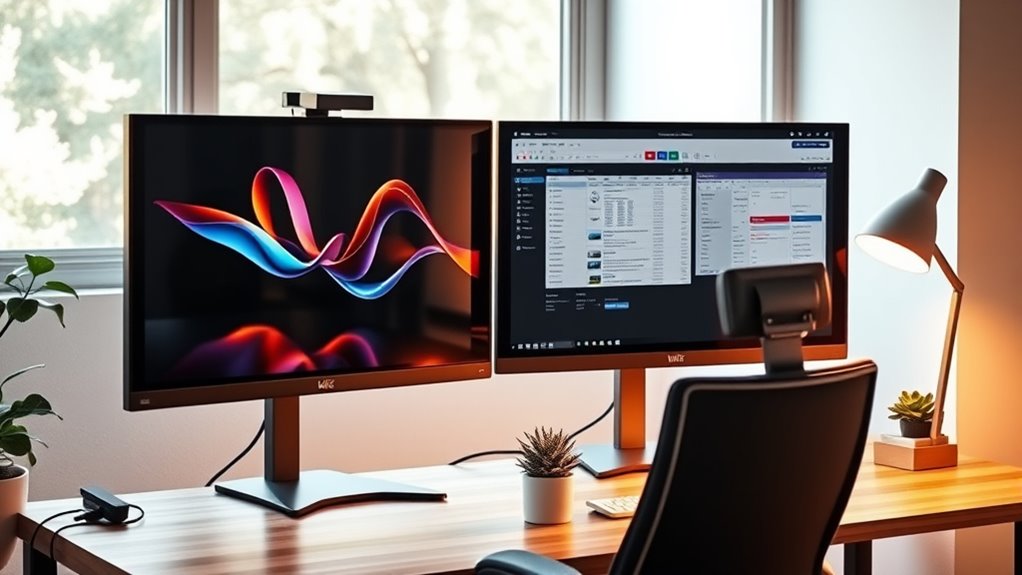

To set up dual monitors, start by choosing monitors that match in size and resolution for a seamless experience. Connect them using HDMI, DisplayPort, or DVI cables, then power them on and check if your computer recognizes them. Adjust display settings to match resolutions for clarity. Finally, arrange your workspace to minimize clutter and designate specific tasks to each monitor. If you’re facing difficulties, there are simple solutions to enhance your dual monitor experience even further.
Choosing the Right Monitors
When it comes to choosing the right monitors for your dual setup, there are a few key factors to contemplate. First, consider resolution compatibility; matching resolutions can greatly enhance your experience, ensuring seamless shifts between screens. Whether you’re working on design projects or gaming, clarity matters. Next, think about monitor size. Ideally, you want two monitors that are similar in size for a cohesive look and feel. If one monitor’s too large or small compared to the other, it can disrupt your workflow. Finally, take into account your workspace; you’ll need enough room to accommodate both monitors without clutter. By keeping these factors in mind, you’ll create a dual setup that maximizes your productivity and freedom.
Connecting and Configuring Your Dual Monitors
Once you’ve selected the right monitors for your dual setup, it’s time to connect and configure them to optimize your workspace. First, identify the cable types you’ll need—HDMI, DisplayPort, or DVI, depending on your monitors and graphics card. Plug the cables into their respective ports on both the monitors and your computer. Next, power on the monitors and verify they’re recognized by your system. Check that both screens display the intended monitor resolution for a clear and crisp image. If you’re using different resolutions, decide which one you want to prioritize for a seamless experience. Once connected, you’ll feel the freedom of multitasking like never before, boosting your productivity and making your workspace truly yours!
Adjusting Display Settings for Optimal Use
To make the most of your dual monitor setup, you’ll want to immerse yourself in the display settings for ideal use. Start by adjusting the display resolution; matching both monitors guarantees a seamless experience. Check your graphics settings and select the best resolution for each screen, enhancing clarity and reducing strain. Next, focus on color calibration. Use built-in calibration tools or software to validate color accuracy across both displays, making your work visually pleasing and consistent. Adjust brightness and contrast levels to suit your preference, assuring comfort during extended use. Fine-tuning these settings can greatly improve your overall experience, allowing you to enjoy the freedom and flexibility that dual monitors provide. Embrace your setup and maximize its potential!
Tips for Enhancing Productivity With Dual Monitors
While adapting to dual monitors can be a game-changer for your workflow, implementing a few strategic tips can elevate your productivity even further. Focus on effective workspace organization and application management to maximize your efficiency. Here are some actionable tips:
- Designate Tasks: Assign specific applications to each monitor, keeping related tasks together for seamless multitasking.
- Use Virtual Desktops: If your operating system supports it, create virtual desktops for different projects, allowing you to switch contexts quickly.
- Adjust Your Layout: Position your monitors at eye level and within a comfortable viewing distance to reduce strain during long work sessions.
Troubleshooting Common Dual Monitor Issues
If you’re encountering issues with your dual monitor setup, you’re not alone—many users face common challenges that can disrupt their workflow. One frequent problem is screen flickering, which can often stem from a loose cable connection or incompatible refresh rates. Check that all cables are securely connected and try adjusting the refresh rate in your display settings.
Another issue is resolution mismatch, where one monitor displays a different resolution than the other, leading to visual inconsistencies. To fix this, right-click on your desktop, select “Display settings,” and verify both monitors are set to their recommended resolutions. By addressing these common issues, you can enjoy a smooth and efficient dual monitor experience that enhances your productivity.
Frequently Asked Questions
Can I Use Different Brands of Monitors Together?
Yes, you can use different brands of monitors together. Just verify monitor compatibility regarding resolution and connection types. Brand differences won’t matter much, as long as your graphics card supports both monitors effectively.
Will Dual Monitors Affect My Laptop’s Battery Life?
Yes, dual monitors will likely increase your laptop’s battery consumption. To manage this, adjust your power settings and consider using energy-efficient monitors. Balancing performance and battery life can give you the freedom to work longer.
Is There a Limit to How Many Monitors I Can Connect?
Yes, there’s a limit to how many monitors you can connect, often determined by your laptop’s hardware and connection types. Keep an eye on monitor limitations to guarantee peak performance and enjoy your expanded workspace.
Can I Use Dual Monitors With a Gaming Console?
Yes, you can use dual monitors with a gaming console, but it depends on console compatibility. This setup can enhance your gaming experience, allowing you to multitask or immerse yourself in a larger visual environment.
Do I Need Special Cables for Different Monitor Types?
You don’t need special cables, but monitor compatibility matters. Different cable types like HDMI, DisplayPort, or VGA may be required depending on your monitors. Just guarantee your devices support the same connection types for seamless setup.
