


To download apps on a Sharp Smart TV, you can use the built-in app store that comes with the TV, allowing you to browse, select, and install your favorite applications directly. In this guide, you’ll learn step-by-step how to access the app store, navigate it, and download apps seamlessly to enjoy on your Sharp Smart TV.
Accessing the App Store
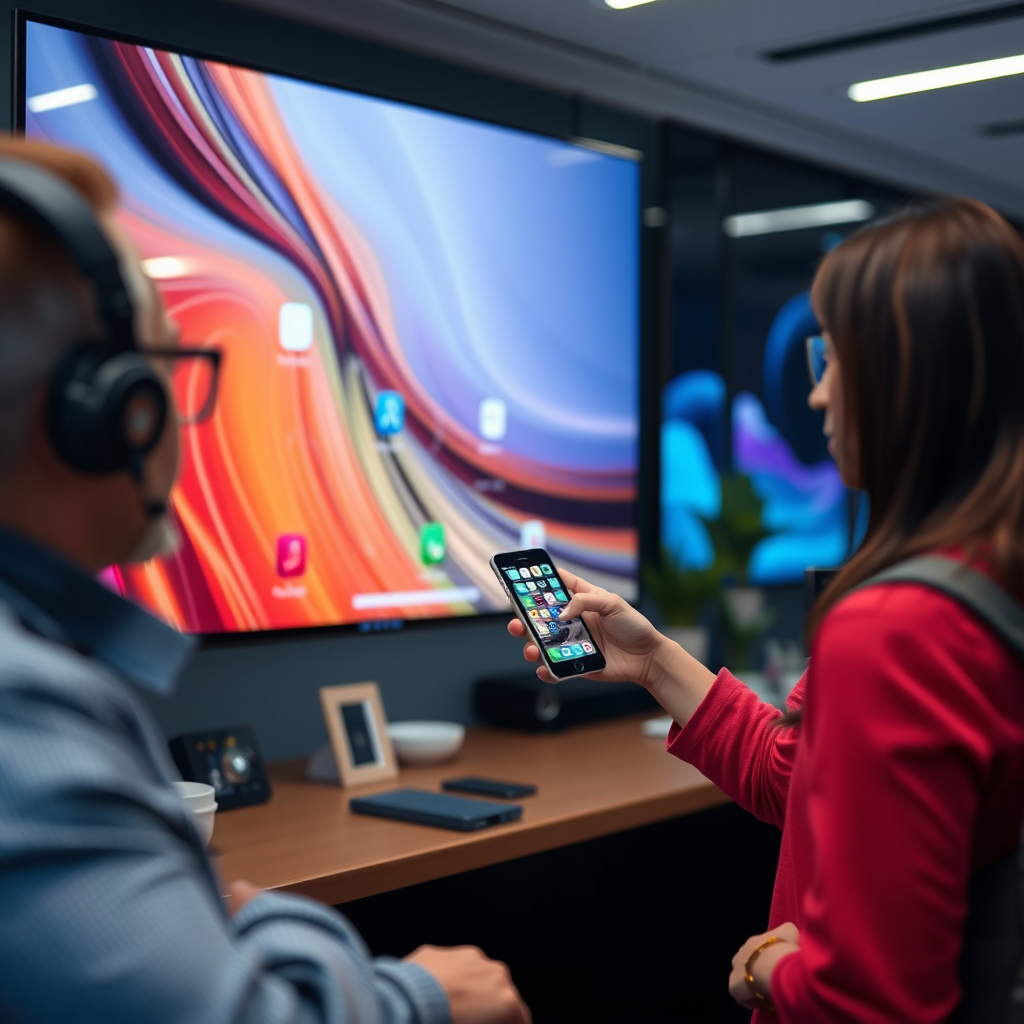
Accessing the app store on your Sharp Smart TV is a straightforward process. First, locate the “Home” button on your remote control; this button typically has a house icon and will take you to the main menu when pressed. Once the main menu is visible, navigate to the “Apps” section. Here, you will find the app store icon, which is usually labeled as “Sharp App Store” or simply “Apps.” Selecting this icon will bring up the app store interface, where you can explore a wide range of applications tailored for your viewing experience.
This built-in app store is designed to provide you with easy access to popular streaming services, games, and utility applications, enhancing the functionality of your Sharp Smart TV. Make sure that your TV is connected to the internet, as this is essential for accessing the app store and downloading apps.
Browsing Available Apps
Once you are inside the app store, you can start browsing for apps that pique your interest. The app store offers a search function, allowing you to find specific apps quickly. Simply type in the name of the app you are looking for using the on-screen keyboard, and the search results will display relevant applications.
In addition to the search function, you can also browse through various categories. These categories may include entertainment, news, games, and lifestyle, providing you with an organized way to discover new content. The featured apps section showcases popular and trending applications, which can help you stay updated on the latest offerings available for your Sharp Smart TV.
Utilizing these browsing tools can significantly enhance your app discovery process, ensuring that you find the applications that best suit your entertainment needs.
Downloading an App
Downloading an app on your Sharp Smart TV is a simple and efficient process. Once you have found an app you wish to download, select it, and you will be taken to the app’s detailed page. This page usually includes a brief description of the app, user ratings, and other important information that can help you make an informed decision.
To initiate the download, look for the “Install” or “Download” button on the app page. By clicking this button, your app will begin to download and install automatically. Depending on the size of the app and your internet connection speed, this process may take anywhere from a few seconds to several minutes. Once the installation is complete, an option to open the app will usually appear on the screen.
For a smooth experience, ensure that your TV has sufficient storage space, as some larger applications may require a significant amount of memory. If you encounter any issues during the download, double-check your internet connection and consider restarting your TV to resolve minor glitches.
Top 7 Most Downloaded Apps on Sharp Smart TV (2024)
| # | App Name | Category | User Ratings | Size (MB) |
|---|---|---|---|---|
| 1 | Netflix | Entertainment | ★★★★☆ | 180 |
| 2 | YouTube | Video | ★★★★★ | 250 |
| 3 | Amazon Prime Video | Entertainment | ★★★★☆ | 200 |
| 4 | Spotify | Music | ★★★★★ | 150 |
| 5 | Hulu | Entertainment | ★★★★☆ | 220 |
| 6 | Disney+ | Entertainment | ★★★★☆ | 175 |
| 7 | Tubi | Free Streaming | ★★★★☆ | 80 |
Managing Installed Apps
After successfully downloading apps, managing them becomes crucial for optimizing your viewing experience. To access your installed applications, navigate to the “My Apps” section from the main menu. Here, you will find a list of all the applications you have installed on your Sharp Smart TV.
From this section, you can rearrange the order of your apps for easier access to your favorites. Simply highlight the app you wish to move, and follow the on-screen instructions to reposition it. Additionally, if you find that you no longer use a particular app, you can uninstall it directly from this section, freeing up valuable storage space on your TV.
Updating your apps is also an essential part of managing your installed applications. Some apps may require updates to ensure optimal performance and access to new features. Check for updates periodically to keep your applications running smoothly and securely.
Troubleshooting Download Issues
While downloading apps on your Sharp Smart TV is generally straightforward, you may occasionally encounter issues. One of the most common problems is a lack of internet connectivity. Ensure that your TV is connected to the internet, either via Wi-Fi or Ethernet. You can check your connection status through the settings menu.
If you experience persistent issues with downloads, consider restarting your TV. This can clear temporary glitches that may hinder the download process. Additionally, keeping your TV’s software up to date is important; check for updates in the settings menu to ensure that your TV is running the latest version of its operating system.
In some cases, inadequate storage space may prevent you from downloading new apps. Review your installed applications and uninstall those that you no longer use to free up necessary space for new downloads.
Tips for Maximizing App Usage
To fully leverage the capabilities of your Sharp Smart TV, consider the following tips for maximizing your app usage. First, regularly explore new apps that are added to the app store. This will keep your entertainment options fresh and allow you to discover new content that aligns with your interests.
Second, take advantage of the settings available within each app. Many applications offer customization options, enabling you to tailor notifications, playback preferences, and user profiles. Adjusting these settings can significantly enhance your viewing experience and ensure that you receive personalized content suggestions.
Lastly, consider utilizing your Sharp Smart TV to its fullest by integrating other smart home devices. Many apps support features like voice control and remote access, allowing you to create a seamless entertainment environment.
By following these steps, you can easily download and enjoy a variety of applications on your Sharp Smart TV. Explore the app store today and start enhancing your entertainment experience!
Frequently Asked Questions
How do I download apps to my Sharp Smart TV?
To download apps on your Sharp Smart TV, first, press the “Home” button on your remote. Navigate to the “Apps” section, then select the “App Store” or “Google Play Store” depending on your model. From there, you can browse or search for specific apps, and simply click “Install” to download them directly to your TV.
Why can’t I find certain apps on my Sharp Smart TV?
Certain apps may not be available on your Sharp Smart TV due to compatibility issues or the model of your TV. Make sure your TV is updated to the latest firmware, as manufacturers often add new apps with software updates. Additionally, some apps may be exclusive to specific platforms, so checking the app’s availability for Sharp TVs is essential.
What are the best apps to download on a Sharp Smart TV?
The best apps for your Sharp Smart TV largely depend on your interests, but popular choices include streaming services like Netflix, Hulu, and Amazon Prime Video, as well as YouTube for video content. For gaming, consider downloading apps like Xbox Game Pass or Stadia if available. Always check user reviews to find the most suitable apps for your viewing preferences.
How can I update apps on my Sharp Smart TV?
To update apps on your Sharp Smart TV, go to the “Apps” section and select the “App Store” or “Google Play Store.” From there, navigate to “My Apps” or a similar option that shows your installed apps. If updates are available, you will see an “Update” button next to the respective apps; click it to install the latest versions.
Which Sharp Smart TVs support app downloads?
Most modern Sharp Smart TVs come equipped with the ability to download apps, particularly those running the Android TV operating system. Check the specifications of your model to confirm its capabilities. If your Sharp TV has access to the Google Play Store or the Sharp App Store, it typically supports downloading a wide range of applications.
References
- https://www.wikiwand.com/en/Smart_TV
https://www.wikiwand.com/en/Smart_TV - https://www.lifewire.com/how-to-download-apps-on-sharp-smart-tv-5071253
https://www.lifewire.com/how-to-download-apps-on-sharp-smart-tv-5071253 - Support | Business & Consumer Products | SHARP
https://www.sharpusa.com/Support/Product-Downloads - Google Scholar Google Scholar
https://scholar.google.com/scholar?q=how+to+download+apps+to+a+sharp+smart+tv - Google Scholar Google Scholar
https://scholar.google.com/scholar?q=Sharp+Smart+TV+app+installation - Google Scholar Google Scholar
https://scholar.google.com/scholar?q=smart+tv+applications+download+methods - how to download apps to a sharp smart tv – Search results
https://en.wikipedia.org/wiki/Special:Search?search=how+to+download+apps+to+a+sharp+smart+tv - https://www.ncbi.nlm.nih.gov/search/research-articles/?term=how+to+download+apps+to+a+sharp+smart+tv
https://www.ncbi.nlm.nih.gov/search/research-articles/?term=how+to+download+apps+to+a+sharp+smart+tv
