
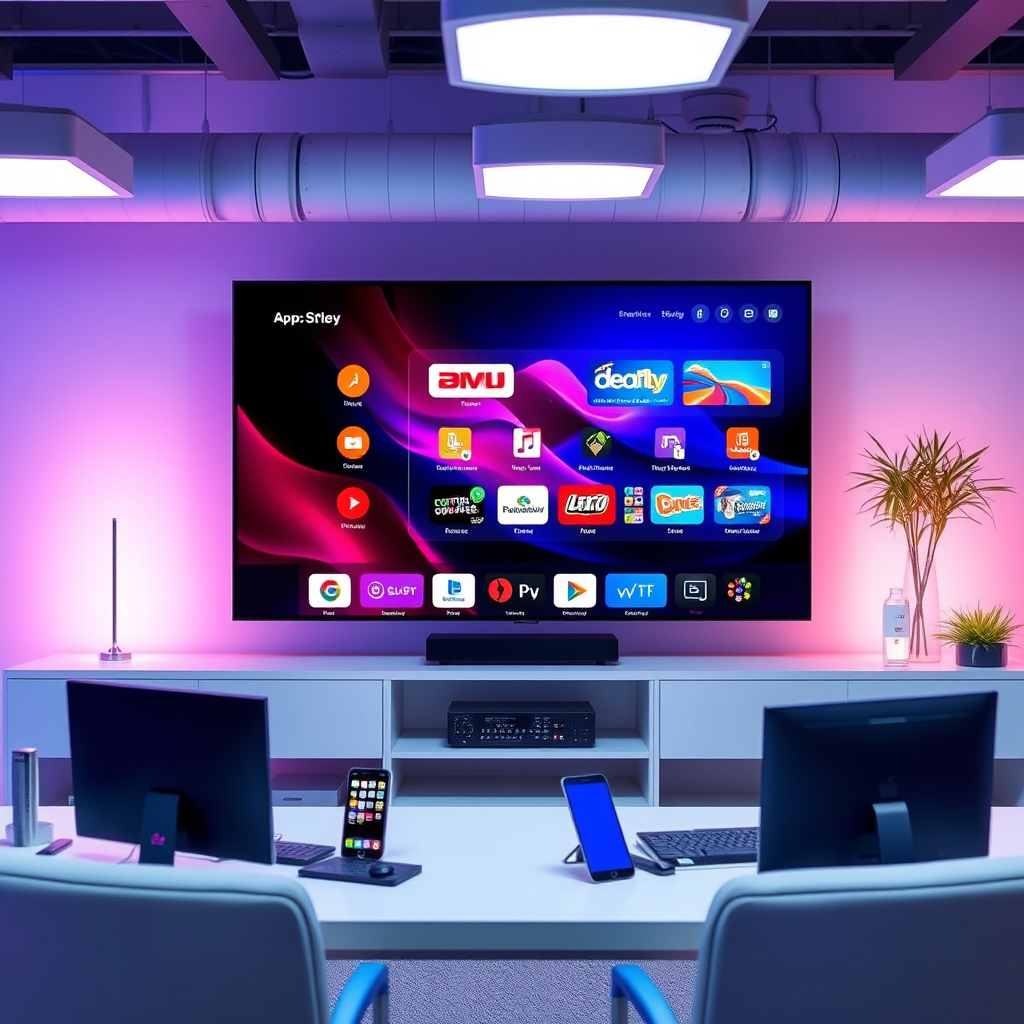

To download apps to your Sharp Smart TV, you need to access the Google Play Store or the Sharp AQUOS App Store directly from your TV. This straightforward process enhances your viewing experience by allowing you to add your favorite applications, whether for streaming, gaming, or other functionalities. In this guide, we’ll walk you through the steps to find, download, and manage apps on your Sharp Smart TV, ensuring you can make the most out of your device.
Accessing the App Store
The first step in downloading apps to your Sharp Smart TV is to navigate to the app store. Using your remote control, power on your TV and follow these simple instructions:
1. Navigate to the Main Menu: Press the “Home” or “Menu” button on your remote control. This will bring up the main interface of your Sharp Smart TV.
2. Select the App Store: Look for the “Apps” icon or the “Google Play Store” icon. Depending on your model, you may find it prominently displayed on the main screen or within a submenu. Select it to enter the app store.
Once you have accessed the app store, you are ready to explore the vast array of applications available for download.
Browsing and Searching for Apps
After entering the app store, you can browse or search for apps that suit your needs. Here’s how to effectively find the applications you want:
– Using the Search Function: If you have a specific app in mind, utilize the search function. This can usually be found at the top of the app store screen. Type in the app name or relevant keywords, and the store will provide a list of matching results.
– Browsing Popular and Recommended Apps: For those looking to discover new content, browse through the categories such as “Top Free Apps,” “Top Paid Apps,” or “Recommended for You.” This is an excellent way to find trending apps or hidden gems that can enhance your TV experience.
Downloading and Installing Apps
Once you’ve found the app you wish to download, the installation process is quite straightforward:
1. Select the Desired App: Click on the app to view more details, including ratings, descriptions, and screenshots. This information can help you confirm that it’s the right app for your needs.
2. Click on the Install Button: Once you are ready, look for the “Install” button. Click it to begin the download and installation process. Depending on your internet speed and the app size, this may take a few moments.
After the installation is complete, the app will typically appear in your “Apps” section or on your home screen, ready for use.
Top 7 Streaming Apps for Sharp Smart TV (2024)
| # | App Name | Rating | Monthly Cost | Available Content |
|---|---|---|---|---|
| 1 | Netflix | ★★★★☆ | $15.99 | Movies, Series |
| 2 | Hulu | ★★★★☆ | $14.99 | Movies, TV Shows |
| 3 | Amazon Prime Video | ★★★★☆ | $14.99 | Movies, Series |
| 4 | Disney+ | ★★★★☆ | $7.99 | Movies, Series |
| 5 | YouTube | ★★★★☆ | Free | User-Generated Content |
| 6 | Apple TV+ | ★★★★☆ | $4.99 | Original Series |
| 7 | Peacock | ★★★☆☆ | $4.99 | Movies, TV Shows |
Managing Installed Apps
After downloading apps, it’s essential to know how to manage them effectively. The management process typically includes accessing, reordering, and removing applications:
1. Accessing Your Downloaded Apps: From the main menu, navigate to the “Apps” section. Here, you will find all the applications that you’ve downloaded. Select any app to launch it directly.
2. Reordering Apps: You may want to customize your home screen by reordering the apps. This can usually be done by selecting an app and pressing the corresponding button on your remote to move it. Depending on your TV model, this may involve holding down a button or selecting an option from a menu.
3. Removing Apps: If you find that you no longer use a certain app, you can uninstall it to free up space. Navigate to the app in the “Apps” section, select it, and look for an “Uninstall” or “Remove” option. Confirm the action, and the app will be deleted from your TV.
Troubleshooting Download Issues
While downloading apps can be a seamless process, issues may occasionally arise. Here are some common troubleshooting tips to address potential download problems:
– Check Your Internet Connection: A slow or unstable internet connection can lead to issues with downloading apps. Ensure your TV is connected to Wi-Fi and that the signal is strong. You can test the internet speed on your TV if your model allows it.
– Restart Your TV: If downloads are still failing, restarting your Sharp Smart TV may resolve the issue. Simply power it off, wait for a moment, and turn it back on. This can help reset any temporary glitches in the system.
If problems persist after trying these steps, consider reaching out to Sharp’s customer support for further assistance.
Updating Apps
Keeping your apps updated is crucial for performance and security. Here’s how to ensure your apps are current:
1. Check for Updates Regularly: Open the app store and navigate to the “My Apps” or “Updates” section. Here, you can see which apps have available updates. Select the ones you wish to update, and click on the “Update” button.
2. Enable Automatic Updates: If available, enabling automatic updates can simplify the process, ensuring your apps are always up to date without manual intervention. This option is typically found in the settings menu of the app store.
Exploring Additional Features
To maximize your enjoyment of your Sharp Smart TV, explore additional features that enhance usability:
– Voice Commands: If your Sharp TV supports voice control, you can use voice commands to open apps, change settings, or even search for content. This hands-free approach can make navigation much more convenient.
– Using Your Smartphone as a Remote: Many Sharp Smart TVs allow you to download a companion app for your smartphone, enabling you to use your phone as a remote control. This is particularly useful for typing in searches or navigating through apps with greater ease.
Additionally, explore compatible apps that enhance your viewing experience. Popular options include streaming services, games, and educational content.
Summarizing the steps to download apps on your Sharp Smart TV, you can easily access the app store, find and install your favorite applications, and manage them effectively. Should you encounter any issues, the troubleshooting tips provided can help you resolve them swiftly. Dive into the app store today and expand your entertainment options!
Frequently Asked Questions
How do I download apps on my Sharp Smart TV?
To download apps on your Sharp Smart TV, first, press the “Home” button on your remote to access the main menu. Then navigate to the “Apps” section, select the “App Store,” and browse or search for the app you wish to download. Once you find the app, click “Install” to begin the download process.
Why can’t I find certain apps on my Sharp Smart TV?
Some apps may not be available on your Sharp Smart TV due to compatibility issues or regional restrictions. Additionally, ensure your TV has the latest firmware updates, as developers frequently release new versions of their apps that may require updated software to function correctly.
What are the best apps to download for Sharp Smart TVs?
The best apps for Sharp Smart TVs often include popular streaming services like Netflix, Hulu, and Amazon Prime Video, as well as utility apps like YouTube and Spotify. Depending on your interests, you might also consider downloading gaming apps or news applications to enhance your viewing experience.
How do I update apps on my Sharp Smart TV?
To update apps on your Sharp Smart TV, navigate to the “Apps” section from the main menu and select “My Apps.” Here, you will see a list of installed apps with available updates. Choose the app you want to update and follow the on-screen instructions to ensure you have the latest version.
Which Sharp Smart TVs support app downloads?
Most modern Sharp Smart TVs, especially those running the Android TV operating system, support app downloads from the Google Play Store. You can check your specific model’s compatibility by visiting the Sharp website or referring to the user manual that came with your TV.
References
- https://www.bbc.com/news/technology-56340833
https://www.bbc.com/news/technology-56340833 - https://www.reuters.com/technology/how-install-apps-your-smart-tv-2021-05-05/
https://www.reuters.com/technology/how-install-apps-your-smart-tv-2021-05-05/ - SharpUSA Support
https://support.sharpusa.com/ - https://www.nytimes.com/2020/12/01/technology/personaltech/how-to-download-apps-on-smart-tv.html
https://www.nytimes.com/2020/12/01/technology/personaltech/how-to-download-apps-on-smart-tv.html - https://www.sciencedirect.com/topics/computer-science/smart-tv
https://www.sciencedirect.com/topics/computer-science/smart-tv - Google Scholar Google Scholar
https://scholar.google.com/scholar?q=how+to+download+apps+to+sharp+smart+tv - Google Scholar Google Scholar
https://scholar.google.com/scholar?q=installing+apps+on+smart+tv - Google Scholar Google Scholar
https://scholar.google.com/scholar?q=Sharp+Smart+TV+applications+download+guide - how to download apps to sharp smart tv – Search results
https://en.wikipedia.org/wiki/Special:Search?search=how+to+download+apps+to+sharp+smart+tv - https://www.ncbi.nlm.nih.gov/search/research-articles/?term=how+to+download+apps+to+sharp+smart+tv
https://www.ncbi.nlm.nih.gov/search/research-articles/?term=how+to+download+apps+to+sharp+smart+tv
