
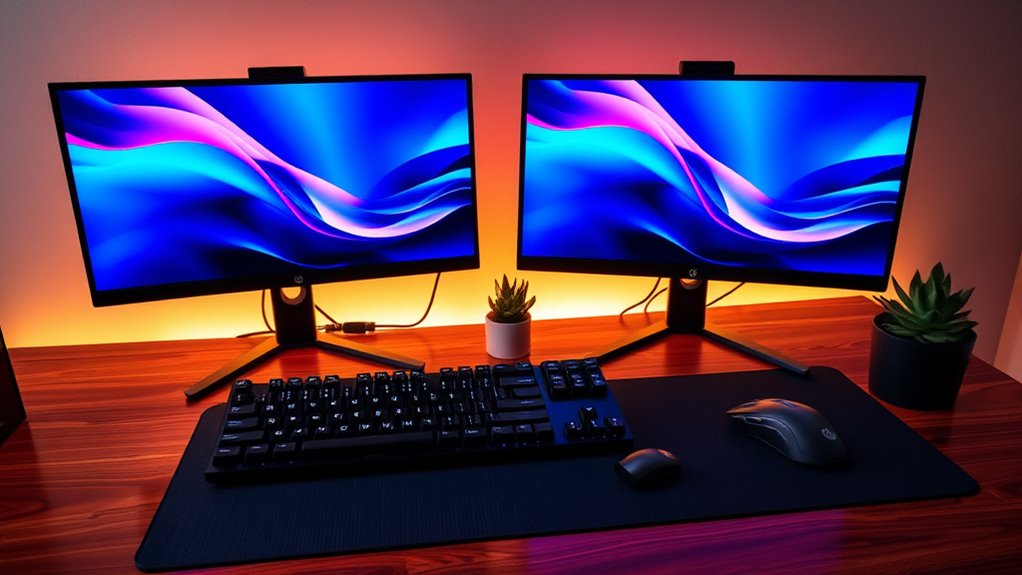

To set up dual monitors, first check your computer’s hardware compatibility, ensuring your graphics card supports multiple displays. Next, connect your monitors using appropriate cables like HDMI or DisplayPort and power them on. Once connected, adjust the display settings in Windows by right-clicking the desktop and selecting “Display settings.” Customize the resolution and layout to fit your needs. This setup can greatly enhance your productivity. Stay tuned to learn how to troubleshoot common issues!
Understanding the Benefits of Dual Monitors
When you consider enhancing your workspace, dual monitors can considerably boost your productivity and efficiency. With two screens, you’ll find it easier to manage multiple tasks simultaneously, leading to increased productivity. Imagine having your email open on one screen while working on a document or conducting research on the other; this enhanced multitasking allows you to switch between tasks seamlessly and reduces the time spent toggling between windows.
Moreover, dual monitors can help minimize distractions, as you can dedicate one screen for focused work and the other for less demanding tasks. This setup not only streamlines your workflow but also provides a sense of freedom, enabling you to create a workspace tailored to your unique needs and preferences.
Checking Your Hardware Compatibility
Before setting up dual monitors, it’s essential to check if your hardware can support them. Start by reviewing your computer’s hardware specifications. Look for the graphics card—does it have multiple outputs? Many modern graphics cards do, but older models might not. Also, identify the monitor types you’re considering; some may require specific connections, like HDMI or DisplayPort.
Next, verify that your power supply can handle the additional load of a second monitor. Don’t forget to check the maximum resolution and refresh rate your graphics card can support for each monitor. Ensuring compatibility will save you headaches down the line and allow you to fully enjoy the benefits of dual monitors without limitation.
Connecting Your Monitors
Connecting your monitors is a straightforward process that can greatly enhance your productivity. To get started, you’ll need to take into account some key factors, including monitor types and cable options. Here’s a quick guide to help you set up:
- Check Ports: Identify the ports on your computer and monitors. Common options include HDMI, DisplayPort, and VGA.
- Choose Cables: Based on the ports, select the appropriate cables to connect your devices. Verify they match in type for maximum performance.
- Power Up: Plug in your monitors and turn them on. Confirm they’re receiving power and are ready to connect.
Once you’ve made these connections, you’re one step closer to an expanded workspace! Enjoy the freedom of multitasking like never before.
Configuring Display Settings on Windows
Configuring your display settings on Windows is essential for optimizing your dual monitor setup. First, right-click on your desktop and select “Display settings.” Here, you’ll see options to adjust resolution, orientation, and display scaling. If one monitor looks different from the other, tweak the scaling to guarantee consistency across screens.
You can also set up multiple desktops by using the Task View feature, which allows you to organize your workspace efficiently. This way, you can keep your projects separate and easily switch between them. Don’t forget to arrange your monitors in the settings to match their physical positions, guaranteeing a seamless experience. With these configurations, you’ll harness the full potential of your dual monitor setup!
Configuring Display Settings on Macos
Setting up your dual monitors on macOS is a straightforward process that can greatly enhance your productivity. To optimize your display arrangement and guarantee proper monitor alignment, follow these steps:
- Open System Preferences: Click on the Apple menu and choose “System Preferences,” then select “Displays.”
- Detect Displays: If your monitors aren’t automatically detected, click “Gather Windows” to see all display options.
- Arrange Displays: Drag the display icons to match your physical setup. Position them side by side or one above the other, depending on your preference.
Once you’re done, click “Apply” to confirm changes. Enjoy your expanded workspace and the freedom to multitask like never before!
Troubleshooting Common Issues
When setting up dual monitors, you might encounter some common issues like connection problems, display configuration errors, or resolution compatibility mismatches. Don’t worry—these are usually easy to fix with a few adjustments. Let’s walk through some quick solutions to get your setup running smoothly.
Connection Problems
While dual monitors can greatly enhance your productivity, connection problems can sometimes dampen the experience. If you’re facing issues, here are a few troubleshooting tips:
- Check cable types: Verify you’re using the right cables for your monitors and computer. HDMI, DisplayPort, and VGA can all behave differently.
- Inspect connections: Loose or damaged cables can cause display issues. Make sure everything’s securely plugged in.
- Consider adapter options: If your computer and monitors don’t match in ports, look into quality adapters. They can bridge the gap and guarantee a seamless connection.
Display Configuration Issues
After resolving any connection problems, you might still encounter display configuration issues that can hinder your dual monitor setup. Here are some common problems and solutions to contemplate:
| Issue | Solution |
|---|---|
| Incorrect display order | Adjust settings in multi display software |
| Blank screen on one monitor | Check for display driver updates |
| Different resolutions | Set both monitors to the same resolution |
Make sure your display driver updates are current, as outdated drivers can cause conflicts. Additionally, using reliable multi display software can simplify managing your monitors and enhance your experience. Don’t hesitate to plunge into your display settings; fine-tuning them can reveal the full potential of your dual monitor setup, granting you the freedom to work more efficiently.
Resolution Compatibility Errors
Even if you’ve successfully set up your dual monitors, you might face resolution compatibility errors that can impact your productivity. These issues often arise in multi monitor setups and can be frustrating. Here are some tips to troubleshoot:
- Check Display Settings: Verify both monitors are set to their native resolutions. Right-click on your desktop and access display settings to adjust.
- Adjust Resolution Scaling: If one monitor looks blurry, try adjusting the resolution scaling settings. This can improve clarity and alignment between screens.
- Update Drivers: Outdated graphics drivers can cause compatibility issues. Make certain your GPU drivers are up-to-date for peak performance.
Frequently Asked Questions
Can I Use Different Brands of Monitors Together?
Absolutely, you can use different brands of monitors together! Monitor compatibility is usually great these days, and brand performance won’t usually clash. Just make certain your connections match, and you’ll enjoy a seamless dual setup!
Will Dual Monitors Affect My Computer’s Performance?
Yes, dual monitors can affect your computer’s performance. It depends on your graphics card and resource allocation. If your setup’s capable, you’ll enjoy the extra screen space without significant slowdowns in daily tasks.
What Size Monitors Work Best for Dual Setups?
For dual setups, 24 to 27-inch monitors are ideal. Look for a resolution of at least 1080p and a 16:9 aspect ratio for best viewing. This combination enhances your experience without sacrificing workspace or comfort.
Can I Use a TV as a Second Monitor?
Yes, you can use a TV as a second monitor! Just check for TV compatibility with your computer. Common connection options include HDMI or DisplayPort, ensuring a smooth setup for your expanded display experience.
How Do I Switch Between Monitors Quickly?
To switch between monitors quickly, use keyboard shortcuts like Windows + P to access display settings. Choose your preferred display mode, then navigate easily between screens, giving you the freedom to multitask effortlessly.
