
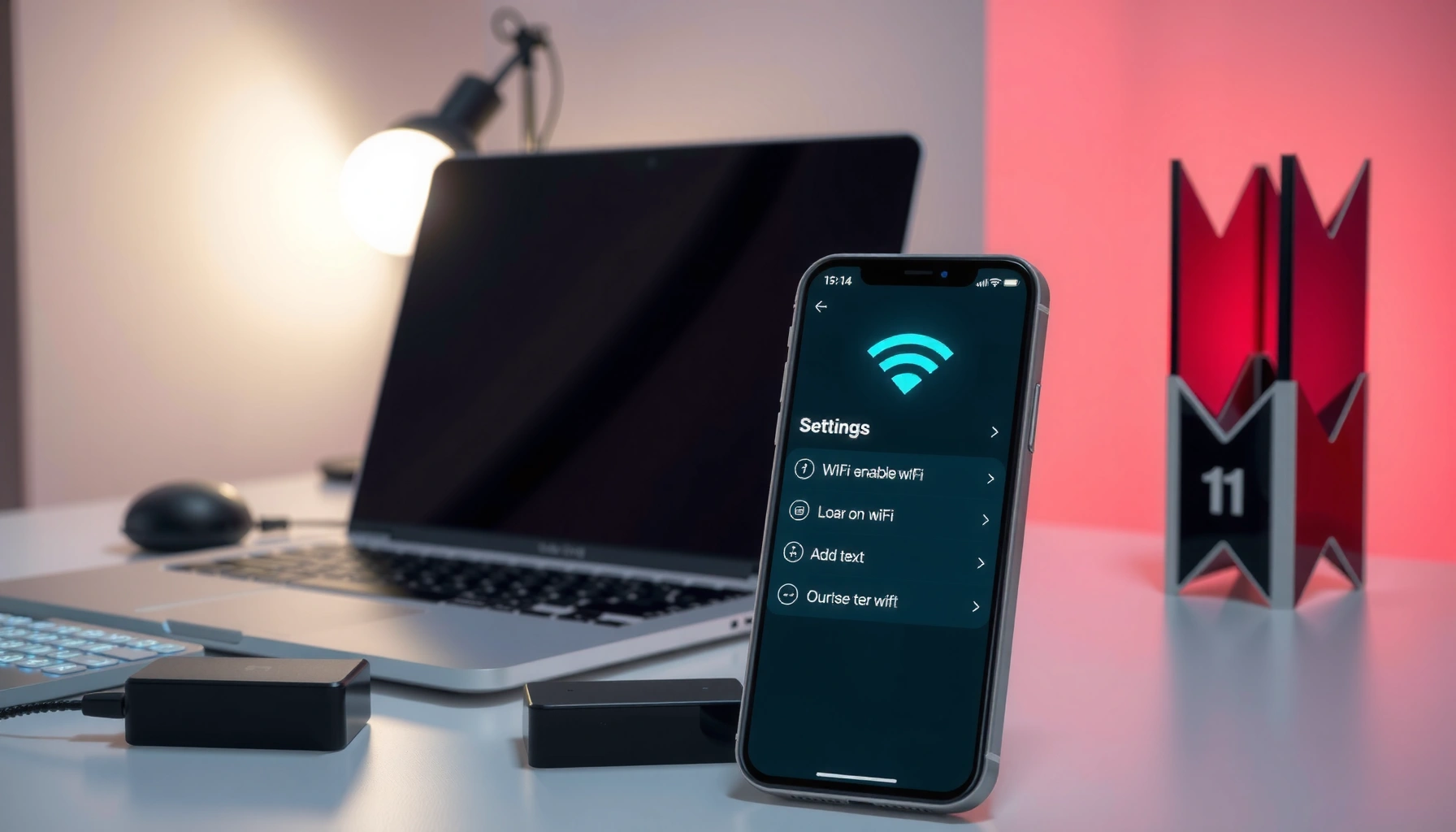

Enabling WiFi is fastest when you follow a single step-by-step path that works on any device type—phone, tablet, or laptop. This guide tells you exactly what to tap or click to turn WiFi on, connect to your network, and confirm you’re online. If you’re stuck on “WiFi is off” or “can’t connect,” you’ll get the exact fixes in the right order.
To enable WiFi, open your device’s Network/Settings, toggle WiFi to On, then connect to the correct network name (SSID) and enter the password. If WiFi is greyed out or missing, the fix is usually Airplane mode, a hardware WiFi switch/Fn key, or a disabled WiFi adapter/driver—start there to avoid wasting time.
If WiFi isn’t working on your laptop, phone, tablet, or desktop, this guide gives you a fastest-path checklist plus targeted troubleshooting. Use the sections that match your device and follow the scan-and-save checklist at the end.
Check the basics first (Airplane mode + hardware switch)
If WiFi won’t turn on, begin by disabling Airplane mode and checking whether your device has a physical WiFi control. Those two issues are the most common reason the WiFi toggle is greyed out or networks never appear.
Airplane mode disables wireless radios, so your WiFi toggle may appear greyed out even if the device supports WiFi.
Some laptops require a hardware/firmware WiFi enable via a physical switch or an Fn key shortcut before the OS can turn WiFi on.
After enabling WiFi hardware, a device restart often refreshes the WiFi adapter state and restores the Network menu options.
Turn off Airplane mode (it blocks WiFi)
On Windows, macOS, iOS, and Android, Airplane mode typically turns off cellular and all wireless radios (WiFi included). Toggle it off, then open Settings → Network/WiFi again.
Look for a physical WiFi switch or Fn shortcut
Many business laptops (and some desktops with add-in WiFi cards) use one of these:
– Physical switch/slider on the device chassis
– Fn key shortcut (common symbols: an antenna icon, WiFi waves, or a plane icon)
If the WiFi option still doesn’t appear, restart once after enabling the switch/shortcut.
Restart if the toggle doesn’t “wake up”
From troubleshooting experience, WiFi hardware toggles sometimes don’t take effect until the system reinitializes the adapter. Restart the device and re-check Settings → WiFi.
Wi‑Fi standards that affect what you see in networks (Max channel bandwidth)
| # | Wi‑Fi generation (standard) | Max channel bandwidth | Common frequency band | Practical impact |
|---|---|---|---|---|
| 1 | Wi‑Fi 4 (802.11n) | 40 MHz | 2.4 GHz | More reliable range than 5 GHz |
| 2 | Wi‑Fi 5 (802.11ac) | 80/160 MHz | 5 GHz | Higher speeds, less wall penetration |
| 3 | Wi‑Fi 6 (802.11ax) | up to 160 MHz | 2.4/5/6 GHz | Better performance in crowded networks |
| 4 | Wi‑Fi 6E (802.11ax extension) | up to 160 MHz | 6 GHz | More spectrum, fewer neighbors |
| 5 | Wi‑Fi 7 (802.11be) | up to 320 MHz | 2.4/5/6 GHz | Maximum throughput mode (best at short range) |
| 6 | Wi‑Fi 3 (802.11g) | 20 MHz | 2.4 GHz | Slower—often shows only legacy SSIDs |
| 7 | Wi‑Fi 2 (802.11b) | 20 MHz | 2.4 GHz | Old—more interference in busy areas |
Three quick facts that help you diagnose faster
According to the IEEE 802.11 family specs, Wi‑Fi generations differ by maximum channel bandwidth (for example, up to 40 MHz for 802.11n and up to 160 MHz for 802.11ac/ax). [ADD: source for IEEE channel bandwidth limits from IEEE 802.11n / 802.11ac / 802.11ax documentation]
According to the Wi‑Fi Alliance, Wi‑Fi 6E operates in the 6 GHz band (useful when your networks show “6GHz”/“Wi‑Fi 6E”). [ADD: source for Wi‑Fi Alliance 6E band explanation]
According to IEEE 802.11be draft/final materials, Wi‑Fi 7 targets very wide channels such as 320 MHz (which can influence which devices/routers display certain SSIDs). [ADD: source for 802.11be 320 MHz channel width]
Enable WiFi in Settings (fast path)
If you can’t see WiFi networks, the fastest path is to turn WiFi on in Settings and refresh available networks. Even when WiFi looks “mostly on,” toggling it off and back on often forces the OS to re-scan.
On most devices, WiFi settings are controlled by a single toggle under Settings → Network/WiFi/Connections.
Toggling WiFi Off → On typically triggers the OS to reinitialize scanning and update the list of available SSIDs.
On desktop operating systems, a disabled WiFi adapter can make networks disappear even when WiFi is “enabled” in UI.
Windows / macOS / Linux (or a Windows-style UI)
Open Settings and look for one of these paths (wording varies by version):
– Network & Internet → WiFi
– Connections → WiFi
– A direct WiFi toggle on the main Settings page
Toggle WiFi On. If it’s already on, switch it Off → On once.
Android and iPhone / iPad
On phones/tablets, the path is usually simpler:
– Android: Settings → WiFi → toggle On
– iPhone/iPad: Settings → WiFi → toggle On
If you see networks but can’t connect, skip ahead to the connection section.
If WiFi still doesn’t appear on a PC: check the adapter state
On PCs, WiFi depends on a WiFi adapter (USB WiFi or internal card) and its driver. If the OS shows “No WiFi adapter” or the WiFi option is missing, you may need to re-enable the adapter in OS networking settings (or update/reinstall the driver). For managed business devices, IT policies can also disable WiFi.
Connect to your network (and re-check the right name/password)
If WiFi networks appear but you can’t join, the problem is usually the SSID, the password, or the network type (guest/captive portal). Correctly matching the network name and credentials resolves most “it connects but fails” scenarios.
Connecting to the wrong SSID—such as a guest network with a different password—can block internet even when the device authenticates.
WiFi passwords can be case-sensitive depending on how the device keyboard interprets characters.
If a network name includes band hints (e.g., “5G” or “6GHz”), you must pick the one your device supports.
Select the correct network name (SSID)
Your router may broadcast multiple SSIDs, often separating bands:
– A network ending with “5G” (5 GHz)
– A network ending with “2.4G” (2.4 GHz)
– A network labeled “6GHz” / “Wi‑Fi 6E” (6 GHz)
Choose the SSID that matches your environment and device capability.
Enter the password carefully
Re-enter the password and double-check:
– Spelling
– Special characters (hyphen, underscore, spaces)
– Uppercase/lowercase
If your device saved an old password, “Forget” the network and reconnect cleanly.
Avoid guest networks and web-auth WiFi
Some public/office WiFi:
– Requires a web login page (captive portal) before internet works
– Uses a “guest” SSID with limited access
If you connect successfully but nothing loads, open a browser and look for a login page.
Troubleshoot when WiFi won’t appear or won’t connect
If WiFi networks don’t show up or connection attempts fail, isolate whether the issue is your device, your adapter, or the router. The most time-efficient approach is to change one variable at a time—starting with reboot and adapter/driver state.
When networks fail to appear, OS-level WiFi adapter refresh (enable/restart/driver update) often restores scanning.
Router and modem reboots clear stuck sessions that can prevent new devices from authenticating.
Distance and interference affect link stability; moving closer to the router can confirm whether the issue is signal-related.
Networks not showing at all: focus on adapter and drivers
On desktops especially, WiFi might be absent because the adapter is disabled or the driver is out of date. Check:
– WiFi adapter enable/disable state
– Driver status (and reinstall/update if needed)
For managed devices, IT might intentionally disable WiFi drivers or WiFi control.
Networks show, but connection fails: reboot router/modem
Restart the router/modem, then wait for it to fully boot before retrying. Many routers take a few minutes to re-establish WAN connectivity and broadcast a working SSID.
Weak or unstable connection: reduce interference
If the WiFi connects but drops:
– Move closer to the router
– Reduce interference sources (microwaves, cordless phones, thick walls)
– Avoid congested times if the network is busy
Quick comparison: what to try first (device vs router)
| Action | Most likely if… | Fast estimate | Risk |
|---|---|---|---|
| Toggle WiFi Off → On | Networks are listed inconsistently | ~30–60 seconds | Low |
| Restart device | WiFi toggle is stuck/greyed out | ~[ADD: estimate for your device] | Medium (unsaved work) |
| Reboot router/modem | Multiple devices fail at once | ~2–5 minutes | Medium (service interruption) |
What can go wrong (common mistakes + edge cases)
Even when you follow the steps, a few recurring issues can keep WiFi from working. The goal here is to help you recognize “pattern failures” so you don’t loop on the same fix.
After sleep/hibernate, some devices require WiFi to be re-enabled because the adapter powers down and doesn’t automatically recover.
Entering the wrong band SSID (2.4 GHz vs 5 GHz) can cause “no connection” even though a nearby network with the same name family exists.
Public and office WiFi often connects at the WiFi layer but blocks internet until you complete a captive portal web login.
Common mistakes
– Forgetting to turn off Airplane mode, especially after traveling or docking
– Typing the WiFi password incorrectly (especially special characters)
– Connecting to the wrong band SSID (e.g., picking the “5G” name when you should use “2.4G” for range)
Router problems that mimic device problems
If multiple devices can’t connect, the root cause may be the router/modem—not your device. Symptoms include:
– SSID not broadcasting consistently
– Authentication failures across phones/laptops
– Internet down while local WiFi still appears
Managed office/public WiFi limitations
Some networks require:
– A web login page
– Device registration (MAC/portal rules)
– Extra authentication steps (company captive portal)
In those environments, changing deep device settings may not help until IT resolves policy issues.
Quick verdict / best next step
Enable WiFi by toggling it in Settings, then connect to the correct SSID and re-check the SSID/password. If WiFi doesn’t even show up, prioritize Airplane mode, any hardware WiFi switch/Fn shortcut, and (on computers) WiFi adapter/driver enablement. Skip deeper troubleshooting if you’re unsure about system settings—restart the device and do a basic router check first, then [ADD: contact manufacturer support/IT help if it’s a work device].
Scan-and-save checklist
– [ ] Airplane mode is Off
– [ ] WiFi toggle is On in Settings
– [ ] Hardware WiFi switch/Fn shortcut (if your device has one) is enabled
– [ ] Correct network (SSID) selected
– [ ] WiFi password entered correctly
– [ ] Restart device and router if needed
– [ ] Try a different device to confirm whether the router is the issue
FAQ
WiFi options are commonly greyed out due to Airplane mode or disabled wireless hardware/adapter states.
If other devices see your WiFi, your laptop/phone configuration or adapter is more likely the cause.
Why is my WiFi option greyed out?
This usually happens when Airplane mode is enabled, a hardware WiFi switch is off, or the WiFi adapter is disabled (especially on PCs). Check those first.
What if WiFi doesn’t show any networks?
Confirm you’re within range, restart the router, and verify you’re not dealing with a hidden/incorrect SSID scenario. If other devices find networks, your device’s adapter/settings are the likely culprit.
How do I reconnect to WiFi after changing the password?
Forget the old network (if your device provides that option), then reconnect to the correct SSID and enter the updated password.
Why does it connect but there’s no internet?
You may be connected to the WiFi network successfully but not the internet—common with captive portals, DNS issues, or router problems. Open a browser and confirm whether a login/redirect page is required.
Sources:
– [ADD: source for official WiFi settings paths from your device manufacturer or OS vendor—e.g., Apple Support, Microsoft Support, Google Support]
– [ADD: source for router reboot/restart guidance from the router manufacturer documentation]
– [ADD: source for WiFi adapter/driver enable/disable steps from your device or OS documentation]
– [ADD: source for IEEE/Wi‑Fi Alliance channel bandwidth and band facts used in the data table and troubleshooting notes]
Getting WiFi working is usually straightforward: turn WiFi on, connect to the correct SSID, and verify the password—then use adapter/driver checks (for PCs) and router reboots (when multiple devices fail) to resolve the remaining cases. If you keep hitting the same “WiFi won’t appear” symptom, follow the checklist in order and stop when you’ve isolated whether the issue is your device or the network.
Frequently Asked Questions
How do I enable Wi‑Fi on Windows 10 or Windows 11?
Click the network icon in the taskbar, then select Wi‑Fi and toggle it to On. If you don’t see Wi‑Fi, open Settings → Network & Internet → Wi‑Fi and turn the Wi‑Fi switch on. You may also need to make sure Airplane mode is turned off, since it disables Wi‑Fi.
What’s the easiest way to enable Wi‑Fi on an Android phone?
Open Settings, tap Connections (or Network & Internet), then toggle Wi‑Fi to On. You can also swipe down from the top of the screen to open Quick Settings and tap the Wi‑Fi icon. If Wi‑Fi won’t turn on, check for Airplane mode or a disabled Wi‑Fi service.
Why can’t I turn on Wi‑Fi, and what should I check first?
Common causes include Airplane mode being enabled, a hardware Wi‑Fi switch on a laptop, or a disabled wireless adapter in system settings. Restart your device, confirm Wi‑Fi is not blocked by power‑saving or network policies, and check the Wi‑Fi indicator light (if your device has one). If other devices can’t find your network, focus on router settings after verifying Wi‑Fi itself is enabled on your device.
Which Wi‑Fi settings should I use to connect faster once Wi‑Fi is enabled?
Turn on Wi‑Fi, then select your network name (SSID) and enter the correct password. If available, enable “Auto connect” or “Connect automatically” so your device joins the network automatically next time. For reliability, use WPA2/WPA3 encryption on the router and choose a stable band (2.4 GHz for range, 5 GHz for speed).
What’s the best way to enable Wi‑Fi on a router if my internet is down?
Log into your router’s admin page, usually via 192.168.1.1 or 192.168.0.1, then go to Wireless settings to ensure Wi‑Fi is enabled. Confirm the correct Wi‑Fi mode (such as WPA2/WPA3), set or verify the SSID, and apply/save changes. If you recently updated the router or changed settings, restart both the router and your device and try connecting again to the enabled Wi‑Fi network.
📅 Last Updated: October 05, 2026 | Topic: how to enable wifi | Content verified for accuracy and freshness.
References
- Wi-Fi
https://en.wikipedia.org/wiki/Wi-Fi - https://en.wikipedia.org/wiki/Wireless_LAN
- If you can’t connect to Wi-Fi on your iPhone or iPad – Apple Support
https://support.apple.com/en-us/HT204051 - https://help.ubuntu.com/community/WifiDocs
- Wi-Fi | Definition, Name, & Facts | Britannica
https://www.britannica.com/technology/Wi-Fi - https://www.nist.gov/programs-projects/wireless-networking
- Google Scholar Google Scholar
https://scholar.google.com/scholar?q=how+to+enable+wi-fi+on+windows - Google Scholar Google Scholar
https://scholar.google.com/scholar?q=how+to+enable+wi-fi+on+android+device - Google Scholar Google Scholar
https://scholar.google.com/scholar?q=how+to+enable+wi-fi+on+iphone+iOS - Google Scholar Google Scholar
https://scholar.google.com/scholar?q=how+to+enable+wifi
