

To exit your Samsung Smart TV and return to the home screen, simply press the Home button on your remote control. This straightforward action allows you to navigate away from any app or content currently in use. Samsung Smart TVs are designed to provide an intuitive user experience, and understanding how to effectively manage the interface can enhance your viewing pleasure. In this article, we will explore various methods to exit apps, manage your home screen, and troubleshoot common issues, ensuring a seamless digital experience.
Exiting Apps on Samsung Smart TV
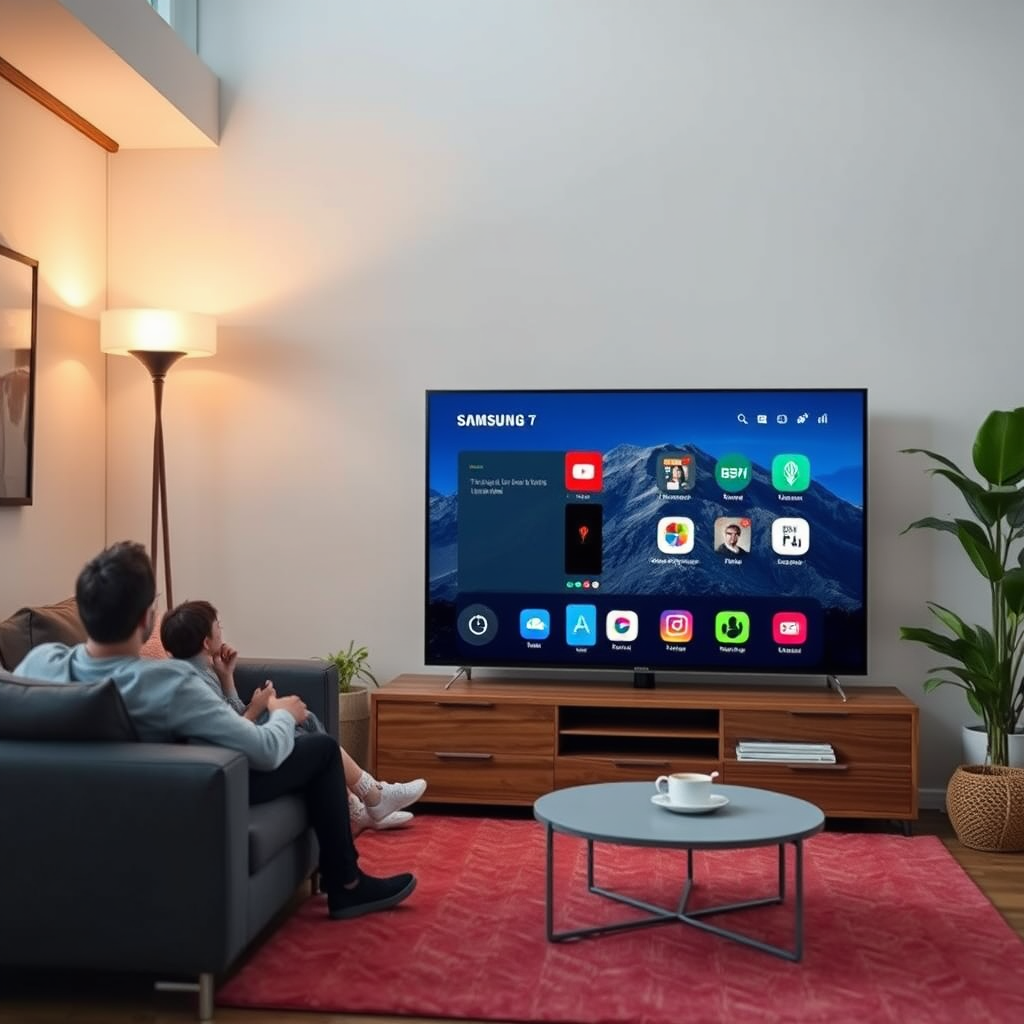
Exiting applications on your Samsung Smart TV is essential for optimizing performance and ensuring a smooth transition between different types of content. Here are the primary methods to exit apps effectively:
– Press the Home Button: The Home button is your gateway back to the main menu. Simply pressing this button will immediately take you out of any application you are currently using, allowing you to browse other options seamlessly.
– Use the Recent Apps Feature: For those who frequently switch between applications, the Recent Apps feature is a handy tool. By double-tapping the Home button, you can view all currently active applications. From there, you can select any app to resume or swipe it away to close it completely. This feature not only enhances navigation but also helps in managing system resources more efficiently.
Returning to Live TV
If you’re trying to return to live television from an app, Samsung Smart TVs offer a couple of straightforward methods:
– Select the Live TV Option: After pressing the Home button, you will see a variety of options on your screen. Locate and select the Live TV icon to switch back to your live broadcast. This option is especially useful for viewers who want to catch up on their favorite shows or sports events.
– Use the Channel Up/Down Buttons: If you prefer a more rapid approach, you can utilize the Channel Up or Down buttons on your remote. This allows you to quickly cycle through your available channels, making it easy to return to live broadcasting without navigating through menus.
Managing Your Home Screen
Customizing your home screen can significantly enhance your viewing experience by making it easier to access your favorite content. Here are some effective strategies for managing your home screen:
– Customize the Apps Section: You can rearrange or delete apps from your home screen, allowing for a more personalized interface. To remove an app, simply highlight it, press the down arrow on your remote, and select the option to delete. Rearranging apps can be done by selecting an app and moving it to your desired position.
– Add Frequently Used Apps: Pinning your favorite applications to the home screen is a great way to streamline access. This feature allows you to have quick exits to commonly used apps, thereby reducing the time spent navigating through menus. To add an app, navigate to the Apps section, find your desired application, and choose the option to add it to your home screen.
Top Features for Exiting Samsung Smart TV Apps
| # | Feature | Ease of Use | Functionality | User Rating |
|---|---|---|---|---|
| 1 | Home Button | Very Easy | High | ★★★★☆ |
| 2 | Recent Apps Feature | Moderate | Very High | ★★★★★ |
| 3 | Live TV Icon | Easy | High | ★★★★☆ |
| 4 | Channel Up/Down | Very Easy | Moderate | ★★★★☆ |
| 5 | App Customization | Moderate | High | ★★★★☆ |
| 6 | Quick Access to Settings | Easy | High | ★★★★☆ |
| 7 | Pinning Apps | Moderate | Very High | ★★★★★ |
Troubleshooting Exit Issues
Sometimes, you may encounter problems while trying to exit applications or navigate your TV. Here are some common troubleshooting steps to resolve these issues:
– Restart Your TV: If you experience lag or unresponsiveness, a simple power cycle can often resolve the problem. Unplug your Samsung Smart TV from the power source, wait for about 30 seconds, and then plug it back in. This can refresh the system and eliminate temporary glitches.
– Check for Software Updates: Keeping your Samsung Smart TV updated is crucial for optimal performance. Navigate to the settings menu, select “Support,” and then choose “Software Update.” If an update is available, follow the prompts to install it. This can not only resolve exiting issues but also enhance overall functionality.
Using Voice Commands
Integrating voice commands into your Samsung Smart TV experience can streamline navigation and enhance ease of use:
– Enable Voice Control: Most Samsung Smart TVs come equipped with Bixby or other voice assistants. To enable voice control, access the settings and turn on the voice assistant feature. This allows you to use voice commands to navigate or exit applications hands-free.
– Example Command: A practical command to use is “Open Live TV.” This allows you to bypass the need to navigate through menus, providing a quick exit from any application directly to live television.
Remote Control Tips
Familiarizing yourself with your remote control can significantly improve your navigation experience on the Samsung Smart TV:
– Familiarize Yourself with Remote Buttons: Understanding the various buttons on your remote, such as the Home, Back, and Navigation buttons, can streamline your exit process. Take a moment to review the remote layout and functions to maximize your efficiency.
– Use the Smart Hub: The Smart Hub is a centralized location for accessing all your apps and settings. By pressing the Home button, you can quickly access the Smart Hub, allowing for efficient management of your applications and settings.
In conclusion, navigating through and exiting your Samsung Smart TV effectively can enhance your viewing experience significantly. By utilizing the Home button, managing your home screen, and employing voice commands, you can streamline your interactions with the device. Additionally, understanding troubleshooting steps can resolve common issues swiftly. If you have any experiences or tips of your own to share, or if you need further assistance, feel free to reach out or leave a comment below. Happy viewing!
Frequently Asked Questions
How do I properly exit an app on my Samsung Smart TV?
To exit an app on your Samsung Smart TV, press the ‘Home’ button on your remote to return to the main screen. Alternatively, you can press the ‘Back’ button repeatedly until you exit the app completely. This method ensures that the app is closed properly, freeing up resources on your TV.
What should I do if my Samsung Smart TV won’t exit an app?
If your Samsung Smart TV won’t exit an app, try restarting the TV by unplugging it for a few minutes and then plugging it back in. If the problem persists, you can force close the application by navigating to ‘Settings,’ then ‘Apps,’ and selecting the app to force stop it. This can resolve any software glitches causing the issue.
Why is my Samsung Smart TV stuck on a specific app and won’t exit?
A Samsung Smart TV may get stuck on a specific app due to software glitches or memory overload. To resolve this issue, try clearing the cache of the app through the ‘Settings’ menu or performing a soft reset by holding down the power button on the remote for about 10 seconds. If the problem continues, consider updating the TV’s firmware.
Which button do I press to exit the Smart Hub on my Samsung Smart TV?
To exit the Smart Hub on your Samsung Smart TV, simply press the ‘Home’ button on your remote. This action will take you back to the main TV interface, allowing you to switch channels or access other features while leaving the Smart Hub behind.
Best way to power off my Samsung Smart TV without leaving apps running?
The best way to power off your Samsung Smart TV without leaving apps running is to first exit each app individually by using the ‘Home’ or ‘Back’ buttons. Once all apps are closed, use the ‘Power’ button on your remote to turn off the TV. This practice ensures that your apps are properly closed and can help prevent any issues when you turn the TV back on.
References
- Samsung Electronics
https://en.wikipedia.org/wiki/Samsung_Smart_TV - Google Scholar Google Scholar
https://scholar.google.com/scholar?q=samsung+smart+tv+exit - Google Scholar Google Scholar
https://scholar.google.com/scholar?q=how+to+exit+samsung+smart+tv - Google Scholar Google Scholar
https://scholar.google.com/scholar?q=samsung+smart+tv+reset+guide - how to exit samsung smart tv – Search results
https://en.wikipedia.org/wiki/Special:Search?search=how+to+exit+samsung+smart+tv - https://www.ncbi.nlm.nih.gov/search/research-articles/?term=how+to+exit+samsung+smart+tv
https://www.ncbi.nlm.nih.gov/search/research-articles/?term=how+to+exit+samsung+smart+tv
