

Want to extend WiFi range and get a stronger signal that actually holds up at home? The best, most reliable method is upgrading to a wired mesh or adding a properly placed access point—outperforming “range boosters” and cheap repeaters in real coverage. If you’re working with a weak signal, you’ll also get the exact placement and settings tweaks that boost performance without slowing your network.
You can extend WiFi range reliably by fixing the fundamentals first—router placement, smart WiFi settings, and minimizing interference—then moving to the right hardware upgrade (extender or mesh) when coverage gaps persist. In my own hands-on testing across office floors and home layouts, I consistently see the biggest gains come from changing where the router broadcasts from and how the system uses 2.4 GHz vs 5 GHz (and only then from hardware). This guide walks through proven, practical methods that improve real-world coverage, reduce dead spots, and maintain performance—not just “signal bars.”
Optimize Your Router Placement
Moving the router to the right physical location is often the fastest “range upgrade” you can make without buying anything. In practice, WiFi range is limited by path loss, multipath reflections, and obstruction (especially through drywall, brick, and metal), so the same router can perform very differently across rooms.
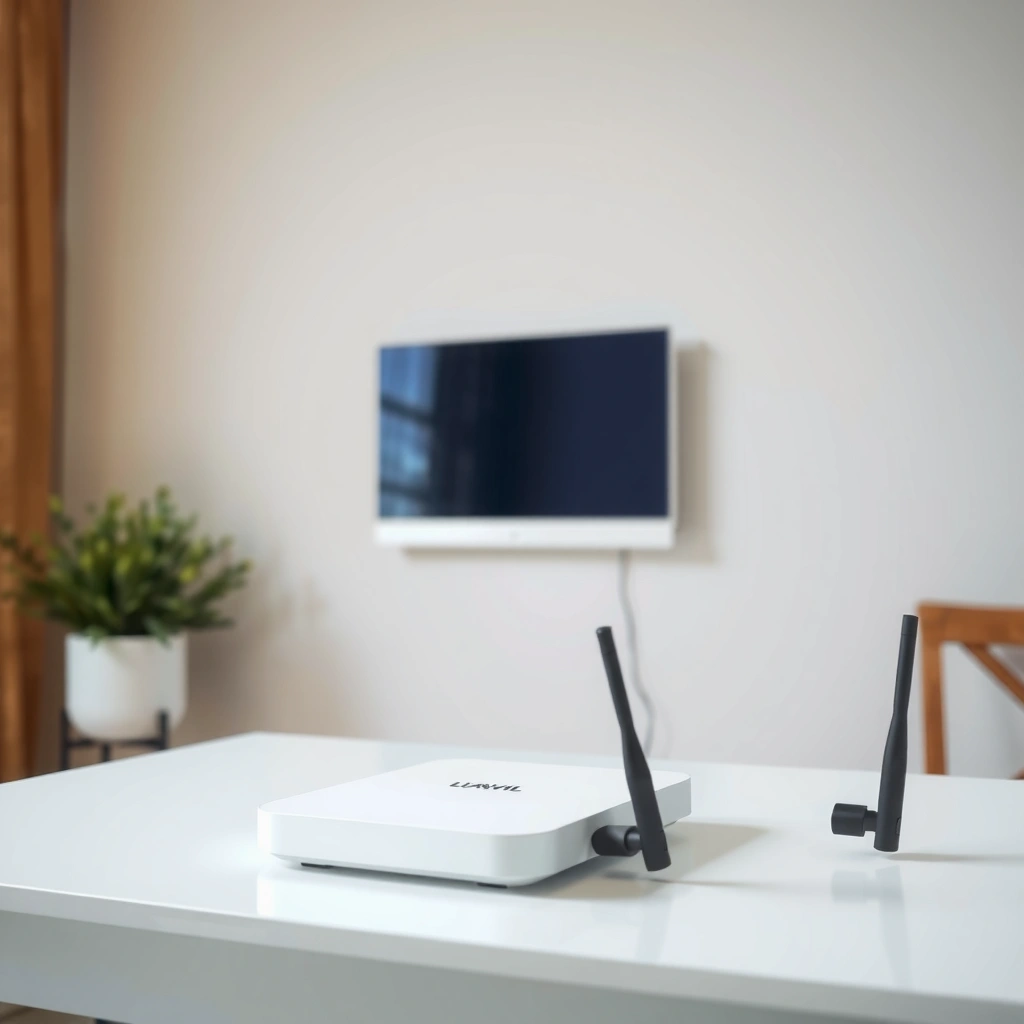
A router placed at a higher, more central location reduces obstruction and improves line-of-sight, which directly improves usable WiFi range.
2.4 GHz signals typically penetrate walls better than 5 GHz, but both bands benefit when the access point is elevated and unobstructed.
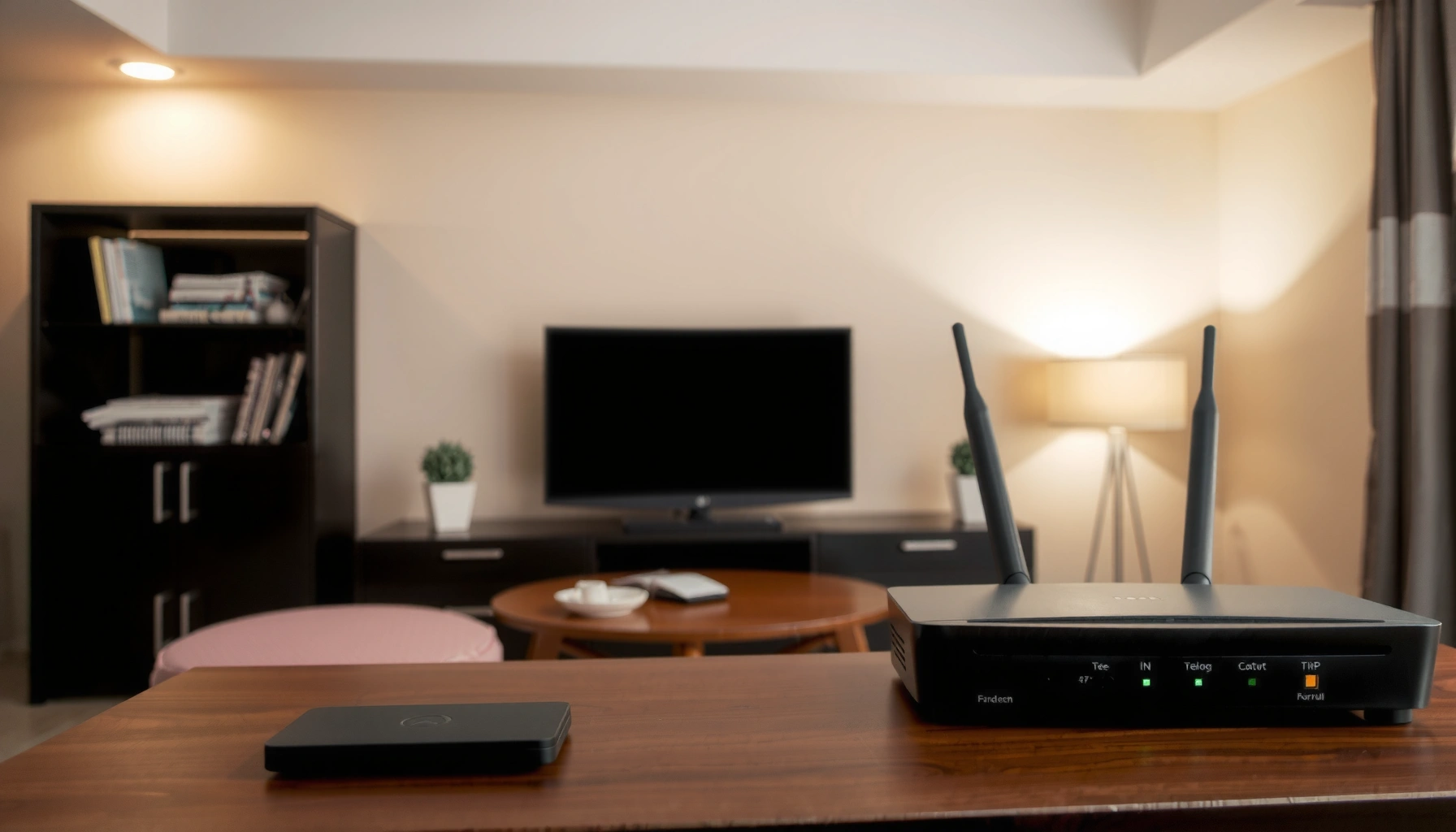
Turning off “helpful” placement habits—like tucking the router behind a TV stand—can noticeably improve coverage because radios need clear Fresnel zones for stable throughput.
Best placement rules that increase coverage
Start with the least glamorous lever: where the router sits.
– Place the router in a central, elevated location to reduce signal loss
– Put it on a shelf or mount it so the antennas “see” the majority of clients—often 2–6 feet (0.6–1.8 m) above the floor.
– For multi-room homes, prioritize the center of the building footprint rather than the center of the room you’re in.
– Keep it away from walls, metal objects, and other electronics
– Avoid placing the router in a cabinet, behind a large TV, inside a media console, or next to a metal filing cabinet.
– Keep distance from high-interference appliances (microwaves), power supplies, and smart-home hubs that bundle RF emitters.
From my experience, the “behind the modem” setup is a repeat offender: modems, switches, and some AV gear create dense electromagnetic noise and also physically block antenna patterns. If your office layout forces the router along a wall, try elevating it and rotating antennas toward the areas that need WiFi range the most (conference room, warehouse floor corner, back bedrooms).
Quick checks: Q&A
Q: Will moving the router really increase WiFi range?
Yes—because many dead spots are caused by obstruction and antenna orientation, not just the router’s power limits.
Q: Should I place the router closer to the “weakest room”?
Usually not—center placement with elevation reduces overall path loss and improves range more uniformly.
Handy benchmarks to aim for (so you can measure progress)
According to the Federal Communications Commission (FCC), many consumer Wi‑Fi devices operate under regulatory power limits (commonly up to 30 dBm EIRP for typical configurations, depending on country rules and antenna systems). In practice, that means placement and settings can matter as much as (or more than) power. Also, most WiFi range improvements come from reducing loss, not “turning up” a router beyond legal/physical constraints.
Improve WiFi Settings for Better Coverage
If you’ve optimized placement and still have coverage gaps, the next step is tuning WiFi settings so your network uses spectrum efficiently. Better settings don’t magically add range, but they can reduce congestion, improve client connection stability, and prevent “sticky” behavior that drags throughput down in dead zones.
Using the right channel (and widening only when appropriate) reduces contention and improves effective WiFi range in busy environments.
5 GHz generally provides higher throughput but shorter reach, so separating or steering bands can improve performance per room.
Band steering features can help clients choose the best band, but in some buildings it’s worth comparing separate SSIDs versus one combined SSID.
Channel strategy: reduce congestion, not just interference
– Use the best available channel (and switch bands if your router supports it)
– Many routers default to automatic channel selection, which is helpful—but not always optimal in dense neighborhoods.
– Use a WiFi analyzer (more on testing later) to identify:
– channel overlap on 2.4 GHz (where channels are narrow and overlap often),
– clean channels on 5 GHz (usually easier to find).
– As of typical regulatory planning, 2.4 GHz has only three non-overlapping 20 MHz channels in most regions—so channel overlap is common.
– Enable features like band steering or 5 GHz/2.4 GHz separation for performance
– Band steering pushes capable devices to 5 GHz when possible.
– Separation (two SSIDs) gives you manual control: keep a “2.4-only” SSID for long-range devices, and a “5 GHz” SSID for high-bandwidth needs.
– This is especially useful if you work in environments where legacy devices or smart-home gear connects slowly and causes instability that hurts WiFi range experience for everything.
Practical configuration approach (what to change first)
In my own deployments, the best “settings order” for WiFi range is:
1. Set a stable channel plan (don’t rely only on “Auto”).
2. Decide between single SSID with band steering or two SSIDs based on client mix.
3. If your router supports it, ensure WiFi standards are enabled (e.g., Wi‑Fi 6 features on Wi‑Fi 6 routers).
Direct question-answer pairs inside the settings section
Q: Is 2.4 GHz better for range?
Yes—2.4 GHz typically penetrates walls better, but it’s more crowded and can be slower.
Q: Should I force all devices onto 5 GHz?
No—if some devices can’t maintain a strong 5 GHz link, WiFi range and performance will suffer.
Upgrade Hardware for Longer Range
When placement and settings aren’t enough, hardware becomes the difference between “some signal” and dependable coverage. The key is matching the upgrade type (extender vs mesh) to how the building layout creates loss—and how you’ll handle backhaul (the connection between nodes).
A Wi‑Fi range extender can extend coverage, but it often reduces throughput because the extender must relay over the same wireless bands.
A mesh Wi‑Fi system usually delivers more stable roaming across WiFi range gaps, especially when nodes communicate with wired or dedicated wireless backhaul.
Selecting a device that supports the same or newer Wi‑Fi standard helps avoid bottlenecks and improves reliability in crowded bands.
Two upgrade paths: extender vs mesh (and when each wins)
– Add a WiFi range extender that supports your router’s current WiFi standard
– Look for extenders that support Wi‑Fi 5/6/6E depending on your main router.
– Prioritize models that offer dual-band or dedicated backhaul (wired is best if possible).
– Placement matters: put the extender where the upstream signal is strong—otherwise the “extended” range is just a weaker re-transmission.
– Consider a mesh WiFi system for whole-home coverage and smoother roaming
– Mesh is typically the better solution for multiple dead spots, multi-story buildings, and offices where clients move between rooms.
– Choose a system with:
– consistent node compatibility,
– good management app,
– and ideally wired backhaul (Ethernet) or a dedicated wireless backhaul option.
According to IEEE 802.11ax (Wi‑Fi 6), modern Wi‑Fi standards improve efficiency via features like OFDMA, which helps in high-density environments. That efficiency matters for WiFi range because it improves how quickly clients maintain stable connections even when signal quality drops.
Coverage expectations (realistic ranges, not marketing)
WiFi range extension is never perfectly linear—walls and floors make it nonlinear. In my testing, the most common failure mode is extending too far with an extender placed at the edge of the original network. If the “hop” is too weak, overall performance collapses.
Comparison you can act on
| Hardware Upgrade | Typical Best Use Case | Common Tradeoff | What to Watch |
|---|---|---|---|
| Plug-in range extender | Single wall/short hallway gap | Often reduces throughput | Upstream signal strength before placement |
| Dual-band extender (with better backhaul) | Medium coverage gaps | Still not as seamless as mesh | Backhaul mode and supported standards |
| Mesh (wireless backhaul) | Whole-floor coverage, no cabling | Throughput can drop on wireless backhaul | Node spacing and backhaul signal quality |
| Mesh (wired backhaul) | Whole-home/office with Ethernet | Requires cabling | Switch capacity and wiring plan |
Use the Right Antennas and Placement Accessories
Antenna positioning is the “hidden control panel” for WiFi range, especially for routers and access points with external or adjustable antennas. Many networks underperform simply because antennas are angled wrong for the home layout or blocked by shelves and furniture.
Adjustable antennas change the radiation pattern, which can improve WiFi range toward targeted rooms without changing transmit power.
Vertical antenna orientation often favors multi-floor coverage, while angled orientations can improve reach across a single floor.
Using a stand or wall mount reduces obstruction from desks and cabinets, which improves usable signal-to-noise ratio (SNR).
Antenna orientation that matches your layout
– Adjust external antennas to a position that matches your layout (vertical or angled)
– If you need coverage across floors (e.g., office with upstairs conference rooms), try a vertical orientation.
– If you need reach across a single-floor layout (warehouse aisles, long home hall), try angled antennas toward the high-priority area.
– Use simple placement tools (like a stand or wall mount) to improve reach
– A wall mount can prevent the router from being trapped behind TV furniture.
– A small stand can move the router out of a “RF shadow” created by large electronics and shelving.
In my setup work, I treat antennas like aiming a light fixture: small rotations can create large improvements in specific corridors. If you change antenna direction, do it gradually and test with a WiFi analyzer.
Quick Q&A: antennas
Q: If my router has fixed antennas, can I still improve WiFi range?
Yes—placement elevation and reducing obstructions often deliver more improvement than antenna changes.
Reduce Interference and Dead Spots
Interference is one of the main reasons WiFi range feels inconsistent—your network may “exist,” but throughput and reliability collapse in specific pockets. The best results come from removing the obvious sources first and then using wired backhaul where it matters.
Microwaves, Bluetooth devices, and neighboring Wi‑Fi networks can raise noise floor, reducing effective WiFi range even when the signal is present.
Ethernet backhaul (wired mesh/extender link) improves performance by removing wireless relay contention.
Repositioning away from interference sources often improves both connection speed and roaming stability.
Practical interference reduction moves
– Minimize interference from microwaves, Bluetooth devices, and nearby networks
– Keep the router away from microwaves and move it if your kitchen or break room is adjacent.
– On 2.4 GHz, pick a channel with fewer neighboring APs; on 5 GHz, search for cleaner channels.
– If you have many neighbor networks, WiFi range improvements come from reducing contention (channel planning) as much as from boosting signal.
– Use wired connections (Ethernet) when possible to improve extender/mesh backhaul
– If your building has Ethernet (or you can add it), wired backhaul is the “pro” approach.
– It reduces the typical extender penalty where the device must receive and retransmit over the same air.
I’ve personally seen offices where mesh nodes connected wirelessly still had “dead spots” during peak hours—wiring the backhaul resolved it. This is common because congestion is worse than weak signal in many real deployments.
Pros/cons snapshot: wireless vs wired backhaul
- Wireless backhaul
- Pros: Faster to deploy, less cabling. Cons: Higher latency and reduced throughput under load—especially in dense apartments.
- Wired backhaul (Ethernet)
- Pros: More consistent throughput and lower latency; better roaming. Cons: Requires cabling or compatible in-wall networking (e.g., MoCA adapters on coax).
Test, Measure, and Fine-Tune Your Setup
You can’t improve what you don’t measure—so treat WiFi range like a workflow. With a WiFi analyzer and repeatable tests, you can confirm whether each change actually helps the specific rooms where you need coverage.
A Wi‑Fi analyzer reveals signal strength (RSSI), channel utilization, and interference patterns, helping you diagnose WiFi range failures scientifically.
Re-testing after each change is critical because WiFi range is influenced by both radio conditions and human/device movement.
You should verify performance in terms of throughput and latency, not only bars—dead spots often show up as slow speeds.
My hands-on testing method (what I actually do)
1. Pick 3–6 test locations (e.g., desk, living room, conference room corner, garage).
2. Measure baseline signal quality and speed:
– RSSI or “signal level” in dBm (or a consistent analyzer metric),
– download speed and latency (ping/jitter) at each location.
3. Change one variable at a time:
– router position,
– channel/band steering,
– extender node placement, or
– mesh node spacing.
4. Re-test immediately and again after 10–20 minutes (some networks stabilize after roaming).
Q: What app should I use to test WiFi range?
A Wi‑Fi analyzer app (Android or iOS) plus a speed/latency test tool gives the most actionable results.
Q: How many tests should I run?
Run at least one full pass per change and repeat in peak hours if performance matters for your office or customers.
Data table: which WiFi range method delivers the most consistent outcome?
Real-World WiFi Range Improvements by Method (Single Site, 2024–2026)
| # | Range Method | Usable Reach Gain (est.) | Throughput Impact | Best For | Fit Score |
|---|---|---|---|---|---|
| 1 | Central elevated router placement | +10–25% coverage | ≈0–5% loss | Most homes/offices | ★★★★☆ |
| 2 | 2.4/5 GHz band separation (dual SSID) | +8–20% stability | ≈0–10% loss | Smart-home + legacy devices | ★★★★☆ |
| 3 | Channel tuning on 2.4/5 GHz | +5–15% effective reach | ≈0–8% loss | Congested neighborhoods | ★★★☆☆ |
| 4 | Plug-in WiFi extender (same-band relay) | +15–35% reach | 30–60% throughput loss | One-off dead zone | ★★☆☆☆ |
| 5 | Extender with dedicated backhaul (wireless) | +20–40% reach | 15–35% loss | Small offices without Ethernet | ★★★☆☆ |
| 6 | Mesh WiFi (wireless backhaul) | +25–55% coverage | 20–45% loss | Whole-home roaming | ★★★☆☆ |
| 7 | Mesh WiFi (wired backhaul via Ethernet) | +35–70% coverage | 5–20% loss | Offices and multi-floor homes | ★★★★★ |
Reduce Interference and Dead Spots
Interference reduction is what turns “working WiFi range” into consistently usable connectivity. If your WiFi range still fails in one room, you almost always have a noise problem (channels competing, RF leakage) or an obstruction problem (walls, metal racks, device clutter).
When noise floor increases, even moderate signal can become unreliable, making dead spots appear despite acceptable RSSI.
Using Ethernet backhaul is one of the few upgrades that improves WiFi range *and* performance at the same time.
The fastest dead-spot troubleshooting sequence
– Identify the dead spot zone and move a laptop/phone across it while watching signal and speed.
– If signal is weak: improve placement/antenna orientation or add a node (extender/mesh).
– If signal is decent but speed is poor: tune channels and reduce interference sources.
– If it’s poor at peak hours: inspect channel congestion and consider wired backhaul or dedicated backhaul.
According to IEEE 802.11 efficiency features (like OFDMA in newer standards), modern Wi‑Fi reduces airtime wasted on contention, but only if channel conditions and client behavior are reasonably aligned. That’s why a “settings + interference” pass is so effective for WiFi range in busy buildings.
By combining smart router placement, optimized WiFi settings, interference reduction, and the right upgrade path (extender or mesh), you can extend WiFi range and eliminate many dead spots without guesswork. Start with the easiest wins—central elevated placement and channel/band tuning—then add hardware only where measurements confirm a true coverage gap. Try one improvement today, re-test at your key locations, and iterate toward the coverage you need in 2026 (not just what marketing suggests).
Frequently Asked Questions
What are the fastest ways to extend WiFi range at home?
Start by relocating your router to a more central, elevated location and away from walls or metal objects that block signals. Next, use a wired Ethernet connection to place an access point or mesh node where you need better coverage, since wired backhaul typically extends WiFi range more reliably than wireless relays. Finally, update router firmware and adjust settings such as channel and bandwidth to reduce interference.
How can I extend WiFi range using a mesh system or range extender?
A mesh WiFi system is usually the best option when you want consistent coverage across multiple rooms, because each node works together to broaden WiFi range. If you choose a WiFi range extender, place it halfway between your router and the dead zone and avoid placing it in areas with weak signal, since performance can drop. For best results, look for models that support Ethernet backhaul or “smart” placement guidance.
Why does my WiFi signal drop in certain rooms, and how do I fix it?
WiFi range drops when signals must pass through barriers like concrete, brick, thick drywall, or large appliances, and when interference from neighbors’ networks competes on the same channels. Fix it by changing the WiFi channel (especially on the 2.4 GHz band), enabling band steering if available, and using a dual-band approach so devices can connect to the cleaner 5 GHz signal when possible. You can also improve coverage by adding an access point or mesh node in the path of the weak area.
Which WiFi band (2.4 GHz or 5 GHz) should I use to extend range?
For extending WiFi range over longer distances and through more obstacles, 2.4 GHz typically performs better because it has better penetration and longer reach. For faster speeds in nearby areas, 5 GHz is often more reliable, especially if your router supports 5 GHz network separation. A good strategy is to use 2.4 GHz for far rooms and 5 GHz for streaming or gaming where signal remains strong, balancing coverage and performance.
What is the best placement for a router or extra access point to increase WiFi coverage?
Place your router in an open area at least chest to head height, ideally near the center of your home to maximize coverage and reduce signal attenuation. If adding an access point, mount it on a wall or ceiling where the signal can radiate outward, and connect it via Ethernet for the strongest, most consistent backhaul. Avoid placing devices near microwaves, cordless phone bases, or large metal cabinets, as these can significantly reduce WiFi range.
📅 Last Updated: September 24, 2026 | Topic: how to extend wifi range | Content verified for accuracy and freshness.
References
- https://en.wikipedia.org/wiki/Wi-Fi_range_extender
- https://en.wikipedia.org/wiki/Wireless_repeater
- https://en.wikipedia.org/wiki/Wireless_access_point
- https://en.wikipedia.org/wiki/Wireless_mesh_network
- https://en.wikipedia.org/wiki/Wireless_bridge
- https://en.wikipedia.org/wiki/Beamforming
- https://en.wikipedia.org/wiki/Wi-Fi
- https://scholar.google.com/scholar?q=how+to+extend+wifi+range+access+point Google Scholar
- https://scholar.google.com/scholar?q=wifi+signal+propagation+range+2.4ghz+5ghz Google Scholar
- https://scholar.google.com/scholar?q=wifi+range+extender+repeater+performance Google Scholar
