
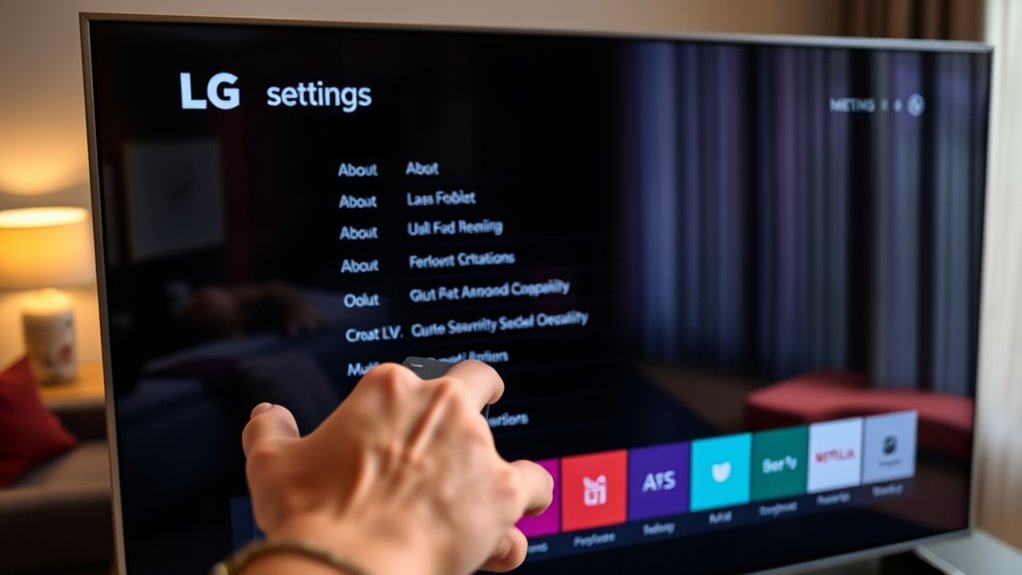

To find the MAC address of your LG Smart TV, press the “Settings” button on your remote, then navigate to “Network” and select “Network Status.” Look for “Network Information” where you’ll see the MAC address listed. Alternatively, you can power down the TV and check the physical label on the back or side, which usually has the MAC address labeled. If you want to explore more methods or tips, just keep going!
Understanding MAC Address and Its Importance
A MAC address, or Media Access Control address, is like a unique fingerprint for your LG Smart TV. It’s a 12-digit alphanumeric code that identifies your device on a network. Understanding MAC address significance is essential for network security. By knowing your TV’s MAC address, you can manage network access more effectively, ensuring that only authorized devices connect to your Wi-Fi. This helps protect your personal data and prevents unauthorized users from tapping into your internet connection. If you’re looking to enhance your network security, consider using your MAC address to set up filters or restrictions on your router. Ultimately, knowing this information empowers you to control your network environment and maintain your online freedom.
Accessing the Settings Menu on Your LG Smart TV
To access the settings menu on your LG Smart TV, start by pressing the “Settings” button on your remote, which often has a gear icon. This brings up the main settings menu, where you can begin exploring settings easily. Once you’re in, you’ll notice various options tailored to enhance your viewing experience. Here, you can explore categories like Picture, Sound, and General, allowing you to adjust preferences to suit your needs. Whether you want to change display settings or tweak audio options, everything’s at your fingertips. Don’t hesitate to plunge into each section; it’s designed to give you control over your TV experience. Enjoy the freedom to customize your LG Smart TV just the way you like it!
Navigating to the Network Settings
To find your LG Smart TV’s MAC address, you’ll first need to access the network settings. Start by moving through the TV’s settings menu to locate the network information section. This will help you easily find the MAC address you’re looking for.
Accessing TV Settings
Finding your way to the Network Settings on your LG Smart TV is straightforward and only takes a few steps. Start by pressing the settings button on your remote. This opens the settings menu, giving you a settings overview. From there, use the menu navigation to scroll down until you see “Network” or “Connection.” Select this option, and you’ll be directed to the network-related settings. Here, you can configure your connection and view necessary details. Remember, accessing these settings is essential for managing your network and finding your MAC address later. So, take a moment to familiarize yourself with the layout, and you’ll navigate your TV’s settings with ease. Enjoy the freedom to customize your viewing experience!
Finding Network Information
Once you’re in the Network settings, you’ll quickly locate the information you need. Here’s how to navigate through your LG Smart TV’s network details for device identification and network security:
- Select ‘Network’: Look for the ‘Network’ option in the settings menu.
- Choose ‘Network Status’: This will show you your current connection status.
- View ‘Network Information’: Here, you’ll find your IP address and MAC address.
- Note Security Settings: Check if your connection is secured with a password or encryption type.
Understanding this information is essential for maintaining your network security and ensuring your device identification is accurate. Now you’re equipped to manage your connections more effectively!
Finding the MAC Address in the Network Information
Once you’re in the Network Settings, you’ll need to access the Network Information section. Here, you can easily locate your LG Smart TV’s MAC address. It’s a straightforward process that helps with various network configurations.
Access Network Settings
To access the network settings on your LG Smart TV, start by steering to the main menu. Here, you’ll find essential options to help with network troubleshooting and guarantee your device security. Follow these steps:
- Select the “Settings” icon, usually represented by a gear symbol.
- Navigate to “All Settings” and then choose “Network.”
- Click on “Network Status” to view your connection details.
- Look for options like “Network Information” to gather relevant data.
Locate MAC Address
While exploring the network information on your LG Smart TV, you can easily find the MAC address, which is vital for network management. To locate it, go to the “Settings” menu, select “Network,” and then “Network Status.” Here, you’ll see a summary of your connection details. Look for “Wired MAC Address” or “Wireless MAC Address,” depending on your connection type. This unique identifier is important for device identification and enhances your network security. By knowing your TV’s MAC address, you can manage your network more effectively, ensuring a safer and more personalized experience. Remember, having this information at hand can help you troubleshoot issues and maintain control over your home network.
Alternative Method: Using the TV’s Physical Label
If you prefer a straightforward approach, finding your LG Smart TV’s MAC address can be done by checking the physical label on the device. Here’s how to locate it:
- Turn Off the TV: First, power down your TV to safely access the back.
- Check the Back or Side: Look for the physical label, usually located on the back or side of the unit.
- Identify the MAC Address: The MAC address is often labeled as “MAC” or “Ethernet Address.”
- Take a Picture or Note It Down: To avoid forgetting, consider taking a picture of the label or jotting it down for easy reference.
This method is quick and lets you find the MAC address without traversing through menus.
Verifying Your TV’s Network Connection
Before you can effectively use your LG Smart TV for streaming and online browsing, it’s essential to verify that it’s properly connected to your network. Start by checking your TV’s network settings. Navigate to the settings menu, select ‘Network’, and then ‘Network Status’ to see if it’s connected. If you encounter issues, you may need to engage in some network troubleshooting. This could involve restarting your router, checking the Wi-Fi signal strength, or ensuring there are no obstructions. Confirming your connection stability is vital for uninterrupted streaming. If problems persist, consider using a wired connection for better reliability. A stable network will enhance your viewing experience and enable seamless access to all your favorite content.
Tips for Using MAC Address for Network Management
Understanding how to use your LG Smart TV’s MAC address can greatly enhance your network management. Here are some tips to effectively utilize it:
- Device Identification: Use the MAC address to uniquely identify your TV on your network, making it easier to manage multiple devices.
- Network Security: Implement MAC address filtering on your router to restrict access to only approved devices, improving your network’s security.
- Static IP Assignment: Assign a static IP address to your TV based on its MAC address, ensuring consistent network performance and easier troubleshooting.
- Monitoring Traffic: Keep an eye on bandwidth usage by tracking your TV’s MAC address, helping you manage network resources more effectively.
Frequently Asked Questions
Can I Change the MAC Address of My LG Smart TV?
You can’t change the MAC address of your LG Smart TV directly. However, some advanced routers offer options to enhance device security, allowing you to manage connected devices without altering their MAC addresses.
What Is the Difference Between MAC and IP Address?
Did you know 93% of internet users rely on IP addressing for online activities? An IP address identifies your device on a network, while a MAC address uniquely identifies it, enhancing network security and connectivity.
Does the MAC Address Affect Internet Speed?
No, the MAC address itself won’t affect your internet speed. However, it can influence network performance and connection stability, especially if there are conflicts or issues on your network. Keep your device updated for ideal results.
Can I Find the MAC Address Without a Remote?
Yes, you can find the MAC address without a remote. Using your smartphone, access the LG Smart TV’s settings via the app, then navigate to the network section to view the MAC address easily.
Is the MAC Address Unique for Each Device?
Each device’s MAC address is unique, acting as its network identification. This uniqueness is essential for device security, ensuring that your gadgets communicate properly while keeping unwanted intruders at bay.
