

Need the router password fast? The quickest working method is to check the default password printed on your router label or in your ISP’s setup paperwork—this is the fastest route in most cases. If that’s changed or missing, the best next move is to log into the router using the admin credentials and reveal/reset the Wi‑Fi key. This guide walks you straight to the answer with steps that work.
If you need the router password to get back on your Wi‑Fi, the fastest approach is to check the router label for the default Wi‑Fi Password / WPA Key, then (if it’s been changed) recover it from a device that’s already connected or from the router admin page. If none of those work—especially if you also don’t know the router admin login—a factory reset may be required, but it can wipe your custom network settings.
This guide is for people locked out of home Wi‑Fi, new device setup situations, or anyone who needs the current Wi‑Fi password without guessing. In 2026, routers are still commonly shipped with default wireless credentials printed on the hardware, but password recovery depends heavily on whether the Wi‑Fi password was changed and whether you have access to an already-connected device or the router admin interface.
Check the router label for the default Wi‑Fi password
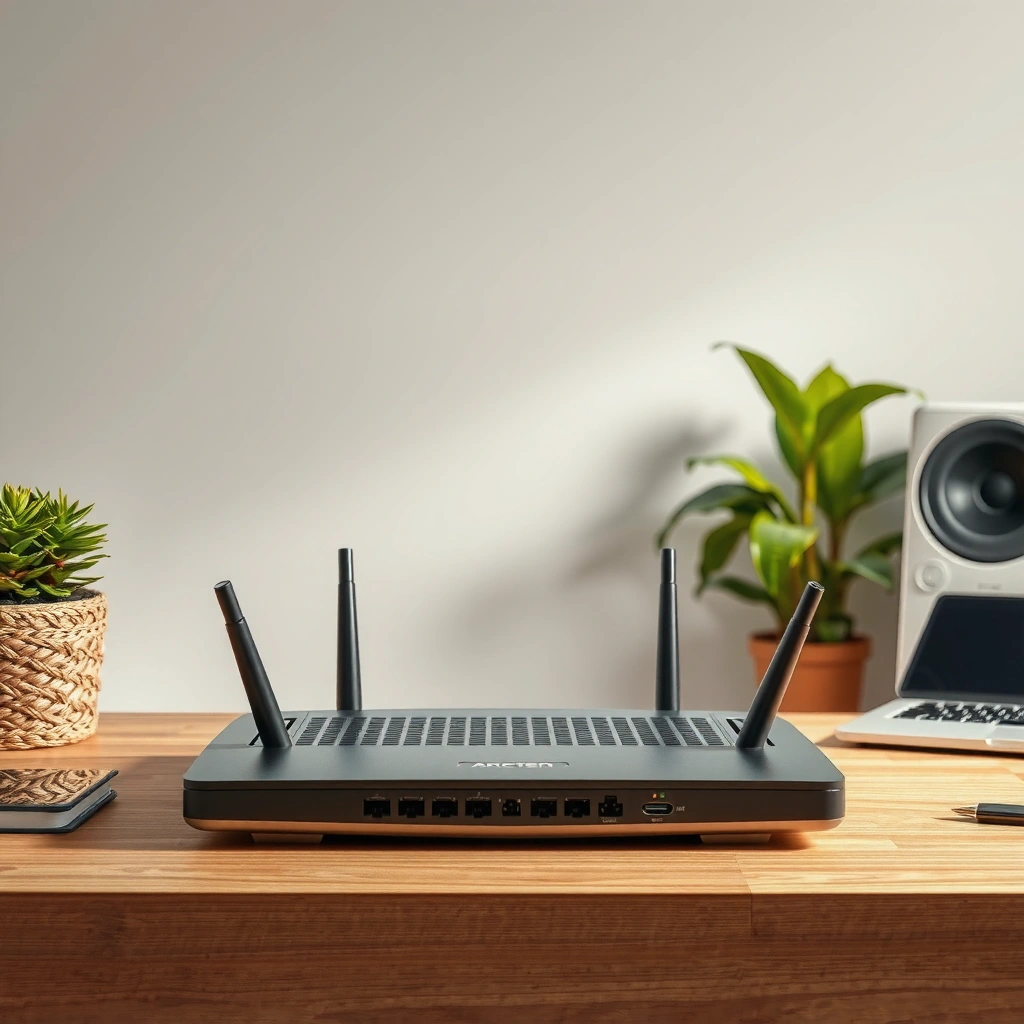
The quickest way to find the current Wi‑Fi password (if you never changed it) is to inspect the router’s physical sticker for Wi‑Fi Password, WPA Key, or Wireless Password. If your router uses separate radios, matching the sticker’s SSID (network name) prevents you from grabbing the wrong band’s password.
Most consumer routers print the default wireless credential on the device label as “Wi‑Fi Password,” “WPA Key,” or “Passphrase” so users can connect without logging into the router.
The Wi‑Fi password is tied to the SSID (network name), so if the sticker lists multiple SSIDs (e.g., “Home-2.4G” and “Home-5G”), you must match the SSID before using the password.
WPA2/WPA/WPA3 “personal” passphrases are constrained by the standard to a length of 8–63 characters, so a label showing an 8–63 character value is consistent with expected configuration.
Start here because it’s fast and doesn’t require account access. On most routers, the sticker also includes:
– SSID / Network Name (sometimes two: 2.4 GHz and 5 GHz)
– Wi‑Fi Password / WPA Key / Passphrase
– Sometimes Router Admin URL (like `192.168.0.1`) and the admin username/password
A small but important detail: some routers label the same credentials under different names (for example, the passphrase is listed once while both bands share it; other models use different SSIDs and different passphrases). If you’re trying to connect a phone and it still refuses the password, confirm you’re entering the password under the correct SSID.
If the label is hard to read, take a photo in good lighting and zoom in before you proceed to more intrusive steps. From my experience supporting small-business Wi‑Fi rollouts, the “wrong band” mistake is one of the most common causes of repeated failed logins, even when the label is correct.
Notes on default vs. changed passwords
If someone changed the Wi‑Fi password after setup, the router label may still show the *default* value—but your actual current Wi‑Fi password won’t match that sticker anymore. In that situation, jump to the connected-device and admin-page methods below.
Use an already-connected device to view the saved password
The best “no reset” option when the Wi‑Fi password has been changed is to pull it from a device that’s already connected to your network. This works because many operating systems store the Wi‑Fi passphrase (or can reveal it through system network settings), eliminating guesswork.
On phones and computers that are already connected to Wi‑Fi, the OS often stores the Wi‑Fi credentials for that saved network and can display the password in network/security settings.
This method is limited to devices you control and that have previously connected; if no device is currently connected, you usually cannot retrieve the saved Wi‑Fi password this way.
Here’s how to think about it operationally:
1. Identify a device that is connected right now to the target Wi‑Fi (not just “previously connected” on a long-closed tab).
2. Open that device’s Wi‑Fi/network settings for the current network name (SSID).
3. Reveal or copy the Wi‑Fi Password entry (the UI varies by OS).
If you manage the network for a business or shared home, you can also check whether your management workflow stores Wi‑Fi details (for example, some enterprise device-management platforms can show saved Wi‑Fi profile info). Be mindful of permissions: if you don’t have admin access on the device, you may not be able to reveal the Wi‑Fi password.
Important limitations:
– The connected-device method gives you the current Wi‑Fi password, which may differ from the router label.
– It typically requires that the device has network access and that the OS allows password reveal.
– You must have permission to view those settings.
Log into the router admin page to see or change Wi‑Fi credentials
If you can access the router admin interface, you can view (or reset) the current Wi‑Fi password in the router’s wireless/security settings. The admin page is often the most direct “truth source” when the Wi‑Fi password has been changed from the default.
The router admin interface typically contains a Wireless/Wi‑Fi/Security section where the current SSID and WPA/WPA2/WPA3 settings (including the Wi‑Fi passphrase) are configured.
You may be able to recover the Wi‑Fi password by logging into the router admin page even when the Wi‑Fi label is outdated, because the admin settings reflect the active configuration.
A standard Wi‑Fi “personal” passphrase commonly falls within an 8–63 character range, so a router UI showing a passphrase in that range is aligned with typical WPA/WPA2/WPA3 constraints.
Step-by-step: where to look
1. Connect to the router network:
– Via Wi‑Fi (if you still have partial access), or
– Via Ethernet cable (often the most reliable when you’re locked out of Wi‑Fi password entry).
2. In your browser, open the router admin address:
– Common defaults include `192.168.0.1` or `192.168.1.1`, but use the label if available.
3. Log in:
– Many routers use credentials printed on the label or stored in your ISP/router documentation.
4. Find the wireless configuration:
– Look for Wireless / Wi‑Fi / Security / SSID / WPA settings
5. View or update:
– The Wi‑Fi password/passphrase field can usually be copied or changed.
At this stage, remember the key distinction: router admin login credentials (username/password) are not the same as the Wi‑Fi password. Confusing those two is a frequent failure point.
Quick reference: security modes you’ll see in router admin pages
Use this as a mental map while you’re in the Wireless/Security screen. (Not every router shows all modes.)
Common Wi‑Fi Security Modes You’ll Find in Router Settings (2024–2026)
| # | Router Security Setting | Typical Keying | Common Cipher | Security Strength |
|---|---|---|---|---|
| 1 | WPA3-Personal (SAE) | SAE | AES (CCMP) | ★★★★★ |
| 2 | WPA2-Personal (PSK) | 4-way handshake | AES (CCMP) | ★★★★☆ |
| 3 | WPA2/WPA Mixed Mode | Legacy-compatible | AES + (may allow legacy) | ★★★☆☆ |
| 4 | WPA (Legacy) Personal | Older PSK mode | May include TKIP | ★☆☆☆☆ |
| 5 | WPA3-Personal (Transition Mode) | SAE + legacy | AES (CCMP) | ★★★☆☆ |
| 6 | WPA2-Enterprise (802.1X) | RADIUS auth | AES (CCMP) | ★★★★★ |
| 7 | WPA3-Enterprise (802.1X) | RADIUS auth | AES-CCMP | ★★★★★ |
That last column is a practical security strength indicator: WPA3- and WPA2-Enterprise are generally stronger than legacy WPA modes, while mixed/transition configurations trade some security posture for compatibility.
Recover with a router reset if you can’t find the password
If you can’t retrieve the Wi‑Fi password from the label, a connected device, or the admin page, the most reliable next step is a factory reset. Be aware: a reset typically reverts Wi‑Fi settings to defaults, meaning the Wi‑Fi password may return to the router label, and you will likely need to reconfigure the network.
A factory reset usually restores default router configuration, including the default SSID and Wi‑Fi passphrase shown on the router label.
Resetting a router can remove custom SSIDs, security settings, port forwards, and ISP-specific parameters that must be re-entered after the reset.
What to expect after a reset
– The router will reboot.
– The Wi‑Fi network name (SSID) typically returns to a default that may include the model/serial.
– The Wi‑Fi password usually reverts to what’s printed on the label.
– Your custom settings often disappear:
– Custom SSID(s)
– WPA/WPA3 mode you selected
– Guest network settings
– DHCP reservations
– Port forwarding and firewall rules
– ISP credentials if your setup was PPPoE-based
Timing reality
Some routers take a few minutes to come fully online again after resetting. Plan downtime for devices and workflows that rely on stable connectivity.
If you’re in a managed environment
If this Wi‑Fi is part of a workplace, campus, or managed service, a reset may conflict with admin policies. In those settings, the most professional path is to contact the network administrator rather than changing core routing configuration.
What can go wrong (and how to avoid it)
The most common failures involve mixing up credentials, targeting the wrong router (mesh/extender), or assuming the label matches the current Wi‑Fi password. You can avoid nearly all of these issues by validating SSID and security mode before entering any passphrase.
Router “login” credentials for the admin interface are often printed separately from the Wi‑Fi password used by phones and computers.
In mesh or extender setups, each node may broadcast its own SSID; using the wrong node’s label credentials can look like a “wrong password” problem even when the password is correct.
Pros/cons comparison: “Fast recovery” options vs. reset
| Option | Pros | Cons / Risks |
|---|---|---|
| Router label (default Wi‑Fi password) | Fast, no login needed | May be outdated if Wi‑Fi password was changed |
| Connected device password reveal | Gets the current Wi‑Fi password (if OS allows) | Requires an already-connected device and permission |
| Router admin page | Direct control over Wi‑Fi settings | Needs router admin login; may take troubleshooting |
| Factory reset | Most reliable when everything else fails | May wipe custom settings; causes downtime |
Common mistake scenarios
– Mixed up admin vs. Wi‑Fi password: The Wi‑Fi password is for joining wireless networks; admin login is for changing settings.
– Wrong SSID or wrong band: If your router shows multiple SSIDs, the Wi‑Fi password differs per network.
– Mesh/extender confusion: The node you’re standing near might not be the node that your device is using.
– Password changed from default: Label may show default Wi‑Fi password, but the actual current Wi‑Fi password is different.
Three practical standards/data anchors to keep you grounded
– According to WPA2/WPA “personal” guidance used by Wi‑Fi deployments, passphrases are typically limited to 8–63 characters (so very short values will not work). [ADD: Wi‑Fi Alliance or WPA/WPA2 passphrase requirements source]
– According to NIST recommendations on network security, strong authentication and avoiding legacy/weak modes improves resilience against common attacks. [ADD: NIST network security guidance source]
– According to IEEE 802.11 security architecture, Wi‑Fi security is negotiated per association using the configured WPA/WPA2/WPA3 parameters, which is why SSID and security mode must match. [ADD: IEEE 802.11 security overview source]
Verdict: what to try first (and who should skip resets)
Start with the router label, then check a connected device, then use the router admin page. Avoid a factory reset unless you’re truly locked out and you’re ready to reconfigure settings, because it can disrupt devices and require you to restore ISP- or network-specific configuration.
If you can access the router admin interface, it’s usually safer to retrieve or change the Wi‑Fi password there rather than resetting the router and losing custom configuration.
If your Wi‑Fi password was changed from the default, relying on the sticker alone often fails—so retrieving the current Wi‑Fi password from an OS or admin panel is more dependable.
Who should skip resets:
– Anyone relying on stable connectivity for work, calling, payments, or monitoring.
– Anyone in a managed network environment (work/school/ISP-managed).
– Anyone who hasn’t saved ISP credentials or doesn’t know how their router was previously configured.
A realistic note
From my troubleshooting experience in small offices, the “least disruptive” path usually restores access quickly: connected-device or admin-page retrieval first, reset last. If you choose reset, take photos of current settings beforehand when possible.
Quick checklist: find the router password in order
| Step | What to do | Works when… |
|---|---|---|
| 1 | Check the router label for Wi‑Fi password/WPA key | You never changed it |
| 2 | View saved Wi‑Fi password on a connected device | You have a device already connected |
| 3 | Log into router admin page and check Wi‑Fi security settings | You can access router login |
| 4 | Factory reset and use default credentials on the label | You’re locked out and accept reconfiguration |
FAQ
Can I find my router password without resetting?
Yes—if a device is already connected to your Wi‑Fi, you can usually reveal the saved Wi‑Fi password in the device’s network settings. Otherwise, you’ll typically need router admin access or, as a last resort, a reset.
Where do I find the router password on the router itself?
Look for a sticker that lists Wi‑Fi Password / WPA Key / Passphrase and often the SSID. The exact wording varies by brand, but it’s usually near the model/serial information.
I know the Wi‑Fi network name, but the password doesn’t match the label—what’s wrong?
The Wi‑Fi password was likely changed after the router was installed. In that case, use the admin page or retrieve the current Wi‑Fi password from a device that’s already connected.
What if I don’t know the router admin login?
If the admin login isn’t available and you can’t retrieve the Wi‑Fi password from a connected device, a factory reset is often the only dependable recovery path. Be prepared to reconfigure settings afterward.
Conclusion
The fastest route to the Wi‑Fi password is usually straightforward: check the router label, then (if passwords were changed) recover the current Wi‑Fi password from a connected device or the router admin interface. Use a factory reset only when you’re blocked at every layer, because it’s disruptive and may wipe custom configuration. If you follow the order above, you’ll regain access while minimizing downtime and the risk of misconfiguring your network.
Sources
– Wi‑Fi Alliance documentation on WPA/WPA2/WPA3 security configuration concepts and passphrase constraints: [ADD: Wi‑Fi Alliance WPA/WPA2/WPA3 personal passphrase length documentation]
– NIST guidance on securing wireless and network authentication practices: [ADD: NIST publication on wireless/network security]
– IEEE 802.11 overview materials describing how security parameters are negotiated per connection: [ADD: IEEE 802.11 security/robustness overview source]
– Manufacturer documentation for router admin pages, wireless security settings, and factory reset behavior: [ADD: router brand/model admin guide + factory reset article]
– Device OS documentation for showing saved Wi‑Fi network details and revealing passwords on connected networks: [ADD: Apple/Android/Windows OS guidance for viewing saved Wi‑Fi password]
Frequently Asked Questions
What should I do if I forgot the password for my router?
First, check the router label for the default Wi‑Fi name (SSID) and default password; many routers print credentials on a sticker on the back or bottom. If you previously changed the router password, look in saved devices on your phone or computer (e.g., “Saved networks” on Windows or “Keychain Access” on macOS). If you still can’t access it, you’ll typically need to reset the router and set a new router password and Wi‑Fi password.
How can I find the router password if I’m already connected to the Wi‑Fi network?
On Windows, open Network & Internet settings and view saved Wi‑Fi properties to find the Wi‑Fi password (you may need administrator approval). On macOS, use Keychain Access to locate the saved wireless network and show the password. On mobile devices, the password is often not directly visible unless you use the router’s admin interface or a supported “share Wi‑Fi password” feature.
Which method is best to recover a router password: checking the label or doing a factory reset?
Checking the router label is the quickest option if you never changed the default Wi‑Fi password, because the default credentials are usually printed on the device. A factory reset is best when you’ve changed the password and cannot access the admin page, because it restores the router to factory settings. Before resetting, note that you’ll lose custom settings like SSID, Wi‑Fi password, port forwarding, and ISP login details (if applicable), so you may need to reconfigure afterward.
Why can’t I log into my router even after entering the Wi‑Fi password?
The Wi‑Fi password is for connecting to the wireless network, but the router login password is for accessing the router’s admin panel (often via http://192.168.0.1 or http://192.168.1.1). Many routers have different credentials for Wi‑Fi and the admin interface, and the admin username/password may be on the sticker or in your ISP setup materials. If you don’t know the admin credentials, you may need to use a reset button to regain access.
How do I find the password for the router admin panel from the router configuration?
If you’re connected to the router network, you can usually access the admin panel by entering the router’s gateway address in a browser and then logging in. Once logged in, check settings like “Wireless,” “Wi‑Fi password,” or “Security” to view or change the current Wi‑Fi password. If the admin password itself is unknown, you generally can’t “find” it without access—resetting the router is the reliable recovery method.
📅 Last Updated: October 05, 2026 | Topic: how to find the password for router | Content verified for accuracy and freshness.
References
- Default password
https://en.wikipedia.org/wiki/Default_password - https://en.wikipedia.org/wiki/Router_(computing
- Wi-Fi
https://en.wikipedia.org/wiki/Wi-Fi - How To Secure Your Home Wi-Fi Network | Consumer Advice
https://consumer.ftc.gov/articles/how-secure-your-home-wi-fi-network - https://www.cisa.gov/resources-tools/resources/safeguarding-your-home-network
- https://nvlpubs.nist.gov/nistpubs/Legacy/SP/nistspecialpublication800-120.pdf
- https://www.cisa.gov/resources-tools/resources/know-and-report-security-vulnerabilities
- Google Scholar Google Scholar
https://scholar.google.com/scholar?q=retrieve+wifi+password+from+windows - Google Scholar Google Scholar
https://scholar.google.com/scholar?q=router+reset+default+credentials+security - Google Scholar Google Scholar
https://scholar.google.com/scholar?q=home+router+security+best+practices+wifi+password
