


Getting ESPN+ on your Vizio Smart TV is straightforward. You can easily access the streaming service by downloading the ESPN app from the Vizio Smart TV app store. In this article, you’ll learn the step-by-step process to install and activate ESPN+ on your Vizio Smart TV so you can start enjoying live sports and on-demand content.
Check Your Vizio Smart TV Model
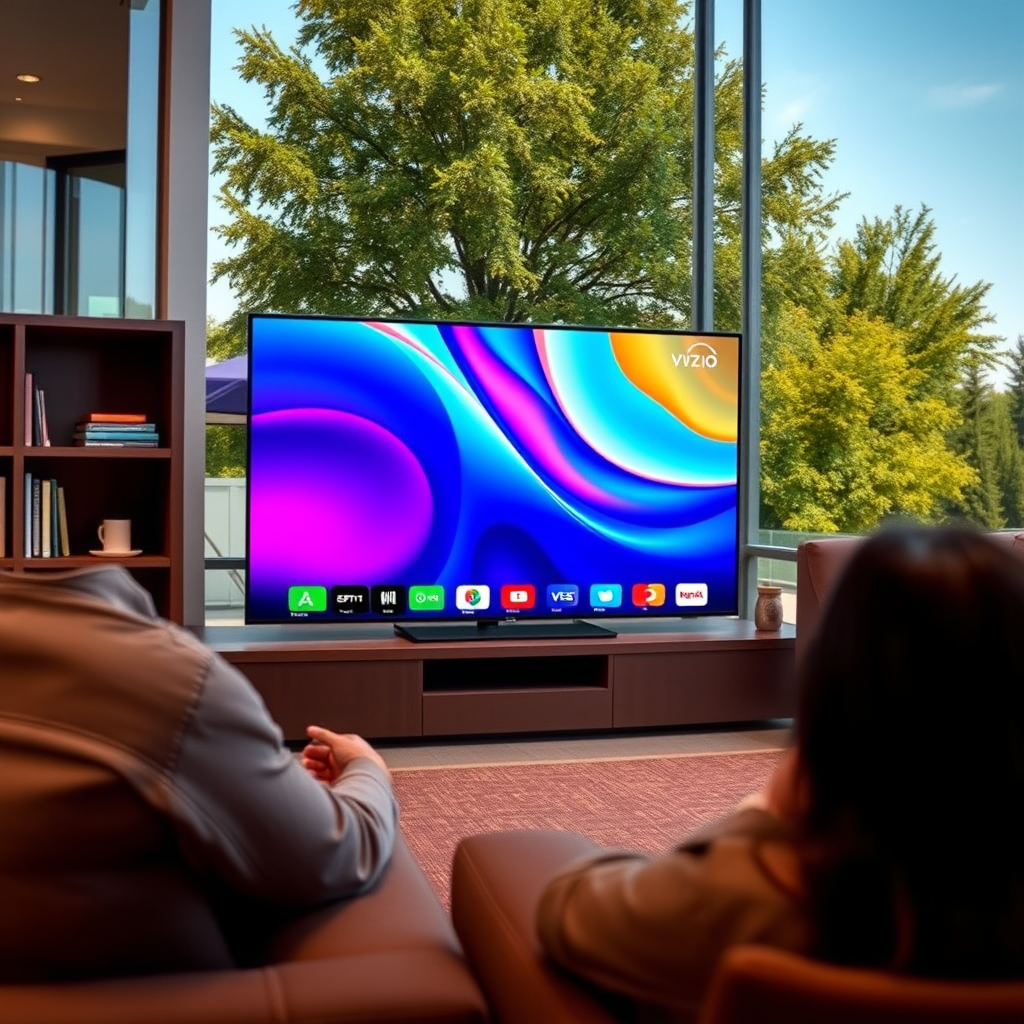
Before you begin the installation process, it’s essential to ensure that your Vizio Smart TV supports the ESPN app. Most Vizio Smart TVs released in 2016 or later are compatible with the app, but it’s always good practice to confirm. You can check your TV model by looking at the back of the unit or navigating through the settings menu. If your model is compatible, verify that your TV has access to the Vizio Smart TV app store, where you’ll find the ESPN app available for download.
Connect to the Internet
To access ESPN+, your Vizio Smart TV must be connected to a stable Wi-Fi network. This connection is crucial for streaming content without interruptions. You can connect your TV to Wi-Fi by navigating to the “Settings” menu, selecting “Network,” and choosing your Wi-Fi network from the list. Enter your Wi-Fi password when prompted, and check the connection status to ensure that your TV is online. A strong internet connection will enhance your streaming quality and minimize buffering during live sports events.
Access the Vizio App Store
Once your TV is connected to the internet, you can access the Vizio App Store. Use your remote to navigate to the Smart TV home screen. From there, look for the “Vizio App Store” or “Vizio Smartcast” option, which may vary based on your TV model. Selecting this option will take you to a menu where you can browse and search for various applications available for download.
Top Streaming Services in the US (2024)
| # | Service | Monthly Cost | Content Type | Live Sports |
|---|---|---|---|---|
| 1 | ESPN+ | $9.99 | Sports, News | Yes |
| 2 | Hulu | $7.99 | Movies, TV Shows | No |
| 3 | Netflix | $15.49 | Movies, TV Shows | No |
| 4 | YouTube TV | $64.99 | Live TV, Movies | Yes |
| 5 | Sling TV | $35.00 | Live TV | Yes |
| 6 | Paramount+ | $5.99 | Movies, Live TV | No |
| 7 | FuboTV | $69.99 | Live Sports, Movies | Yes |
Download the ESPN App
With access to the Vizio App Store, you can now search for ESPN. Use the search function to type in “ESPN,” and once you locate the ESPN app, click on it to view the app’s details. You will see an “Install” or “Download” button—select this option to begin downloading the app. The app will automatically install on your Vizio Smart TV, and you will find it on your home screen once the installation is complete.
Sign In or Create an ESPN+ Account
After successfully installing the ESPN app, open it to proceed. If you already have an ESPN+ account, you can sign in using your existing credentials. If you do not have an account, the app provides an option to create a new account directly within the app. Simply follow the prompts to enter your information and set up your account. This step is essential, as it grants you access to exclusive ESPN+ content, including live games, original programming, and more.
Activate Your ESPN+ Subscription
Once logged in, you’ll need to activate your ESPN+ subscription. The ESPN app will guide you through the activation process. Follow the on-screen instructions, which may include selecting a subscription plan and entering your payment information. ESPN+ typically offers various plans, so choose one that best suits your viewing habits. After your subscription is activated, you will gain full access to the extensive library of sports content available on the platform.
Troubleshooting Common Issues
While installing and activating the ESPN app should be a smooth process, you may encounter some common issues. If the app does not load, ensure that you have the latest version installed. You can check for updates in the Vizio App Store. Additionally, restarting your Vizio Smart TV can often resolve minor glitches. If you’re still having trouble, verify your internet connection again to ensure stability. For persistent issues, consider reaching out to Vizio or ESPN customer support for assistance.
Enjoy streaming your favorite sports content with ESPN+ on your Vizio Smart TV! By following these steps, you’ll have access to a wide range of live sports events and on-demand programming. For smooth viewing, ensure your internet connection is stable, and don’t hesitate to reach out to customer support if you encounter any issues.
Frequently Asked Questions
How do I download the ESPN+ app on my Vizio Smart TV?
To download the ESPN+ app on your Vizio Smart TV, press the V button on your remote to open the app store. Navigate to the “Featured” or “Apps” section, search for “ESPN+,” and select the app. Click on “Install” to download the app, and once installed, you can open it to start streaming.
Why can’t I find the ESPN+ app on my Vizio Smart TV?
If you can’t find the ESPN+ app on your Vizio Smart TV, it may be due to your TV model not supporting the app or the app not being available in your region. Ensure your TV is updated to the latest firmware, as newer apps may require updated software to function. If the app is still unavailable, consider using a streaming device like Roku or Amazon Fire Stick.
What are the subscription options for ESPN+ on Vizio Smart TV?
ESPN+ offers a monthly subscription at a competitive price, typically around $9.99 per month, or you can save by opting for an annual subscription, which is approximately $99.99 per year. Subscribing to ESPN+ also gives you access to exclusive sports content, live events, and original programming, making it a great value for sports fans.
How do I troubleshoot if the ESPN+ app is not working on my Vizio Smart TV?
If the ESPN+ app is not working on your Vizio Smart TV, first try restarting the app or your TV. Ensure that your internet connection is stable and that your TV has the latest software update installed. If the problem persists, consider uninstalling and reinstalling the app or checking for any known service outages from ESPN.
Which Vizio Smart TV models support ESPN+ streaming?
Most Vizio Smart TV models running the Smartcast platform from 2016 onwards support ESPN+. To check your specific model, refer to the Vizio website or your user manual. If your model doesn’t support the app, you can still access ESPN+ via external streaming devices like Chromecast, Roku, or Apple TV.
References
- https://www.vizio.com/en/faq/how-do-i-download-apps-on-my-vizio-smart-tv
https://www.vizio.com/en/faq/how-do-i-download-apps-on-my-vizio-smart-tv - https://support.espn.com/hc/en-us/articles/360049880654-How-to-Subscribe-to-ESPN-Plus
https://support.espn.com/hc/en-us/articles/360049880654-How-to-Subscribe-to-ESPN-Plus - https://www.lifewire.com/how-to-watch-espn-plus-on-smart-tv-5072633
https://www.lifewire.com/how-to-watch-espn-plus-on-smart-tv-5072633 - https://support.vizio.com/s/article/How-to-Download-Apps-on-a-Vizio-Smart-TV?language=en_US
https://support.vizio.com/s/article/How-to-Download-Apps-on-a-Vizio-Smart-TV?language=en_US - Google Scholar Google Scholar
https://scholar.google.com/scholar?q=ESPN+Plus+Vizio+Smart+TV - Google Scholar Google Scholar
https://scholar.google.com/scholar?q=streaming+apps+on+smart+TV - Google Scholar Google Scholar
https://scholar.google.com/scholar?q=how+to+get+ESPN+Plus+on+smart+TV - Google Scholar Google Scholar
https://scholar.google.com/scholar?q=how+to+get+espn++on+vizio+smart+tv - how to get espn on vizio smart tv – Search results
https://en.wikipedia.org/wiki/Special:Search?search=how+to+get+espn++on+vizio+smart+tv - https://www.ncbi.nlm.nih.gov/search/research-articles/?term=how+to+get+espn++on+vizio+smart+tv
https://www.ncbi.nlm.nih.gov/search/research-articles/?term=how+to+get+espn++on+vizio+smart+tv
