

To get sound from a monitor without using external speakers, you can utilize the built-in audio features of the monitor or connect headphones directly. Many modern monitors have integrated audio options, allowing you to enjoy sound through HDMI or audio jack connections. In this article, you’ll discover various methods to achieve sound output from your monitor without relying on separate speakers.
Understanding Monitor Audio Capabilities
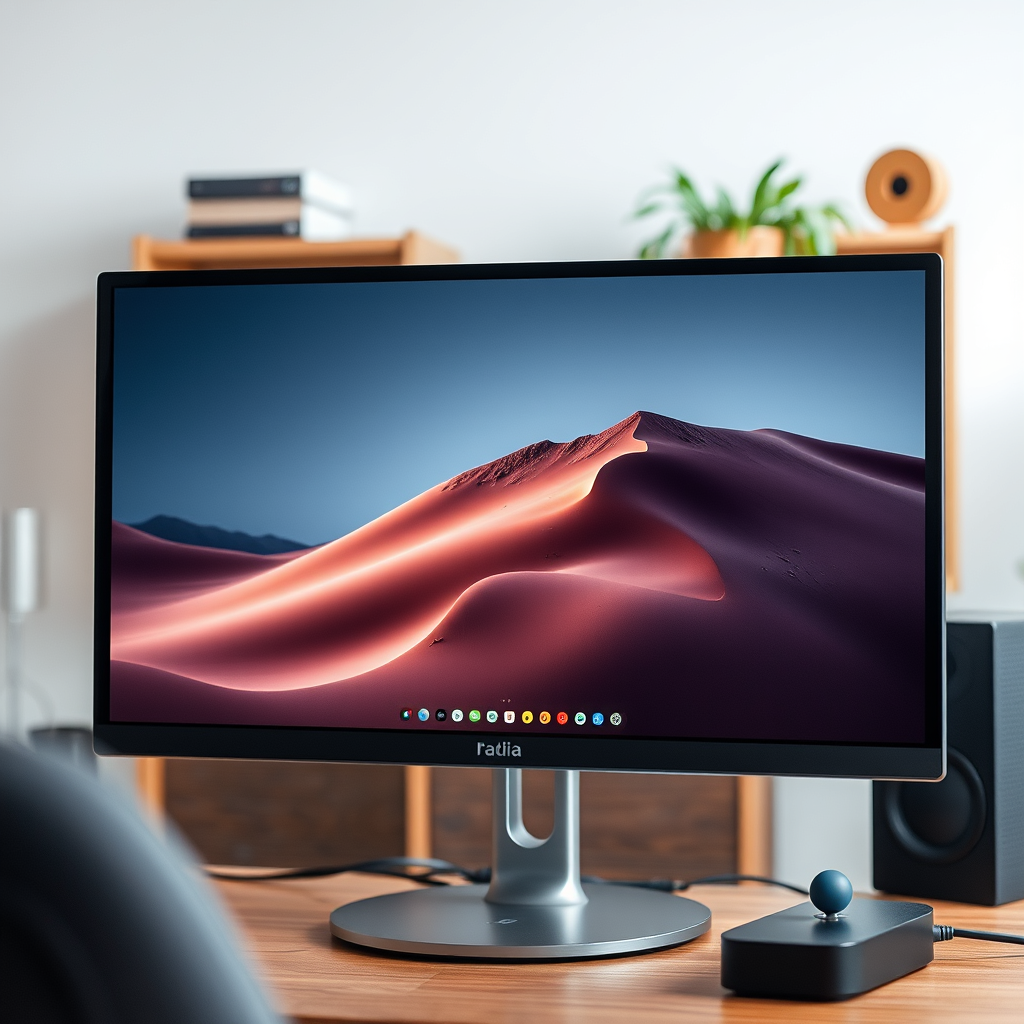
Many monitors today are equipped with built-in speakers that can deliver sound suitable for casual viewing, gaming, or conferencing. These integrated audio solutions can often handle standard volume and quality needs without the bulk of external speakers. When considering your monitor’s audio capabilities, it is crucial to consult the specifications provided by the manufacturer. Look for terms such as “built-in speakers,” “audio output,” or “integrated audio system.”
In addition to built-in speakers, some monitors feature audio ports, such as a headphone jack or audio output connectors, which can enhance your audio experience. Understanding these capabilities will help you leverage your monitor’s audio functions effectively.
Using HDMI for Audio Output
One of the most seamless ways to get audio from your monitor is through an HDMI connection. HDMI (High-Definition Multimedia Interface) is designed to carry both high-definition video and audio signals, thus allowing you to transmit sound directly from your device (such as a computer or gaming console) to the monitor without requiring additional cables.
To utilize this method, ensure your device is set to output audio through the HDMI connection. This typically involves accessing the sound settings on your operating system or device settings and selecting the HDMI output option as your audio source. Once configured, any audio played on your device will be transmitted through the HDMI cable to your monitor, enabling you to enjoy sound directly from the built-in speakers.
Connecting Headphones Directly
If your monitor is equipped with a headphone jack, connecting headphones directly can be an excellent way to achieve personal audio without using speakers. This method is particularly valuable in environments where you want to avoid disturbing others or when you desire a more immersive listening experience.
To connect headphones, simply plug them into the headphone jack of the monitor. In most cases, the monitor will automatically switch the audio output from its built-in speakers to the headphones. It’s important to ensure that your headphones are functioning properly and that the volume levels are adjusted to your preference for optimal sound clarity.
Top 7 Monitors with Built-in Audio Features (2024)
| # | Monitor Model | Audio Type | Speaker Power | Price |
|---|---|---|---|---|
| 1 | Dell P2419H | Stereo | 5W | $239.99 |
| 2 | ASUS ProArt PA278QV | Stereo | 3W | $599.99 |
| 3 | Samsung LC32G55TQWNXZA | Mono | 5W | $329.99 |
| 4 | LG 27UK850-W | Stereo | 10W | $449.99 |
| 5 | BenQ PD3220U | Stereo | 8W | $999.99 |
| 6 | Acer R240HY | Stereo | 2W | $169.99 |
| 7 | ViewSonic VA2456-MHD | Stereo | 4W | $199.99 |
Exploring USB Audio Solutions
An increasingly popular method for achieving audio from monitors without external speakers is by utilizing USB audio connections. Some modern monitors come equipped with USB ports that support audio output, allowing you to connect USB headphones or speakers directly.
To implement this solution, check if your monitor has USB audio capabilities, and refer to the user manual for setup instructions. You may need to install specific drivers or software, depending on your operating system. Once everything is set up, simply plug your USB audio device into the monitor, and you should be able to enjoy sound through your chosen headphones or speakers.
Utilizing Bluetooth Connections
In an era increasingly defined by wireless technology, many monitors are now equipped with Bluetooth capabilities, allowing you to pair wireless headphones or speakers for audio output. This method offers convenience and the freedom to move around without being tethered by cables.
To connect Bluetooth audio devices, ensure your monitor is in pairing mode. Simultaneously, put your Bluetooth headphones or speakers in pairing mode. Once both devices recognize each other, you will be able to pair them successfully. Follow the manufacturer’s instructions to complete the connection process. Once paired, audio playback from your monitor will wirelessly transmit to your Bluetooth devices.
Troubleshooting Audio Issues
Despite the numerous methods available for achieving sound from a monitor, audio issues can sometimes arise. If you find yourself in a situation where no sound is coming from your monitor, several troubleshooting steps can help resolve the problem.
First, verify your device’s audio settings to ensure that the correct audio output source is selected. Check whether the monitor is set as the default playback device in your system settings. If audio settings are correct, try restarting both your monitor and the connected device, as this can often clear up temporary glitches.
Additionally, updating audio drivers can resolve sound issues that may stem from outdated software. If problems persist, consult the user manual or manufacturer support for further assistance.
Alternative Solutions for Sound Output
If your monitor lacks built-in audio capabilities, there are still viable alternatives to achieve sound output. Consider using external USB sound cards, which can be plugged into your computer and provide audio output options. This solution allows you to connect speakers or headphones directly to the sound card, giving you flexibility in your audio setup.
Another option is to utilize a streaming device that supports audio output through your monitor. Devices like Roku, Amazon Fire Stick, or Apple TV can connect to your monitor via HDMI, providing sound through their built-in systems. This method also gives you access to streaming services and additional content without needing separate audio equipment.
In summary, there are multiple ways to get sound from your monitor without needing external speakers. By utilizing built-in features, HDMI connections, USB audio solutions, or wireless options, you can enhance your audio experience while using your monitor. If you found this information helpful, consider sharing it with others or exploring more tech tips to maximize your technology usage.
Frequently Asked Questions
How can I get sound from my monitor without using external speakers?
You can get sound from your monitor without external speakers by using the built-in audio output options available in your monitor. Most modern monitors come with HDMI or DisplayPort connections that support audio. Simply connect your monitor to your computer using one of these cables, and ensure the monitor is set as the default audio device in your computer’s sound settings.
What devices can I use to output sound from a monitor without speakers?
You can use devices such as headphones or soundbars that connect directly to your monitor’s audio output jack. Many monitors feature a 3.5mm headphone jack or an HDMI audio output that allows you to attach these devices for sound. If your monitor has USB-C ports, you may also find compatible audio devices to connect for sound output.
Why is my monitor not producing sound even though it has built-in speakers?
If your monitor has built-in speakers but is not producing sound, it may be due to the incorrect audio output settings on your computer. Check your sound settings to ensure the monitor is selected as the default playback device. Additionally, confirm that the monitor’s volume is turned up and not muted.
Which cable should I use to ensure sound output from my monitor?
To ensure sound output from your monitor, use an HDMI cable or a DisplayPort cable, as both support audio transmission alongside video. If your monitor has a separate audio output, a 3.5mm audio cable can also be used to connect to headphones or external devices. Always check the specifications of both your monitor and computer to select the appropriate cable.
What are the best alternatives to get sound from a monitor without built-in speakers?
The best alternatives to get sound from a monitor without built-in speakers include using external soundbars, headphones, or computer speakers that can connect via HDMI, DisplayPort, or a 3.5mm audio jack. Bluetooth audio devices can also be a great option if your monitor supports Bluetooth connectivity, providing a wireless solution for sound output.
References
- https://en.wikipedia.org/wiki/Monitor_(display)#Audio
https://en.wikipedia.org/wiki/Monitor_(display)#Audio - https://www.lifewire.com/use-your-monitor-speakers-2438467
https://www.lifewire.com/use-your-monitor-speakers-2438467 - Google Scholar Google Scholar
https://scholar.google.com/scholar?q=how+to+get+sound+from+a+monitor+without+speakers - Google Scholar Google Scholar
https://scholar.google.com/scholar?q=audio+output+from+monitor+without+speakers - https://scholar.google.com/scholar?q=using+monitors+for+audio+output Google Scholar
https://scholar.google.com/scholar?q=using+monitors+for+audio+output - how to get sound from a monitor without speakers – Search results
https://en.wikipedia.org/wiki/Special:Search?search=how+to+get+sound+from+a+monitor+without+speakers - https://www.ncbi.nlm.nih.gov/search/research-articles/?term=how+to+get+sound+from+a+monitor+without+speakers
https://www.ncbi.nlm.nih.gov/search/research-articles/?term=how+to+get+sound+from+a+monitor+without+speakers
