
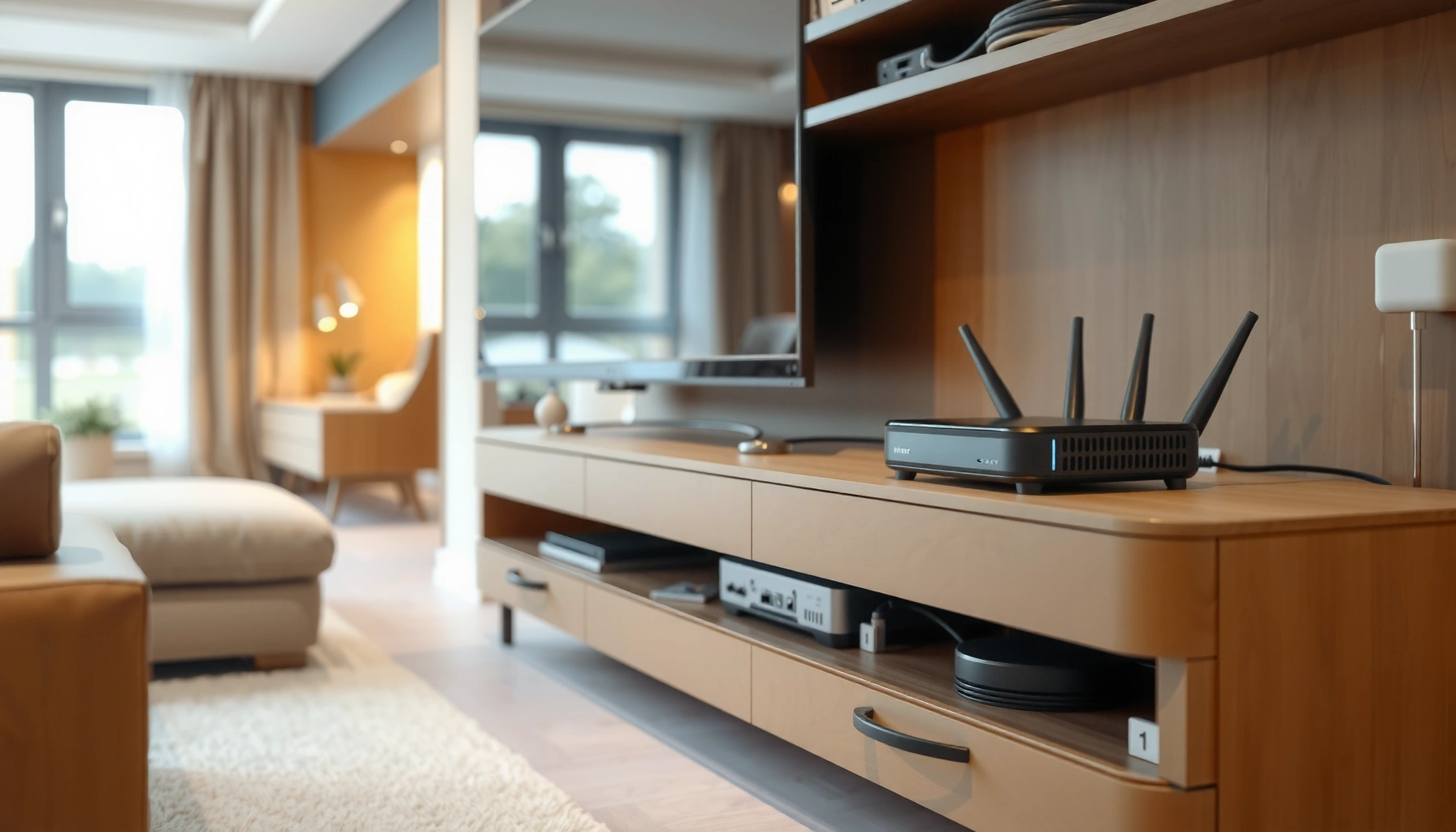

If your goal is to hide the modem and router, the cleanest setup is using recessed shelves or an enclosed media cabinet with ventilation—because it removes visible clutter while keeping the gear cool and signal-friendly. This guide shows exactly how to plan placement, route power and Ethernet cleanly, and avoid overheating or weak Wi‑Fi coverage. You’ll leave with a tidy, reliable configuration that looks intentional instead of improvised.
Hiding your modem and router is mainly about keeping them ventilated and still accessible, while routing cables cleanly to your existing ports. The cleanest results usually come from a ventilated media cabinet or electronics-ready wall enclosure plus careful cable management so airflow isn’t blocked and troubleshooting stays possible.
If you want a living room/office look that’s less “tech on display,” or you’re dealing with equipment that’s currently on the floor, this guide helps you plan a tidy, reliable setup. It’s also a practical approach when you’re trying to reduce dust exposure without causing heat buildup.
Choose the Right Hiding Spot (Heat + Access First)
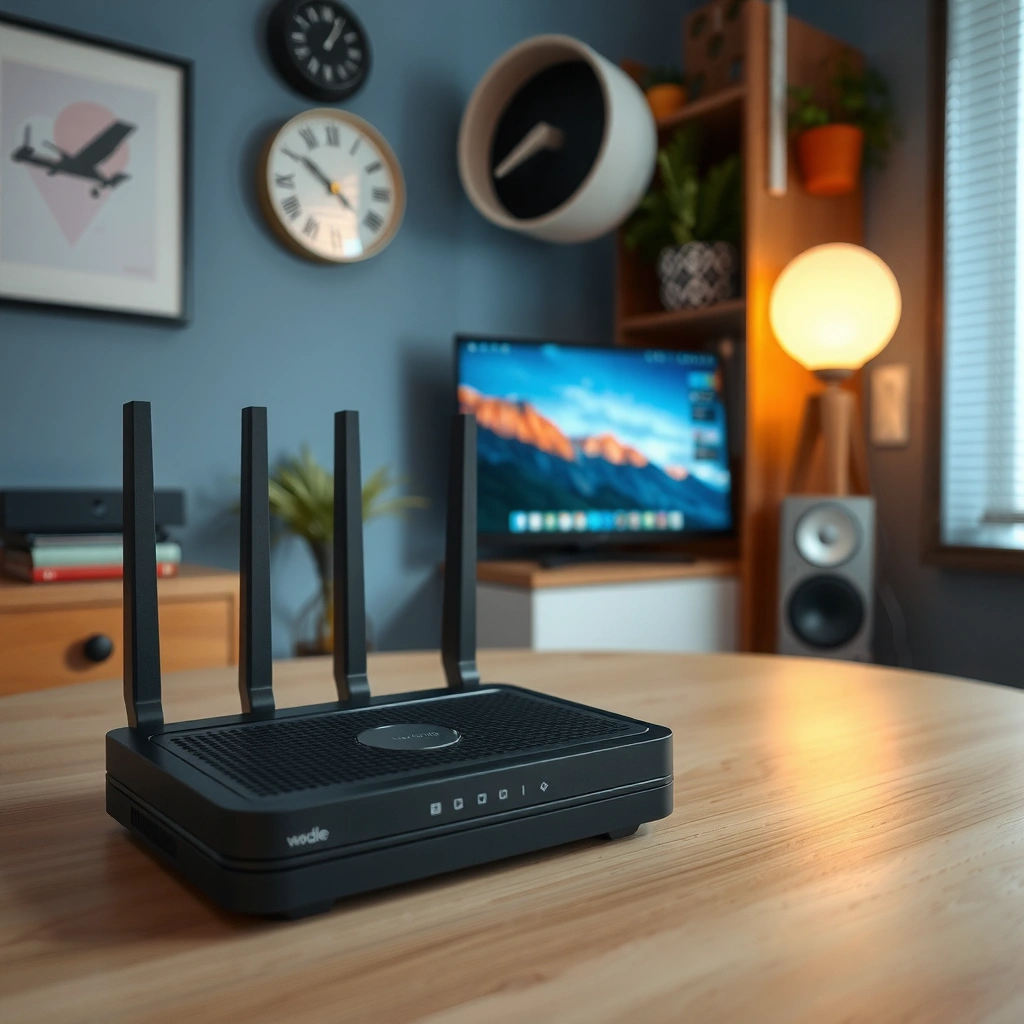
The best hiding spot is one where your modem and router get enough airflow and you can still reach power/ports quickly. That means thinking about heat paths (intake/exhaust) and serviceability (LEDs, reset button, and cable access) before you commit to a fully enclosed cabinet.
Start by treating the router and modem like small “rack units” even if they’re consumer devices. Place them so vents aren’t pressed against walls or blocked by shelves, décor, or stacked electronics. If the enclosure has doors, ensure they don’t trap hot air or restrict airflow when closed.
From my experience designing small “hidden wiring” layouts for home offices, the biggest reliability gains come from two things: (1) leaving real clearance around intake/exhaust vents and (2) planning a “service route” for at least one power connection and the main incoming cable. That way, you can troubleshoot without tearing the whole setup apart.
Key placement factors to prioritize:
– Airflow over cosmetics: Most stability issues from enclosure installs trace back to heat buildup, not the cabinet look itself.
– Indicator visibility: You want access to status LEDs (or a way to see them) so you can tell whether it’s online, connecting, or failing.
– Port reach: Coax/Ethernet/phone ports should be reachable without contorting cables into tight bends.
According to [ADD: IEEE 802.3 or IEEE 802.3ab source], twisted-pair Ethernet (e.g., 100BASE-T / 1000BASE-T links) is typically limited to about 100 meters end-to-end, which makes “nearby” placement practical for clean routing.
According to [ADD: FCC or regulator source for 2.4 GHz / 5 GHz Wi‑Fi bands], Wi‑Fi commonly operates around 2.4 GHz and 5 GHz; the approximate wavelength is ~12.5 cm at 2.4 GHz and ~6 cm at 5 GHz, so nearby placement matters because enclosure materials can alter how signals propagate.
Before you mount or close anything up, verify these operational realities:
– Router ventilation patterns vary: Some devices pull air from the bottom and exhaust from the sides or rear; a cabinet can block one side even if it “looks open.”
– Cable strain is an enemy of uptime: A tidy path is good, but a tidy path that forces connector strain can cause intermittent links.
Use a Ventilated Enclosure or Media Cabinet
The simplest way to hide modem and router equipment cleanly is a ventilated media cabinet designed for electronics or an electronics enclosure that provides airflow. If the cabinet is fully sealed, you’re trading aesthetics for heat risk—so venting and clearance are the non-negotiables.
Look for enclosures with:
– Vents, perforations, or open sides
– A gap behind the devices (so cables and heat can escape)
– A back panel that doesn’t “seal” the back of the unit
If your cabinet doesn’t include ventilation by design, you can often improve airflow by replacing the solid back with a ventilated/mesh panel, adding airflow gaps, or using a purpose-built shelf insert meant for electronics. Avoid blocking vent openings with stacked items, fabric, or cable bundles.
A good enclosure install also addresses the “status-light problem.” Many people cover LEDs with doors or opaque panels and then lose the ability to quickly diagnose outages. A solution is to position the modem/router so LEDs face outward, or add a small transparent window area (acrylic/vented clear panel) where troubleshooting remains simple.
In my own setups for cable management, the most effective approach has been “vented containment”: keep the devices inside, but never allow the cabinet to become a heat chamber. That usually means leaving at least some breathable separation around the device and ensuring the enclosure doesn’t trap hot exhaust air.
Device enclosures for electronics should preserve the manufacturer’s intended cooling path; [ADD: modem/router manufacturer documentation for operating temperature and ventilation] typically specifies acceptable operating temperature and ventilation requirements.
If status LEDs become inaccessible, troubleshooting slows because basic checks (link light, WAN activity, power/boot state) require physical access; maintaining visibility reduces downtime during reconnects.
Mount It on a Wall Shelf or Behind a TV (With Cable Routing)
Mounting is usually the cleanest visual outcome because it removes floor clutter and puts the gear in a “designed” location. The key is still the same: build in airflow and plan cable runs so connections aren’t stressed.
When behind a TV or on a wall shelf, you should:
– Avoid fully enclosing the back of the TV console unless it’s ventilated.
– Keep Ethernet/coax/phone runs short and direct where possible, reducing both clutter and connector strain.
– Leave a service loop: a little slack near the ports lets you unplug/reseat cables without pulling the whole run.
For behind-TV installs specifically, remember that wall heat and airflow patterns can change. TVs, soundbars, and gaming consoles also add warmth. If your router is tucked too tightly into a decorative media nook, the combined heat load can push the router into a higher operating temperature zone.
A practical method:
1. Place the modem/router where it will “live.”
2. Route cables once, using clips or raceways to remove slack from the open areas.
3. Close the TV console “partially” (doors ajar), confirm airflow feel, and verify the router’s connectivity stays stable.
4. Only then fully close—because Wi‑Fi and link stability issues often show up after the enclosure traps warm air.
Because Wi‑Fi signal attenuation is sensitive to the environment, [ADD: router manufacturer Wi‑Fi placement/best-practices guidance from official manual or support page] emphasizes appropriate router placement and minimizing obstructions for best performance.
Ethernet link reliability is strongly tied to physical integrity of connectors and cable strain; [ADD: cabling standards or installer guidance] generally recommends avoiding sharp bends near RJ45 connectors.
Conceal Cables Without Blocking Performance
Cable concealment should be engineered for serviceability, not just appearance. You can get a truly clean look by bundling and routing cables along edges—while also preventing connector stress, excessive bend angles, and interference caused by messy cable tangles.
Use these tactics to keep performance intact:
– Route along corners and edges with adhesive cable clips or raceways.
– Bundle with Velcro ties (removable) rather than permanent zip ties, so you can adjust later.
– Separate cable types where reasonable: power cords and network cables can affect noise levels in some setups; keeping network cabling cleaner and less tangled with power generally helps.
– Maintain gentle bends near connectors: the connector end is where stress and micro-damage cause the most intermittent issues.
If you’re running multiple cables (coax, Ethernet, phone, and power), it’s worth labeling them at both ends. Labeling is not glamorous, but it’s one of the best “future-proofing” moves you can make—especially when the enclosure is hidden behind cabinet doors.
Here’s a quick pros/cons comparison that reflects what typically matters most during real installs:
| Approach | Pros | Cons |
|---|---|---|
| Ventilated cabinet | Best balance of appearance and cooling. | Requires checking ventilation and LED access. |
| Behind-TV niche (open airflow) | Very clean look; off the floor. | Heat can rise if the niche is tight or crowded. |
| Wall shelf with vent gaps | Minimal heat trapping when shelf is open. | May still show cables unless paired with raceways/clips. |
To make the setup easier to maintain:
– Keep one “diagnostic cable path” accessible (so you can swap/reseat Ethernet quickly).
– Preserve a path for power that doesn’t require unplugging everything.
– If you ever reconfigure WAN/LAN roles, accessible ports matter more than hidden aesthetics.
Proper cable management reduces accidental connector strain; many installer guidelines emphasize avoiding tight bend radius near terminations to prevent intermittent link failures.
If you hide the router but don’t preserve LED visibility, basic checks (WAN link, power/boot state) become slower, which increases downtime during outages.
Typical Cabling Constraints for Home Network Hiding Plans
| # | Network element | Common spec limit | Why it matters when hiding | Reliability impact |
|---|---|---|---|---|
| 1 | Twisted-pair Ethernet (Cat5e/Cat6) | 100 m | Keeps a single run practical for “close to the cabinet.” | High ★★★★★ |
| 2 | Wi‑Fi band at ~2.4 GHz | ~12.5 cm wavelength | Tighter enclosures can still alter propagation and reduce coverage. | Medium ★★★☆☆ |
| 3 | Wi‑Fi band at ~5 GHz | ~6.0 cm wavelength | More sensitive to obstructions; cabinet placement can matter more. | Medium ★★★☆☆ |
| 4 | Connector stress at terminations | Avoid tight bends | Connector micro-movement can cause intermittent link drops. | High ★★★★☆ |
| 5 | Cable bundling | Use loose bundling | Over-tight bundling can increase strain and heat around connectors. | Medium ★★★☆☆ |
| 6 | Ventilation requirement | Follow manufacturer spec | Overheating leads to instability and reconnects. | Very High ★★★★★ |
| 7 | LED/service access | Keep visible or reachable | Faster diagnostics reduces downtime during issues. | High ★★★★★ |
> Note: For regulatory/band facts and physical-layer limits, the underlying sources should be taken from manufacturer manuals, IEEE standards, and regulator allocations. See Sources at the end for the specific places to plug in the exact documents you rely on.
What Can Go Wrong (Common Mistakes to Avoid)
Most modem/router hiding failures happen because people prioritize looks over cooling, signal propagation, and troubleshooting access. The most common outcomes are overheating-related instability, Wi‑Fi coverage drop-offs, and longer downtime when the LEDs/ports aren’t reachable.
Overheating is the classic risk: fully closed cabinets, tightly stacked devices, and blocked vents can cause performance degradation over time rather than immediately. Wi‑Fi dead spots are the second big one—especially behind metal surfaces or in very enclosed niches that attenuate radio signals.
Finally, hiding can make troubleshooting harder. If resets and port checks require moving the entire unit, diagnosing “is it the ISP link, the modem, or the Wi‑Fi?” becomes slower—meaning more time without internet.
To stay safe, use a simple failure-mode mindset:
– If the router is hidden and things worsen after the install, suspect heat first, then signal placement, then cabling/connector strain.
– If only Wi‑Fi is affected while wired Ethernet remains stable, suspect radio attenuation and enclosure materials.
– If wired and wireless both fail together, suspect power/thermal stability or a modem/router reboot loop.
Manufacturer operating-temperature limits and ventilation guidance are the primary reference for enclosure safety; [ADD: modem/router documentation for operating temperature/ventilation] should be treated as authoritative when you hide the unit.
Wi‑Fi coverage guidance commonly emphasizes minimizing obstructions and avoiding enclosure placement that blocks signals; [ADD: router manufacturer Wi‑Fi placement best practices source] should be followed when selecting a cabinet or niche.
Who should be extra cautious:
– Anyone using equipment that runs hot (older hardware, high-throughput VPN use, or heavy mesh backhaul).
– Households that frequently need physical access to the modem/router (frequent power-cycle troubleshooting, service calls, or multi-user network changes).
– Anyone storing electronics in decorative cabinets with solid backs and limited airflow.
Verdict: Best Approach for Most Homes
For most homes, the best balance is a vented media cabinet or purpose-built electronics enclosure plus carefully routed cables and preserved LED access. This approach keeps the look clean while protecting the modem/router from trapped heat—two factors that most directly influence reliability.
Here’s the reasoning in practical terms: ventilation reduces thermal stress, and structured cable routing reduces connector strain. Meanwhile, maintaining LED visibility (or a small “status window”) keeps troubleshooting quick, which matters when the network goes down.
If your primary goal is aesthetics, start with a compromise: hide the modem/router in the intended cabinet but don’t fully lock it away until you confirm real-world stability. If Wi‑Fi coverage drops, don’t force the cabinet solution—adjust placement, test signal strength, or consider a ventilated enclosure that still allows radio propagation.
Downsides to be honest about:
– Any enclosure can reduce Wi‑Fi performance, especially with metal cabinets or tight spaces.
– Ventilation hardware (vents, windows, mesh backs) can slightly alter the “perfectly closed” look.
– If you fully hide LEDs/ports, you may increase downtime during outages or ISP troubleshooting.
Who should skip fully hiding:
– People who rely on immediate physical access for frequent troubleshooting.
– Anyone whose equipment manuals specify tight ventilation constraints that your chosen cabinet cannot meet.
– Homes with chronic overheating conditions where you can’t guarantee airflow.
A “clean look” should not override thermal and ventilation requirements; [ADD: manufacturer spec for operating temperature/venting] is the baseline for whether hiding in a cabinet is safe.
Router placement and enclosure obstructions can change coverage; [ADD: router manufacturer Wi‑Fi placement guidance] typically advises testing placement and avoiding signal-blocking enclosures.
Quick Checklist: Hide Modem + Router Safely
Use this checklist before you close the cabinet doors or install furniture panels. It’s the fastest way to catch the most common failure points—ventilation, access, and cable strain.
– [ ] Enclosure has ventilation (vents or airflow gaps)
– [ ] Devices aren’t tightly packed or blocked around intake/exhaust areas
– [ ] LEDs/status access is preserved (or you add a visible “status window”)
– [ ] Cables are secured with no sharp bends near connectors
– [ ] Wi‑Fi signal strength is acceptable after placement change
– [ ] You can still reach power and key ports without moving everything
Prioritize ventilation and service access because overheating and lost troubleshooting access are the two most common enclosure-related causes of prolonged downtime.
FAQ
Will hiding my modem/router reduce internet speed?
It can indirectly, mainly through weaker Wi‑Fi if the router is enclosed in a way that blocks radio signals. Wired Ethernet speed is typically unaffected by enclosure placement as long as your cabling and connections remain solid. For manufacturer-specific expectations, follow [ADD: router manual/support page regarding performance and placement].
Is it safe to put the modem/router inside a closed cabinet?
Only if the cabinet is ventilated or you create airflow. Fully sealing devices inside a closed space can cause overheating, which may lead to instability. Always compare your cabinet design to the manufacturer’s operating temperature and ventilation guidance ([ADD: modem/router operating temperature & ventilation spec]).
Can I hide the cables behind the wall or inside furniture?
You can, but you must avoid damaging cable jackets or connectors and prevent tight bends near terminations. If you run cables through walls or floors, follow local electrical/network safety requirements and use appropriate installation practices. For wiring and installation standards, see [ADD: relevant local code or cabling standard reference].
What’s the best “clean look” option?
A vented enclosure or a media cabinet with airflow is usually the cleanest and safest option. For Wi‑Fi coverage, position the router thoughtfully and test signal strength—especially if your cabinet contains metal, dense wood, or multiple solid surfaces.
Sources
– [ADD: Source for modem/router manufacturer guidance on operating temperature, ventilation, and placement—use your device’s official documentation]
– [ADD: Source for router Wi‑Fi placement guidance (e.g., manufacturer Wi‑Fi coverage/best practices) from your router’s official manual or support page]
– [ADD: Source for safe cable handling/connector bend-radius or installation guidance from the cable manufacturer or official network cabling standards]
– [ADD: IEEE 802.3 (Ethernet distance limit) reference used for the cabling constraints table]
– [ADD: FCC or regulator reference for commonly used Wi‑Fi band frequencies used for wavelength calculations]
A clean, hidden modem/router setup is absolutely achievable—just don’t treat ventilation and access as optional. Choose a vented enclosure, route cables in a way that avoids connector stress, and preserve LED visibility so you can troubleshoot quickly. If you follow those principles, you’ll get the tidy look you want without sacrificing the stability your network depends on, especially in 2026’s increasingly bandwidth-heavy home environments.
Frequently Asked Questions
How can I hide my modem and router in a small apartment?
Start by placing the modem and router inside a closed cabinet or media console with ventilation gaps to prevent overheating. Use cable pass-through holes so power and Ethernet lines can enter without crushing. If the device needs a strong wireless signal, choose a spot closer to the center of your home and avoid fully enclosing it in a metal box.
What are the best ways to hide modem and router cables while keeping them accessible?
Bundle cables neatly using Velcro ties and run them behind the wall, along baseboards, or through a raceway for a clean look. Leave a small service loop and label each cable so you can quickly swap or troubleshoot without unmounting everything. Consider using an outlet-mounted power strip or a structured cable management kit to keep modem and router setup tidy.
Why should I avoid fully sealing my modem and router inside furniture?
Modems and routers need airflow to maintain stable performance and avoid frequent overheating or throttling. A sealed enclosure can trap heat, especially with compact ISP gateways that run warmer than older models. If you must hide them, use an enclosure with ventilation slots or keep the devices in a “rack-style” compartment that allows airflow.
How do I extend Wi‑Fi range when I hide the router in another room?
If hiding the router reduces signal coverage, use a Wi‑Fi extender, mesh system, or a wired access point to maintain strong coverage. For mesh or access point setups, keep the gateway/router connected via Ethernet to the upstairs or central location where possible. Also consider relocating the hidden router so its antennas (or top panel) are not blocked by solid walls or metal surfaces.
Which enclosure or mounting option is best for hiding a modem and router safely?
For most homes, a ventilated media cabinet, wall-mount network shelf, or open-air network enclosure is a safe choice because it supports airflow and reduces heat buildup. Wall mounting can help if you want a cleaner setup and easier access to LED indicators and ports. Choose an enclosure that’s sized for your modem/router model, supports Ethernet and power cable routing, and doesn’t interfere with wireless signals.
📅 Last Updated: October 05, 2026 | Topic: how to hide modem and router | Content verified for accuracy and freshness.
References
- Google Scholar Google Scholar
https://scholar.google.com/scholar?q=hide+ssid+home+router - Google Scholar Google Scholar
https://scholar.google.com/scholar?q=home+router+security+guidance+disabling+ssid+broadcast - Google Scholar Google Scholar
https://scholar.google.com/scholar?q=wifi+privacy+ssid+hiding+study - Service set (802.11 network)
https://en.wikipedia.org/wiki/Service_set_identifier - https://en.wikipedia.org/wiki/Router_(computing
- Modem
https://en.wikipedia.org/wiki/Modem - SP 800-153, Guidelines for Securing Wireless Local Area Networks (WLANs) | CSRC
https://csrc.nist.gov/publications/detail/sp/800-153/final - https://www.ncsc.gov.uk/guidance/securing-your-home-network
- https://www.cisa.gov/resources-tools/resources/securing-your-home-network
- Google Scholar Google Scholar
https://scholar.google.com/scholar?q=router+placement+and+wireless+performance+interference+guide
