
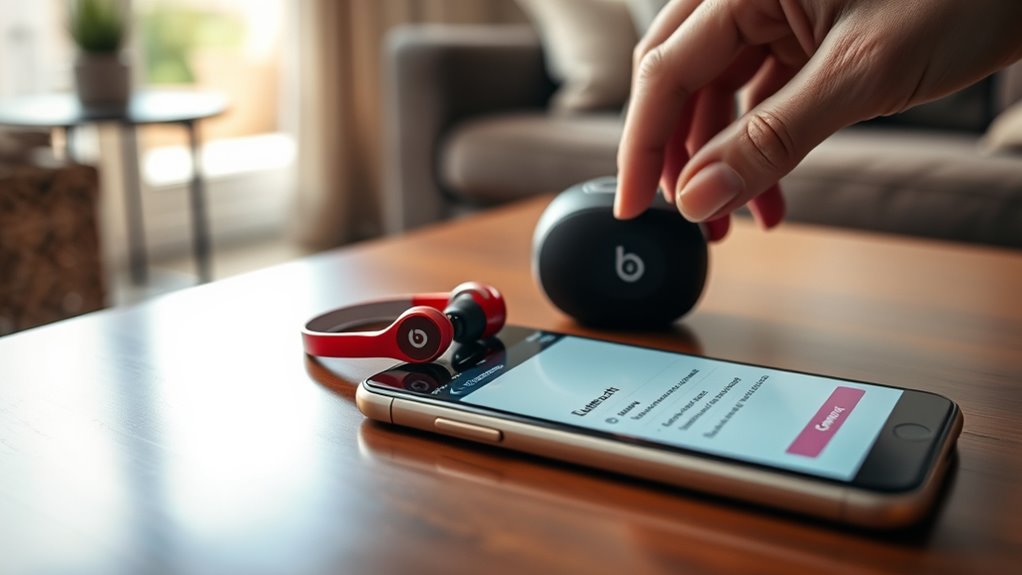

To pair your Beats earbuds, first make certain they’re charged and Bluetooth is activated on your device. Open the charging case and press the button on the earbuds until you see the LED light flash. Go to your device’s Bluetooth settings, find your earbuds, and select them to connect. You’ll hear a confirmation sound when they’re successfully paired. If you want tips on troubleshooting and enhancing your listening experience, keep going for more insights!
Checking Compatibility With Your Device
Before you plunge into pairing your Beats earbuds, it is crucial to verify they’re compatible with your device. A quick compatibility check can save you time and frustration. Start by checking the specifications of your earbuds against your device’s settings. Most Beats earbuds work seamlessly with smartphones, tablets, and computers, but it’s good to confirm.
Make sure your device has Bluetooth enabled and is updated to the latest software version. You wouldn’t want to miss out on features or experience connection issues.
If your device is compatible, you’re ready to move forward! Knowing your earbuds will work with your device gives you the freedom to enjoy your music without worrying about technical glitches. Let’s get those earbuds connected!
Charging Your Beats Earbuds
To keep your Beats earbuds ready for action, it’s vital to understand how to charge them properly. You’ll want to make the most of the charging case, pay attention to battery life tips, and know what those indicator lights mean. Let’s explore how to guarantee your earbuds stay powered up and ready to go!
Charging Case Usage
While you might be enthusiastic to start enjoying your Beats earbuds, understanding how to properly use the charging case is vital for keeping them powered up. Your charging case not only stores your earbuds but also provides additional battery life. Familiarize yourself with its features to maximize your experience.
| Charging Case Features | Charging Case Maintenance |
|---|---|
| Portable and lightweight | Clean regularly with a dry cloth |
| Quick charging capability | Avoid exposing to extreme temperatures |
| LED indicator for battery level | Guarantee proper alignment when placing earbuds |
Battery Life Tips
After getting familiar with your charging case, it’s time to focus on battery life tips for your Beats earbuds. To guarantee you’re using battery conservation techniques effectively, try keeping the volume at a moderate level. High volumes can drain your battery faster. Also, remember to turn off your earbuds when not in use, as this can greatly extend their lifespan. Storing them in their case when you’re done will help protect the battery, too. For long-term use, avoid extreme temperatures, as heat and cold can harm your battery health. Regularly updating your earbuds’ firmware can also help optimize performance. By following these simple steps, you’ll be well on your way to maximizing your earbud lifespan and enjoying uninterrupted sound.
Indicator Lights Explained
Indicator lights on your Beats earbuds serve as a quick reference to their charging status and battery life. Understanding color codes is essential for optimizing your listening experience. Here are the key indicator light functions:
- Solid Green: Fully charged and ready to go.
- Flashing White: Pairing mode activated, so you can connect to your device.
- Solid Red: Low battery, time to recharge.
- Flashing Red: Critical battery level; your earbuds need immediate charging.
Activating Bluetooth on Your Device
You’ll need to activate Bluetooth on your device before pairing your Beats earbuds. Start by accessing your device’s Bluetooth settings. On smartphones, this is usually found in the settings menu under “Connections” or “Bluetooth.” Once you’re in, toggle the Bluetooth switch to the “On” position. This will make your device discoverable, enhancing device visibility for pairing.
If you’re using a computer, look for the Bluetooth icon in your system tray, right-click, and select “Turn Bluetooth On.”
Make sure your device stays visible to other devices during this process; otherwise, your earbuds might not connect. With Bluetooth activated, you’re ready to move on to the next step in enjoying your music wirelessly!
Pairing Your Beats Earbuds
With Bluetooth activated on your device, it’s time to pair your Beats earbuds. Follow these simple steps to enjoy exceptional sound quality and amazing earbud features:
- Open the case of your Beats earbuds and verify they’re charged.
- Press and hold the button on the earbuds until the LED light starts flashing, indicating they’re in pairing mode.
- On your device, navigate to the Bluetooth settings and look for your Beats earbuds in the list of available devices.
- Select your earbuds to connect; once paired, you’ll hear a confirmation sound.
Now, you’re ready to immerse yourself in rich audio and unparalleled freedom. Enjoy your music, podcasts, or calls with clarity and style!
Troubleshooting Common Pairing Issues
If you’re having trouble pairing your Beats earbuds, don’t worry—common issues can often be fixed easily. You might need to reset your earbuds, check for Bluetooth connectivity, or verify your device is compatible. Let’s explore these troubleshooting steps to get you back to enjoying your music.
Resetting Beats Earbuds
When your Beats earbuds aren’t pairing properly, resetting them can often resolve the issue quickly. Here’s how to perform a factory reset using simple resetting methods:
- Place earbuds in the case: Confirm they’re charged and ready.
- Press and hold the system button: Hold it for about 15 seconds until the LED light flashes red and white.
- Release the button: This indicates that the reset is complete.
- Reconnect your earbuds: Pair them again with your device to enjoy your music.
With these straightforward steps, you’ll regain the freedom of seamless listening. If issues persist, consider checking your device’s Bluetooth settings or looking for software updates. Enjoy your Beats experience!
Bluetooth Connectivity Problems
Sometimes, Bluetooth connectivity problems can arise unexpectedly, leaving you frustrated and unable to enjoy your music. If you’re experiencing issues, first check for Bluetooth interference—other devices or even walls can disrupt your connection. Try moving closer to your audio source to see if that helps. If you notice audio latency, it might be due to a poor connection; disconnect and reconnect your earbuds to refresh the pairing. Restarting your device can also resolve minor glitches that affect connectivity. Make sure your earbuds are charged, as low battery levels can impact performance. If problems persist, consider resetting your earbuds once more to clear any persistent connection issues. Enjoy the freedom of seamless listening!
Device Compatibility Issues
While pairing your Beats earbuds should be a straightforward process, device compatibility issues can occasionally complicate things. To guarantee a smooth connection, keep these common troubleshooting tips in mind:
- Check device compatibility: Verify your earbuds are compatible with common device brands like Apple, Samsung, or Google.
- Update firmware: Outdated software can cause issues, so check for firmware updates on both your earbuds and device.
- Reset your earbuds: If you’re having trouble, resetting your Beats might resolve connectivity problems.
- Forget and reconnect: Remove the earbuds from your device’s Bluetooth settings, then try pairing them again.
Managing Device Connections
Managing device connections for your Beats earbuds is essential for a seamless listening experience. To guarantee ideal connection stability, keep your earbuds updated with the latest firmware. Regularly check your device management settings to see which devices are currently connected. If you’re facing issues, disconnect and reconnect your earbuds to refresh the connection.
Avoid pairing with devices that you’re not using, as this can lead to confusion and dropped signals. When switching devices, turn off Bluetooth on the previously connected device to prevent interruptions. This proactive approach allows you to maintain control over your connections, guaranteeing that you enjoy uninterrupted audio. Remember, a little management goes a long way in enhancing your freedom to enjoy music without hassle.
Enjoying Your Beats Earbuds
Enjoying your Beats earbuds can transform your listening experience, whether you’re working out, commuting, or just relaxing at home. With their exceptional sound quality and comfort fit, you’ll find it easy to immerse yourself in your favorite tunes. Here are some tips to enhance your experience:
- Adjust the fit – Experiment with different ear tips for the best comfort fit.
- Explore sound settings – Customize your device’s equalizer for peak sound quality.
- Stay aware – Use transparency mode to stay connected to your surroundings during workouts.
- Take breaks – Give your ears a rest to maintain sound quality and comfort over time.
These simple steps will guarantee your Beats earbuds deliver the freedom and enjoyment you crave!
Frequently Asked Questions
Can I Use Beats Earbuds With Multiple Devices Simultaneously?
No, you can’t use Beats earbuds with multiple devices simultaneously. While they offer Bluetooth connectivity and can switch between devices, they only connect to one at a time, ensuring a seamless experience without interference.
How Do I Reset My Beats Earbuds?
To reset your earbuds, hold the system button and volume down for 10 seconds until the light flashes. For earbuds troubleshooting, follow these reset instructions to regain control and enjoy your music freely again!
Do Beats Earbuds Support Voice Assistants Like Siri or Google Assistant?
Yes, your Beats earbuds support voice assistant compatibility. You can easily activate Siri or Google Assistant with voice activation, giving you the freedom to control your music and manage tasks hands-free while you’re on the go.
Can I Customize Sound Settings for My Beats Earbuds?
Sure, you can customize sound settings for your Beats earbuds. Isn’t it ironic? With equalizer settings, you can fine-tune your audio experience, giving you the freedom to enjoy your music exactly how you want.
What Is the Warranty Period for Beats Earbuds?
Beats earbuds typically come with a one-year warranty coverage. To guarantee you’re protected, it’s wise to complete your warranty registration shortly after purchase. This way, you’ll enjoy peace of mind with your audio experience.
