


Pairing Google speakers is a straightforward process that allows you to enjoy a richer sound experience. By connecting multiple Google speakers, you can create a stereo setup or multi-room audio system. In this article, you’ll learn how to pair your Google speakers effectively, ensuring seamless audio playback throughout your home.
Understanding Google Speaker Compatibility
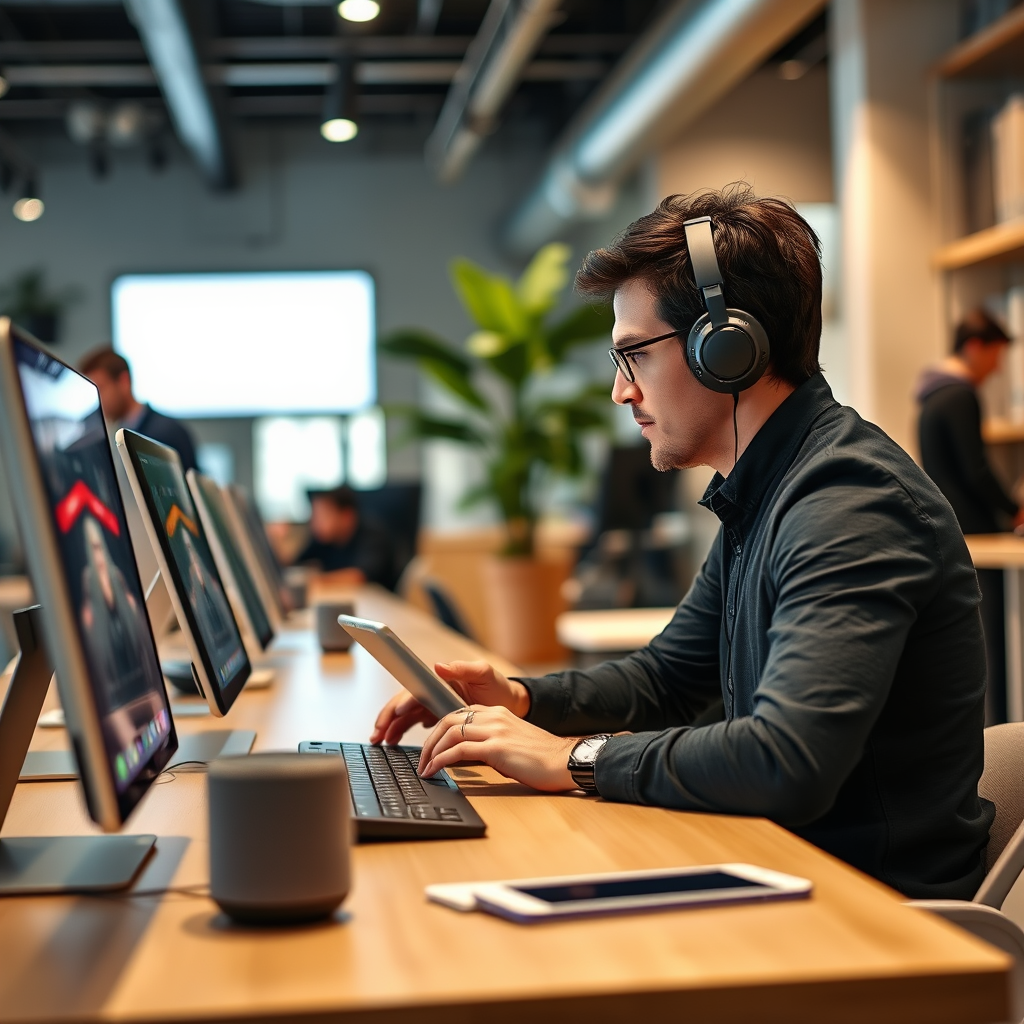
Before diving into the pairing process, it’s essential to confirm the compatibility of your Google speakers. Not all models support the same features, so be sure to check if your devices can be paired. Google offers various speaker models, such as the Google Nest Audio, Google Home Mini, and Google Nest Hub, all of which typically support pairing functionalities.
Additionally, keeping your devices updated is crucial for optimal performance. Regular software updates can enhance functionality, fix bugs, and improve compatibility with other devices. You can check for updates through the Google Home app; it will typically notify you if your devices are outdated.
Setting Up Google Home App
To begin pairing your Google speakers, you first need the Google Home app. This app is a central hub for all your Google smart devices, and it’s available on both Android and iOS platforms. You can download it from the Google Play Store or the Apple App Store.
Once downloaded, open the app and sign in using your Google account credentials. This step is vital as it allows the app to access your devices linked to your Google account. After signing in, the app will automatically search for any compatible devices in your vicinity.
Connecting Your Google Speakers
Once you have the Google Home app set up, you can start adding your Google speakers. Here’s how:
1. Add Devices: In the Google Home app, tap on the “+” icon or “Add” to start the process. Select “Set up device” and choose “New devices.” The app will scan for nearby devices. Follow the prompts to add each Google speaker.
2. Grouping Speakers: After adding the devices, you can create a speaker group. This feature allows you to play audio simultaneously across multiple speakers. To do this, go to “Devices” in the app, select the speakers you want to group, and choose “Create speaker group.” Name the group for easy reference.
Top Google Speakers Comparison (2024)
| # | Model | Audio Quality | Smart Features | Battery Life |
|---|---|---|---|---|
| 1 | Google Nest Audio | Excellent | Voice Assistant | None |
| 2 | Google Home Mini | Good | Voice Assistant | None |
| 3 | Google Nest Hub | Very Good | Smart Display | None |
| 4 | Google Nest Mini | Good | Voice Assistant | None |
| 5 | Google Home | Good | Voice Assistant | None |
| 6 | Google Nest Audio (2nd Gen) | Excellent | Voice Assistant | None |
| 7 | Google Home Max | Superior | Voice Assistant | None |
Pairing for Stereo Sound
To enjoy an enhanced audio experience, you can configure your grouped speakers into stereo sound. Here’s how to do it:
1. Access Audio Settings: In the Google Home app, navigate to the “Devices” tab. Select the group you created earlier.
2. Select Stereo: Find the option to configure stereo sound. You will typically see an option to set one speaker as the left channel and the other as the right. This setup creates a more immersive listening experience, allowing for a better separation of audio channels, which is especially beneficial for music and movie watching.
Using Voice Commands for Control
One of the remarkable features of Google speakers is their integration with Google Assistant, allowing you to use voice commands to control your audio playback. Here are some useful commands:
– Voice Pairing: You can say, “Hey Google, pair my speakers,” to initiate the pairing process directly with voice commands. This feature simplifies the setup, so you won’t always have to rely on the app.
– Managing Audio: You can also adjust volume levels with commands like, “Hey Google, increase the volume,” or “Hey Google, play music on [group name].” Additionally, you can switch between speakers or groups effortlessly by saying, “Hey Google, play on [speaker name].”
Troubleshooting Common Issues
While pairing your Google speakers is generally seamless, you may encounter some issues. Here are solutions for common problems:
1. Connection Problems: If your speakers are not pairing or frequently disconnecting, ensure both devices are within range of your Wi-Fi and not experiencing interference. Restarting your speakers can also help.
2. Audio Delays: Latency issues can occur between paired speakers. To resolve this, ensure that all your devices are updated to the latest firmware. You can also try repositioning the speakers to minimize any potential interference from walls or other electronic devices.
Expanding Your Audio Network
As you become more comfortable with your Google speaker setup, you might want to expand your audio network. Here’s how to do it effectively:
1. Adding More Speakers: You can easily incorporate additional Google speakers into your existing setup. Use the Google Home app to add more devices, just as you did with your initial pair. Group them as needed for multi-room audio.
2. Exploring Sound Quality Upgrades: Consider enhancing your audio quality by integrating compatible devices, such as subwoofers or soundbars. Checking compatibility through the Google Home app ensures that you can make the most out of your audio experience.
By following these steps, you can successfully pair your Google speakers and create an immersive audio experience tailored to your needs. Enjoy exploring the capabilities of your multi-room audio setup and feel free to experiment with different configurations. Happy listening!
Frequently Asked Questions
How do I pair my Google speaker with a smartphone?
To pair your Google speaker with a smartphone, first ensure that your speaker is powered on and connected to the same Wi-Fi network as your phone. Open the Google Home app on your smartphone, tap on the plus sign (+) in the top left corner, select “Set up device,” and then choose “New device.” Follow the on-screen instructions to complete the pairing process, and you’ll be able to control your speaker directly from your smartphone.
What should I do if my Google speaker won’t connect to Wi-Fi?
If your Google speaker won’t connect to Wi-Fi, start by checking your internet connection to ensure it’s stable. Restart your speaker by unplugging it and plugging it back in. Then, use the Google Home app to double-check the Wi-Fi settings and ensure that you are selecting the correct network. If issues persist, consider resetting the speaker to factory settings and re-pairing it with your network.
Why is my Google speaker not responding after pairing?
If your Google speaker is not responding after pairing, it could be due to a few reasons. First, ensure that the speaker is powered on and connected to Wi-Fi. Next, check the microphone button on the device; if it’s muted, your speaker won’t respond to voice commands. If everything appears correct, try restarting the speaker and re-establishing the connection through the Google Home app.
Which devices are compatible with Google speakers for pairing?
Google speakers are compatible with a variety of devices, including Android smartphones, iPhones, tablets, and computers. Additionally, they work seamlessly with other Google products like Chromecast and Nest devices. To ensure optimal functionality, make sure your pairing device has the latest version of the Google Home app installed.
What is the best way to set up multiple Google speakers in my home?
The best way to set up multiple Google speakers in your home is to use the Google Home app to manage them collectively. Once you have paired each speaker to the app, you can create speaker groups for synchronized audio playback throughout your home. This allows you to enjoy a seamless listening experience by controlling the volume and playback across all speakers from a single device.
References
- Home
https://www.google.com/search/about/ - Google Scholar Google Scholar
https://scholar.google.com/scholar?q=pairing+google+speakers - Google Scholar Google Scholar
https://scholar.google.com/scholar?q=google+home+setup - Google Scholar Google Scholar
https://scholar.google.com/scholar?q=using+google+speakers+with+devices - https://www.bbc.com/news/technology-56916330
https://www.bbc.com/news/technology-56916330 - https://www.nytimes.com/2020/10/09/technology/google-home-speaker-review.html
https://www.nytimes.com/2020/10/09/technology/google-home-speaker-review.html - https://www.who.int/news-room/fact-sheets/detail/general-recommendations-on-speech-and-audio-techniques
https://www.who.int/news-room/fact-sheets/detail/general-recommendations-on-speech-and-audio-techniques - Google Scholar Google Scholar
https://scholar.google.com/scholar?q=how+to+pair+google+speakers - how to pair google speakers – Search results
https://en.wikipedia.org/wiki/Special:Search?search=how+to+pair+google+speakers - https://www.ncbi.nlm.nih.gov/search/research-articles/?term=how+to+pair+google+speakers
https://www.ncbi.nlm.nih.gov/search/research-articles/?term=how+to+pair+google+speakers
