
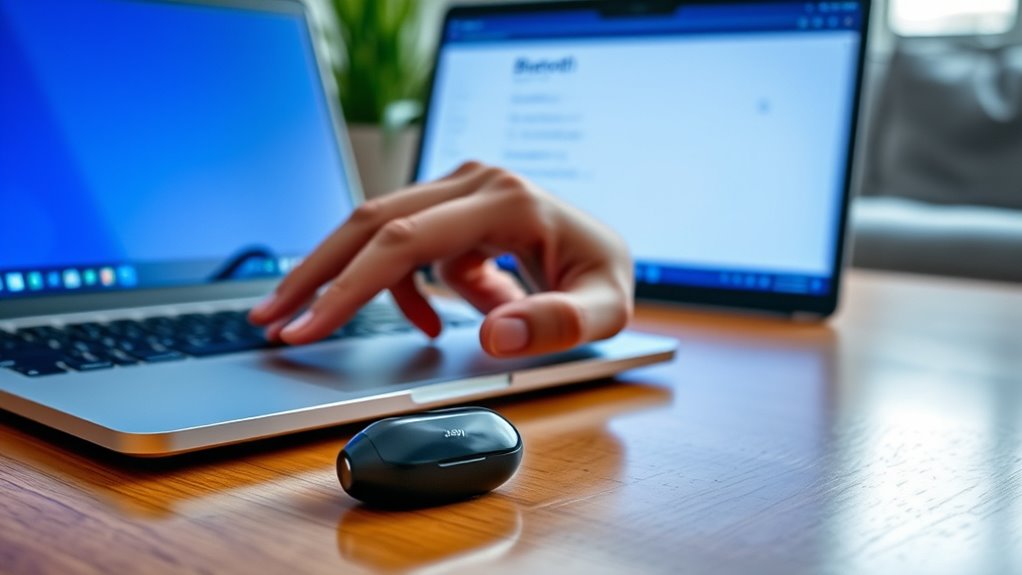

To pair your Jabra earbuds, first make sure they’re fully charged. Then, turn on Bluetooth on your device. Next, take the earbuds out of the case and press the multi-function button for about 5 seconds to enter pairing mode, indicated by a flashing blue light. On your device, select the Jabra model from the Bluetooth list and confirm the pairing request. For tips on troubleshooting any connection issues, keep going for further guidance.
Check Your Earbuds’ Charge
Before you start pairing your Jabra earbuds, it’s essential to check their charge. Look for the battery indicators on the charging case or the earbuds themselves. These indicators will let you know if your earbuds are ready to go or need a boost. If the charge is low, don’t worry—charging is simple! Just place them back in the case and connect the case to a power source using the provided cable. For peak performance, consider charging your earbuds fully before use. Remember, a full charge can provide hours of listening freedom, so it’s worth the wait! Following these charging tips guarantees you’ll enjoy uninterrupted music and calls whenever you need them.
Enable Bluetooth on Your Device
To pair your Jabra earbuds, you’ll need to enable Bluetooth on your device. This Bluetooth activation is essential for guaranteeing your earbuds connect seamlessly. Here’s how to do it:
- Check your settings: Navigate to your device’s settings menu and find the Bluetooth option.
- Turn it on: Toggle the Bluetooth switch to the “on” position. This will make your device discoverable for pairing.
- Verify compatibility: Confirm your device supports Bluetooth and is compatible with Jabra earbuds for a smooth connection.
Once Bluetooth is activated, you’re one step closer to enjoying your favorite tunes wirelessly. Embrace the freedom of movement without tangled wires and get ready to immerse yourself in sound!
Put Your Jabra Earbuds in Pairing Mode
Once Bluetooth is activated on your device, you’ll need to put your Jabra earbuds in pairing mode to establish a connection. To do this, take your earbuds out of the charging case. Press and hold the multi-function button on either earbud for about 5 seconds until you see a flashing blue light. This indicates that your earbuds are now in pairing mode, ready for connection. The pairing process is usually straightforward, allowing you to enjoy features like touch controls and voice assistance. If you don’t see the blue light, try resetting your earbuds and repeating the steps. Once you’re done, your earbuds will be ready to pair with your device, giving you the freedom to move and enjoy your music.
Select Your Jabra Earbuds From the Device List
Now that your Jabra earbuds are in pairing mode, it’s time to locate the Bluetooth settings on your device. Look for available devices in the list and select your Jabra model from the options presented. This will connect your earbuds, allowing you to enjoy your audio.
Locate Bluetooth Settings
Finding the Bluetooth settings on your device is essential for connecting your Jabra earbuds. Once you access these settings, you’ll be able to take advantage of seamless Bluetooth connectivity. To guarantee device compatibility, follow these quick steps:
- Open the Bluetooth settings: Navigate through your device’s settings to find the Bluetooth option.
- Enable Bluetooth: Make sure Bluetooth is turned on so your device can discover new connections.
- Check for visibility: Set your device to be discoverable, allowing your Jabra earbuds to appear in the device list.
Once you’ve done this, you’re ready to pair your earbuds. Enjoy the freedom of wireless listening with your Jabra earbuds!
Discover Available Devices
How do you know which device to select when your Jabra earbuds appear on the list? First, verify that your device is compatible with your Jabra model; check the manufacturer’s specifications for device compatibility. When you see your earbuds on the list, they’ll usually display the Jabra model name. Select it to initiate pairing. If you’ve multiple devices available, consider which one you’ll primarily use for audio. For the best audio quality, connect to a device that supports high-quality audio codecs, which can enhance your listening experience. Once selected, your earbuds should connect seamlessly, allowing you to enjoy your music or calls without interruption. Embrace the freedom of wireless listening by picking the right device!
Select Jabra Model
After you’ve identified your device, the next step is to select your Jabra earbuds from the device list. This is where you’ll choose among various Jabra models tailored to your needs.
Here are a few tips to keep in mind while choosing earbuds:
- Compatibility: Make sure the Jabra model you choose is compatible with your device.
- Features: Look for specific features that suit your lifestyle, like noise cancellation or touch controls.
- Comfort: Consider the fit and style, as comfort is key for long listening sessions.
Once you’ve selected the appropriate Jabra model, you’re one step closer to enjoying your audio experience. So, go ahead and make that choice!
Confirm the Connection
Once you’ve completed the pairing process, it’s essential to confirm the connection to verify everything is working properly. Start by checking your device’s Bluetooth settings to see if your Jabra earbuds are listed as connected. This is your first step in connection validation. Next, play some audio to test the sound quality. If you hear the audio clearly through your earbuds, that’s your pairing confirmation. If the sound isn’t coming through, make certain your earbuds are charged and within range of your device. You can also try disconnecting and reconnecting to guarantee a stable connection. Confirming these details will help you enjoy your music or calls without interruptions, giving you the freedom to move around comfortably.
Troubleshooting Connection Issues
If you’re having trouble connecting your Jabra earbuds, there are a few things you can check. Start by reviewing your Bluetooth settings to verify everything’s configured correctly. If that doesn’t work, consider resetting your earbuds or checking if your device is compatible.
Bluetooth Settings Check
When troubleshooting connection issues with your Jabra earbuds, a quick check of your Bluetooth settings can often resolve the problem. Start by confirming your device’s Bluetooth is turned on and discoverable. Here are a few tips to help you optimize your Bluetooth troubleshooting:
- Forget and Re-pair: Remove the earbuds from your device’s Bluetooth list, then try pairing them again.
- Check for Interference: Move away from other electronic devices that may be causing connection speed issues.
- Update Device Software: Confirm your device’s software is up to date, as this can affect Bluetooth performance.
Resetting Earbuds
Resetting your Jabra earbuds can often be the key to resolving stubborn connection issues. If you’re experiencing problems, try some effective resetting techniques. First, power off your earbuds, then press and hold both the volume up and down buttons simultaneously for about 10 seconds. This should initiate a reset. If that doesn’t work, consider a factory reset. To do this, make sure your earbuds are off, then press and hold the multi-function button and the volume down button until the LED flashes purple. This will erase all paired devices, giving you a fresh start. After resetting, reconnect your earbuds to your device, and you should find improved connectivity. Enjoy the freedom of seamless sound!
Device Compatibility Issues
Although your Jabra earbuds may offer excellent sound quality, they might not connect properly with every device. It’s vital to perform compatibility checks to avoid any frustration. Here are some common device limitations you might encounter:
- Outdated software: Confirm your device’s operating system is updated for peak compatibility.
- Bluetooth version: Check that your device supports the Bluetooth version used by your earbuds.
- Multiple connections: Avoid connecting your earbuds to several devices at once, as this may cause interference.
If you’re still having trouble, try disconnecting and re-pairing your earbuds. Being aware of these issues can help you enjoy seamless listening without the hassle of connection problems.
Frequently Asked Questions
Can I Connect Jabra Earbuds to Multiple Devices Simultaneously?
You can’t connect Jabra earbuds to multiple devices simultaneously. However, they support multi-device pairing, allowing you to switch between devices easily. Just remember, only one connection can be active at a time.
How Do I Reset My Jabra Earbuds?
To reset your Jabra earbuds, press and hold both buttons until you see a flashing light. For troubleshooting tips, verify they’re charged, and try unpairing them from devices first. Freedom in sound awaits!
Are Jabra Earbuds Waterproof or Water-Resistant?
Jabra earbuds aren’t completely waterproof, but they do have water-resistant features. Depending on the model, they can handle sweat and light rain, making them great for workouts or outdoor activities without worry.
What Is the Battery Life of Jabra Earbuds?
Jabra earbuds typically boast a brilliant battery life of up to 35 hours. For ideal battery maintenance, consider charging tips like avoiding extreme temperatures and keeping them topped up when not in use for prolonged periods.
Can I Use Jabra Earbuds for Phone Calls?
Yes, you can use Jabra earbuds for phone calls. They offer excellent phone call quality and effective noise cancellation, allowing you to communicate clearly even in noisy environments, giving you the freedom to connect anywhere.
