
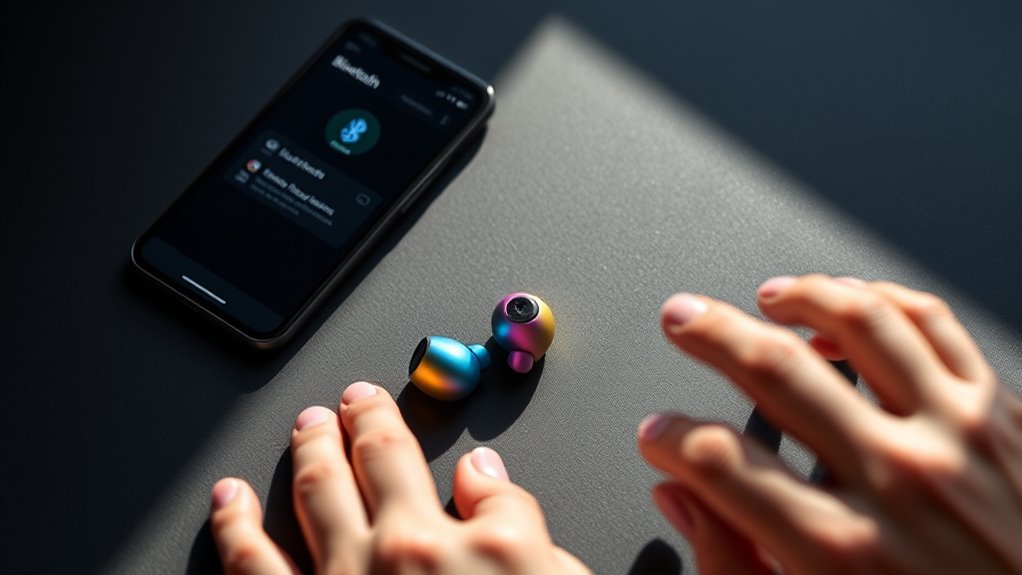

To pair your Raycon Everyday Earbuds, start by ensuring Bluetooth is activated on your device. Then, take the earbuds out of the charging case. Press and hold the multifunction button until the LED lights flash blue and red, indicating they’re in pairing mode. On your device, go to Bluetooth settings, find the Raycon earbuds, and select them to connect. If you encounter any issues, there’s more to explore for a smoother experience.
Unboxing Your Raycon Everyday Earbuds
Unboxing your Raycon Everyday Earbuds is an exciting step toward enjoying high-quality audio. As you peel away the packaging, you’ll find a sleek, compact case that not only protects your earbuds but also highlights their modern design. The unboxing experience is designed to impress, showcasing the earbuds’ vibrant color options and ergonomic fit, ensuring comfort during extended use. Inside, you’ll discover various ear tip sizes, allowing you to customize the fit for ideal sound quality. These earbuds boast impressive battery life and seamless Bluetooth connectivity, making them perfect for those on the go. With intuitive touch controls and a durable build, you’re set to enjoy freedom while listening to your favorite tunes. Get ready to elevate your audio experience!
Charging Your Earbuds
To keep your Raycon Everyday Earbuds powered up, understanding their charging case and battery life is essential. We’ll cover some tips for maximizing battery performance and proper charging techniques. This way, you can enjoy your earbuds for longer without interruptions.
Charging Case Overview
The charging case for your Raycon Everyday Earbuds is designed to keep your earbuds powered up and ready to go. Understanding its features and maintenance is key to guaranteeing long-lasting performance.
- Portable Design: Lightweight and compact, making it easy to carry anywhere.
- Fast Charging: Quickly charges your earbuds, so you can get back to enjoying your music.
- Battery Indicator: LED lights display the charging status, so you’re never caught off guard.
For peak performance, remember to keep your charging case clean and free of debris. Regularly check the battery level to avoid unexpected downtime. With proper charging case maintenance, you’ll guarantee your Raycon Everyday Earbuds are always ready for your next adventure.
Battery Life Tips
Keeping your Raycon Everyday Earbuds charged is essential for uninterrupted listening sessions. To maximize battery life, embrace battery optimization techniques. One effective method is using power saving modes, which can help extend usage time during long trips or busy days. When you’re not using your earbuds, consider turning them off or placing them in the charging case to prevent unnecessary battery drain. Additionally, avoid exposing them to extreme temperatures, as this can affect battery performance. Regularly check for firmware updates, as manufacturers often release improvements that enhance battery efficiency. By adopting these simple habits, you can enjoy your Raycon Everyday Earbuds for longer, giving you the freedom to enjoy your favorite tunes without interruption.
Proper Charging Techniques
While charging your Raycon Everyday Earbuds might seem straightforward, following proper techniques can greatly enhance their longevity and performance. To guarantee effective battery maintenance, keep these charging precautions in mind:
- Use the original charging cable and adapter to avoid compatibility issues.
- Avoid overcharging; unplug them once they reach 100% to prevent battery stress.
- Charge in a cool, dry place to protect against heat damage.
Activating Bluetooth on Your Device
Before you can enjoy your Raycon Everyday Earbuds, you need to activate Bluetooth on your device. Start by accessing your device settings; this is usually found in the menu or control panel. Look for the Bluetooth option—this section will show you if your device has Bluetooth compatibility. If it’s off, simply toggle the switch to turn it on. Your device may search for available Bluetooth connections automatically. If not, you might need to select “Scan” or “Search” to locate nearby devices. Make sure your earbuds are charged and ready to connect. Once Bluetooth is activated, you’ll be ready for the next step in pairing your earbuds, revealing an audio experience that’s totally wireless and free.
Putting Your Earbuds in Pairing Mode
To put your Raycon Everyday Earbuds in pairing mode, start by removing them from the charging case. Once you’ve done that, follow these simple steps to activate pairing modes:
- Press and hold the multifunction button on either earbud until you see the LED light flashing blue and red.
- Release the button, and your earbuds will enter pairing mode, ready to connect with your device.
- Ensure your device’s Bluetooth is enabled and set to discoverable to find your earbuds easily.
Now, you’re all set to enjoy the freedom of wireless listening with your earbuds, compatible with various Bluetooth versions. You’ll be immersed in your favorite tunes in no time!
Connecting to Your Device
Connecting your Raycon Everyday Earbuds to your device is a straightforward process that takes just a few moments. First, verify your device is compatible with Bluetooth, as this is essential for a seamless connection. Open the Bluetooth settings on your device and make sure it’s in discoverable mode. Once you’ve done that, select your Raycon earbuds from the list of available devices. You’ll notice the connection speed is quick, allowing you to start enjoying your music or podcasts almost instantly. If you encounter any issues, double-check that your earbuds are still in pairing mode. With just a few taps, you’ll be ready to experience the freedom of wireless listening with your Raycon Everyday Earbuds.
Testing the Connection
Now that your Raycon Everyday Earbuds are connected, it’s time to test the connection. Make sure your devices are prepared and check the Bluetooth settings to confirm everything is linked properly. Look for indicators that show you’ve successfully connected, so you can enjoy your audio without any interruptions.
Preparing Your Devices
Testing the connection between your Raycon Everyday Earbuds and your devices is essential for a seamless audio experience. To guarantee smooth pairing, follow these steps to prepare your devices:
- Check device compatibility: Confirm your device supports Bluetooth and is updated to the latest software version.
- Adjust audio settings: Make sure your device’s audio settings are configured for best sound output, enabling any necessary permissions for Bluetooth audio.
- Clear previous connections: If your earbuds are connected to other devices, disconnect them to avoid interference.
Bluetooth Settings Access
How can you guarantee your Raycon Everyday Earbuds are ready to connect? Start by performing a Bluetooth compatibility check on your device. Confirm your smartphone, tablet, or computer has Bluetooth enabled and is compatible with the earbuds. Open the Bluetooth settings on your device and look for available connections.
Next, initiate the device pairing process by placing your Raycon earbuds in pairing mode. This usually involves holding the power button until you see a blinking light. Your earbuds should now appear in the list of available devices. Select them to establish the connection. If you encounter issues, make sure your device is within range and not connected to any other Bluetooth devices. This step can make all the difference in achieving a seamless connection.
Successful Connection Indicators
Once your Raycon Everyday Earbuds are connected, there are several indicators to confirm a successful pairing. Look out for these successful connection signs:
- LED Indicator: A steady blue light usually means your earbuds are successfully paired and ready to use.
- Audio Confirmation: You might hear a chime or voice prompt indicating that the connection was successful.
- Device Status: Check your device’s Bluetooth settings; your Raycons should show as “connected.”
These pairing mode indicators will help you verify that your earbuds are functioning as intended. If you don’t see these signs, try reconnecting or resetting your earbuds. Enjoy your newfound freedom with your Raycon Everyday Earbuds!
Troubleshooting Connection Issues
Experiencing connection issues with your Raycon Everyday Earbuds can be frustrating, but it’s often a simple fix. Start by ensuring your earbuds are charged and powered on. If they’re not connecting, check your device’s Bluetooth settings—common issues include being out of range or having Bluetooth disabled. Try turning Bluetooth off and on again, or remove the earbuds from your device’s paired list, then pair them again. If the audio is choppy, interference might be the problem; move away from other electronic devices. Finally, resetting your earbuds can resolve persistent issues. Follow these troubleshooting steps, and you’ll likely be back to enjoying your music and calls in no time!
Frequently Asked Questions
Can I Use Only One Earbud at a Time?
Yes, you can use a single earbud in mono mode. Just take one out, and it’ll connect on its own. Enjoy the freedom of listening while you stay aware of your surroundings!
How Do I Reset My Raycon Everyday Earbuds?
To reset your Raycon Everyday Earbuds, hold both earbuds’ buttons for about 10 seconds until you see the LED flash. This earbud troubleshooting step can resolve connectivity issues and restore normal function.
Are the Earbuds Water-Resistant?
Yes, your Raycon Everyday Earbuds boast impressive water-resistant ratings, offering sweat protection that’s practically legendary. They’re designed for active lifestyles, letting you enjoy your favorite tunes without worrying about moisture damaging them.
What Is the Battery Life of the Raycon Everyday Earbuds?
The Raycon Everyday Earbuds offer impressive battery longevity, lasting up to 8 hours on a single charge. With a quick charging time of just 1.5 hours, you’ll enjoy uninterrupted music and freedom throughout your day.
Can I Use My Earbuds With Multiple Devices?
Yes, you can connect your earbuds to multiple devices. They’re designed for earbud compatibility and multi-device connection, allowing you to switch seamlessly between your phone, tablet, or computer—granting you freedom in your listening experience.
