
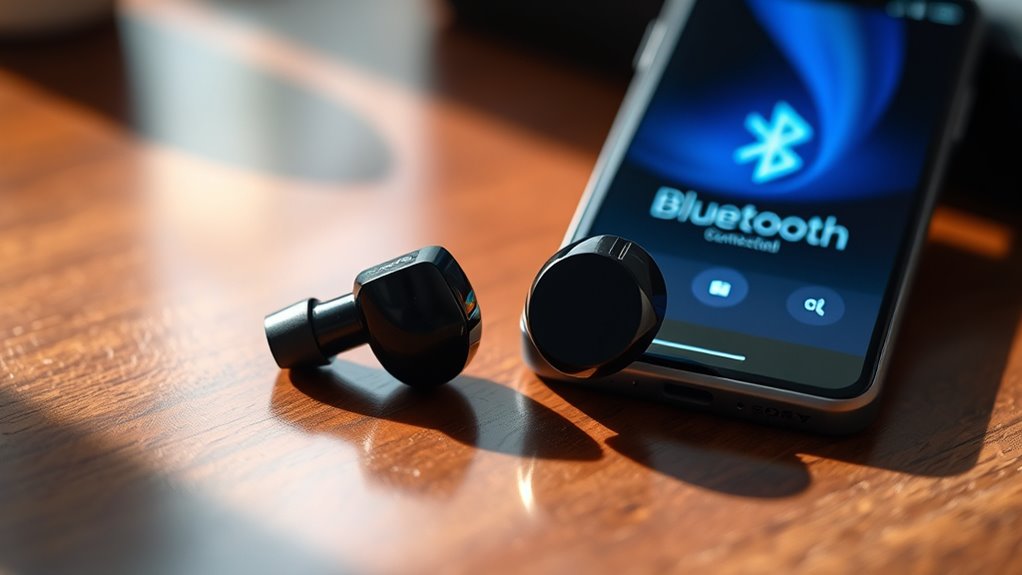

To pair your Sony earbuds, first verify Bluetooth is enabled on your device and that it’s discoverable. Power on the earbuds by holding the power button until the LED indicators flash. Once in pairing mode, search for your earbuds in your device’s Bluetooth menu and select them to connect. If you face issues, check battery levels and make certain they’re not connected to other devices. Keep going to explore troubleshooting tips and audio enhancements.
Understanding Your Sony Earbuds
Understanding your Sony earbuds is essential for maximizing their performance and features. These earbuds come equipped with advanced technologies that enhance your sound quality, offering a rich listening experience. You’ll find features like noise cancellation, which blocks out distractions, and customizable equalizer settings that let you tailor the audio to your preferences. Familiarizing yourself with the controls, such as touch sensitivity and voice assistant integration, will give you greater freedom in managing your music. Additionally, the battery life varies across models, so knowing how to manage your usage guarantees uninterrupted listening. By fully grasping these earbud features, you can enjoy a seamless audio experience that’s perfectly suited to your lifestyle. Take the time to explore and optimize what your Sony earbuds can do for you.
Preparing Your Device for Pairing
Before pairing your Sony earbuds, make sure your device’s Bluetooth settings are enabled and ready. It’s also essential to charge your earbuds fully to prevent connection issues. Finally, check for any firmware updates on your device to guarantee compatibility.
Check Bluetooth Settings
To successfully pair your Sony earbuds, it is essential to check your device’s Bluetooth settings first. Here’s what you need to do to guarantee Bluetooth compatibility and device visibility:
- Enable Bluetooth: Go to your device’s settings and toggle Bluetooth on.
- Check Compatibility: Verify your device supports the Bluetooth version required by your Sony earbuds.
- Set Visibility: Make your device discoverable by selecting the option to allow other devices to see it.
- Forget Previous Connections: If your device has connected to other Bluetooth devices recently, remove those connections to avoid interference.
Charge Your Earbuds
Once your Bluetooth settings are configured, the next step is to charge your Sony earbuds. Make sure they’re fully charged for peak performance. Connect the charging case to a power source using the provided USB cable. A solid LED indicator will confirm charging status.
For effective battery maintenance, avoid letting the battery drain completely before recharging. Regularly charge your earbuds to keep the battery life healthy, as lithium-ion batteries perform best when kept between 20% and 80% charge.
Consider using charging tips like unplugging the charger once fully charged to prevent overcharging. By following these guidelines, you’ll enjoy longer playtimes and make certain your earbuds are ready whenever you want to experience freedom in music and calls.
Update Device Firmware
Updating your device’s firmware is essential for ensuring seamless compatibility with your Sony earbuds. To prepare your device, follow these steps:
- Check for updates: Navigate to your device settings and look for software or firmware updates.
- Download updates: If an update is available, download it without delay to enhance device compatibility.
- Install updates: Follow the prompts to install the firmware update, ensuring your device stays powered throughout the process.
- Restart your device: After installation, restart your device to apply changes and optimize performance.
Activating Pairing Mode on Your Earbuds
To activate pairing mode on your Sony earbuds, start by powering them on. Next, make certain your device’s Bluetooth settings are enabled to facilitate the connection. Once both are ready, your earbuds will be discoverable for pairing.
Power On Earbuds
Powering on your Sony earbuds is the first step to initiating the pairing process with your device. To activate your earbuds, follow these steps:
- Locate the power button on each earbud.
- Press and hold the power button for about 3-5 seconds until you see the earbud indicators light up.
- Wait for the LED lights to flash, indicating that the earbuds are powering on and ready for pairing.
- Release the power button when the earbud indicators show a stable light or specific pattern, signaling that your earbuds are in pairing mode.
Once powered on, you’ll be one step closer to enjoying your music wirelessly. Keep the earbud indicators in mind, as they provide essential feedback throughout the process.
Enable Bluetooth Settings
After you’ve powered on your Sony earbuds, the next step is to enable Bluetooth settings on your device to initiate the pairing process. First, access the Bluetooth menu on your smartphone, tablet, or computer. Make sure Bluetooth is turned on, allowing your device to search for nearby compatible devices. If your earbuds are in pairing mode, they should appear in the list of available devices. Select them to establish a connection. Keep in mind that the typical earbud range is about 30 feet, so stay within this distance for peak performance. Once paired, you’ll enjoy seamless audio playback, thanks to Bluetooth compatibility, freeing you from tangled wires and enhancing your listening experience.
Connecting to Your Smartphone
Before you can enjoy your music or take calls with your Sony earbuds, you’ll need to connect them to your smartphone. Follow these steps to guarantee a smooth connection:
To enjoy music and calls with your Sony earbuds, ensure they are properly connected to your smartphone.
- Check smartphone compatibility: Verify your smartphone supports Bluetooth and is up-to-date.
- Activate Bluetooth: Open your smartphone’s settings and enable Bluetooth.
- Pair the earbuds: Place your earbuds in pairing mode—usually by holding the power button until the LED flashes.
- Connect: In the Bluetooth menu on your smartphone, select your Sony earbuds from the list.
Connecting to Your Tablet
Connecting your Sony earbuds to a tablet is a straightforward process that guarantees you can enjoy high-quality audio on a larger screen. First, verify your tablet’s Bluetooth is activated. On your tablet, go to the Bluetooth settings, and search for available devices. Once you see your Sony earbuds listed, tap to connect. If prompted, confirm any pairing codes.
To optimize tablet compatibility, check if your tablet’s operating system is up to date, as this can enhance connectivity and audio quality. After a successful connection, you’ll be able to stream music, watch movies, or make video calls with clear sound. Remember to keep your earbuds charged for uninterrupted listening. Enjoy the freedom of wireless audio on your tablet!
Connecting to Your Laptop
If you’ve successfully connected your Sony earbuds to your tablet, you might want to enjoy the same wireless experience on your laptop. Here’s how to guarantee laptop compatibility and maximize sound quality:
- Enable Bluetooth: Make sure your laptop’s Bluetooth is turned on.
- Put Earbuds in Pairing Mode: Hold the power button until the indicator light flashes, signaling it’s ready to pair.
- Access Bluetooth Settings: Navigate to your laptop’s Bluetooth settings and search for devices.
- Connect: Select your Sony earbuds from the list and click “Connect”.
Once paired, you can enjoy your favorite audio with impressive sound quality. Now you’re ready to experience the freedom of wireless listening on your laptop!
Troubleshooting Common Pairing Issues
While pairing your Sony earbuds usually goes smoothly, you might encounter some common issues that can disrupt the process. If you’re facing pairing problems, start by ensuring your earbuds are in pairing mode. Check the battery levels—low power can hinder connection. Next, confirm that your device’s Bluetooth is activated and not connected to another device. If issues persist, try resetting your earbuds according to the manufacturer’s instructions. This often resolves software glitches. Additionally, clear your device’s Bluetooth cache to eliminate any lingering connections. Finally, consult the user manual for specific troubleshooting tips tailored to your model. By following these steps, you’ll likely regain seamless connectivity and enjoy your audio experience.
Frequently Asked Questions
Can I Connect Multiple Devices to My Sony Earbuds Simultaneously?
You can’t connect multiple devices to your Sony earbuds simultaneously, but you can easily switch between Bluetooth connections. Just pair them with your devices, and enjoy the freedom of seamless device switching whenever you want.
How Do I Reset My Sony Earbuds if They Won’t Pair?
To reset your Sony earbuds, press and hold the power button for about seven seconds until the indicator light flashes. This reset process can resolve pairing issues, allowing you to reconnect effortlessly to your devices.
Are Sony Earbuds Compatible With Smartwatches?
Yes, Sony earbuds generally offer smartwatch compatibility, but pairing issues can arise. Confirm your smartwatch supports Bluetooth audio. Once connected, you’ll enjoy the freedom of hands-free listening, perfect for your active lifestyle.
What Is the Battery Life of My Sony Earbuds During Use?
Your Sony earbuds typically offer impressive battery performance, providing around 4 to 8 hours of usage duration, depending on the model and usage conditions. Charging cases can extend playtime considerably, ensuring you stay connected longer.
Can I Use My Sony Earbuds While Exercising?
Your Sony earbuds are like a trusted workout partner; they offer excellent sound isolation and workout comfort. You can definitely use them while exercising, enhancing your experience without interruptions, allowing you the freedom to focus on your fitness.
