

Resetting your M90 Pro earbuds is a straightforward process that can help resolve various connectivity issues and restore factory settings. By performing a reset, you can eliminate pairing problems, audio glitches, and even enhance the overall performance of your earbuds. This guide will walk you through the essential steps to reset your M90 Pro earbuds effectively, ensuring they function smoothly again.
Understand the Need for a Reset
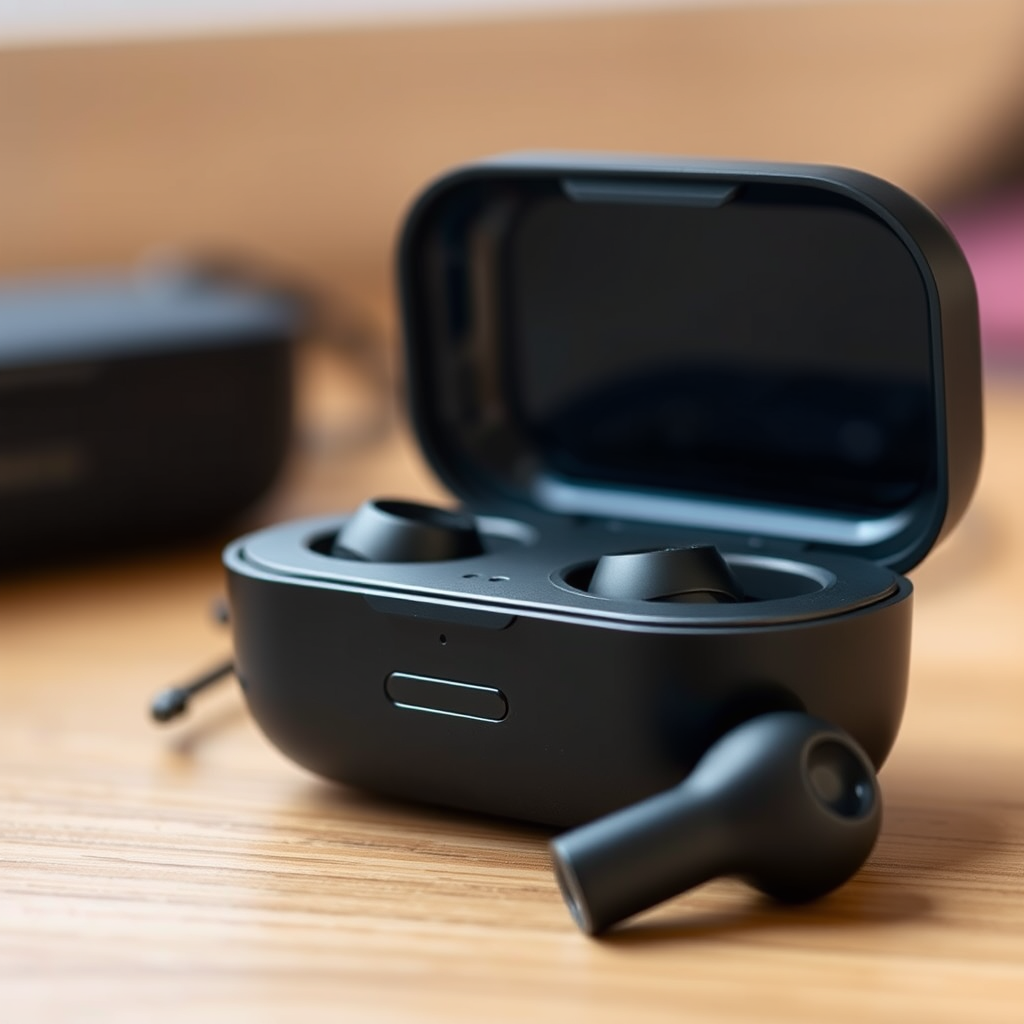
Resetting your M90 Pro earbuds may be necessary if you encounter common issues such as difficulties in pairing with devices, inconsistent audio quality, or if they seem unresponsive. For instance, if your earbuds frequently disconnect from your phone or fail to recognize a Bluetooth connection, a reset can often resolve these problems. Additionally, audio glitches, such as stuttering or distortion, may indicate that a reset is warranted.
Before opting for a reset, it’s important to explore other troubleshooting methods. For example, checking your device’s Bluetooth settings or ensuring that your earbuds are fully charged can sometimes solve minor issues. However, if these steps do not yield results, performing a reset is a reliable next step.
Preparing for the Reset
Before initiating the reset process, ensure that your M90 Pro earbuds are adequately charged. Low battery levels can disrupt the reset process, potentially leaving you with partially reset earbuds. Ideally, your earbuds should be charged to at least 50% to avoid any interruptions.
Additionally, have the device you typically pair your earbuds with ready for reconnection post-reset. This will streamline the process, allowing you to quickly restore your earbuds’ functionality.
Step-by-Step Reset Instructions
1. Power Off the Earbuds: Ensure that your M90 Pro earbuds are turned off. If they’re currently connected to any device, disconnect them first.
2. Button Hold: Press and hold the designated buttons on both earbuds simultaneously. This usually involves holding down the multi-function button on each earbud for about 10 seconds.
3. Indicator Light: Look for an indicator light on the earbuds. Typically, you will see the light flash in a specific pattern (often a red and blue flash) indicating that the reset process is underway.
4. Release the Buttons: Once you see the indicator light flash in the designated pattern, release the buttons. Your earbuds are now reset to factory settings.
This process usually takes no more than a minute, and your earbuds will be ready for re-pairing shortly thereafter.
Reconnecting Your Earbuds
After successfully resetting your M90 Pro earbuds, you will need to reconnect them to your device. Here’s how to do it:
1. Power On the Earbuds: Turn on your M90 Pro earbuds. They should enter pairing mode automatically after the reset.
2. Device Bluetooth Settings: Go to the Bluetooth settings on your device (smartphone, tablet, or computer). Ensure that Bluetooth is enabled.
3. Search for Devices: Look for your M90 Pro earbuds in the list of available devices. Once they appear, select them to initiate the pairing process.
4. Confirm Pairing: Follow any on-screen prompts to finalize the connection. You may hear a confirmation sound or see a notification indicating that your earbuds are successfully connected.
By following these steps, you can enjoy uninterrupted audio and seamless connectivity once again.
Troubleshooting Post-Reset Issues
Even after a reset, some users may encounter persistent issues with their M90 Pro earbuds. Here are some common problems and solutions:
– Firmware Updates: Check if there are any firmware updates available for your earbuds. Manufacturers often release updates to improve performance, fix bugs, and enhance compatibility with various devices. Visit the manufacturer’s website or use any dedicated application provided for your earbuds.
– Audio Quality Issues: If you experience audio quality issues post-reset, try re-pairing the earbuds or adjusting the audio settings on your device. Sometimes, equalizer settings or audio enhancements may affect sound quality.
– Connectivity Problems: If your earbuds still struggle with connectivity, ensure that they are not too far from the device, as Bluetooth has a limited range. Additionally, check for interference from other wireless devices that could disrupt the signal.
Here’s a quick reference table summarizing potential issues and solutions:
Common Post-Reset Issues and Solutions
| Issue | Possible Solution |
|---|---|
| Audio Glitches | Re-pair earbuds and check audio settings. |
| Connectivity Issues | Ensure no interference and keep within range. |
| Poor Sound Quality | Check for firmware updates and adjust equalizer settings. |
| No Connection | Restart the device and check Bluetooth settings. |
| Battery Drain | Charge fully and avoid extreme temperatures. |
| Earbuds Not Responding | Reset again or consult the user manual. |
| Unstable Connection | Check for device compatibility and update drivers. |
Maintenance Tips for M90 Pro Earbuds
To ensure the longevity and optimal performance of your M90 Pro earbuds, regular maintenance is essential. Here are some tips to keep them in top condition:
1. Regular Cleaning: Dust and debris can accumulate on your earbuds, affecting audio quality. Use a soft, dry cloth to clean the exterior regularly. For the ear tips, consider using a slightly damp cloth and ensure they are dry before use.
2. Proper Storage: Always store your earbuds in their case when not in use. This will protect them from physical damage and dust accumulation. Avoid leaving them in places where they can be exposed to extreme temperatures or moisture.
3. Battery Care: To prolong battery life, avoid letting your earbuds drain completely before recharging. Aim to charge them when they reach around 20-30% battery level. This will help maintain the battery’s health over time.
4. Usage Guidelines: Follow the manufacturer’s guidelines regarding usage, including maximum volume levels and exposure to sweat or water. This will help prevent damage and maintain sound quality.
By implementing these maintenance practices, you can enhance the durability and performance of your M90 Pro earbuds, ensuring they provide quality audio for years to come.
In summary, resetting your M90 Pro earbuds is a simple yet effective way to resolve connectivity and audio issues. By understanding when to reset, preparing your device, and following the step-by-step instructions, you can quickly restore your earbuds to optimal functionality. Additionally, maintaining your earbuds through regular cleaning and proper storage will ensure they serve you well in the long run. If problems persist even after a reset, consider consulting the user manual or reaching out to customer support for further assistance.
Frequently Asked Questions
How do I reset my M90 Pro earbuds?
To reset your M90 Pro earbuds, start by turning them off. Then, press and hold the multifunction button on both earbuds for about 10 seconds until you see the LED indicators flash red and blue. This indicates that the earbuds have been successfully reset to factory settings.
Why would I need to reset my M90 Pro earbuds?
You might need to reset your M90 Pro earbuds if you are experiencing connectivity issues, sound problems, or if the earbuds are not pairing with your device properly. Resetting can resolve these common issues by restoring the earbuds to their original settings.
What should I do if resetting my M90 Pro earbuds doesn’t work?
If resetting your M90 Pro earbuds doesn’t solve the problem, try charging them fully and then attempting the reset again. If issues persist, consider checking for firmware updates through the manufacturer’s app or consult the user manual for further troubleshooting steps.
Which devices are compatible with M90 Pro earbuds after resetting?
After resetting your M90 Pro earbuds, they should be compatible with any Bluetooth-enabled device, including smartphones, tablets, and laptops. Ensure that the device’s Bluetooth is turned on and search for the earbuds in the Bluetooth settings to establish a connection.
Best practices to maintain M90 Pro earbuds after resetting?
To maintain your M90 Pro earbuds after resetting, regularly clean them to avoid dirt buildup in the charging ports and speaker mesh. Additionally, always store them in their case when not in use, and keep them charged to prolong battery life and ensure optimal performance.
References
- https://www.lifewire.com/how-to-reset-wireless-earbuds-4771652
https://www.lifewire.com/how-to-reset-wireless-earbuds-4771652 - https://www.reddit.com/r/techsupport/comments/9s7y3f/how_do_i_reset_my_m90_pro_earbuds/
https://www.reddit.com/r/techsupport/comments/9s7y3f/how_do_i_reset_my_m90_pro_earbuds/ - Google Scholar Google Scholar
https://scholar.google.com/scholar?q=reset+m90+pro+earbuds - Google Scholar Google Scholar
https://scholar.google.com/scholar?q=how+to+reset+bluetooth+earbuds - Google Scholar Google Scholar
https://scholar.google.com/scholar?q=wireless+earbuds+reset+instructions - https://www.bbc.com/news/technology-52176838
https://www.bbc.com/news/technology-52176838 - https://www.sciencedirect.com/science/article/pii/S2352864820301760
https://www.sciencedirect.com/science/article/pii/S2352864820301760 - Google Scholar Google Scholar
https://scholar.google.com/scholar?q=how+to+reset+m90+pro+earbuds - how to reset m90 pro earbuds – Search results
https://en.wikipedia.org/wiki/Special:Search?search=how+to+reset+m90+pro+earbuds - https://www.ncbi.nlm.nih.gov/search/research-articles/?term=how+to+reset+m90+pro+earbuds
https://www.ncbi.nlm.nih.gov/search/research-articles/?term=how+to+reset+m90+pro+earbuds
