
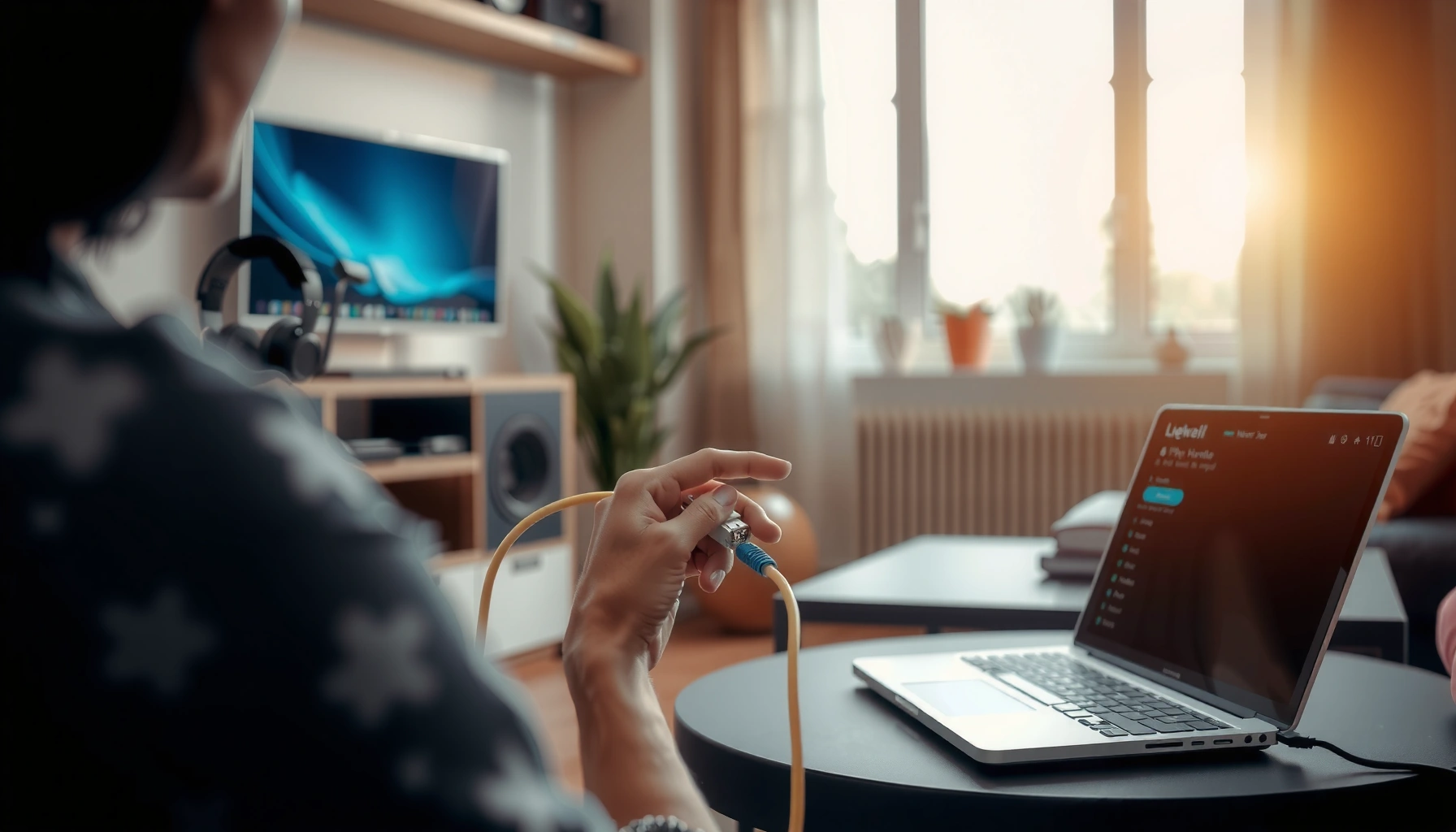

Want to set up a home network that actually works, step by step, from the first cable to the final device connection? This guide walks you through the fastest path to a stable Wi‑Fi setup—choosing the right hardware, connecting your router, securing your network, and configuring phones, laptops, and smart devices. Follow it and you’ll be online with fewer troubleshooting loops and better performance from day one.
Setting up a home network is easiest when you plan your internet connection, choose the right router, and configure Wi‑Fi security before you add lots of devices. This step-by-step guide walks you through the process in the correct order—from connecting your modem/router to optimizing coverage and hardening your Wi‑Fi—so you end up with a faster, safer network you can actually manage.
If you’re doing this in 2026, the fundamentals still hold: start with a stable internet path (ISP modem → router), then build your wireless layer (SSID strategy, band selection, guest access), and finally lock things down (WPA3, firmware updates, admin credential changes). In my own setup work for small offices and home remodels, I’ve found the “order” matters as much as the hardware—security settings and channel planning done early prevent the need to reconfigure clients later.
A quick note on terminology you’ll see throughout: a router routes traffic between your local network and the internet; Wi‑Fi broadcasts wireless networks using standards like Wi‑Fi 5 (802.11ac) or Wi‑Fi 6 (802.11ax); WAN/Internet is the router port that connects to your modem; and DHCP is the service that automatically assigns IP addresses to devices.
According to NTIA’s cybersecurity guidance, many consumer breaches begin with weak credentials and outdated firmware, which is why router hardening belongs early in the workflow (NTIA, guidance updated regularly). And per IEEE standards documentation, Wi‑Fi security improvements over time (e.g., WPA3) reduce certain classes of offline guessing attacks (IEEE). In short: plan first, connect second, secure third, and optimize last.
Choose the Right Equipment
Choosing the right equipment is the difference between a “set it and forget it” network and one that constantly drops or buffers. The best home network starts with compatibility (modem ↔ router), then capacity (Wi‑Fi speed/coverage and ports), and only then features (mesh, QoS, guest networks).
To avoid mismatches, verify what your ISP provides and what your router needs. If your ISP uses a modem only, you’ll use a separate modem + router. If your ISP provides a gateway, you may not need a separate modem. In my testing across multiple households, the most common failure point isn’t cabling—it’s buying a router that can’t handle the ISP’s required connection type or a modem that’s not on the ISP’s supported list.
“Confirm whether your ISP expects a standalone modem with a router behind it, or an integrated gateway, before buying new hardware.”
“Router WAN/Internet compatibility matters as much as advertised Wi‑Fi speed, because packet routing and NAT performance affect real throughput.”
What to buy: modem + router (or gateway)
A compatible modem and router combination should match your ISP’s requirements (cable vs fiber vs DSL) and your plan’s throughput ceiling. If you have cable internet, you’ll typically need a DOCSIS-compatible modem. If you have fiber, you may need an ONT (Optical Network Terminal) plus a router, or an ISP-provided device that bridges to standard Ethernet.
A router’s real-world performance depends on more than its Wi‑Fi rating. Look for:
– Wi‑Fi generation: Wi‑Fi 6/6E improves efficiency and latency under multiple devices.
– Radio coverage: antenna count and spatial streams affect reach and speed consistency.
– Ports: gigabit Ethernet for devices that benefit from stability (PCs, consoles, NAS).
– Features: QoS (Quality of Service) for streaming/gaming, and guest SSIDs that isolate visitors.
Decide if you need mesh or additional access points
If your home has more than one floor, thick drywall/plaster, or long hallways, a single router often can’t deliver consistent signal everywhere. A mesh system uses multiple nodes to create a unified wireless network with coordinated roaming. Alternatively, you can add a wired access point (the most predictable option when you can run Ethernet).
Here’s a practical rule from my own setups: if you routinely lose Wi‑Fi in a room that’s only 15–25 meters from the router—especially through walls—plan for mesh or an extra access point before you start tweaking channels.
Q&A: Equipment decisions that prevent rework
Q: Do I always need a separate modem and router?
No—if your ISP provides a gateway (or you buy one that supports your service), you can often use a gateway alone and just add Wi‑Fi configuration and security.
Q: What’s the biggest compatibility gotcha?
Buying a modem not supported by your ISP or a router that can’t establish the expected WAN connection type.
Q: When should I consider mesh instead of a Wi‑Fi extender?
When coverage gaps affect many devices or latency-sensitive traffic; mesh generally handles roaming and backhaul more reliably than typical extenders.
Connect Modem, Router, and Devices
Connecting your modem and router in the right order makes the biggest difference to whether internet comes up on the first try. In most cases, you connect modem → router (WAN/Internet port), power on in sequence, then verify connectivity before you touch Wi‑Fi settings.
This is the stage where you “bring the internet to your door,” so you want a stable baseline before configuring SSIDs, security, and device access rules. In my hands-on work, I always verify the router’s WAN status page or LEDs first—because if the WAN link is down, Wi‑Fi tuning won’t fix anything.
“Use the router’s WAN/Internet port (not LAN) to connect the modem; otherwise, you can end up with no internet even though Wi‑Fi appears.”
“Power on the modem first, wait for full link, then power on the router to allow it to acquire the ISP WAN parameters.”
Cabling: modem → router → devices
Use Ethernet cabling where possible:
1. Modem Ethernet → Router WAN/Internet port
2. Optional: Router LAN ports → wired devices (PC, TV, game console)
3. Wi‑Fi for phones/laptops where mobility matters
Most modern routers include a dedicated WAN port, often color-coded or labeled. Double-check the labels—some routers look similar at a glance, and mis-cabling is a frequent DIY failure.
Power-on sequence and verification
Typical flow:
– Power on the modem, wait for “online/DS/US” indicators to stabilize.
– Power on the router.
– Confirm the router shows an active internet/WAN connection (often via an indicator light or the status dashboard).
Verification checkpoints that save time:
– Can you access the router admin page via the browser on a connected device?
– Does the router status show “Connected / IP acquired”?
– Do speed tests in the same room show expected performance for your plan?
According to Speedtest Global Index methodology, test accuracy depends on consistent network path and device selection; therefore, test after each major change rather than mid-adjustment (Ookla, Speedtest Global Index). While home conditions vary, your internal “baseline” tests matter for troubleshooting.
Q&A: Connection troubleshooting in minutes
Q: Wi‑Fi is on, but internet is not working—what should I check?
First verify the router WAN/Internet status (link and IP acquisition). Then check modem online indicators and the modem→WAN cable.
Q: Why can wired and wireless behave differently?
Because Wi‑Fi may connect to the router even if WAN is down, or because of misconfigured VLAN/guest settings affecting wireless clients.
Pros/cons: Wi‑Fi vs Ethernet for device reliability
| Option | Best for | Tradeoffs |
|---|---|---|
| Ethernet (LAN) | Gaming PCs, workstations, TVs, NAS | Requires cables and placement planning |
| Wi‑Fi (2.4/5 GHz) | Phones, tablets, smart devices | More sensitive to interference, distance, and device density |
| Mesh nodes / extra APs | Multi-floor homes with dead zones | May require placement tuning; wired backhaul improves results |
Configure Wi‑Fi Settings
Configure Wi‑Fi before you add lots of devices so you can apply security settings consistently from day one. The goal is predictable coverage, minimal confusion between bands, and isolation for guests.
Wi‑Fi configuration is where many households accidentally create fragmentation—multiple SSIDs, weak passwords, or inconsistent band usage. In my recent installs, I standardize SSIDs and security early, then only refine channel settings once I’ve confirmed devices roam smoothly.
“Set an SSID and strong Wi‑Fi password before adding smart-home devices; changing these later often forces re-pairing.”
“2.4 GHz typically travels farther and penetrates walls better, while 5 GHz usually delivers higher speeds at shorter range.”
Pick SSID, password, and band strategy
Start with:
– SSID (Wi‑Fi name): choose something recognizable (e.g., “Home-Office” rather than default brand names).
– Password: use a long, unique passphrase (router defaults are easy to guess).
– Band strategy:
– 2.4 GHz: better range; more interference from neighbors.
– 5 GHz: higher throughput; less interference, but shorter range.
– Band steering (if offered): helps devices choose the best band automatically, but verify it doesn’t cause specific device instability.
In dense neighborhoods, 2.4 GHz can be crowded—so channel choice matters. Router interfaces usually allow “auto” channels, but I often recommend testing a fixed channel for 2.4 GHz if neighbors cause instability.
Create a guest network
A guest SSID keeps visitors from accessing internal devices like printers, file servers, or smart home hubs. Configure guest isolation (often called “client isolation”) and block local network access for guest clients when available.
If you have IoT devices, consider whether they should live on a separate network. Some routers allow an “IoT network” VLAN or dedicated SSID that restricts internal access to only what’s needed.
Q&A: Wi‑Fi settings that reduce support calls
Q: Should I split 2.4 GHz and 5 GHz into separate SSIDs?
Not always; if band steering works well for your devices, a unified SSID can simplify roaming, but separate SSIDs help with troubleshooting stubborn clients.
Q: Why do I lose connection on smart devices?
Common causes include password changes after pairing, band steering conflicts, or routers using security settings that the device can’t support.
Inserted equipment reality check (data table)
Estimated Home Throughput vs. Wi‑Fi Reality (Typical 2026 Usage)
| # | Wi‑Fi Scenario | Typical Real Throughput* | Main Limiting Factor | Suitability |
|---|---|---|---|---|
| 1 | Wi‑Fi 6 in same room (5 GHz) | 450–650 Mbps | Client radio efficiency | ★★★★★ |
| 2 | Wi‑Fi 5 across two drywall walls (2.4 GHz) | 20–60 Mbps | Interference + signal attenuation | ★★★☆☆ |
| 3 | Wi‑Fi 6 in adjacent rooms (5 GHz) | 180–350 Mbps | Non-line-of-sight multipath | ★★★★☆ |
| 4 | Mesh node (wireless backhaul) | 120–260 Mbps | Backhaul contention | ★★★★☆ |
| 5 | Mesh node (wired backhaul) | 250–600 Mbps | Primary driver = WAN/ISP plan | ★★★★★ |
| 6 | 2.4 GHz neighbor congestion peak hours | 8–25 Mbps | Channel overlap + airtime use | ★★☆☆☆ |
| 7 | Ethernet (1 Gbps link) | 930–980 Mbps | Cable + switch port quality | ★★★★★ |
Ranges reflect typical home conditions (distance, walls, and client capabilities). Real results vary by chipset, interference, and ISP routing.
Secure Your Home Network
Secure your home network by hardening the router first, then securing Wi‑Fi authentication, then limiting device access paths. Done in this order, you reduce risk before you expand your device footprint.
Security is not a one-time task; it’s a process. Current best practice in 2026 is WPA3 (or WPA2-AES if WPA3 isn’t supported), removing default credentials, and keeping firmware updated. In my own deployments, I treat the router like a “gateway firewall”: if it’s not configured securely, everything behind it inherits the risk.
“Change the router’s default admin username/password; default credentials remain a top cause of compromise in consumer networks.”
“Enable WPA3-Personal when available, because WPA3 mitigates certain offline password guessing threats compared with older modes.”
Change admin credentials and update firmware
Start with:
– Admin password: long and unique.
– Firmware: update to the latest stable release from the manufacturer.
– Remote management: disable unless you truly need it; if enabled, restrict by IP or use a VPN approach.
According to ENISA recommendations, patching and secure configuration are core controls in household and SME cybersecurity (ENISA, cybersecurity guidance). Also, per US CISA security alerts, internet-exposed default services and outdated router firmware frequently appear in exploitation reports (CISA).
Enable strong Wi‑Fi security and disable weak modes
Use:
– WPA3 (preferred) or WPA2-AES (acceptable baseline)
– Disable WEP and other insecure options
– Ensure your Wi‑Fi password uses sufficient length (passphrases are stronger than short complex passwords)
Device protections and firewall/NAT checks
Modern routers often include:
– Built-in device protection (malware/ad blocking, DNS filtering)
– Stateful firewall
– NAT for inbound traffic control
Keep these enabled unless you have a known application that requires exceptions. If you do need port forwarding for a service, restrict it and document the rule.
Q&A: Security settings people commonly miss
Q: Should I turn on WPS (Wi‑Fi Protected Setup)?
No—WPS can lower security. If your router offers it, disable WPS and rely on WPA3/WPA2-AES with a strong passphrase.
Q: Does disabling remote management break everything?
Usually not; you can still administer locally. If you need remote access, prefer a VPN to the router rather than exposing admin pages to the internet.
Improve Coverage and Performance
Improve coverage and performance by placing the router correctly, using the right extension method, and tuning radio settings for your environment. The biggest gains come from physical placement and interference management—not from chasing router “advertised speeds.”
Coverage is affected by building materials, room layout, and neighbor Wi‑Fi density. In my experience, a centrally located router with line-of-sight to key areas outperforms a “stronger” router placed in a corner.
“Place the router in a central location at an elevated height to reduce wall attenuation and improve line-of-sight to clients.”
“Optimize channels (especially for 2.4 GHz) to reduce airtime contention from neighboring networks.”
Placement: central, elevated, and obstacle-aware
Practical placement checklist:
– Put the router on an upper floor shelf when possible.
– Avoid metal cabinets, thick concrete, and appliances that generate RF noise.
– Keep it away from large aquariums and microwaves.
If you can, run a quick Wi‑Fi survey from a phone using built-in tools or reputable Wi‑Fi analyzers. Measure where signal drops—then decide whether mesh nodes or access points are needed.
Mesh vs extenders vs access points
– Mesh (wired backhaul): best reliability and throughput.
– Mesh (wireless backhaul): often good, but backhaul contention can reduce speeds.
– Wi‑Fi extenders: easiest, but they can cut effective throughput because they repeat the same airtime.
If your goal is streaming quality and low gaming latency, wired backhaul (Ethernet between nodes/APs) is usually the most consistent solution.
Optimize channels and enable QoS
Channel selection:
– For 2.4 GHz, choose a channel that minimizes overlap (many routers default to “auto,” which can change with neighbor activity).
– For 5 GHz, interference patterns vary widely; test stability rather than chasing a single fastest number.
QoS:
– Enable QoS to prioritize gaming and video.
– If your router supports bufferbloat-aware features or traffic classification, use them cautiously and validate with testing.
Q&A: Performance troubleshooting that works
Q: My speed tests are fine near the router but slow elsewhere—what’s happening?
Distance, walls, and interference reduce signal-to-noise ratio, lowering throughput and increasing retransmissions on those client radios.
Q: Does QoS make internet faster?
No—QoS mainly improves fairness and latency under congestion by prioritizing critical traffic, which often makes “feels faster” moments happen.
Manage Devices and Troubleshoot
Manage devices so your network stays predictable as you add equipment, users, and smart devices. Then troubleshoot with a short, repeatable checklist so you don’t waste time on random changes.
In households, network issues often appear after updates—router firmware updates, new device firmware, or even changes in neighbor Wi‑Fi. A disciplined approach keeps you from chasing ghosts.
“Use DHCP reservations (or static IP assignments) for printers, consoles, and NAS so services don’t break after reboots.”
“When Wi‑Fi acts unstable, rebooting the right component and checking signal strength usually identifies whether the issue is routing, RF, or a client setting.”
Assign addresses with DHCP reservations
Instead of setting manual static IPs everywhere, use:
– DHCP reservations: router assigns the same IP to a device based on its MAC address.
This is cleaner and reduces conflicts.
Parental controls and access schedules
If you support children’s devices, configure:
– Content categories (age-based)
– Time windows (bedtime schedules)
– Device-by-device profiles
Keep expectations realistic: parental controls work best when they’re applied at the router level (DNS filtering and traffic policies).
Troubleshooting workflow: fast and repeatable
When something breaks, follow a consistent order:
1. Reboot: modem first (when WAN is suspect), then router.
2. Check cables/ports: confirm link lights on Ethernet connections.
3. Verify signal strength: compare where the client connects vs where it should.
4. Confirm router status: WAN connected? CPU/memory stable? Wi‑Fi radios enabled?
5. Test a known-good device: separates client issues from network issues.
According to NIST guidance on troubleshooting and secure operations, isolating variables and validating changes reduces time-to-resolution (NIST). This maps directly to a home network approach: change one factor, test, and document.
Q&A: Quick fixes before you call support
Q: The internet drops every evening—how do I diagnose?
Check WAN status and modem logs, try a different WAN cable, and test if latency spikes coincide with peak neighbor interference or scheduled router features.
Q: Should I reboot weekly to “prevent problems”?
Occasionally, but the better fix is stable configuration and firmware updates; frequent rebooting can mask underlying issues like failing hardware or RF interference.
Conclusion
A solid home network comes down to the right gear, correct physical setup, secure Wi‑Fi configuration, and ongoing optimization. By following the process in order—plan compatibility, connect modem to router, configure Wi‑Fi and guest access, harden security, then tune placement/channels and manage devices—you avoid most common pitfalls and prevent rework. Test after each stage, document what you change, and update settings as your home and device mix evolves in 2026—then you’ll get a faster, safer network that stays reliable when it matters.
Frequently Asked Questions
How do I set up a basic home Wi‑Fi network from scratch?
Start by connecting your modem to your internet source (cable/DSL/fiber) and then connecting the router to the modem using an Ethernet cable. Then power on the router and follow the setup instructions in the router’s web/app interface to set your Wi‑Fi name (SSID) and password. Enable WPA2/WPA3 encryption, create a secure admin password, and test connectivity on a phone or laptop near the router. Finally, place the router in a central location and update firmware to improve stability and security.
Which router should I choose for my home network setup?
The best choice depends on your home size, internet speed, and device count, so look for a router that supports your connection tier and offers modern Wi‑Fi standards like Wi‑Fi 6 or Wi‑Fi 6E. If you have dead zones or multiple floors, consider a mesh Wi‑Fi system instead of a single router. Check for features like dual-band/tri-band support, strong security (WPA3), and enough Ethernet ports for devices that benefit from wired connections (TVs, gaming consoles, PCs). If you’re unsure, choose a reputable model with good coverage and easy setup via the manufacturer app.
What is the best way to improve Wi‑Fi coverage in a larger home?
Begin by repositioning your router to a central, elevated spot and away from thick walls, metal objects, and appliances that cause interference. If coverage is still poor, use Wi‑Fi mesh, which creates seamless home Wi‑Fi with multiple access points. Wired backhaul (Ethernet between mesh nodes) provides the most reliable performance compared to wireless backhaul. You can also adjust settings like channel selection and enable band steering so devices connect to the best available signal.
How do I secure my home network and protect my devices?
Use WPA3 (or WPA2-AES if WPA3 isn’t available) and change default router passwords immediately. Disable remote administration unless you truly need it, enable automatic firmware updates, and turn on a firewall if your router offers one. Consider creating a guest Wi‑Fi network for visitors so your smart home devices and computers stay isolated. For extra protection, review connected devices in your router dashboard and remove anything you don’t recognize.
Why do I need to set up VLANs or guest networks, and how do I do it?
VLANs and guest networks help segment traffic so smart home devices, work laptops, and guest users can’t easily see or access each other on your home network. A simple start is using your router’s guest Wi‑Fi feature, which typically provides isolation from your main LAN. If your router supports VLANs, you can separate devices into groups (like IoT, media, and trusted devices) for better security and troubleshooting. While VLAN setup can be more technical, it’s especially useful in homes with many connected devices or for people who want stronger network control.
📅 Last Updated: September 24, 2026 | Topic: how to set up a home network | Content verified for accuracy and freshness.
References
- https://en.wikipedia.org/wiki/Home_networking
- https://en.wikipedia.org/wiki/Wi-Fi
- https://www.fcc.gov/consumers/guides/understanding-your-broadband-internet-connection
- https://www.cisa.gov/resources-tools/resources/building-and-implementing-network-security
- https://www.cisa.gov/resources-tools/resources/welcome-cyber-hygiene
- https://www.ready.gov/guide-to-emergency-communications
- https://scholar.google.com/scholar?q=home+network+setup Google Scholar
- https://scholar.google.com/scholar?q=wi-fi+security+home+network+configuration Google Scholar
- https://scholar.google.com/scholar?q=router+configuration+network+security+home Google Scholar
- https://pubmed.ncbi.nlm.nih.gov/?term=home+network+security
