
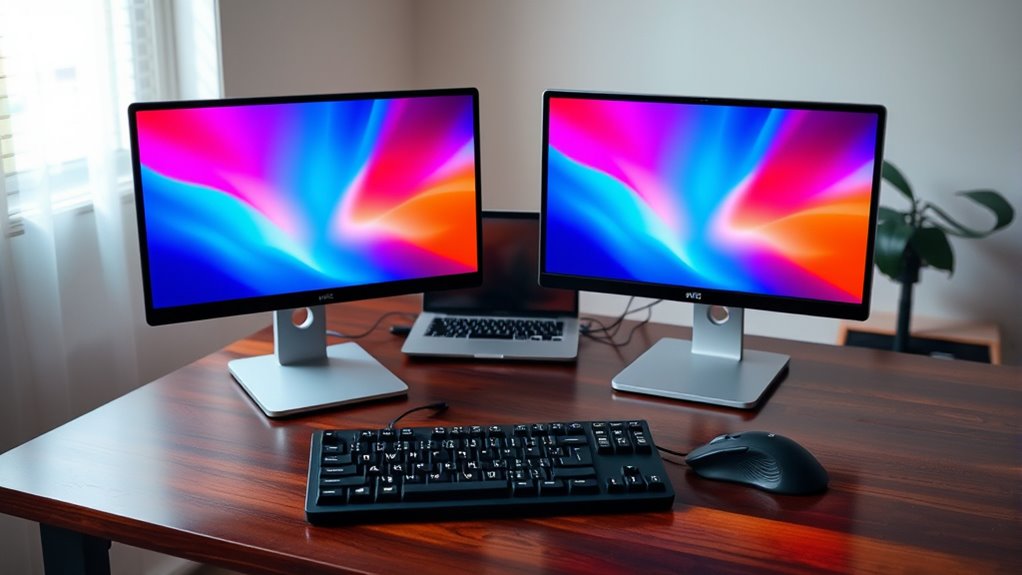

To set up a dual monitor display, start by checking compatibility between your monitors and computer, focusing on resolution and connection types. Next, gather the necessary cables and adapters for your setup. Connect the monitors and configure display settings on your operating system, whether Windows or macOS. Arrange your monitors for ideal workflow and customize your display preferences. Troubleshoot any issues you encounter for a smooth experience. More tips on maximizing productivity await you ahead.
Checking Compatibility of Your Monitors and Computer
Before setting up a dual monitor display, you need to check the compatibility of your monitors and computer. Start by reviewing the monitor specifications to verify they match your system’s requirements. Look at the resolution, refresh rate, and connection types—like HDMI or DisplayPort—both your monitors and computer support. This guarantees superior performance and visual quality. Also, check your graphics card to confirm it can handle multiple displays; some older models might not support dual output. If you’re uncertain, consult the user manuals or manufacturer websites for detailed compatibility information. By verifying everything aligns, you’ll be free to enjoy an enhanced workspace without technical hiccups. A little prep goes a long way in achieving a seamless dual monitor setup.
Gathering the Necessary Cables and Adapters
To set up your dual monitor display, you’ll first need to identify the connection types on both your monitors and computer. Once you know what connections you have, you can acquire any necessary cables and adapters. This guarantees that everything will connect seamlessly for peak performance.
Identify Monitor Connections
Setting up a dual monitor display requires identifying the right monitor connections to secure a seamless experience. Different monitor types use various connection standards, so you’ll need to verify compatibility with your devices. Here’s what to look for:
- HDMI: Common for most modern monitors and laptops.
- DisplayPort: Ideal for high-resolution displays and multiple monitor setups.
- VGA: An older standard, mainly for legacy devices.
- DVI: Often found in older monitors, supporting digital signals.
- USB-C: Increasingly popular for newer laptops and monitors, offering power and data transfer.
Check your monitors and video outputs to determine which connections you’ll be dealing with. This way, you can plan efficiently for the next steps in your dual monitor setup.
Acquire Required Adapters
Gathering the necessary cables and adapters is crucial for a successful dual monitor setup. First, identify the adapter types you’ll need based on your monitors and computer ports. Common options include HDMI, DisplayPort, VGA, and DVI. Make sure you choose the right adapters that match your device specifications.
Next, pay attention to cable lengths. Measure the distance between your monitors and the computer to avoid purchasing cables that are too short or excessively long. Longer cables can lead to signal degradation, so aim for ideal lengths. With the right combination of adapter types and appropriate cable lengths, you’ll create a seamless dual monitor experience that enhances your productivity and freedom to multitask effectively.
Connecting Your Monitors to the Computer
To connect your monitors to the computer, you’ll need to understand the different types of monitor connections available. Check the cable requirements and guarantee compatibility with your graphics card and monitors. This step is essential for a seamless dual display setup.
Types of Monitor Connections
When connecting your monitors to the computer, understanding the various types of monitor connections is essential for ideal performance. Here’s a quick overview of the most common connections:
- HDMI connections: Widely used for both video and audio; great for most setups.
- DisplayPort advantages: Supports high resolutions and refresh rates; ideal for gaming.
- VGA limitations: An older analog standard; not recommended for high-quality displays.
- DVI differences: Provides better quality than VGA, but lacks audio support.
- USB C benefits: Offers video, audio, and power over a single cable; increasingly common in modern devices.
- Thunderbolt speed: Combines data and video transfer at incredible speeds; perfect for high-performance needs.
Choose the right type to maximize your dual monitor setup!
Cable Requirements and Compatibility
Setting up a dual monitor display requires ensuring that you have the right cables and that they are compatible with both your monitors and your computer. Start by identifying the cable types your monitors support, such as HDMI, DisplayPort, DVI, or VGA. Check your computer’s output ports to match the monitors’ requirements. Compatibility issues can arise if you attempt to use incompatible cables or adapters, so always verify specifications. If your monitors have different inputs, you might need an adapter to connect them properly. Once everything’s in place, plug in the cables and power on your monitors. This will allow you to release the full potential of your setup, enhancing your productivity and multitasking capabilities.
Configuring Display Settings on Windows
Configuring display settings for a dual monitor setup on Windows typically involves just a few straightforward steps. Start by verifying both monitors are connected and powered on. Then, follow these steps to adjust your settings:
- Right-click on the desktop and select “Display settings.”
- Under “Multiple displays,” choose how you want to use the screens (Duplicate, Extend, etc.).
- Adjust the display resolution for each monitor to guarantee clarity and ideal viewing.
- Rearrange the displays in the settings to match their physical layout.
- Click “Apply” to save your changes.
With these steps, you’ll enjoy a seamless multi-display experience, enhancing your productivity and freedom in multitasking.
Configuring Display Settings on Macos
To set up a dual monitor display on macOS, start by ensuring both monitors are connected and powered on. Open System Preferences and select Displays. Here, you’ll see a representation of your monitors. You can adjust the display arrangement by dragging the monitors to your preferred layout. This allows you to determine how your cursor moves between screens. For ideal clarity, consider monitor calibration; click on the ‘Color’ tab in the Displays menu to fine-tune color settings for each monitor. You can also set one monitor as the primary display by dragging the white menu bar to your chosen screen. Once configured, you’ll enjoy a seamless dual monitor experience tailored to your workflow.
Arranging Your Monitors for Optimal Workflow
After configuring your display settings, the next step is arranging your monitors for ideal workflow. Proper monitor placement can greatly enhance your productivity and streamline tasks. Here are some tips for workflow optimization:
Arranging your monitors effectively can significantly boost productivity and streamline your workflow.
- Position monitors at eye level to reduce neck strain.
- Align screens side-by-side for easy multitasking between applications.
- Use a primary monitor for core tasks and a secondary for reference materials.
- Maintain a comfortable distance to avoid eye fatigue.
- Consider the ambient lighting to minimize glare on screens.
Customizing Display Preferences and Resolution
While optimizing your dual monitor setup, customizing display preferences and resolution is essential for achieving a comfortable and efficient workspace. Start by adjusting the resolution for each monitor to guarantee clarity; typically, you’ll want to match the native resolution for the best results. Utilize display scaling options to enhance readability and accommodate different screen sizes. You can find these settings in your operating system’s display menu. Next, apply color calibration methods to ascertain that colors appear consistent across both monitors. This step not only improves visual comfort but also enhances your work’s accuracy, especially in design tasks. Remember, a well-calibrated display can make a significant difference in your overall experience.
Troubleshooting Common Dual Monitor Issues
Even if you’ve successfully set up your dual monitor display, you might still encounter some common issues that can disrupt your workflow. Here are a few problems and solutions to take into account:
- Screen flickering: Check your cable connections and refresh rate settings.
- Resolution mismatch: Verify both monitors are set to their native resolutions.
- Display not detected: Reboot your system and check display settings.
- Wrong primary monitor: Adjust the primary display in your operating system’s settings.
- Color inconsistencies: Calibrate each monitor to achieve uniform color profiles.
Tips for Maximizing Productivity With Dual Monitors
Once you’ve resolved any issues with your dual monitor setup, it’s time to enhance your productivity. Start by implementing effective screen organization strategies. Position your primary screen for focused tasks—like document editing—while using the secondary screen for reference materials or communication tools. This setup reduces the time you spend switching between windows, allowing for smoother workflows.
Next, embrace multitasking techniques to take full advantage of both displays. Utilize features such as snapping windows or using virtual desktops to keep related tasks visually separated yet easily accessible. Regularly assess your layout; adjust as necessary to maintain ideal comfort and efficiency. By mastering these strategies, you’ll harness the true potential of dual monitors, giving you the freedom to work smarter, not harder.
Frequently Asked Questions
Can I Use Different Brands of Monitors Together?
Absolutely, you can mix different brands of monitors, like pairing a swift falcon with a sturdy owl. Just verify monitor compatibility and adjust your display settings for a seamless experience, allowing you ultimate freedom in your setup.
Will Dual Monitors Affect My Computer’s Performance?
Yes, dual monitors can affect your computer’s performance. They require more system resources and depend on your graphics card’s capability. If your hardware is outdated, you might experience reduced performance or lag during intensive tasks.
Is There a Limit to How Many Monitors I Can Connect?
Yes, there’s a limit to how many monitors you can connect, depending on your graphics card’s display output capabilities. Check your device specifications to verify you don’t exceed the monitor connection limits for peak performance.
How Do I Switch Between Monitor Displays?
To switch between monitor displays, use monitor shortcuts like Windows + P. You can also adjust display settings in your operating system’s control panel, enabling you to choose the desired setup effortlessly. Enjoy your enhanced workspace!
Can I Use a TV as a Second Monitor?
Absolutely, you can use a TV as a second monitor! Just verify your TV’s resolution matches your needs, and connect it via HDMI. It’s like transforming your living room into an epic workspace!
