


To sync your Bose speakers, you’ll need to connect them using the Bose Connect app or Bluetooth settings on your device. This process ensures that your speakers work seamlessly together for an enhanced audio experience. In this guide, you will learn the exact steps to synchronize your Bose speakers effectively, allowing you to enjoy superior sound quality and an immersive listening experience.
Understanding Bose Speaker Types
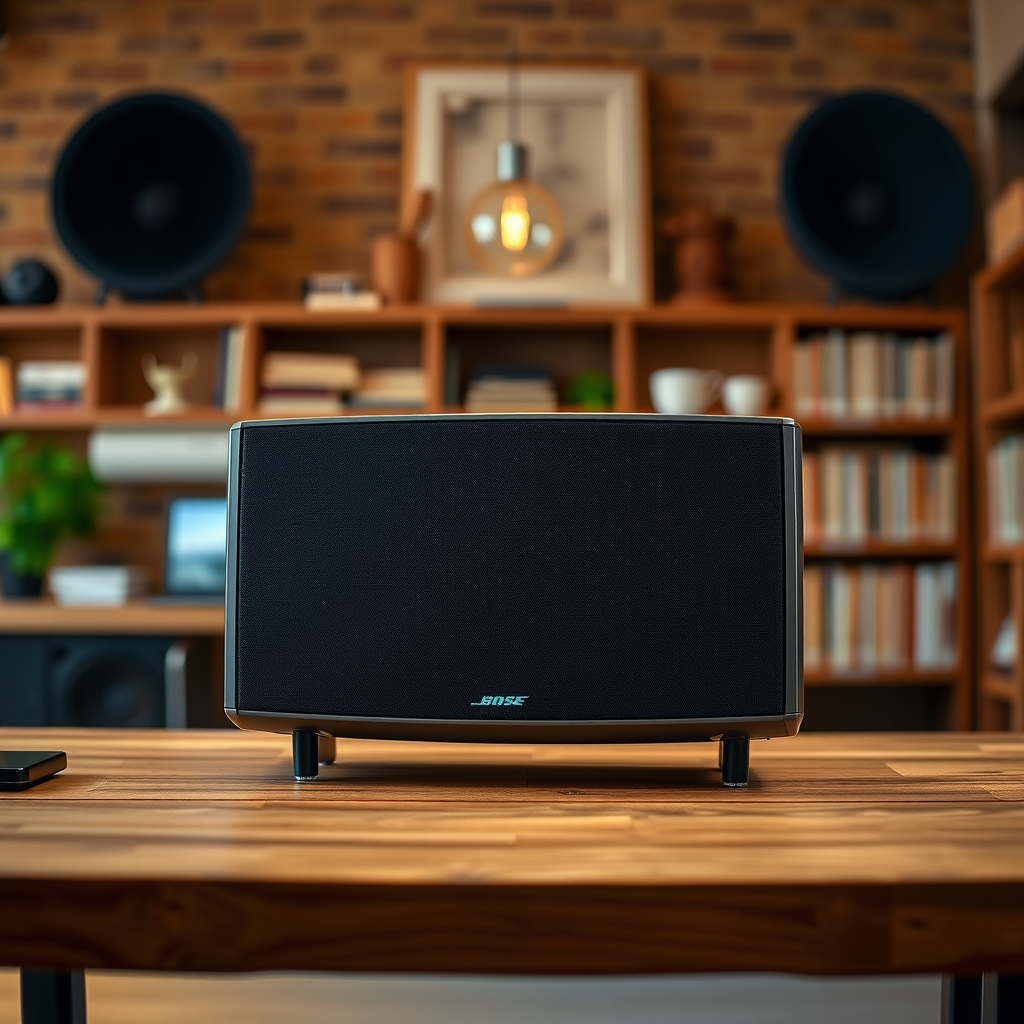
Bose offers a diverse range of speaker models, each designed to cater to different listening environments and user preferences. Understanding the specifics of your speaker model is crucial for an efficient syncing process. The most popular models include:
– SoundLink Series: Known for their portability and robust sound quality, these Bluetooth speakers are perfect for on-the-go usage. Models like the SoundLink Mini and SoundLink Revolve are particularly user-friendly and versatile.
– Soundbar Series: Designed to enhance your TV audio, models such as the Bose Soundbar 700 and 500 offer a cinematic experience with advanced features like voice control and built-in Alexa.
– Home Speaker Series: These smart speakers, like the Home Speaker 500, integrate seamlessly with your smart home devices and provide rich sound in a sophisticated design.
Each model may have unique features and syncing methods, so it’s essential to identify which type you own before proceeding with the setup.
Preparing Your Devices
Before diving into the syncing process, ensuring that all your devices are ready is essential. Here are the steps to prepare:
– Charge Your Speakers: Make sure all your Bose speakers are adequately charged or plugged in. A low battery can disrupt the synchronization process, leading to connectivity issues.
– Update Your Device: Ensure that your smartphone or tablet is running the latest software version. Outdated software can lead to compatibility issues with the Bose Connect app or Bluetooth technology.
By ensuring your devices are ready, you set the stage for a smooth syncing experience.
Using the Bose Connect App
The Bose Connect app is a powerful tool that allows you to manage and sync multiple Bose speakers effortlessly. Here’s how to use it:
1. Download the App: If you haven’t already, download the Bose Connect app from the Apple App Store or Google Play Store.
2. Open the App: Once installed, open the app on your smartphone or tablet.
3. Add Your Speakers: Follow the prompts to add your Bose speakers. The app will guide you through the process, ensuring each speaker is connected correctly.
4. Syncing Process: After adding your speakers, you can initiate the syncing process. The app will automatically search for available devices, and you can select the speakers you wish to sync.
5. Confirm Connection: Once the app indicates that your speakers are connected, confirm the pairing to finalize the setup.
By using the Bose Connect app, you can take advantage of various features, including firmware updates and personalized audio settings.
Top Bose Speakers and Their Features (2024)
| # | Model | Type | Battery Life | Smart Features |
|---|---|---|---|---|
| 1 | SoundLink Mini II | Portable | 10 hours | Voice Assistant |
| 2 | Soundbar 700 | Soundbar | Up to 12 hours | Smart Home Integration |
| 3 | Home Speaker 500 | Smart Speaker | 20 hours | Multi-Room Audio |
| 4 | SoundLink Revolve+ | Portable | 17 hours | 360° Sound |
| 5 | Bose Portable Smart Speaker | Smart Speaker | 12 hours | Built-in Alexa |
| 6 | Bose SoundLink Color II | Portable | 8 hours | No Smart Features |
| 7 | Bose Soundbar 500 | Soundbar | Up to 8 hours | Voice Control |
Syncing via Bluetooth
If you prefer to sync your Bose speakers using Bluetooth, follow these steps:
1. Activate Bluetooth: On your smartphone or tablet, navigate to the settings and ensure Bluetooth is turned on.
2. Search for Devices: Your device will start scanning for available Bluetooth devices. Wait for your Bose speakers to appear on the list.
3. Select Your Speakers: Tap on the name of your Bose speakers to initiate the connection. If prompted, enter the pairing code, which is usually “0000.”
4. Confirm Connection: Once connected, you’ll see a confirmation on your device, and the speakers may emit a sound indicating they are ready to use.
Using Bluetooth is a straightforward method for syncing your Bose speakers, particularly if you prefer not to use the app.
Creating a Party Mode or Stereo Pair
The Bose Connect app offers additional features that allow you to enhance your audio experience further. Here’s how to set up either Party Mode or Stereo Pair:
– Party Mode: This mode lets multiple speakers play the same audio simultaneously, creating a more immersive experience. To activate, open the Bose Connect app, select your speakers, and choose the Party Mode option. Follow the prompts to ensure all selected speakers sync together.
– Stereo Pair: For a richer sound experience, you can pair two speakers to act as left and right channels. In the app, select the two speakers you want to pair, choose the Stereo Pair option, and follow the instructions to complete the setup.
By utilizing these features, you can customize your listening experience to suit your preferences, whether for a party or a quieter evening at home.
Troubleshooting Common Sync Issues
Even with a well-defined process, you may encounter occasional issues while syncing your Bose speakers. Here are some common problems and their solutions:
– Speakers Won’t Connect: If your speakers fail to connect, try restarting both your speakers and the device you are using. This often resolves minor glitches.
– App Updates: Ensure that you are using the latest version of the Bose Connect app. Check for updates in your app store, as new versions may include bug fixes and performance improvements.
– Bluetooth Interference: Other electronic devices may interfere with the Bluetooth connection. Ensure there are no obstructions between your device and the speakers and try to minimize the number of active Bluetooth devices.
By following these troubleshooting tips, you can effectively address common issues and enjoy uninterrupted audio playback.
Enjoying Your Synchronized Setup
Once your Bose speakers are synced, it’s time to test your audio setup. Play your favorite music or a movie and adjust the volume and equalizer settings as needed through the Bose Connect app. This allows you to tailor the sound to your specific preferences.
Moreover, don’t forget to explore the additional features offered by the app, such as sound customization options, firmware updates, and personalized playlists. By taking full advantage of these capabilities, you can significantly enhance your listening experience.
In summary, syncing your Bose speakers is a straightforward process that can be accomplished via the Bose Connect app or Bluetooth settings. By understanding your specific speaker model, preparing your devices, and following the steps outlined above, you can create an immersive audio environment that suits your needs. Now that you have all the essential information, it’s time to get your speakers synced and enjoy your music!
Frequently Asked Questions
How do I sync my Bose Bluetooth speakers with my smartphone?
To sync your Bose Bluetooth speakers with your smartphone, first ensure that your speaker is powered on and in pairing mode. On your smartphone, go to the Bluetooth settings, search for available devices, and select your Bose speaker from the list. Once connected, you should hear a confirmation tone from the speaker, indicating a successful sync.
What should I do if my Bose speakers won’t sync with my device?
If your Bose speakers won’t sync, start by turning off both the speaker and the device you’re trying to connect. Restart them and ensure Bluetooth is enabled on your device. If the issue persists, try forgetting the speaker in your device’s Bluetooth settings and reconnecting it to initiate a fresh pairing process.
Why won’t my Bose speakers connect to Wi-Fi for multi-room audio?
If your Bose speakers won’t connect to Wi-Fi for multi-room audio, ensure that your Wi-Fi network is functioning properly and that the speakers are within range of the router. Additionally, check that the speakers are updated to the latest firmware via the Bose app, as updates often fix connectivity issues. Lastly, ensure that your network settings allow for device connections.
Which Bose speakers can be synced for multi-room audio?
Most Bose smart speakers and soundbars, such as the Bose Home Speaker 500, Bose Soundbar 700, and Bose Portable Smart Speaker, support multi-room audio sync. These devices can seamlessly connect through the Bose Music app, allowing you to play synchronized music across different rooms throughout your home.
What is the best way to sync multiple Bose speakers together?
The best way to sync multiple Bose speakers together is by using the Bose Music app. This app allows you to create a group of speakers, control playback, and adjust settings for a cohesive audio experience throughout your home. Make sure all speakers are connected to the same Wi-Fi network and updated to the latest firmware for optimal performance.
References
- Customer Support
https://www.bose.com/en_us/support/article/how-to-connect-bose-bluetooth-speakers.html - Customer Support
https://www.bose.com/en_us/support/article/how_to_sync_bose_soundlink_speakers.html - Customer Support
https://www.bose.com/en_us/support/article/how_to_sync_bose_speakers.html - https://www.bose.com/en_us/support/article/syncing_bluetooth_speakers.html
https://www.bose.com/en_us/support/article/syncing_bluetooth_speakers.html - Google Scholar Google Scholar
https://scholar.google.com/scholar?q=how+to+sync+Bose+speakers - https://scholar.google.com/scholar?q=synchronizing+Bose+audio+devices Google Scholar
https://scholar.google.com/scholar?q=synchronizing+Bose+audio+devices - Google Scholar Google Scholar
https://scholar.google.com/scholar?q=Bose+speaker+syncing+guide - https://www.bbc.com/news/technology-58832183
https://www.bbc.com/news/technology-58832183 - https://www.nytimes.com/2021/11/05/technology/bose-bluetooth-speaker.html
https://www.nytimes.com/2021/11/05/technology/bose-bluetooth-speaker.html - https://pubmed.ncbi.nlm.nih.gov/28713194/
https://pubmed.ncbi.nlm.nih.gov/28713194/
