
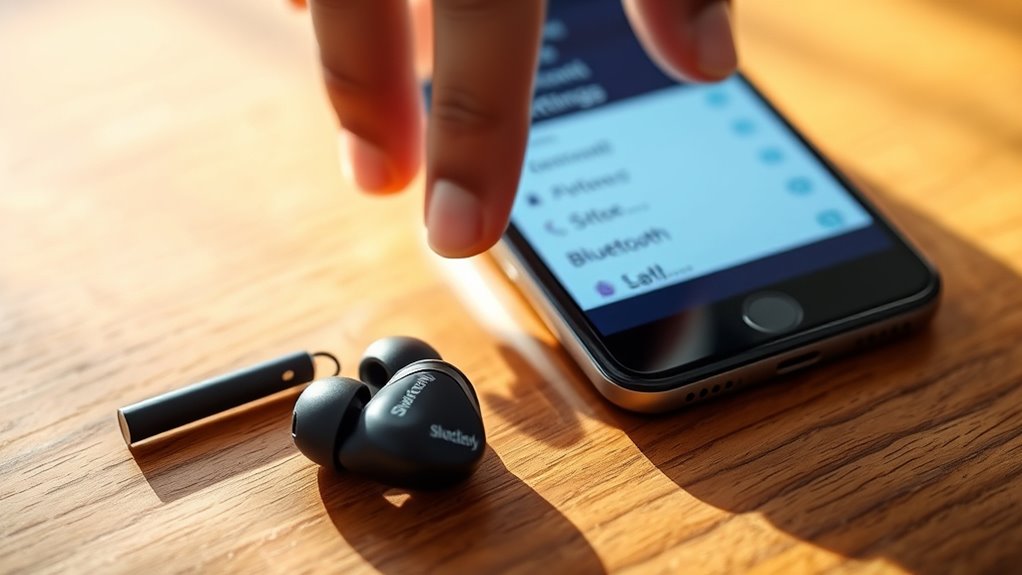

To sync your Skullcandy earbuds, first, verify your device’s Bluetooth is enabled. Power on the earbuds and activate pairing mode by holding the power button until the LED flashes red and blue. Next, search for available devices on your smartphone’s Bluetooth settings and tap on your earbuds’ name to connect. You’ll hear a confirmation sound if successful. If you encounter issues, don’t worry; you can find further tips to enhance your connection experience.
Understanding Your Skullcandy Earbuds
To get the most out of your Skullcandy earbuds, it’s essential to understand their features and functionalities. These earbuds often come with customizable sound profiles, allowing you to tailor the audio to your liking. Pay attention to the earbud features like noise cancellation and sweat resistance, which enhance your listening experience. The sound quality of Skullcandy earbuds is typically impressive, delivering clear highs and deep bass. You’ll also appreciate the ergonomic design, ensuring comfort during long listening sessions. Battery life varies, so knowing how to optimize it can keep you enjoying your music without interruption. By familiarizing yourself with these aspects, you’ll maximize your freedom to listen wherever you go, making the most of your earbuds.
Preparing Your Device for Pairing
Before pairing your Skullcandy earbuds, make sure Bluetooth is enabled on your device. It’s also a good idea to remove any previous connections to avoid confusion. This way, you’ll have a smooth pairing experience.
Enable Bluetooth Settings
While you’re getting ready to sync your Skullcandy earbuds, the first step is enabling Bluetooth on your device. Start by heading to your device settings; this is where you’ll find the Bluetooth option. Make certain your device is Bluetooth compatible—most modern devices are, but it’s always good to check. Once in the Bluetooth settings, toggle the switch to turn it on. This will allow your device to search for nearby Bluetooth devices, prepping it for pairing with your earbuds. Depending on your device, you might see a list of available devices shortly after enabling Bluetooth. Remember, without activating Bluetooth, your earbuds won’t connect, so verify this step is done before moving forward. Enjoy your wireless freedom!
Remove Previous Connections
If you’ve previously connected your Skullcandy earbuds to your device, it’s essential to remove those old connections for a smooth pairing experience. This process often involves resetting devices and clearing cache to prevent any interference.
Here’s a quick guide to help you through:
| Step | Action | Notes |
|---|---|---|
| 1. Access Settings | Go to Bluetooth settings | Usually in ‘Settings’ |
| 2. Forget Device | Select your earbuds | Confirm to disconnect |
| 3. Clear Cache | Reset Bluetooth cache | Improves connection speed |
Activating Pairing Mode on Your Earbuds
To activate pairing mode on your Skullcandy earbuds, you’ll first need to power them on. Once they’re on, follow the specific button combination to enter pairing mode. This will allow your earbuds to connect with your device seamlessly.
Power On Earbuds
Before you can sync your Skullcandy earbuds, you’ll need to power them on and activate pairing mode. Start by locating the power button on your earbuds. Press and hold it for a few seconds until you see a light indicator, signaling that they’re on. Make sure your earbuds have sufficient battery life; if they’re low, charge them before proceeding. A full battery guarantees peak performance and a seamless connection. Once powered on, your earbuds are ready to enter pairing mode, which is essential for syncing with your device. Remember, keeping your earbuds charged not only enhances battery life but also improves your listening experience. Enjoy the freedom of wireless sound!
Enter Pairing Mode
Once your Skullcandy earbuds are powered on, the next step is activating pairing mode. To enter pairing mode, press and hold the power button until you see the LED light flash, usually in red and blue. This indicates your earbuds are ready to connect. If you’re experiencing syncing issues, verify that your earbuds are within a close range of your device. It’s also a good idea to turn off Bluetooth on other devices to avoid interference. Once in pairing mode, check your device’s Bluetooth settings. Your earbuds should appear in the list of available devices. Select them, and you’re good to go! Enjoy the freedom of wireless listening with your synced Skullcandy earbuds.
Connecting to Your Smartphone
Connecting your Skullcandy earbuds to your smartphone is a straightforward process that typically takes just a few minutes. First, verify your smartphone meets the necessary smartphone compatibility and Bluetooth requirements. Most modern smartphones support Bluetooth, but it’s always good to double-check.
Turn on the Bluetooth feature on your smartphone and search for available devices. Once your earbuds are in pairing mode, they should appear in the list of devices. Tap on their name to establish the connection. Depending on your specific model, you might hear a confirmation sound or see a notification that they’re connected.
Now, you’re ready to enjoy your music or take calls hands-free, giving you the freedom to move around without hassle.
Syncing With a Tablet
If you’ve successfully connected your Skullcandy earbuds to your smartphone, syncing them with a tablet is just as simple. First, verify your tablet is compatible with Bluetooth devices, as this is essential for smooth performance. Turn on your earbuds and put them in pairing mode. Then, navigate to your tablet’s Bluetooth settings and select your Skullcandy earbuds from the list of available devices. Once connected, you’ll enjoy excellent audio quality while streaming music or watching videos. Remember to check for any software updates for both your earbuds and tablet to enhance tablet compatibility and overall performance. With just a few steps, you’ll be ready to experience freedom in your audio experience.
Pairing With a Computer
Pairing your Skullcandy earbuds with a computer is a straightforward process that enhances your audio experience. To get started, make sure your computer is Bluetooth-enabled. Follow these simple steps for best computer compatibility and audio quality:
| Step | Action | Notes |
|---|---|---|
| 1. Power On | Turn on your earbuds | Make sure they’re in pairing mode |
| 2. Enable Bluetooth | Go to your computer settings | Check Bluetooth is active |
| 3. Connect | Find your earbuds in the list | Click to pair |
| 4. Test Audio | Play a sound | Adjust volume as needed |
Once paired, enjoy your favorite music or video with crisp sound. Remember, maintaining close proximity will help guarantee a stable connection.
Troubleshooting Common Sync Issues
Even after successfully connecting your Skullcandy earbuds to your computer, you might encounter some syncing issues. These sync problems can be frustrating, but don’t worry! Here are some troubleshooting tips to aid you in resolving them:
Connecting your Skullcandy earbuds is just the start; syncing issues may still arise, but simple fixes can help!
- Restart your earbuds: Sometimes a simple reboot can clear up any connection errors.
- Check Bluetooth settings: Make sure your device’s Bluetooth is enabled and discoverable.
- Forget and reconnect: Remove the earbuds from your device’s Bluetooth list and pair them again.
Maintaining Your Connection
To keep your Skullcandy earbuds connected seamlessly, it’s vital to maintain a strong Bluetooth connection. Start by ensuring your device is within range—ideally, within 30 feet. Obstacles like walls or other electronics can cause signal interference, which negatively impacts connection stability. Avoid crowded areas with multiple Bluetooth devices, as this can also disrupt your signal. If you notice a drop in audio quality or connection issues, try disconnecting and reconnecting your earbuds. Regularly check for firmware updates, as these can enhance performance and stability. Finally, keep your earbuds charged; low battery levels can lead to unreliable connections. By following these tips, you can enjoy the freedom of wireless listening without interruptions.
Frequently Asked Questions
Can I Use Skullcandy Earbuds With Multiple Devices Simultaneously?
You can’t use Skullcandy earbuds with multiple devices simultaneously. They support multi-device connectivity, but only one device can be connected at a time. Switching requires disconnecting from one device before connecting to another.
How Do I Reset My Skullcandy Earbuds?
To reset your Skullcandy earbuds, hold down the power button for about 10 seconds until you see the LED flash. This earbud troubleshooting step kicks off the reset process, restoring your earbuds to default settings.
Are Skullcandy Earbuds Waterproof or Water-Resistant?
Skullcandy earbuds aren’t fully waterproof, but many models have water resistance features. To keep them in great shape, avoid submerging them and clean them gently with a damp cloth after workouts or outdoor use.
What Is the Battery Life of Skullcandy Earbuds?
Skullcandy earbuds typically offer impressive battery performance, lasting up to 24 hours with the charging case. For ideal use, remember to charge them regularly and keep the case handy for those longer listening sessions.
How Can I Update the Firmware of My Skullcandy Earbuds?
To update your earbuds’ firmware, download the Skullcandy app. It’ll guide you through the process, ensuring smooth connectivity. Picture your earbuds effortlessly syncing, free of issues, as you enjoy your favorite tunes with ease.
