


Syncing your Sonos speakers is a straightforward process that can significantly enhance your audio experience at home. By following a few simple steps, you can connect multiple Sonos devices to create a seamless sound environment, whether you’re hosting a party or enjoying a quiet evening. This guide will walk you through the necessary steps to achieve perfect synchronization, ensuring that your music flows beautifully throughout your space.
Understanding Sonos Speaker Grouping
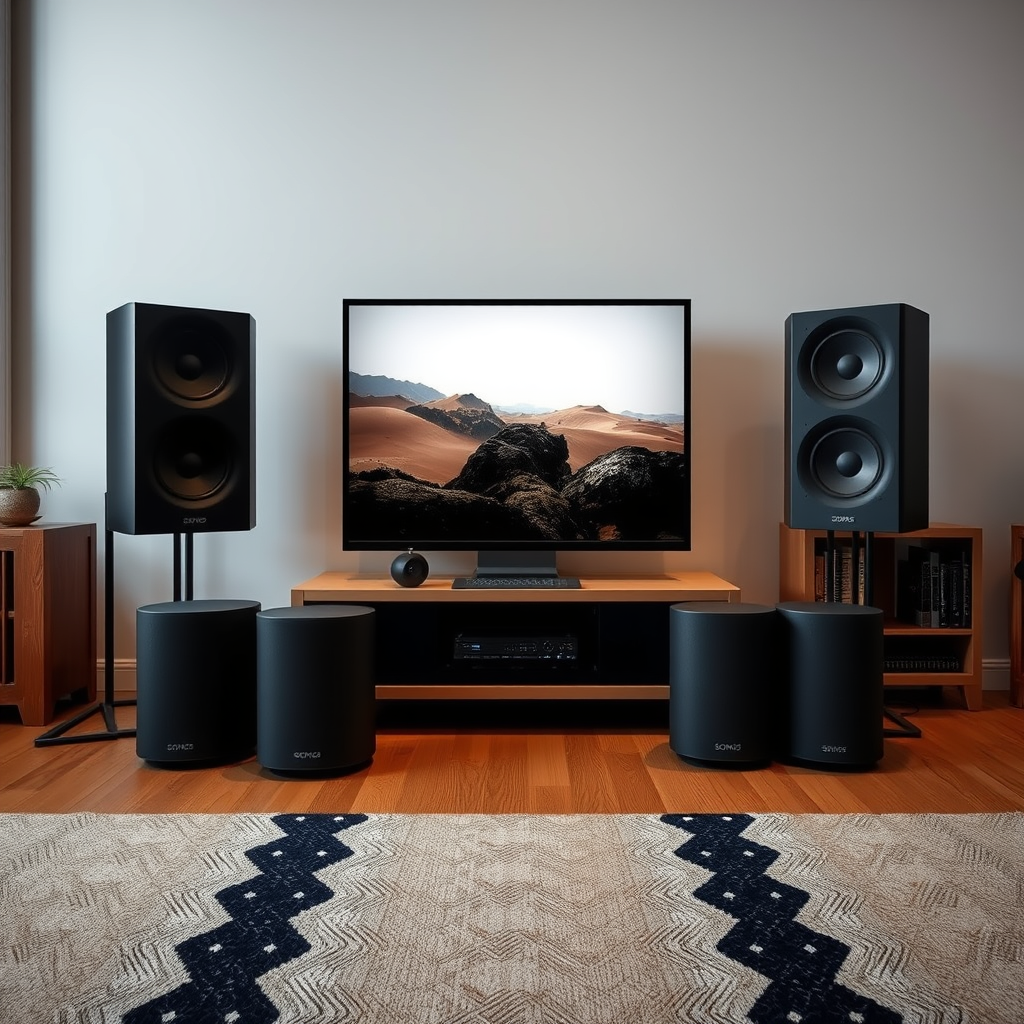
Sonos offers an intuitive feature that allows users to group speakers for synchronized audio playback. This capability is crucial for those who wish to enjoy their favorite tracks in multiple rooms simultaneously, creating an immersive sound experience that fills the entire home. Grouping speakers can be managed effortlessly through the Sonos app, which serves as the central control hub for your audio devices.
When you group Sonos speakers, the app ensures that audio is transmitted in perfect harmony across all selected devices. This means you can play the same song in your living room, kitchen, and patio with no noticeable delay, making for a more enjoyable listening experience. Additionally, grouping can enhance various scenarios—whether you’re watching a movie, throwing a party, or simply enjoying music while cooking.
Preparing Your Sonos System
Before diving into the synchronization process, it’s important to ensure that your Sonos system is properly set up. Start by confirming that all Sonos speakers are powered on and connected to the same Wi-Fi network. A stable and strong Wi-Fi connection is essential for reliable performance, especially when multiple speakers are involved.
Updating the Sonos app to the latest version is also critical. Regular updates often include new features, bug fixes, and performance enhancements that improve the overall functionality of your system. You can check for updates within the app itself, ensuring that you’re equipped with the latest tools for sound management.
Using the Sonos App to Sync Speakers
To sync your speakers using the Sonos app, follow these steps:
1. Open the Sonos app on your smartphone or tablet.
2. Navigate to the “Rooms” tab, where you’ll see a list of all available Sonos devices in your home.
3. Select the speakers you want to group. You can select multiple speakers by tapping on each one.
4. Once you’ve selected the desired speakers, tap on the “Group” option to synchronize them.
The app will confirm that the speakers are now grouped, and any audio played through the app will be heard simultaneously across all selected devices. This feature is particularly beneficial for larger spaces or when you want to create a unified sound experience throughout your home.
Top 7 Sonos Speakers for Home Use (2024)
| # | Speaker Model | Power Output | Battery Life | Rating |
|---|---|---|---|---|
| 1 | Sonos One | 20W | 10 hours | ★★★★☆ |
| 2 | Sonos Move | 40W | 11 hours | ★★★★★ |
| 3 | Sonos Play:1 | 30W | 8 hours | ★★★★☆ |
| 4 | Sonos Beam | 20W | 8 hours | ★★★★★ |
| 5 | Sonos Sub | 50W | N/A | ★★★★☆ |
| 6 | Sonos Arc | 20W | 8 hours | ★★★★★ |
| 7 | Sonos Five | 50W | 7 hours | ★★★★☆ |
Adjusting Audio Settings for Optimal Performance
Once your speakers are synced, it’s essential to fine-tune the audio settings for optimal performance. Within the Sonos app, you can access the “Settings” menu, where you’ll find various options to enhance your listening experience.
Start by adjusting the volume levels for each speaker in the group. This feature allows you to balance the sound according to the acoustics of each room, ensuring that no speaker overpowers another. For instance, you might want a speaker in a larger room to be slightly louder than one in a smaller space.
Additionally, the app offers sound enhancements such as Trueplay tuning. This feature uses your device’s microphone to analyze the acoustics of your room and adjust the speaker’s output accordingly. Trueplay can significantly improve audio quality, making your listening experience more enjoyable and immersive.
Troubleshooting Sync Issues
If you encounter issues with your Sonos speakers not syncing properly, there are several troubleshooting steps you can take. Begin by checking your Wi-Fi connection. Ensure that all devices, including your smartphone and Sonos speakers, are connected to the same network. A reliable Wi-Fi connection is crucial for effective syncing.
If the speakers still aren’t syncing, try restarting the Sonos app. Sometimes, the app may experience minor glitches that can be resolved with a simple restart. If problems persist, consider restarting your Sonos speakers as well. Unplugging them for a few seconds and then plugging them back in can often resolve connectivity issues.
Exploring Advanced Syncing Options
For users looking to enhance their audio experience further, consider utilizing the “Stereo Pair” function available in the Sonos app. This feature allows you to pair two identical Sonos speakers to create a wider soundstage, ideal for music lovers who crave a richer audio experience.
If you’re integrating your Sonos system with a home theater setup, explore the “Home Theater” settings. This feature optimizes audio sync between your Sonos speakers and your TV, ensuring that sound effects and dialogue are perfectly aligned with what’s happening on screen. This adds a new level of immersion, especially when watching action films or sports.
In conclusion, syncing Sonos speakers is an easy process that enhances your listening experience. By following the steps outlined in this guide, you can enjoy music throughout your home seamlessly. For more tips on optimizing your Sonos setup, explore other resources or check the Sonos support page. With the right configuration, your Sonos system can transform any space into a personalized sound sanctuary.
Frequently Asked Questions
How do I sync multiple Sonos speakers in my home?
To sync multiple Sonos speakers, start by ensuring all speakers are connected to the same Wi-Fi network. Open the Sonos app, go to “Settings,” then “System,” and select “Add Product” to include additional speakers. Once added, you can group them for synchronized playback by selecting “Group” from the options in the app.
Why aren’t my Sonos speakers syncing properly?
If your Sonos speakers aren’t syncing, check for a stable Wi-Fi connection, as connectivity issues are often the culprit. Additionally, ensure that all speakers are updated to the latest firmware version via the Sonos app. Restarting your speakers and router can also help resolve minor syncing issues.
What is the best way to sync Sonos speakers for parties?
The best way to sync Sonos speakers for parties is to use the “Group” feature in the Sonos app. This allows you to create a single audio zone with all your Sonos devices, ensuring that music plays in perfect harmony throughout your space. Make sure to adjust the volume levels for each speaker for an optimal experience.
Which Sonos speakers can be synced together?
Most Sonos speakers can be synced together, including the Sonos One, Sonos Beam, Sonos Play:1, and Sonos Move, among others. However, be sure to check the compatibility of your devices in the Sonos app, as some older models may have limitations on syncing. Generally, as long as they are on the same Wi-Fi network, they should work together seamlessly.
How do I troubleshoot syncing issues with Sonos speakers?
To troubleshoot syncing issues with your Sonos speakers, first restart all devices, including your speakers and router. Next, check the Sonos app for any software updates that might be necessary. If problems persist, try resetting your speakers by unplugging them for 10 seconds, then plugging them back in, or consult the Sonos support website for more detailed guidance.
References
- https://en.wikipedia.org/wiki/Sonos
https://en.wikipedia.org/wiki/Sonos - https://www.pcmag.com/how-to/how-to-set-up-sonos-multi-room-audio
https://www.pcmag.com/how-to/how-to-set-up-sonos-multi-room-audio - Google Scholar Google Scholar
https://scholar.google.com/scholar?q=how+to+sync+sonos+speakers - Google Scholar Google Scholar
https://scholar.google.com/scholar?q=sonos+speaker+setup - Google Scholar Google Scholar
https://scholar.google.com/scholar?q=multi-room+audio+systems - how to sync sonos speakers – Search results
https://en.wikipedia.org/wiki/Special:Search?search=how+to+sync+sonos+speakers - https://www.ncbi.nlm.nih.gov/search/research-articles/?term=how+to+sync+sonos+speakers
https://www.ncbi.nlm.nih.gov/search/research-articles/?term=how+to+sync+sonos+speakers

[…] Q: What audio connection should I use—Bluetooth or wired?For movie watching, wired audio is usually more reliable for sync; use Bluetooth only when convenience matters more than perfect synchronization. […]