
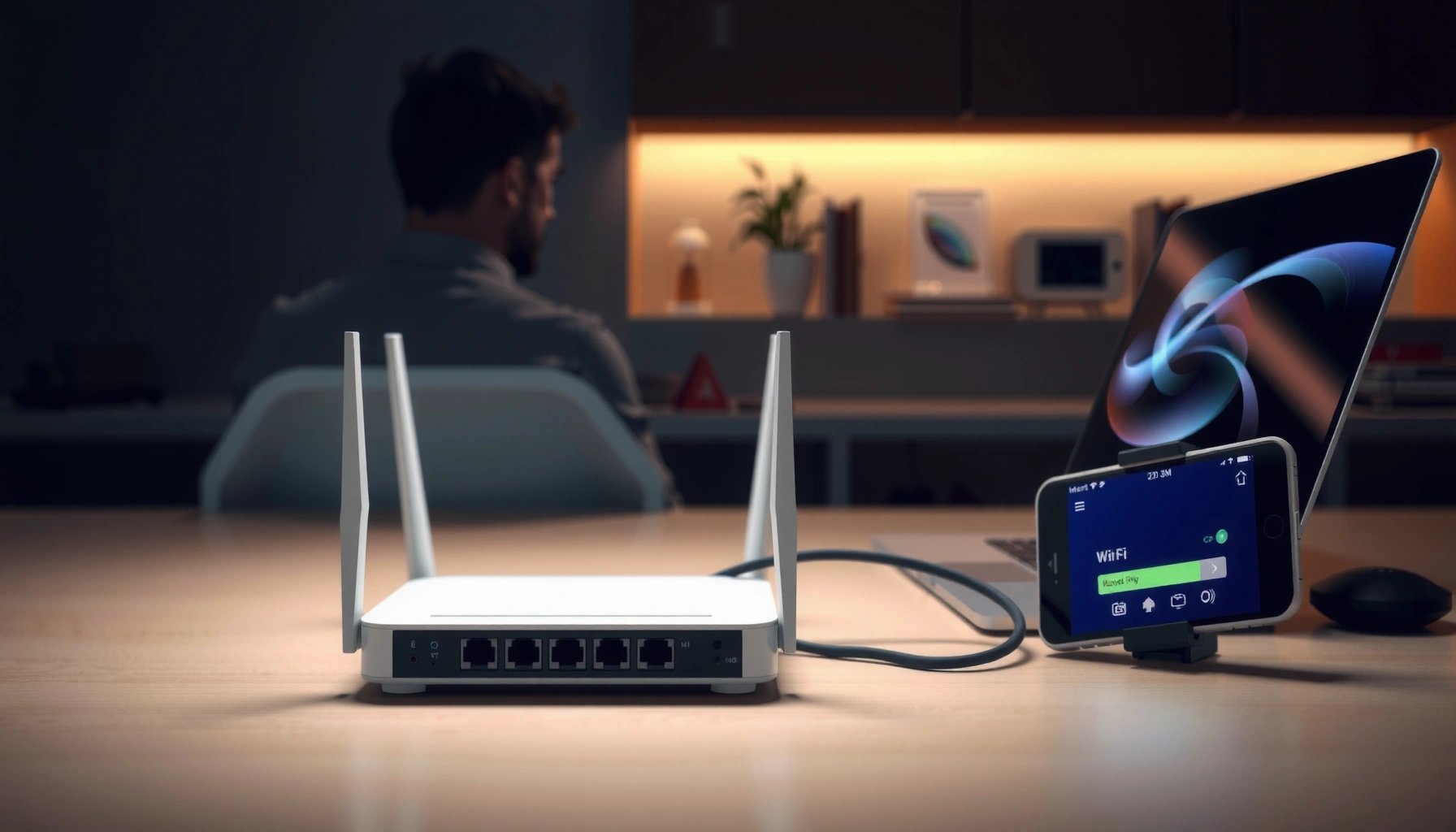

Upgrading your router is easiest and most reliable when you follow a step-by-step process that matches your current setup and internet provider. This guide walks you through choosing the right replacement, backing up your settings, installing the new hardware, and reconfiguring Wi‑Fi so you get better coverage and speed without downtime surprises. By the end, you’ll know exactly what to click and what to verify to confirm the upgrade worked.
Upgrading your router usually comes down to choosing a compatible model, backing up your current settings, then migrating and testing everything on both Wi‑Fi and the wired connections. If you follow the setup steps carefully—especially when moving ISP login details and Wi‑Fi names/passwords—you can avoid most downtime. This guide walks you through the process from planning to a final connectivity check, with practical guardrails so you don’t end up troubleshooting “connected but no internet” for hours in 2025.
If you’re dealing with weak Wi‑Fi, slow speeds, frequent drops, or you’re replacing an older ISP-provided unit, this is for you. It’s also useful when you want to add features like Wi‑Fi 6/6E, better coverage, or more stable performance for streaming and gaming.
Choose the right router before you swap
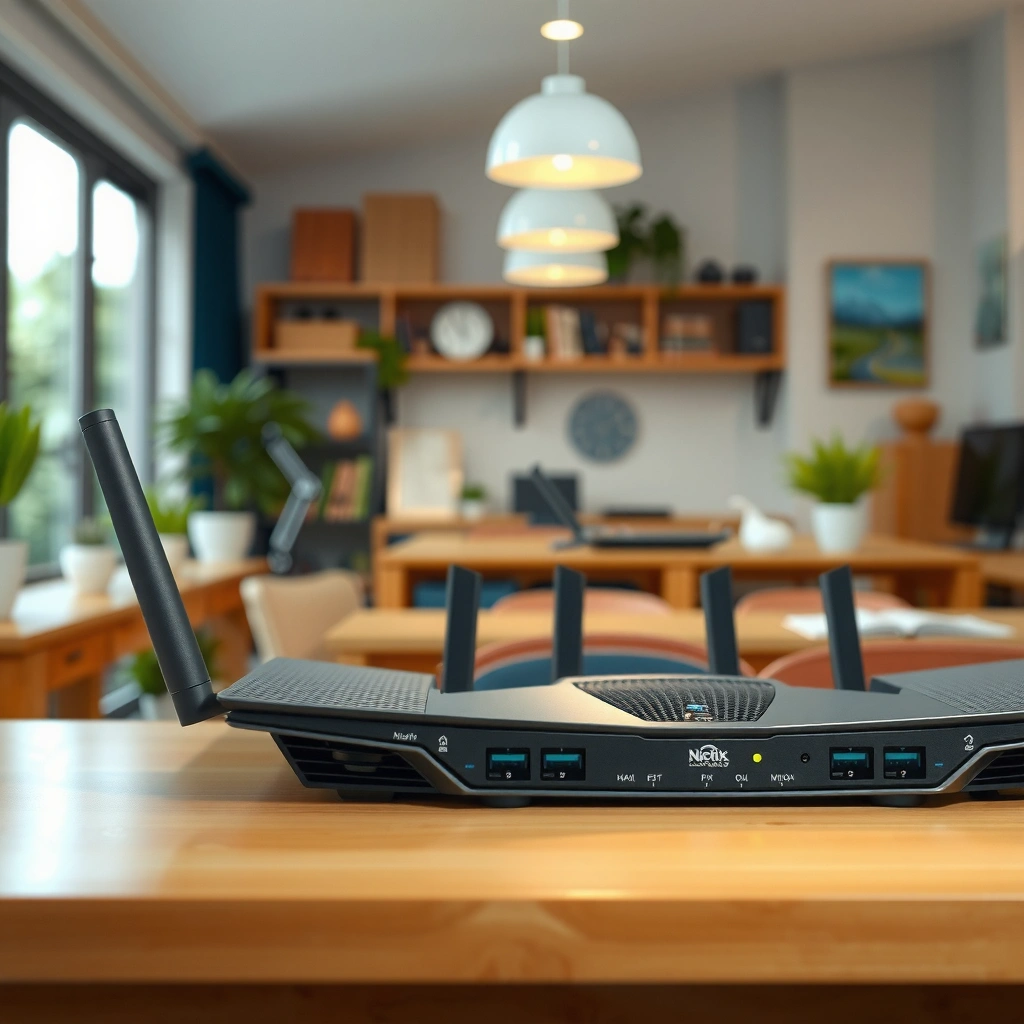
The safest router upgrade is the one that matches your ISP’s required WAN method and your home’s coverage needs—before you plug anything in. Start by verifying whether your internet service uses DHCP, PPPoE, or VLAN tagging, then pick a router (or mesh) that can operate in the same way.
“A router’s WAN/Internet mode must match the ISP’s connection method (e.g., DHCP vs PPPoE), otherwise clients can authenticate locally but have no upstream internet.”
“Wi‑Fi 6 (802.11ax) and Wi‑Fi 6E extend throughput and capacity mainly by using wider channel support (up to 160 MHz) and more efficient scheduling.”
“Mesh systems improve whole‑home coverage by adding nodes, but they still require correct WAN configuration on the base unit for the entire system to have internet.”
– Check what your ISP requires (often PPPoE vs DHCP) and confirm your internet plan’s needs in the router’s supported modes.
– If your ISP gave you PPPoE credentials (username/password), your new router needs a PPPoE WAN profile.
– If your ISP uses DHCP, you may not need (or be able to use) PPPoE credentials at all.
– Some providers also require VLAN tagging for internet service—this is commonly missed during “quick setup.”
– Decide what “upgrade” means for you: faster Wi‑Fi (Wi‑Fi 6/6E), more range (higher-gain antennas/mesh), or better coverage consistency (mesh vs single router).
– For streaming and gaming, stability often matters as much as peak speed. Congestion reduction features can help, but placement still dominates real-world performance.
– Verify compatibility with your setup: modem type (separate modem vs gateway), connection style, and whether you’ll keep the ISP equipment.
– If you currently use an ISP gateway (modem + router), you may need to enable a “bridge,” “pass-through,” or “modem-only” behavior on the gateway—or you can intentionally run a double-router setup (but expect double NAT in many cases).
To anchor the technical baseline: IEEE 802.11ax (Wi‑Fi 6) supports wider channel bandwidth options, including up to 160 MHz, which is one reason it can improve capacity in dense environments. [ADD: IEEE 802.11ax / Wi‑Fi 6 official standard or Wi‑Fi Alliance technical overview source] (2019)
Prepare your current setup (so you don’t lose access)
The goal here is simple: capture every setting you’ll need to recreate on the new router, so you don’t lose control of your network or key services. Before you swap hardware, document WAN/ISP configuration, Wi‑Fi details, and any “business-critical” rules like port forwards and IP reservations.
“Backing up your current router configuration (when supported) reduces human error during a migration and helps restore WAN settings quickly if the new unit is misconfigured.”
“Port forwarding and DHCP reservations are common breakpoints during router upgrades because those rules don’t automatically carry over to new hardware.”
“Keeping the same SSID and Wi‑Fi passphrase (where appropriate) often lets clients reconnect without manual network changes.”
– Log into your current router’s admin page and note key settings: WAN/ISP settings, DNS (if customized), Wi‑Fi SSID(s), and passwords.
– Write down both IPv4 WAN settings and any IPv6 configuration if it’s enabled.
– If you use custom DNS servers (for privacy, reliability, or filtering), record the IP addresses exactly.
– Back up the router configuration if your model supports it, and download the file to your computer.
– Store it in a safe folder with the date (so you can match it to the hardware revision you used).
– If you have devices that depend on custom settings (IP reservations, port forwards, VPN settings), write down the important rules or export them.
– Examples that frequently break after an upgrade:
– CCTV/NVR remote access
– Game servers or strict NAT policies
– Remote desktop / home lab access
– Smart home dashboards that assume stable local IPs
– Any VPN server/client configuration
Common Router Upgrade Setting Types & How Often They Cause Breakage
| # | Migration item | Typical role | Breakage likelihood | Impact after swap |
|---|---|---|---|---|
| 1 | WAN/Internet mode (DHCP vs PPPoE) | Upstream authentication | High ★★★★★ | No internet |
| 2 | VLAN tagging / WAN VLAN ID | Service isolation | High ★★★★☆ | Partial/none |
| 3 | DNS (custom resolvers) | Name resolution | Medium ★★★☆☆ | Slow/blocked lookups |
| 4 | Wi‑Fi SSID & passphrase | Client onboarding | Medium ★★★☆☆ | Re-pair required |
| 5 | DHCP reservations (static IPs) | Consistent device IPs | High ★★★★☆ | Cameras/automation drift |
| 6 | Port forwarding / inbound rules | Inbound access | Medium ★★★☆☆ | Remote access fails |
| 7 | VPN server/client profiles | Secure tunnels | Low-Med ★★☆☆☆ | Tunnel negotiation issues |
> Note: Breakage likelihood above is a practical migration risk ranking, not a universal industry statistic. Use it to prioritize what you document first.
Connect the new router correctly
The most common reason a new router appears “broken” is actually incorrect power order or port assignment. Connect the new router so the modem establishes WAN sync first, then verify the router’s WAN link is stable before touching Wi‑Fi settings.
“Many modem/router setups require modem boot first so the line syncs before the router tries to obtain a WAN lease or authenticate via PPPoE.”
“On most routers, the WAN/Internet port is not interchangeable with LAN ports; using the wrong port prevents the router from routing traffic upstream.”
“For mesh systems, setting up base first ensures satellites can join the correct parent node and receive consistent network parameters.”
– Power down the modem and router, then connect the new router according to its instructions (typically modem → router WAN/Internet port; router LAN → your devices as needed).
– Double-check cables: WAN/Internet usually has a different label color/icon than LAN ports.
– Turn the modem back on first (so it fully syncs), then boot the router and wait for a stable internet/WAN connection.
– Wait for a “WAN connected / Internet OK” indicator on the router—don’t assume it’s immediate.
– If you use a mesh system, follow the manufacturer order: base/router first, then satellites—so the network forms cleanly.
– If you reverse the order, some systems will pair but behave unpredictably until everything is reprovisioned.
Migrate settings: the part that prevents “no internet”
Re-entering the WAN configuration correctly prevents the majority of post-upgrade failures. Once WAN is stable, migrating Wi‑Fi and advanced services becomes a controlled checklist rather than guesswork.
“If a router needs PPPoE or VLAN tagging, leaving it on a default WAN mode often results in ‘connected’ clients that still have zero internet access.”
“Copying SSID and passphrase can reduce reconnect friction, but you still must migrate security mode settings (e.g., WPA2 vs WPA3) consistently.”
“Advanced features like port forwarding and DHCP reservations must be recreated on the new router because they are not automatically preserved across vendors.”
– Re-enter your ISP/WAN configuration on the new router (common examples: PPPoE credentials, VLAN settings, or DHCP behavior—use your ISP’s requirements).
– If you’re unsure whether VLAN is required, check your ISP documentation before changing advanced WAN parameters.
– Set the Wi‑Fi SSID and password the way you want it (many people copy the old SSID/password so phones and laptops reconnect automatically).
– If you enable Wi‑Fi 6/6E features (802.11ax / 6 GHz), confirm your devices support it; otherwise, keep a compatibility-friendly mode enabled.
– Recreate advanced settings after base connectivity works: port forwarding, IP reservations, parental controls, and any custom DNS.
– Implement a “device-by-device” approach: add one service at a time (e.g., cameras), then confirm it works before moving on.
For security upgrades: WPA3 was finalized by the Wi‑Fi Alliance ecosystem in 2018, and moving from older security modes to WPA3 can improve protection, but compatibility must be checked for older clients. [ADD: Wi‑Fi Alliance WPA3 technical announcement or documentation source] (2018)
Test everything (and only then start changing things)
Test results should drive your next change: start with basic connectivity, then validate real workloads (streaming, gaming, roaming, and wired services). This prevents you from troubleshooting multiple variables at once.
“A reliable test plan separates WAN validation (internet access) from LAN validation (local reachability) and from application validation (streaming/gaming).”
“Mesh roaming behavior depends on signal thresholds and band steering settings; changing them without baseline testing can be confusing.”
“Wired clients often reveal whether issues are Wi‑Fi-specific, because the wired path bypasses wireless interference.”
– Confirm basic internet access on multiple devices: one via Wi‑Fi and one wired, if possible.
– Wired success + Wi‑Fi failure suggests RF interference, channel congestion, band steering, or security-mode mismatch.
– Check common pain points after upgrades: streaming stability, gaming NAT type (if you use it), and roaming behavior if you’re using mesh.
– Streaming stability often correlates with buffer underruns and DNS latency—both can be impacted by custom DNS changes.
– Finally, review coverage and channel behavior: if you’re in a crowded area, channel settings may need adjustment (follow your router’s guidance rather than guessing).
– If your router uses automatic channel selection, give it time to recalibrate before making frequent changes.
Quick comparison: single router vs mesh (what to expect)
| Setup type | Best for | Likely tradeoffs | What to validate first |
|---|---|---|---|
| Single high-performance router | Small to medium homes with good placement | More dead zones at distance | WAN stability + one far-room Wi‑Fi test |
| Mesh (multi-node) | Whole-home coverage and consistent roaming | Higher install complexity; backhaul matters | Backhaul link quality + roaming consistency |
What can go wrong (and how to avoid it)
The most expensive upgrade mistakes are configuration mismatches on the WAN and forgotten migration steps on the LAN. Avoid downtime by treating the change like a two-stage cutover: “internet first,” then “everything else.”
“‘Connected but no internet’ is frequently caused by a WAN configuration mismatch rather than a client device problem.”
“Double NAT can appear when both the ISP gateway and a new router act as routers at the same time, which can complicate gaming and inbound access.”
“Power-order and cable placement errors can prevent WAN sync even when the router appears to be ‘on’.”
– Wrong WAN/ISP settings: the most common reason for “connected but no internet” is using the default mode when your ISP needs PPPoE, special DNS, or VLAN tagging. Use your ISP documentation and the router’s WAN setup screen carefully.
– Symptom pattern: WAN link shows “up,” but DNS failures or zero connectivity persists on all devices.
– Losing device rules: if you forget to port-forward or set DHCP reservations again, cameras, game servers, remote access, or smart home automations may stop working.
– Symptom pattern: “Local devices disappeared” or “apps load slowly,” often because IPs changed.
– Conflicts between Wi‑Fi systems: if you keep the old router powered on while adding the new one (or run double NAT unintentionally), you can create instability. Decide on a single “main router” and follow the modem/router vs bridge instructions.
– If you need the old router for a short transition, isolate its role (e.g., disable its DHCP server and treat it as an access point), but follow the documentation—don’t assume.
Verdict: the safest upgrade approach (and who should skip)
If you want the smoothest upgrade, plan the switch in two phases: first, get the new router working with correct WAN/ISP settings; second, migrate Wi‑Fi and advanced rules. This approach reduces downtime and makes it easier to troubleshoot because you only change one category at a time.
Skip this “DIY switch” plan (or ask your ISP/support first) if you can’t access your ISP login credentials, rely on highly customized network features you can’t easily re-enter, or your ISP requires highly specific setup steps you don’t understand. In those cases, professional help can save time—and prevent repeated lockouts.
Also, if you’re depending on time-sensitive remote access (business-critical VPN, surveillance recording, or production automation), schedule the migration during a low-impact window. Router upgrades are rarely dangerous, but they can be disruptive when WAN settings are complex.
Quick checklist (scan before you unplug anything)
– [ ] Confirm ISP connection type (DHCP vs PPPoE/VLAN requirements) and router support
– [ ] Back up/export current router settings (or write down WAN + Wi‑Fi + key rules)
– [ ] Note SSID/password (or plan to update devices)
– [ ] Connect modem → new router WAN/Internet port (then boot modem, then router)
– [ ] Verify internet access first
– [ ] Reapply port forwards/IP reservations/VPN/controls after basic access works
– [ ] Test on Wi‑Fi and wired devices; check stability/roaming if using mesh
FAQ
Will I lose my Wi‑Fi password when I upgrade my router?
Not necessarily. You can set the new router’s Wi‑Fi SSID and password to match what you used before, but you’ll need to update it correctly during setup.
Why does my device say “connected” but there’s no internet?
Usually it’s a WAN/ISP configuration mismatch (or a modem syncing issue). Re-check the router’s Internet/WAN setup and confirm the modem-router link is healthy.
Do I need to replace my modem when upgrading my router?
Often no. Many upgrades are router-only. If your ISP modem is outdated or your service requires specific modem features, you may need to upgrade—but confirm with your ISP.
What’s the difference between a mesh system and a single router upgrade?
A mesh system is designed to improve whole-home coverage by adding nodes, while a single router mainly improves performance at close-to-mid range (depending on placement and hardware).
Sources:
– [ADD: Source for your ISP’s router/WAN requirements (e.g., PPPoE vs DHCP, VLAN instructions, any required settings).]
– [ADD: Source for your router model’s official setup steps (WAN/Internet configuration, backup/restore, and mesh pairing procedure) from the manufacturer documentation.]
– [ADD: Source for mesh guidance and device roaming behavior from the manufacturer’s documentation for your specific system.]
Upgrading your router is most successful when you treat it like a controlled migration: confirm WAN compatibility, preserve your existing settings, connect in the correct order, and test in stages. If you follow the two-phase approach (internet first, then Wi‑Fi and advanced services), you’ll avoid most downtime and end up with a network that’s faster, more reliable, and easier to manage—especially in 2025 and beyond.
Frequently Asked Questions
What’s the easiest way to upgrade my home router without losing my settings?
First, back up your current router configuration from the admin page (often under “System,” “Administration,” or “Backup/Restore”). If your router supports importing settings, use that feature on the new device to restore Wi‑Fi name/password and other options. After installing the new router, verify your Internet connection and test devices one by one, then reconfigure advanced settings like port forwarding or parental controls if they didn’t transfer.
How do I upgrade my router firmware safely?
Download the latest router firmware only from the manufacturer’s official website or the router’s built-in update tool. Before upgrading, plug the router into power reliably, back up your configuration, and avoid interrupting the process (no reboots or unplugging). After the update, restart the router if prompted, then confirm key settings and test Wi‑Fi speeds and stability.
Which router upgrade should I choose for better Wi‑Fi range and speed?
If you want better performance, consider upgrading to Wi‑Fi 6 or Wi‑Fi 6E for faster speeds and improved capacity, especially in busy households. For larger homes or weak signal areas, a mesh Wi‑Fi system or adding a compatible Wi‑Fi extender can be more effective than a simple router upgrade. To choose wisely, match the router’s supported bands (2.4GHz vs 5GHz vs 6GHz) to your devices and check coverage needs in square footage.
Why does my new router not work with my ISP after upgrading?
Many router upgrades require reconfiguring your WAN settings, such as PPPoE credentials, DHCP options, or VLAN/ISP-specific requirements. If you’re using cable/DSL, ensure the correct connection type is used and verify whether the ISP expects the router to clone MAC address from the old modem/router. You can also try power-cycling modem and router in the correct order, then test Internet access from a wired computer before relying on Wi‑Fi.
What’s the best way to move from a single router to a mesh Wi‑Fi system?
Start by placing the main router near your current router location, then position mesh nodes so they have a strong backhaul signal (often closer than you think). Use the manufacturer’s app to complete setup, naming, and roaming settings so your devices switch networks smoothly. After installation, test speeds in the farthest rooms, and adjust node placement or switch to wired backhaul (Ethernet) if your mesh supports it for the best performance.
📅 Last Updated: October 05, 2026 | Topic: how to upgrade your router | Content verified for accuracy and freshness.
References
- https://en.wikipedia.org/wiki/Router_(computing
- Firmware
https://en.wikipedia.org/wiki/Firmware - Wireless security
https://en.wikipedia.org/wiki/Wi-Fi_security - Testing to determine if you are a bot!
https://openwrt.org/docs/guide-user/installation/firmware_upgrade - Testing to determine if you are a bot!
https://openwrt.org/docs/guide-user/installation/sysupgrade - https://www.ncsc.gov.uk/guidance/secure-your-home-network
- https://www.cisa.gov/resources-tools/resources/secure-your-home-network
- Google Scholar Google Scholar
https://scholar.google.com/scholar?q=router+firmware+upgrade+security+best+practices - Google Scholar Google Scholar
https://scholar.google.com/scholar?q=home+router+firmware+updates+vulnerability+patching - Google Scholar Google Scholar
https://scholar.google.com/scholar?q=network+router+replacement+criteria+guidelines+throughput+wifi+standards
