
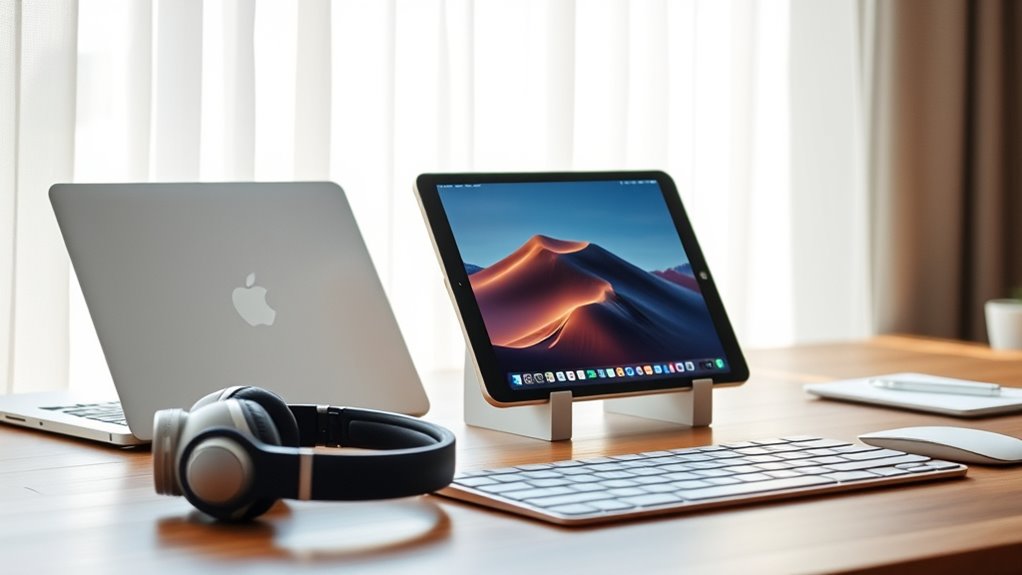

To use your iPad as a second monitor, download apps like Duet Display or Sidecar on both your iPad and computer. Connect your devices via USB or Wi-Fi, ensuring they’re on the same network. Adjust display settings for ideal viewing. You’ll experience improved multitasking and productivity as you organize apps and minimize distractions. Want to explore more tips and creative setups? There’s a lot more you can do with your second monitor!
Understanding the Benefits of a Second Monitor
When you consider enhancing your workspace, using a second monitor can greatly boost your productivity. Imagine having more screen real estate at your fingertips, allowing you to keep multiple applications open simultaneously. This setup enhances multitasking efficiency, as you can easily drag and drop files between screens or reference materials without constant tab switching. With a second monitor, you can focus on your main tasks while keeping communication tools or research documents visible. This streamlined workflow helps reduce distractions and improves your overall work productivity. You’ll find yourself completing tasks quicker and with less mental fatigue. Embrace the freedom of a flexible workspace by integrating a second monitor into your routine, and watch your efficiency soar.
Required Tools and Apps
To set up your iPad as a second monitor, you’ll need a few essential tools and apps to make the process seamless. First, verify your iPad has the necessary accessories, like a good stand for stability and a reliable cable or Wi-Fi connection for data transfer. Next, choose the right app that suits your workflow—popular options include Duet Display and Sidecar. These apps provide excellent monitor compatibility and easily integrate with your existing setup. Before you start, check your computer’s specifications to confirm it supports external displays. With the right tools in hand, you’ll be ready to expand your workspace and enhance your productivity, giving you the freedom to create and multitask like never before!
Setting up Your Ipad for Second Monitor Use
To set up your iPad as a second monitor, you’ll first need to install the necessary apps that facilitate this connection. Once that’s done, connecting your devices seamlessly is key to enhancing your workflow. Finally, adjusting the display settings will guarantee that everything looks just right on your iPad.
Required Apps Installation
Setting up your iPad as a second monitor requires a few essential apps to get everything running smoothly. You’ll want to start by downloading popular options like Duet Display or Splashtop Wired XDisplay, which are well-known for their reliability. The installation process is straightforward; just follow the prompts on your iPad and computer. If you’re looking for app alternatives, consider Air Display or iDisplay, which also provide solid performance. Once installed, these apps allow you to extend your desktop effortlessly, giving you the freedom to multitask like a pro. Remember, the right app can enhance your productivity, so choose one that aligns with your workflow. Enjoy the benefits of a dual-screen setup!
Connecting Devices Seamlessly
With your apps installed, it’s time to connect your devices for a seamless experience. Start by ensuring both your iPad and computer are on the same Wi-Fi network, as this enables wireless connectivity. Open the app on your iPad, which should automatically detect your computer if device compatibility is intact. Follow the on-screen prompts to establish the connection. Once linked, you’ll enjoy the freedom of expanding your workspace without the clutter of cables. Make sure to check for any updates in the app to enhance performance. If you encounter issues, verify that your devices support the necessary features for ideal functionality. With everything set up, you’re ready to boost your productivity and creativity like never before!
Adjusting Display Settings
Adjusting the display settings on your iPad can considerably enhance your second monitor experience. Here are a few key adjustments you should consider:
- Display Resolution: Go to your iPad’s settings and verify the display resolution matches your primary monitor for a seamless visual experience.
- Screen Orientation: Choose between portrait or landscape mode based on your workflow. This flexibility can help you optimize your screen space.
- Brightness and Color: Adjust the brightness and color settings to reduce eye strain and improve clarity, especially if you’re using your iPad for extended periods.
Using Duet Display to Connect Your Ipad
Duet Display is one of the most popular apps for turning your iPad into a second monitor, and getting started is a breeze. First, download the app on both your iPad and your computer. Once installed, connect your iPad using a USB cable or Wi-Fi, depending on your preference. Duet Display features include customizable resolutions and the ability to use your Apple Pencil for drawing directly on your iPad screen. When it comes to performance comparison, many users find Duet Display offers minimal lag and high-quality visuals, making it a strong choice for multitasking. Whether you’re a designer or a casual user, Duet Display gives you the freedom to expand your workspace effortlessly.
Exploring Sidecar for Macos Users
If you’re a Mac user looking to enhance your workspace, Sidecar is a fantastic option to turn your iPad into a second monitor. Before you get started, it’s important to check the system requirements and verify your devices are compatible. Once you’ve connected your devices, you’ll be able to easily configure the display settings to suit your needs.
System Requirements Overview
To effectively use your iPad as a second monitor through Sidecar, you’ll need to confirm that both your Mac and iPad meet specific system requirements. Here’s what you should check for iPad compatibility and hardware requirements:
- Mac Compatibility: Confirm your Mac runs macOS Catalina or later.
- iPad Compatibility: Your iPad should support iOS 13 or later; models like iPad Pro, iPad Air (3rd gen), and iPad (6th gen) work best.
- Connection Type: You can connect using either a wired USB or a wireless connection, but both devices must be on the same Wi-Fi network for wireless use.
Connecting Your Devices
Once you’ve confirmed that your Mac and iPad meet the necessary requirements, you’re ready to connect your devices using Sidecar. You can choose between wireless connections or cable options, depending on your preference for flexibility or stability. For a wireless setup, verify both devices are on the same Wi-Fi network and signed into the same Apple ID. Simply click the AirPlay icon on your Mac’s menu bar and select your iPad from the list. If you prefer a wired connection, use a USB-C or Lightning cable to connect your iPad directly to your Mac. Both methods offer seamless integration, giving you the freedom to work more efficiently and expand your digital workspace. Enjoy the enhanced productivity!
Configuring Display Settings
Configuring your display settings is essential to make the most of using your iPad as a second monitor with Sidecar. Here’s how to optimize your experience:
- Adjust Display Resolution: Go to System Preferences, then Displays. Choose the resolution that suits your needs best for clarity and comfort.
- Set Screen Orientation: Depending on your workflow, you can switch between landscape and portrait modes. This flexibility helps you work more efficiently.
- Arrange Displays: In the Displays settings, drag the iPad’s display to align it with your Mac’s screen. This arrangement allows for a seamless shift between devices.
With these tweaks, you’ll enjoy a more liberated and productive workspace, harnessing the full potential of your iPad as a second monitor.
Configuring Display Settings on Your Devices
While it may seem intimidating at first, adjusting the display settings on both your iPad and primary device is essential for a seamless dual-monitor experience. Start by connecting your iPad to your primary device via a compatible app or cable. Next, head to your display settings. Here, you can set your display arrangement—deciding whether your iPad is an extended screen to the left or right. Don’t forget to adjust the resolution settings on both devices for maximum clarity. Verify they’re set to their recommended resolutions to avoid any blurriness. Once you’ve configured these settings, you’ll be ready to enjoy your iPad as a second monitor, giving you the freedom to multitask like never before.
Tips for Optimizing Your Workflow
After setting up your display configuration, it’s time to maximize your productivity. Using your iPad as a second monitor can greatly enhance your workflow. Here are some tips to help you get the most out of this setup:
- Organize Your Workspace: Place your most-used applications on your iPad for easy access, allowing you to switch tasks seamlessly.
- Employ Multitasking Strategies: Use split-screen features to view multiple apps simultaneously, boosting your efficiency.
- Utilize Productivity Techniques: Create a dedicated space for focus, minimizing distractions on your main screen while keeping essential tools at hand.
Troubleshooting Common Connection Issues
If you encounter connection issues while using your iPad as a second monitor, don’t worry—these problems are often easy to resolve. First, check your device compatibility; verify both your iPad and primary device support the same connection method. In addition, connection stability can be affected by Wi-Fi interference. Try moving closer to your router or switching to a wired connection if possible.
Here’s a quick reference table for common issues:
| Issue | Possible Cause | Solution |
|---|---|---|
| No connection | Device compatibility | Update software |
| Laggy display | Weak Wi-Fi signal | Improve router placement |
| Frequent disconnections | Network interference | Switch to wired connection |
| Poor resolution | Incorrect settings | Adjust display settings |
| App not responding | Compatibility issues | Reinstall the app |
Creative Uses for Your Second Monitor Setup
Using your iPad as a second monitor can reveal a world of creative possibilities that enhance your productivity and workflow. Here are three creative ways to maximize your setup:
- Digital Canvas: Use your iPad for artistic projects, sketching, or design work while keeping reference materials or tutorials on your main screen.
- Content Creation: Streamline your content creation process by displaying editing tools on your iPad while working on your main project, boosting your multitasking efficiency.
- Collaborative Space: Share your iPad screen during virtual meetings for brainstorming sessions or presentations, allowing for a more interactive experience.
Embrace these creative projects and watch your productivity soar as you reveal new ways to work and create!
Frequently Asked Questions
Can I Use My Ipad as a Second Monitor Wirelessly?
Yes, you can use your iPad as a second monitor wirelessly. Just adjust your display settings on your computer, ensuring both devices are connected to the same network for seamless connectivity and enhanced productivity.
Is There a Limit to the Ipad Models Compatible With This Setup?
Yes, there’s a limit to compatible iPad models. For instance, if you’ve got an iPad Air 2, it may not meet the compatibility criteria for using it as a second monitor effectively.
What Are the Power Consumption Implications of Using an Ipad as a Monitor?
Using an iPad as a monitor can lead to increased battery drain, especially with high brightness settings. However, if you’re mindful of power efficiency, you can minimize this impact and enjoy extended usage without frequent charging.
Can I Use My Ipad for Gaming as a Second Monitor?
You can definitely use your iPad as a second monitor for gaming! Just guarantee your display settings are optimized to boost gaming performance. It’ll give you that extra space, letting you release your gaming freedom!
Will Using My Ipad as a Monitor Affect Its Performance?
Yes, using your iPad as a monitor can lead to a performance impact, especially if you’re multitasking heavily. However, with proper management, you can still enjoy decent multitasking efficiency without significant slowdowns.
