
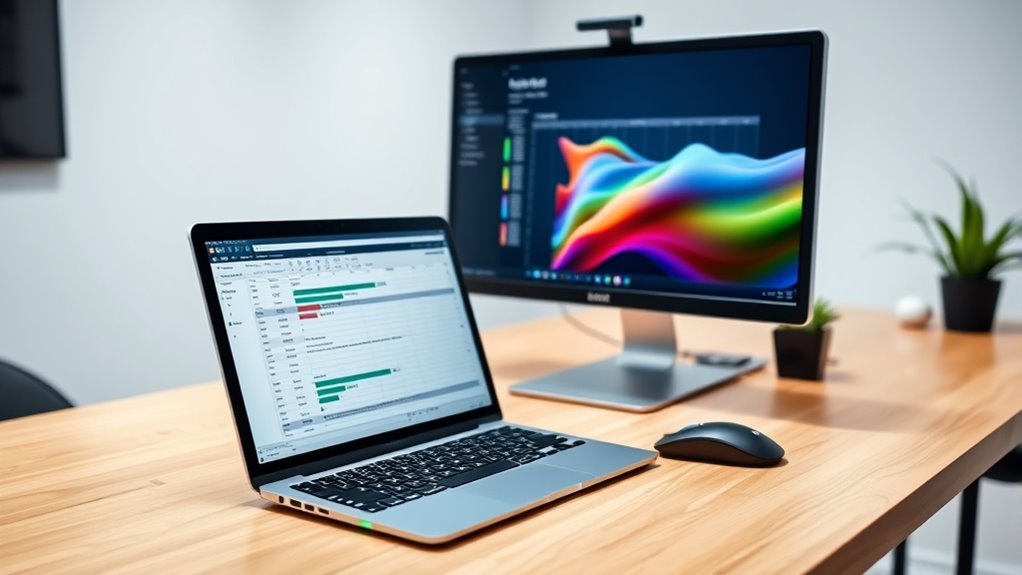

To use your laptop as a second monitor, first verify both devices support dual display. You can connect them wirelessly using apps like Duet Display or Spacedesk, or with HDMI for a wired setup. After connecting, access your display settings to choose between extending or duplicating the screen. Organize tasks across both monitors for better focus and productivity. If you want additional tips and tricks for optimizing your setup, there’s plenty more to explore.
Understanding the Benefits of Using a Laptop as a Second Monitor
Using a laptop as a second monitor can greatly enhance your productivity, especially when you’re juggling multiple tasks. With an additional screen, you can easily manage various applications side by side, which leads to increased productivity. Imagine having your email open on one screen while you work on a project on the other; it’s a game changer. This setup allows for enhanced multitasking, letting you switch between tasks seamlessly without the hassle of constantly minimizing and maximizing windows. You’ll find that your workflow becomes smoother, and you can focus better on your work. Plus, this dual-screen arrangement gives you the freedom to customize your workspace in a way that suits your unique style and needs.
Preparing Your Devices for Connection
Before you connect your laptop as a second monitor, it’s crucial to check compatibility requirements to guarantee both devices can work together. You’ll also want to update any necessary software and drivers to facilitate a smooth connection. Finally, consider which connection method suits your setup best, whether it’s wired or wireless.
Check Compatibility Requirements
While it’s exciting to think about turning your laptop into a second monitor, verifying compatibility between your devices is essential. Here are some key factors to check:
- Laptop Specifications: Confirm your laptop’s hardware can support dual display features.
- Operating System: Verify both your main device and laptop run compatible operating systems.
- Connection Type: Check if you’ll use HDMI, USB-C, or wireless connections for compatibility.
- Software Requirements: Look for any specific applications or drivers needed for the setup.
Update Software and Drivers
After confirming your devices are compatible, the next step involves verifying your software and drivers are up to date. Outdated software can cause connection issues, so check for any necessary software updates before proceeding. You can usually find these updates in your device’s settings or the manufacturer’s website.
Next, focus on driver installation. Confirm that your graphics and display drivers are current, as these play a vital role in how your laptop communicates with the second monitor. Visit the device manager on your laptop to see if there are any updates available.
Choose Connection Method
To successfully set up your laptop as a second monitor, you’ll need to decide on the best connection method that suits your devices. Different laptop features and connection types can enhance your experience, so consider the following options:
- HDMI Cable: A direct, reliable connection that delivers high-quality video and audio.
- USB-C: If your laptop supports it, this versatile connection can handle video output as well.
- Wi-Fi: Use software like SpaceDesk or Duet Display for a wireless setup, offering flexibility without cables.
- VGA or DisplayPort: Older laptops might use VGA, while newer models often have DisplayPort for digital connections.
Choose the method that best aligns with your setup for a seamless dual-monitor experience!
Wireless Connection Methods
When it comes to wirelessly connecting your laptop as a second monitor, there are a couple of effective methods you can use. Screen mirroring apps are a popular option, allowing for seamless sharing of your display. Additionally, you can take advantage of built-in Windows settings to set up your connection quickly and easily.
Screen Mirroring Apps
While you might think connecting a laptop as a second monitor requires complicated setups, screen mirroring apps make the process simple and wireless. With the right app, you can enjoy seamless screen sharing and enhance your workspace. Here are some app recommendations to evaluate:
- Duet Display – Offers smooth performance and easy setup.
- Air Display – Works well with both Mac and Windows devices.
- Spacedesk – Free option that supports multiple devices.
- LetsView – Provides wireless screen sharing with added features like annotation.
These apps allow you to expand your display without the hassle of cables, giving you the freedom to work, play, or present as you like. Enjoy a more flexible and productive workspace!
Built-in Windows Settings
Using screen mirroring apps is just one way to set up a second monitor, but you can also leverage built-in Windows settings for a wireless connection. This method utilizes the built-in features of Windows to extend or duplicate your display options seamlessly. Here’s how to get started:
| Step | Description |
|---|---|
| Open Settings | Press Windows + I, then select “System.” |
| Select Projecting | Click on “Projecting to this PC.” |
| Choose Your Options | Set preferences for connection. |
| Connect Your Laptop | Use “Connect” on your main device. |
With these simple steps, you’re on your way to an efficient dual-screen setup, giving you the freedom to multitask like never before!
Using HDMI or VGA Cables for a Wired Connection
To set up your laptop as a second monitor, you can connect it directly to your primary device using an HDMI or VGA cable. Here’s what you need to know:
- HDMI advantages: Provides high-quality video and audio in one cable.
- VGA limitations: Offers lower resolution and only transmits video, requiring a separate audio solution.
- Check ports: Confirm both devices have compatible ports; adapters may be necessary.
- Cable quality: Use good quality cables to avoid connectivity issues and guarantee stable performance.
Configuring Display Settings on Your Computer
Once you’ve connected your laptop to your primary device with the appropriate cable, the next step involves configuring the display settings to make the most of your dual-monitor setup. Start by right-clicking on your desktop and selecting “Display settings.” Here, you’ll see both screens represented. You can choose to extend or duplicate your display, depending on your preference. Adjust the display resolution to match your laptop’s capabilities for maximum clarity. Don’t forget to set the screen orientation—landscape or portrait—as needed for your tasks. This guarantees your content displays properly across both screens, allowing for a seamless experience. With these adjustments, you’re ready to enjoy the freedom of multitasking like never before!
Utilizing Third-Party Software for Enhanced Functionality
Third-party software can greatly enhance your dual-monitor setup, offering features that go beyond basic display configurations. By integrating these tools, you can considerably boost your productivity and streamline your workflow. Here are four essential features to take into account:
Enhance your dual-monitor setup with third-party software to boost productivity and streamline your workflow.
- Screen Sharing: Effortlessly share your screen across devices for presentations or collaborative work.
- Extended Desktop: Use your laptop as an extension of your main monitor, making multitasking a breeze.
- Productivity Tools: Utilize specialized apps that help manage windows and applications across multiple screens.
- Customization Options: Tailor your display settings with personalized layouts and shortcuts to fit your workflow.
With the right third-party software, you can reveal the full potential of your dual-monitor setup and enjoy a more efficient workspace.
Tips for Optimizing Your Dual-Screen Setup
Maximizing the potential of your dual-monitor setup involves more than just connecting devices. First, pay attention to your screen arrangement. Position your laptop at eye level and align it with your main monitor to create a seamless workflow. Next, customize your display settings to guarantee both screens are optimized for clarity and color accuracy. Don’t forget to take advantage of keyboard shortcuts to switch between applications quickly, enhancing your productivity boost. Consider using a task management tool across both screens, allowing you to monitor tasks effortlessly. Finally, keep your desktop organized; a clutter-free environment can appreciably improve focus and efficiency. With these tips, you’ll enjoy a more harmonious and productive dual-screen experience.
Frequently Asked Questions
Can I Use Any Laptop as a Second Monitor?
You can use most laptops as a second monitor, but check for laptop compatibility and guarantee the display resolution meets your needs. Not all setups will work seamlessly, so verify specifications before proceeding.
What Operating Systems Support Laptop Dual-Screen Setups?
“Two heads are better than one.” You’ll find Windows compatibility and MacOS support for dual-screen setups. Both systems offer features to extend your display, giving you more freedom to multitask and enhance your productivity.
Are There Any Latency Issues With Wireless Connections?
Yes, there can be latency issues with wireless connections. Factors like your network’s wireless performance, distance, and interference can impact responsiveness. For smoother experiences, consider optimizing your network setup or using a wired connection.
How Do I Switch Between Multiple Displays?
You can switch between multiple displays by accessing your display settings. Adjust the monitor arrangement to set your preferred primary display, and use keyboard shortcuts like Windows + P to toggle between modes quickly.
Can I Extend My Desktop to Multiple Laptops?
Yes, you can extend your desktop to multiple laptops, unfastening incredible multi-device productivity. Just imagine the seamless workflow! With the right software, you’ll enjoy efficient desktop expansion that transforms how you work and create.
