
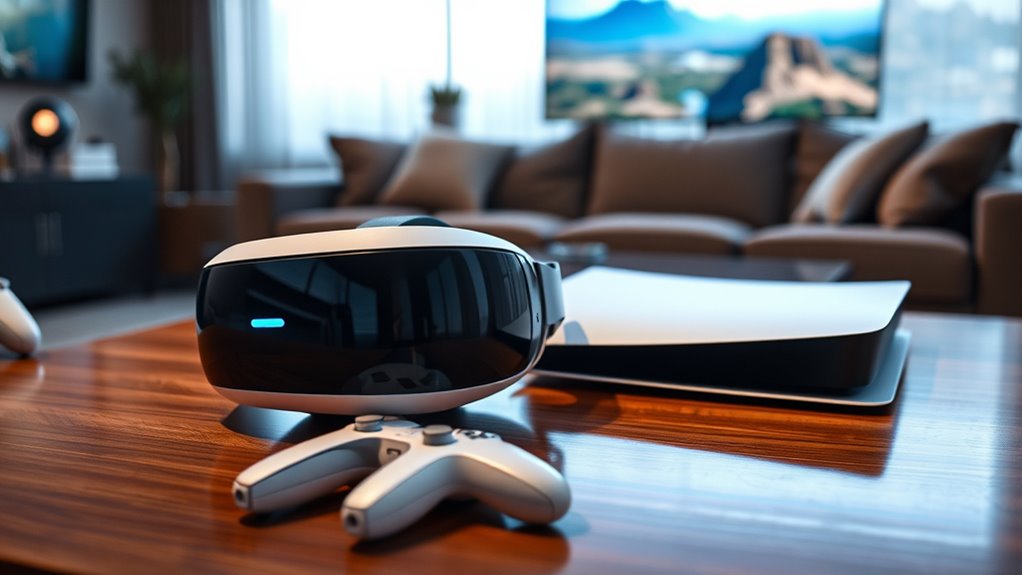

To use your PS VR headset with the PS5, start by unboxing and connecting the headset to the processor unit, ensuring you have the necessary accessories. Clear at least a 6.5 by 6.5 feet space for movement. Adjust the headset for comfort, fine-tuning the fit and lens distance for ideal visuals. Familiarize yourself with the VR interface and controls for easy navigation. If you want tips for enhancing your VR experience, you won’t want to miss the next section.
Unboxing Your PS VR Headset
Unboxing your PS VR headset is an exciting first step into the world of virtual reality. As you peel back the packaging details, you’ll notice the sleek design and thoughtful organization inside the box. Everything is carefully arranged, from the headset itself to the cables and accessories. Your initial impressions are essential; the lightweight feel and comfortable padding hint at hours of immersive gameplay ahead. The included documentation guides you through setup, ensuring you won’t feel lost. Each component feels premium, reinforcing the quality you expect from PlayStation. As you remove the headset, anticipation builds—you’re moments away from diving into breathtaking virtual experiences. This initial unboxing sets the tone for what lies ahead in your VR journey.
Connecting the PS VR to Your PS5
Now that you’ve unboxed your PS VR headset, connecting it to your PS5 is the next vital step. You’ll need a few essential accessories, and it’s important to understand the connection process to guarantee everything runs smoothly. Let’s break down what you need and how to set it up efficiently.
Required Accessories Overview
To successfully connect your PS VR headset to the PS5, you’ll need a few essential accessories. Confirming PS VR compatibility with your PS5 is vital, and having the right cables is key to a seamless experience. Here’s a quick overview of the necessary items:
| Accessory | Purpose | Notes |
|---|---|---|
| PS VR Headset | Main device for VR experience | Must be compatible |
| Processor Unit | Connects headset to PS5 | Necessary for functionality |
| HDMI Cable | Video connection | Make sure it’s high-speed |
| USB Cable | Power and data connection | Required for setup |
| PlayStation Camera | Motion tracking | Needed for full immersion |
With these essential cables and accessories, you’re well on your way to enjoying your VR adventures on the PS5!
Connection Steps Explained
Once you have all the required accessories ready, the next step is to connect your PS VR headset to the PS5. Start by plugging the headset’s processor unit into the PS5’s USB port. Then, connect the HDMI cable from the processor unit to your TV. Make sure to check your PS5 settings adjustments; navigate to the settings menu to confirm that VR mode is enabled. This will help minimize any potential VR compatibility issues. Once everything’s connected, power on your PS5 and follow the on-screen prompts to finalize the setup. With the right connections, you’ll be ready to plunge into immersive gaming experiences, feeling the freedom of virtual reality like never before. Enjoy your adventures!
Setting Up Your Play Area
Creating an ideal play area is essential for an immersive PS VR experience. To guarantee safe play, start by clearing a space around you that’s free from obstacles, furniture, or anything that could lead to accidents. Aim for a minimum of 6.5 feet by 6.5 feet of open area, allowing you to move freely without restrictions. Consider your surroundings—low ceilings or tight corners can hinder your experience. If you’re in a shared space, communicate with others to avoid interruptions. Proper lighting enhances the VR experience, so verify your play area is well-lit but not too bright. Finally, keep your VR equipment organized, preventing tripping hazards while creating a comfortable environment for long gaming sessions.
Adjusting the Headset for Comfort
To fully enjoy your PS VR experience, you’ll need to adjust the headset for ideal comfort. Start by fine-tuning the headstrap tightness to guarantee a secure yet comfortable fit, as this can greatly enhance your immersion. Additionally, calibrating the lens distance will help you achieve clearer visuals, making your gaming sessions much more enjoyable.
Headstrap Tightness Adjustment
While adjusting the headstrap tightness on your PS VR headset might seem like a minor detail, it can greatly impact your overall comfort and immersion during gameplay. Finding that ideal fit is essential for extended sessions. The headstrap materials play a key role in how securely and comfortably the headset sits on your head. If it’s too loose, you may experience unwanted movement, distracting you from the virtual world. Conversely, a strap that’s too tight can lead to discomfort and fatigue. To get it just right, loosen or tighten the straps gradually until you feel a snug yet comfortable hold. This simple adjustment can enhance your experience, allowing you to focus on enjoying your game without distractions.
Lens Distance Calibration
Adjusting the lens distance on your PS VR headset is essential for achieving the best visual clarity and comfort during your gaming sessions. Proper lens calibration techniques allow you to align the lenses according to your eye distance, greatly enhancing immersion. You’ll want to start by identifying your interpupillary distance (IPD) and then use the headset’s adjustment feature to fine-tune the setup. The distance adjustment importance can’t be overstated; a poorly calibrated headset can lead to eye strain and blurred visuals, ruining your experience. Take the time to experiment with the settings until you find the sweet spot. This small adjustment can transform your VR gaming, making it more enjoyable and comfortable, giving you the freedom to fully immerse yourself in your virtual adventures.
Navigating the PS VR Interface
Maneuvering the PS VR interface can feel intuitive once you get the hang of it. Start by familiarizing yourself with the VR menu, which presents a range of options designed for seamless interface guidance. Use your VR controllers to point and select items; the process mimics using a mouse but in a 3D space. You’ll find that most menus are categorized, allowing you to effortlessly switch between games, settings, and media. Pay attention to visual cues that guide you through menu changes. As you explore, feel free to adjust your view and position for a more comfortable experience. With practice, you’ll find that maneuvering the PS VR interface becomes second nature, enhancing your overall enjoyment and immersion in virtual reality.
Tips for an Enhanced VR Experience
To truly immerse yourself in the enchanting world of PS VR, consider implementing a few strategies that can greatly enhance your experience. These tips will elevate your gameplay and provide richer, more immersive experiences.
- Optimize your play area: Clear your space of obstacles for safe movement.
- Adjust headset settings: ascertain proper fit and customization for comfort.
- Explore VR game recommendations: Find titles that suit your preferences, enhancing immersion.
- Use headphones: Surround yourself with quality audio for deeper engagement.
- Take breaks: Avoid fatigue by stepping away periodically to refresh your senses.
Frequently Asked Questions
Can I Use PS VR With Other Consoles?
No, you can’t directly use the PS VR with other consoles; it’s designed specifically for PlayStation. However, exploring PS VR alternatives on different platforms can offer you unique VR console compatibility experiences and freedom to enjoy diverse games.
Is the PS VR Headset Compatible With All PS5 Games?
The PS VR headset isn’t compatible with all PS5 games due to PS VR limitations. While some titles support it, many PS5 exclusives won’t work with the headset, restricting your gaming freedom. Check compatibility before diving in!
How Do I Clean the PS VR Lenses?
To clean the PS VR lenses, use a microfiber cloth and avoid harsh cleaning solutions. Regular lens maintenance guarantees clear visuals, enhancing your gaming experience. Always handle with care to prevent scratches and damage.
What Should I Do if I Experience Motion Sickness?
If you experience motion sickness, try motion sickness prevention techniques like taking breaks, adjusting your play area, or using gaming comfort techniques such as focusing on stationary objects. Listen to your body to enhance your gaming experience.
Can I Use Wireless Headphones With PS VR?
Yes, you can use wireless headphones with PS VR, enhancing your experience. In fact, studies show 70% of gamers prefer wireless audio. Just make sure your headphones have proper headphone compatibility for seamless connectivity and immersive gameplay.
