

Using Sonos speakers is straightforward: you can enjoy high-quality sound throughout your home by connecting them to your Wi-Fi and controlling them via the Sonos app. This guide will walk you through the essential steps to set up your Sonos speakers, integrate them with music services, and optimize your listening experience. With its user-friendly interface and robust sound quality, Sonos makes it easy to create an immersive audio environment in any space.
Setting Up Your Sonos Speakers
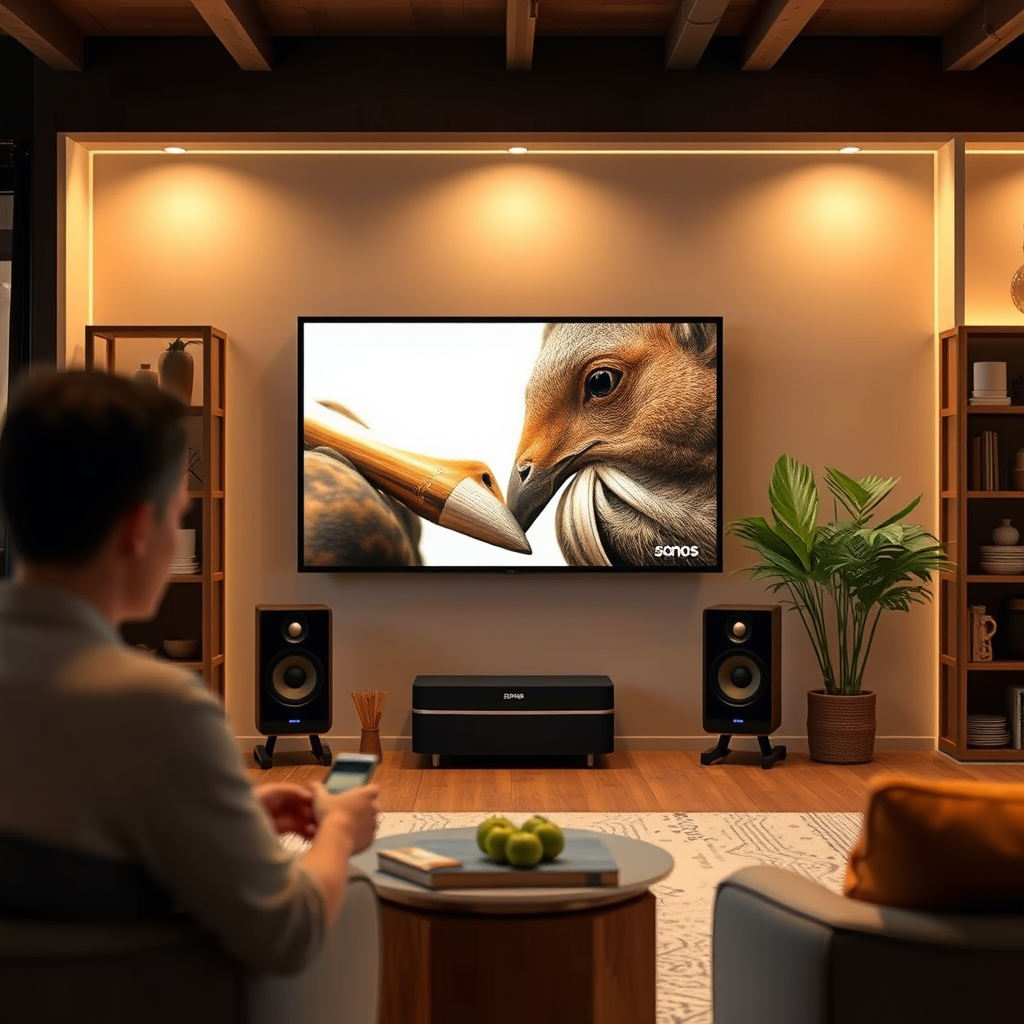
Setting up your Sonos speakers is a seamless process that can be completed in just a few steps.
1. Unbox and Position Your Speakers: Begin by unboxing your Sonos speakers. Choose the locations that will best suit your audio experience. Whether you place them in your living room for immersive movie nights or in the kitchen for cooking playlists, positioning is key. Ensure that the speakers are placed on stable surfaces and away from corners, which can interfere with sound quality.
2. Download the Sonos App: Next, download the Sonos app from the App Store or Google Play on your smartphone or tablet. The app is the central hub for controlling your speakers and managing your audio environment.
3. Connect to Wi-Fi: Open the Sonos app and follow the in-app instructions to connect your speakers to your Wi-Fi network. The app will guide you through the setup process, including detecting your speakers and connecting them to your home network. Ensure your Wi-Fi connection is stable for optimal performance.
Connecting Music Services
Once your Sonos speakers are set up, you can start enjoying your favorite music.
– Link Music Streaming Services: Within the Sonos app, navigate to the ‘Settings’ tab and select ‘Services & Voice’. Here, you can add your preferred music streaming services such as Spotify, Apple Music, or Amazon Music. Simply log in to your accounts, and your playlists will be available to play instantly.
– Explore Built-in Integrations: Sonos supports a variety of music platforms, allowing you to switch between services easily. You can even use the Sonos app to discover new music or browse curated playlists tailored to your mood.
– Set Up Voice Control: For hands-free operation, connect your Sonos system to voice control services like Amazon Alexa or Google Assistant. This integration allows you to control playback, adjust volume, and switch tracks using voice commands, adding convenience to your listening experience.
Creating Groups for Multi-Room Audio
Sonos speakers excel in creating a multi-room audio experience.
– Learn to Group Speakers: The Sonos app makes it simple to group speakers for synchronized playback across multiple rooms. Just tap the ‘Group’ button in the app and select the speakers you want combined. This feature is perfect for parties or when you want to fill your home with music.
– Adjust Volume Levels Independently: You can also manage volume levels for each room or speaker individually. This allows you to create a dynamic sound environment where different rooms can have distinct audio settings, catering to the preferences of everyone in the house.
– Create Custom Playlists: The app allows you to create playlists that can play throughout your entire home. With the ability to save and share playlists, you can curate the perfect listening experience for any occasion.
Top Features of Sonos Speakers (2024)
| # | Feature | Availability | Rating |
|---|---|---|---|
| 1 | Wi-Fi Connectivity | Yes | ★★★★☆ |
| 2 | Voice Control | Yes | ★★★★★ |
| 3 | Multi-Room Audio | Yes | ★★★★☆ |
| 4 | Streaming Service Integration | Yes | ★★★★★ |
| 5 | Trueplay Tuning | Yes | ★★★★☆ |
| 6 | Custom Playlists | Yes | ★★★★★ |
| 7 | Alarm and Sleep Timer | Yes | ★★★★☆ |
Using the Sonos App Effectively
The Sonos app is designed to enhance your audio experience, making it easy to control your speakers.
– Familiarize with the User Interface: Spend some time navigating the app to understand its layout. The home screen provides quick access to your music libraries and settings, allowing you to find your favorite tracks quickly.
– Utilize ‘Room Control’ Features: The app offers a ‘Room Control’ feature that allows you to manage audio settings for each speaker. You can adjust the volume, switch the source, or set a timer for when the music should stop playing in specific rooms.
– Access the ‘Music’ Tab: The ‘Music’ tab is where you can browse through your linked music services, access your playlists, and search for new music. This tab simplifies the process of finding and playing your favorite tracks with just a few taps.
Troubleshooting Common Issues
Even the best systems can encounter issues, but Sonos provides straightforward solutions.
– Identify Connectivity Problems: If your Sonos speakers lose connection, ensure that your Wi-Fi network is functioning properly. You can also restart your speakers through the app or by unplugging them and plugging them back in.
– Improve Sound Quality: To enhance sound quality, experiment with speaker placement. Avoid placing speakers in corners or behind furniture, as this can muffle sound. The Trueplay tuning feature can also help optimize audio based on your room’s acoustics.
– Resetting Your Speakers: If persistent issues arise, you may need to reset your speakers. This can be done through the app, but be aware that resetting will remove all custom settings. Always check for updates before taking this step.
Advanced Features and Customization
Sonos offers several advanced features that enhance your listening experience.
– Set Up Alarms and Sleep Timers: The Sonos app allows you to set alarms to wake up to your favorite music or sounds. Additionally, sleep timers can help you fall asleep with music that fades out after a specific duration.
– Utilize Trueplay for Sound Tuning: The Trueplay feature uses your smartphone’s microphone to analyze the room’s acoustics and adjust the speaker settings accordingly. This ensures the best sound quality, tailored to your specific environment.
– Explore Third-Party Integrations: Sonos speakers can integrate with various smart home devices, allowing you to control your audio system alongside other smart features in your home. Explore compatibility with devices like Philips Hue or smart thermostats for a more cohesive smart home experience.
Maintaining Your Sonos System
To keep your Sonos system running smoothly, regular maintenance is essential.
– Keep the Sonos App Updated: Regularly check for updates to the Sonos app to benefit from new features and bug fixes. Automatic updates can often be enabled in your device settings.
– Check for Firmware Updates: The speakers themselves also require firmware updates. The app will usually notify you when updates are available, ensuring that your system is always equipped with the latest enhancements.
– Care for Your Speakers: Dust and clean your Sonos speakers gently using a soft, dry cloth. Avoid using cleaning products that could damage the finish. Proper care extends the life of your speakers and maintains their aesthetic appeal.
By following these steps, you’ll be able to fully utilize your Sonos speakers for an immersive audio experience. Whether you’re hosting a party or enjoying a quiet evening, these tips will help you get the most out of your sound system. Explore further and enhance your home audio setup today!
Frequently Asked Questions
How do I set up my Sonos speakers for the first time?
To set up your Sonos speakers, first download the Sonos app from the App Store or Google Play. Open the app, create an account or log in, and follow the on-screen instructions to connect your speaker to Wi-Fi. Once connected, you can add music services and group multiple Sonos speakers for a synchronized audio experience.
What should I do if my Sonos speaker is not connecting to Wi-Fi?
If your Sonos speaker is not connecting to Wi-Fi, start by ensuring that your router is working properly and that the speaker is within range. Restart both your Sonos speaker and your router, then try reconnecting through the Sonos app. If issues persist, consider resetting your speaker to factory settings and setting it up again.
Why is my Sonos speaker not responding to voice commands?
If your Sonos speaker is not responding to voice commands, check if the voice assistant feature is enabled in the Sonos app. Ensure your speaker’s microphone is not muted and that it is connected to the internet. Additionally, verify that your voice assistant account (like Amazon Alexa or Google Assistant) is properly linked within the app.
What is the best way to group multiple Sonos speakers?
The best way to group multiple Sonos speakers is through the Sonos app. Simply select the “Rooms” tab, choose the speakers you want to group, and tap “Group.” This allows you to play the same music across all speakers or control them individually, providing a seamless multi-room audio experience.
Which music services are compatible with Sonos speakers?
Sonos speakers are compatible with a wide range of music services, including Spotify, Apple Music, Amazon Music, and Tidal. You can easily link these services through the Sonos app by navigating to the “Settings” menu and selecting “Services.” This integration allows you to stream music directly from your preferred platforms effortlessly.
References
- Sonos
https://en.wikipedia.org/wiki/Sonos - https://www.bbc.com/news/technology-45587502
https://www.bbc.com/news/technology-45587502 - https://www.nytimes.com/2020/07/02/technology/sonos-three.html
https://www.nytimes.com/2020/07/02/technology/sonos-three.html - https://www.theguardian.com/technology/2020/jul/02/sonos-one-review-wi-fi-smart-speaker
https://www.theguardian.com/technology/2020/jul/02/sonos-one-review-wi-fi-smart-speaker - https://www.sciencedirect.com/topics/computer-science/sonos-speakers
https://www.sciencedirect.com/topics/computer-science/sonos-speakers - Google Scholar Google Scholar
https://scholar.google.com/scholar?q=how+to+use+sonos+speakers - Google Scholar Google Scholar
https://scholar.google.com/scholar?q=Sonos+smart+speakers+usage - Google Scholar Google Scholar
https://scholar.google.com/scholar?q=Sonos+audio+system+guidelines - how to use sonos speakers – Search results
https://en.wikipedia.org/wiki/Special:Search?search=how+to+use+sonos+speakers - https://www.ncbi.nlm.nih.gov/search/research-articles/?term=how+to+use+sonos+speakers
https://www.ncbi.nlm.nih.gov/search/research-articles/?term=how+to+use+sonos+speakers
