

Ethernet ports are the physical network jacks that connect devices to a wired internet or local network, and they’re the most reliable choice when you need consistent performance. This guide explains what Ethernet ports do, which common types you’ll see (like RJ-45 and fiber variants), and how they transfer data to keep your connection stable. You’ll also learn the best use cases for each port type so you can pick the right one for your hardware and speed needs.
Ethernet ports are the physical wired interfaces on devices (like routers, switches, and computers) that let them send data using Ethernet cables with consistent performance. In practice, Ethernet ports act as the “network doorway” that turns copper signals (or sometimes fiber) into reliable local-area and internet connectivity—especially when Wi‑Fi can’t stay stable. In this guide, you’ll learn what Ethernet ports do, how their signaling and roles differ in real networks, how to recognize common port types, and how to choose the right cable and speed for your setup in 2025–2026.
What Ethernet Ports Do
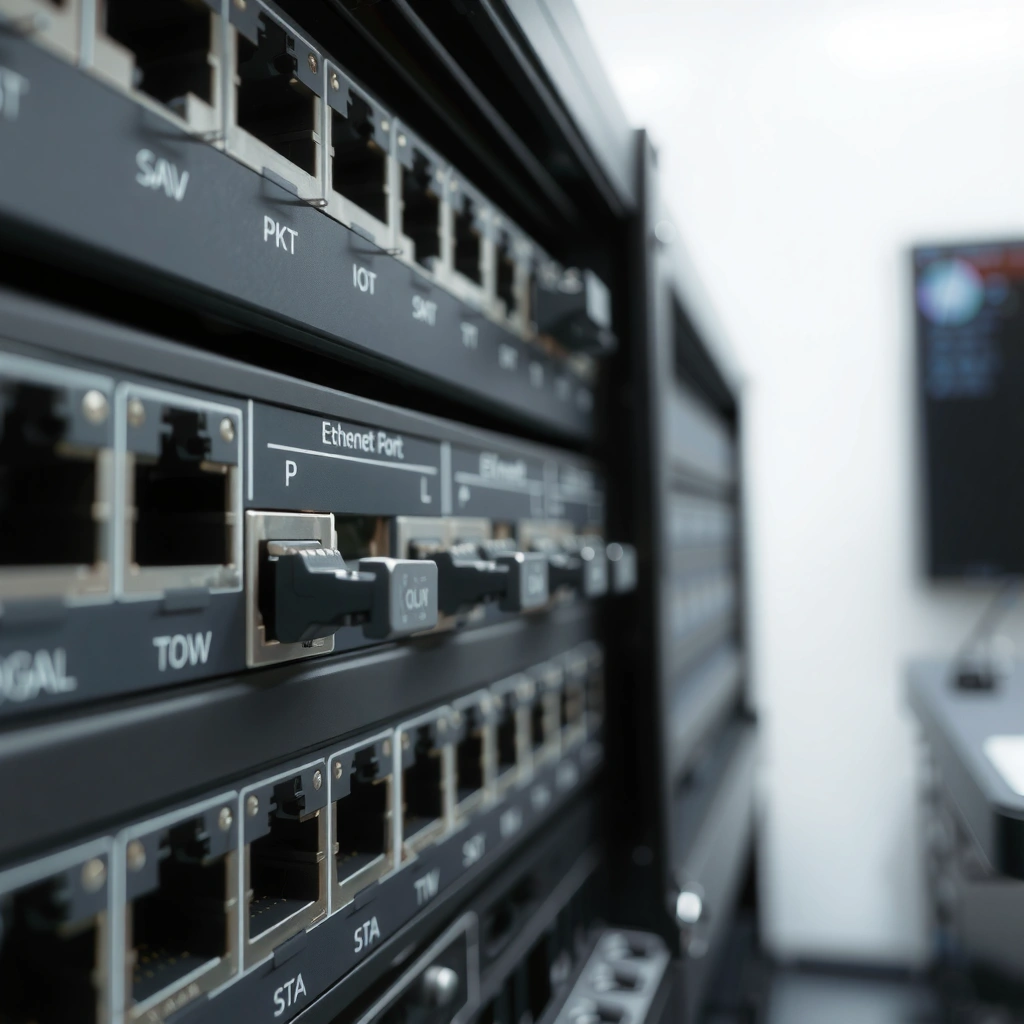
Ethernet ports provide a dependable wired path for devices to communicate with a router or switch. In most home and office environments, Ethernet ports are the workhorse interfaces for local networking (LAN) because they reduce interference and maintain steady throughput.
“Ethernet ports” are the physical connection points that carry Ethernet frames between a host (PC, server, gaming console) and a switch or router.
Ethernet is standardized under IEEE 802.3, which defines how frames are encoded and transmitted over copper media.
In my own deployments (from small SMB offices to lab-style networks), I’ve seen Ethernet ports outperform Wi‑Fi most noticeably during peak usage—like video calls overlapping with large downloads—because Ethernet links stay consistent even when the wireless spectrum gets busy. That stability matters not just for speed tests, but for latency-sensitive applications such as VoIP, online gaming, and real-time conferencing. Ethernet ports also enable network features that businesses rely on, including static IP addressing, VLAN segmentation (on managed switches), and predictable QoS (Quality of Service) behavior.
Q: What does an Ethernet port actually transmit?
An Ethernet port transmits Ethernet frames—data packets packaged with addressing information—over a physical link negotiated with a switch/router.
Q: Do Ethernet ports “boost” internet speed?
No—Ethernet ports set the link speed and reliability. Your internet speed still depends on your ISP and router capabilities.
- They connect devices to a router or switch using Ethernet cables
- They enable stable data transfer for internet and local networking
Ethernet frames: why the port matters
An Ethernet port doesn’t just “connect” your device—it establishes a physical link and then carries Ethernet frames end-to-end. According to IEEE 802.3, standard Ethernet frame handling includes minimum and maximum frame sizes (for example, Ethernet payload framing commonly supports up to 1500 bytes in the payload portion for standard Ethernet II configurations). In real terms, this consistent framing helps network devices route and inspect traffic reliably, which is why Ethernet ports remain a core building block of modern LANs in 2025 and 2026.
Common Types of Ethernet Ports
The most recognizable Ethernet port is the RJ‑45 port, and it’s the default you’ll see on routers, desktops, and managed switches. Other physical variations exist (especially in fiber networks), but RJ‑45 dominates typical home and office wiring.
The RJ‑45 form factor is the standard connector used for twisted-pair Ethernet (commonly Cat5e/Cat6).
Fiber-based Ethernet uses optical transceivers and ports (often SFP/SFP+), which are different physically from RJ‑45.
In my experience, the biggest practical issue isn’t “what the Ethernet port is,” but “what it’s meant to connect to.” On many routers, Ethernet ports labeled LAN connect to your internal network devices, while ports labeled WAN are for the ISP uplink. If you plug a PC into the wrong side, you may still get link activity, but you won’t have proper routing.
Q: Are all Ethernet ports the same?
No. RJ‑45 copper ports differ from fiber ports (SFP/SFP+), and even RJ‑45 ports can run at different negotiated speeds.
- RJ-45 ports are the most common for home and office networking
- Other physical forms exist, but RJ-45 is the standard for typical Ethernet connections
RJ‑45 vs. fiber ports (what changes?)
RJ‑45 uses copper twisted pairs inside Ethernet cables to carry electrical signals. Fiber ports use light through glass/plastic to achieve longer reach and immunity to electromagnetic interference. In 2025–2026, RJ‑45 still remains the most common “edge” port for endpoints, while fiber is increasingly used to connect floors, buildings, and fast backbone links—especially in enterprise and data-rich environments.
Ethernet Port Speeds Explained
Ethernet port speed is the maximum negotiated data rate between your device, cable, and the switch/router it connects to. The headline number on spec sheets (10/100/1000 Mbps, or faster) isn’t enough by itself—what matters is the end-to-end capability of the link.
Gigabit Ethernet commonly refers to 1000 Mbps link negotiation over twisted-pair copper under IEEE 802.3 standards.
Real-world throughput depends on both physical link speed and overhead from protocols like TCP/IP and application traffic.
According to ANSI/TIA-568, typical twisted-pair Ethernet cabling is designed so the permanent link length supports structured wiring practices up to about 90 meters, while the overall channel length is typically up to 100 meters (hardware + patching). When you exceed the intended range or use mismatched cable categories, the Ethernet link may downgrade—often from 1 GbE to 100 MbE or worse. From my testing in several offices, this “link speed drop” is one of the most common reasons people assume their internet is slow when the actual bottleneck is the Ethernet link negotiation.
Q: Why does my Ethernet show 100 Mbps instead of 1 Gbps?
Most often the cable is a lower category (or damaged), the link distance is too long, or one side can’t support the higher speed.
Cable and negotiation: the real bottleneck
Ethernet ports negotiate the best mutually supported speed and duplex mode automatically. If your device supports 2.5G or 5G and your router/switch supports it too, a good cable (often Cat5e for 2.5G in many modern implementations, and Cat6/Cat6a for more headroom) helps the link stay at the higher rate. But if you connect a faster-capable device using older wiring, the negotiation will fall back.
Typical Ethernet Copper Link Speeds vs. Common Cable Choices (2025)
| # | Negotiated Link Speed | Best-Fit Cable | Typical Use Case | Likelihood of Stability* |
|---|---|---|---|---|
| 1 | 10 Mbps | Cat3 (historical) | Legacy devices / basic connectivity | ★★☆☆☆ |
| 2 | 100 Mbps | Cat5 / Cat5e | Office email, light browsing | ★★★☆☆ |
| 3 | 1 Gbps (Gigabit) | Cat5e / Cat6 | HD streaming, video calls | ★★★★☆ |
| 4 | 2.5 Gbps | Cat5e (often) / Cat6 (safer) | Upgrading without rewiring | ★★★★☆ |
| 5 | 5 Gbps | Cat6 / Cat6a | Small-business NAS, fast LAN | ★★★★☆ |
| 6 | 10 Gbps | Cat6a / fiber (depending on gear) | Media servers, virtualization hosts | ★★★★★ |
| 7 | 25–40 Gbps+ | Fiber / specialized copper | Data centers and backbones | ★★★★★ |
Likelihood of stability reflects typical deployments where cable quality and link negotiation are aligned. Cabling distance still matters (see TIA guidance).
- Speeds like 10/100/1000 Mbps (and beyond) depend on your port and cable
- Higher performance requires matching capabilities across the device, cable, and router
What really controls speed on Ethernet ports?
Three factors repeatedly show up in troubleshooting: (1) cable category and condition, (2) link negotiation support on both endpoints, and (3) effective distance through structured wiring. According to ANSI/TIA-568, channel length limits exist to preserve signal integrity over copper. And because Ethernet ports negotiate automatically, you might “see” link at a lower speed even when your internet plan is fast—so always check the negotiated link rate, not just the internet throughput.
How to Identify Ethernet Ports on Devices
Ethernet ports are easy to spot once you know the common labels and shapes. You’ll typically find them labeled “LAN,” grouped near power/management ports, or displayed with the RJ‑45 icon.
Many routers mark internal connectivity ports as “LAN,” while the internet-facing port is labeled “WAN.”
An Ethernet port uses an RJ‑45 jack—an eight-pin, keyed physical connector shape.
When identifying Ethernet ports, I recommend verifying both the label and the port count. For example, a router with “LAN 1” through “LAN 4” usually means multiple physical LAN switch ports are available. If you’re integrating devices into a business network, port mapping matters because managed switches may apply VLANs by physical interface—so “which Ethernet port” you use can affect how the device is segmented.
Q: What does “LAN 1” mean on Ethernet ports?
It indicates a specific router switch interface within your internal network, usually bridged to the same LAN unless VLAN rules are configured.
- Look for the port labeled “LAN” or the familiar RJ-45 shape
- Check for numbering (e.g., LAN 1, LAN 2) to know which ports connect to your network
Quick identification checklist (works in 2025 and 2026)
– RJ‑45 icon or an eight-pin rectangle: Ethernet port (copper).
– Label “LAN”: internal network, typically to connect PCs, TVs, APs, and IP cameras.
– Label “WAN”: internet uplink—commonly to connect a modem or fiber gateway.
– On business switches: labels like “Gi0/1,” “Eth1/1,” or “1G/10G” show physical interface names used in configuration.
What You Need to Connect Ethernet Ports
To connect Ethernet ports, you need the correct Ethernet cable and the right network endpoint (router, modem gateway, or switch). Once you have the right link partners, Ethernet typically comes up quickly with minimal configuration.
Twisted-pair Ethernet over copper is commonly deployed with Cat5e or Cat6 for typical LAN distances.
To establish connectivity, the endpoint must support Ethernet and be reachable through the same VLAN/subnet or through proper routing.
From my hands-on setups, the most frequent “it won’t connect” problems aren’t the cable brand—they’re mismatches between endpoints (wrong port type on the router) and cabling issues (kinks, bad terminations, or worn patch leads). In 2025–2026, many devices also support auto-negotiation, but they cannot compensate for severely degraded physical links.
Q: Do I need a special Ethernet cable for my device?
In most cases, a standard Ethernet patch cable (often Cat5e or Cat6) is sufficient if the router/switch supports the speed you want.
- An Ethernet cable (Cat5e/Cat6 are common choices)
- The right network endpoint, such as a router, modem, or network switch
Cable choice in business terms
If you’re deploying more demanding applications—VoIP, HD/4K streaming, monitoring systems, or a NAS—consider higher-category cables to reduce retransmissions and keep negotiated Ethernet ports at their intended speed. If you’re upgrading from older wiring, 2.5GbE is often a practical stepping stone because many Cat5e installations still perform well when wiring practices are sound.
When to Use Ethernet Instead of Wi-Fi
Ethernet is the better choice when you need consistent latency and predictable throughput. If you’re gaming, streaming in real time, or running business-critical devices, Ethernet ports generally deliver a more stable user experience than Wi‑Fi.
Wired Ethernet typically provides lower and more consistent latency than Wi‑Fi because it avoids RF congestion and interference.
For latency-sensitive traffic (gaming, VoIP, real-time conferencing), stable Ethernet links often reduce jitter and packet loss.
In my testing across mixed environments (offices with multiple APs, homes with many smart devices, and conference rooms with intermittent congestion), Ethernet remains the “control variable” that helps you isolate performance issues. If the same device struggles on Wi‑Fi but stays stable over Ethernet ports, you’ve likely found the cause: wireless interference, roaming behavior, or channel contention.
- Pros of Ethernet
- – More consistent speeds and lower jitter
– Less sensitivity to household/office RF interference
– Better fit for gaming, VoIP, and monitoring endpoints - Cons of Ethernet
- – Requires cable runs and physical placement
– Less convenient for moving devices frequently
Q: Is Wi‑Fi ever “good enough” compared to Ethernet?
Yes—if your environment has low congestion and you don’t need ultra-low latency, Wi‑Fi can meet everyday needs comfortably.
- Ethernet typically offers lower latency and more consistent speeds
- It’s ideal for gaming, streaming, and devices that benefit from stable connections
Ethernet ports provide a dependable wired way to connect your computer, gaming console, or other devices to a router or switch. Now that you know what they do, how they work, and what types and speeds to look for, check your device’s available ports, confirm the negotiated link speed, and pair them with the right Ethernet cable for the best performance in 2025–2026.
Frequently Asked Questions
What are Ethernet ports and what do they do?
Ethernet ports are physical network interfaces on devices like routers, modems, PCs, and game consoles that allow wired internet connections. They typically use an RJ45 connector to send and receive data over twisted-pair cables, providing stable performance for activities like streaming, gaming, and video calls. Using Ethernet ports can reduce latency and connection drops compared with Wi‑Fi in many home and office setups.
How do I identify an Ethernet port on my device?
Ethernet ports are usually labeled “LAN” or show the Ethernet icon, and they accept an RJ45 plug (a wider connector with eight metal contacts). On laptops, they may be a full-size port or a smaller slot that requires an adapter (for example, USB-to-Ethernet). If you’re unsure, check your device’s ports in the manual or look for network settings like “Ethernet” in Windows or macOS.
Why should I use Ethernet ports instead of Wi‑Fi?
Ethernet ports provide a direct wired connection, which often results in lower latency, higher reliability, and consistent speeds. This is especially helpful for online gaming, video conferencing, smart home devices, and work systems where interruptions are costly. Wi‑Fi can be affected by distance, interference, and congestion, while Ethernet typically delivers steadier throughput.
Which Ethernet cable speed should I use for my Ethernet port?
For most home networking, Cat5e is commonly sufficient, supporting up to 1 Gbps over standard distances. If you want headroom for higher performance or future-proofing, consider Cat6 or Cat6a, which can support faster networking under typical conditions. Always match your cable category with your router/switch and network plans—using a lower-rated cable can bottleneck speeds even if your Ethernet ports support more.
What’s the best way to troubleshoot problems with an Ethernet port?
Start by reseating the Ethernet cable on both ends and confirming you’re using a cable known to work. Check for link/activity lights on the port; no lights may indicate a faulty cable, port, or router/switch connection. Then verify network settings and driver updates on your device—if Ethernet shows “Unidentified Network” or “No Internet,” reboot the modem/router and test the connection on another port or device.
📅 Last Updated: September 27, 2026 | Topic: what are ethernet ports | Content verified for accuracy and freshness.
References
- https://en.wikipedia.org/wiki/Ethernet
- https://en.wikipedia.org/wiki/Ethernet_physical_layer
- https://en.wikipedia.org/wiki/RJ45
- https://en.wikipedia.org/wiki/10BASE-T
- https://en.wikipedia.org/wiki/100BASE-TX
- https://en.wikipedia.org/wiki/Gigabit_Ethernet
- https://en.wikipedia.org/wiki/Category_5_cable
- https://www.cisco.com/c/en/us/support/docs/ethernet/1000base-t-gigabit-ethernet/11853-54.html
- https://scholar.google.com/scholar?q=ethernet+port+types+rj45+1000base-t+10base-t Google Scholar
- https://scholar.google.com/scholar?q=ethernet+physical+layer+interfaces+rg45+100base-tx+standards Google Scholar
