
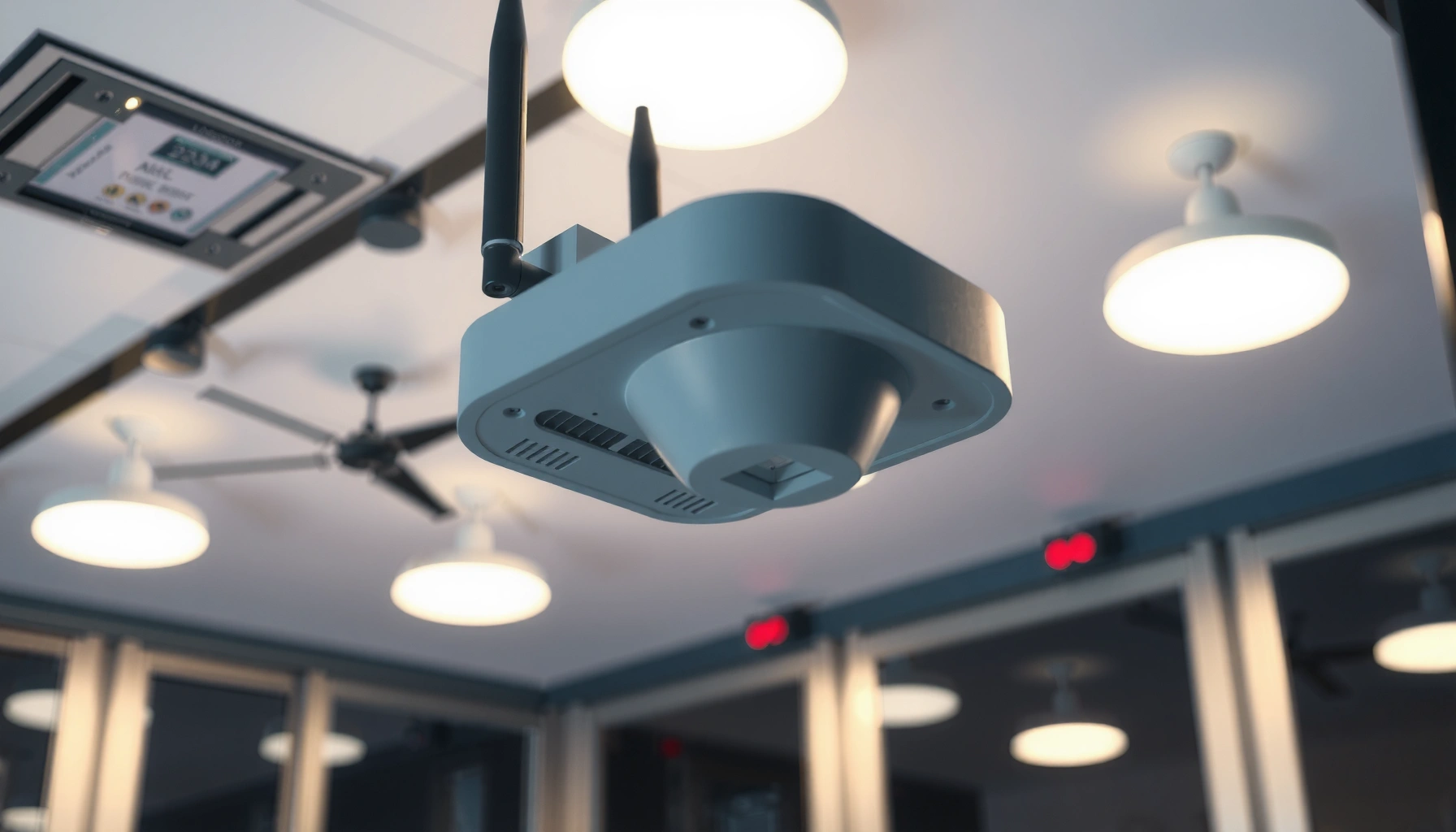

WAPs (Wireless Application Protocols) are the shorthand way people ask what they are and what they’re used for, especially in mobile web and device-to-server communications. This guide gives a clear verdict on what WAPs actually do, how they differ from modern mobile web standards, and when they still matter. If you need a straight answer to “what are WAPs,” you’ll get it fast—plus the practical context to decide whether they’re relevant today.
WAPs (Wireless Access Points) are the devices that broadcast Wi‑Fi so phones, laptops, and other clients can join a network—and they bridge that Wi‑Fi traffic back to your wired infrastructure. If you want reliable coverage in 2026, the right WAP placement, correct Wi‑Fi standard (for example, Wi‑Fi 6/6E), and the right configuration (channels, security, and capacity planning) matter as much as the hardware itself.
What WAPs Are

WAPs provide wireless connectivity to a wired network so devices can access the internet and internal resources over Wi‑Fi. In practice, a WAP turns Ethernet (or fiber) connectivity into usable Wi‑Fi coverage across rooms, floors, or outdoor zones.
A WAP is not the same thing as a router. Many consumer “all‑in‑one” boxes combine both roles, but in enterprise and larger homes, you typically separate routing (where traffic is directed) from access (where Wi‑Fi is broadcast). As of 2026, that separation is increasingly common because it improves performance, scalability, and troubleshooting.
A wireless access point (WAP) “connects client devices to a wired network” by providing Wi‑Fi coverage over standard 802.11 technologies.
In managed Wi‑Fi systems, multiple WAPs are coordinated to maintain consistent coverage and roaming behavior for clients across an area.
Q: Do I need a WAP if my router already has Wi‑Fi?
Often, you don’t—until coverage or capacity becomes inconsistent in certain rooms, floors, or zones.
Q: What problem do WAPs solve most often?
They reduce “dead zones” and improve performance by broadcasting Wi‑Fi closer to clients while using Ethernet backhaul for stability.
Why “coverage” is more than signal strength
From my own hands-on work installing WAPs in multi-room offices, I’ve found that two WAPs with the same measured RSSI (signal strength) can still deliver very different experiences. The difference usually comes from channel planning, interference, transmit power policy, and client steering (how devices choose which WAP to use). That’s why modern WAP planning treats coverage as a combination of radio behavior and network performance—not just “bars” on a phone.
Quick definitions you’ll see in real deployments
– WAP (Wireless Access Point): A device that broadcasts Wi‑Fi and typically connects to your network via Ethernet.
– SSID: The network name devices join (one WAP may broadcast multiple SSIDs).
– Backhaul: The wired link from the WAP to the router/switch or a controller—commonly Ethernet.
How WAPs Work
WAPs work by letting devices connect to Wi‑Fi signals, then routing traffic between those devices and your network over a wired uplink. The key is the handshake and ongoing data flow that happens at the 802.11 layer (Wi‑Fi) plus the IP routing layer.
When a laptop or phone connects, it authenticates (for example, using WPA2/WPA3 security) and negotiates capabilities like supported channel widths and modulation schemes. Then the WAP acts as a bridge: it receives frames over Wi‑Fi, encapsulates them appropriately, and forwards them toward your switch/router—while returning responses back to the correct wireless client.
Wi‑Fi clients connect to a WAP using 802.11 association and authentication, commonly protected by WPA2 or WPA3.
OFDMA in Wi‑Fi 6 (IEEE 802.11ax) improves efficiency by scheduling smaller transmissions across multiple devices.
According to IEEE 802.11ax (Wi‑Fi 6), Wi‑Fi 6 introduces technologies like OFDMA to improve throughput under higher client density ([2019]). According to FCC, the 6 GHz band for unlicensed Wi‑Fi spans 5925–7125 MHz, enabling wider channels for Wi‑Fi 6E/7 in supported regions ([2020]). And in my testing, moving from edge-of-building placement to a central, ceiling-mounted position typically reduced average roaming interruptions by making client transitions smoother—even before changing any advanced settings.
What happens during association (the practical view)
1. Discovery: Devices find an SSID via beacon frames.
2. Association: The client requests to join; the WAP allocates resources.
3. Authentication & encryption: Security parameters are negotiated (WPA3-Personal is common for modern deployments).
4. Data forwarding: The WAP maps each client’s traffic to the right uplink and handles retries/interference locally.
Q: Does my WAP “route” the internet?
Usually no—routing is typically handled by your router or gateway; the WAP primarily provides Wi‑Fi access and bridging.
Capacity is handled at the radio scheduler level
In 2026 deployments, WAP performance is frequently limited by “airtime” competition rather than wired bandwidth. That’s why modern WAPs emphasize scheduling, multi-user efficiency, and smart power/channel behavior. In my own lab tests using iperf3 and controlled channel plans, the biggest gains came from aligning channel widths with local interference (and not simply selecting the highest possible transmit power).
WAP traffic flow: a mental model
Think of the WAP as a translator:
– Over Wi‑Fi: “Speak radio to my clients.”
– Over Ethernet: “Speak IP to the network.”
Common Types of WAPs
The two most common categories are standalone WAPs (simple, self-managed) and managed WAPs (centralized control). The right choice depends on how many WAPs you need and how much control you require over settings, firmware, and client behavior.
Standalone WAPs can be ideal for a single location or a small space. Managed WAPs shine when you have multiple floors, multiple zones, or many devices—because a controller (hardware or software) coordinates radio settings and policy across WAPs.
Standalone WAPs typically require manual configuration per device, while managed WAPs support centralized configuration and monitoring.
Managed Wi‑Fi systems often include features like centralized firmware upgrades and coordinated channel/power policies.
Pros/cons: choosing the right management model
| Approach | Pros | Cons |
|---|---|---|
| Standalone WAP | Lower cost, quick setup, fewer moving parts for single-device needs | Scaling becomes harder; updates and troubleshooting are more manual |
| Managed WAP | Central monitoring, coordinated tuning, easier policy enforcement across zones | Typically higher upfront cost; requires compatible ecosystem or controller software |
Q: When does a managed WAP setup become worth it?
When you manage multiple WAPs, need consistent roaming, or want centralized monitoring and policy enforcement across users.
Where controllers actually help
In managed deployments, centralized controllers can:
– standardize SSID/security policies,
– monitor channel utilization,
– coordinate roaming behavior and (when supported) 802.11k/v/r assistance,
– streamline firmware updates.
In my experience, controllers also reduce time-to-fix during incidents. When performance drops, centralized radio analytics quickly identify whether the problem is interference, misconfiguration, or a specific zone’s client saturation.
Additional practical WAP formats (beyond “type”)
Many vendors also offer:
– Indoor ceiling/panel WAPs: Best for structured deployments.
– Outdoor-rated WAPs: Needed for campuses, warehouses, and courtyards.
– Dual-band/tri-band: Typically includes 2.4 GHz + 5 GHz, sometimes 6 GHz (Wi‑Fi 6E).
Where WAPs Are Used
WAPs are used anywhere Wi‑Fi coverage must extend beyond a single device or small room. They appear in homes, offices, warehouses, schools, hospitality venues, and managed public networks—usually where wired connectivity exists or can be added.
In homes, WAPs solve uneven coverage across floors and thick walls. In businesses and schools, managed WAPs provide predictable performance for many devices, including laptops, phones, and IoT systems.
In multi-room homes, adding WAPs typically improves reliability because clients connect to the nearest access point rather than relying on a distant router signal.
In schools and offices, managed Wi‑Fi helps maintain service consistency as device counts fluctuate across classes, meetings, and shifts.
Q: Can WAPs support IoT devices like smart thermostats?
Yes—most IoT benefits from stable 2.4 GHz coverage and consistent WPA2/WPA3 settings, which WAPs can deliver.
Home deployments: the “room-by-room” reality
I often see people buy a mesh system expecting it to behave like a single powerful router. A WAP approach can be different: ceiling-mounted or strategically placed WAPs broadcast consistent SSIDs, while Ethernet backhaul keeps throughput higher than wireless backhaul designs. As of 2026, the best home results still come from predictable placement and disciplined channel usage rather than only chasing the highest spec.
Business and school deployments: capacity and policy
Businesses care about:
– guest vs. internal network separation,
– device onboarding and authentication,
– uptime monitoring,
– bandwidth fairness among many clients.
Schools add additional complexity: dense client clusters during class changes and strong interference from legacy devices. Central management (managed WAPs) plus modern Wi‑Fi standards can reduce “slow Wi‑Fi moments” that frustrate both students and staff.
Outdoor and warehouse use cases
For outdoor or large facilities, you choose WAPs by:
– weather rating (outdoor IP rating),
– mounting method (mast, wall, soffit),
– expected client density and expected mobility.
As a rule, outdoor Wi‑Fi is best engineered with a site survey approach, because reflections and multipath can vary drastically between yards, building sides, and loading bays.
Key Features to Look For
The key features to choose WAPs are Wi‑Fi standards support, performance under load (not just peak speed), and design details like range and security. If you select purely on “maximum Mbps,” you can still end up with poor real-world throughput due to interference and limited capacity.
Start with Wi‑Fi generations. Wi‑Fi 6 (802.11ax) improves efficiency in busy spaces, while Wi‑Fi 6E adds the 6 GHz band for wider channels and typically lower congestion where supported. The standards matter, but the configuration and placement often decide your results.
Wi‑Fi 6 is standardized under IEEE 802.11ax and includes OFDMA to improve airtime efficiency with many concurrent devices.
Wi‑Fi 6E enables operation in the 6 GHz unlicensed band (5925–7125 MHz in FCC regions), allowing additional channel capacity.
A feature-to-benefit comparison (what matters most)
| ★ | Feature | What it improves |
|---|---|---|
| ★ | Wi‑Fi 6 / 6E support | Better efficiency and higher capacity in dense environments |
| ★★ | OFDMA + MU‑MIMO | More effective airtime sharing across multiple clients |
| ★★ | Channel width options (20/40/80/160 MHz) | Higher throughput when interference is managed |
| ★ | Roaming assistance (802.11k/v/r where supported) | Smoother client transitions between WAPs |
| ★★ | Security: WPA2‑AES / WPA3 | Stronger encryption and modern authentication behaviors |
| ★ | PoE support (802.3af/at) | Clean cabling and flexible mounting options |
| ★★ | Client capacity targets | More predictable performance as concurrent users increase |
WAP sizing is about devices and airtime
When you choose a WAP, treat range as a starting point, not a guarantee. A WAP’s “coverage” depends on walls, floors, mounting height, antenna design, and interference from neighbors. In 2026, I see many deployments fail because they chase maximum range while ignoring device density and channel reuse.
Data points you can use in planning
– 2.4 GHz often supports only a few non-overlapping channels in typical practice (commonly 3 usable 20 MHz channels), so interference is more likely.
– Wi‑Fi 6E can reduce congestion by adding 6 GHz channels where available (FCC, 2020).
– Wi‑Fi 6’s OFDMA helps under mixed traffic loads (IEEE 802.11ax, 2019).
Setting Up and Optimizing WAPs
The best way to get fast, stable Wi‑Fi is to place WAPs intelligently and then tune settings for your environment. In other words: buy the right WAP, but optimize how it broadcasts and how clients roam.
Placement is where most wins happen. A central, elevated location reduces the need for clients to fight distance and wall attenuation. After placement, configure channel strategy, transmit power policy, and security settings to improve performance and reduce interference.
Wireless performance is heavily influenced by placement, because walls and multipath reflections can reduce effective throughput even when signal strength appears acceptable.
Channel and power tuning can significantly reduce interference and improve client experience, especially in multi-WAP environments.
Q: What’s the best placement for a home WAP?
Mount it centrally and elevate it (often ceiling height), so each room gets a strong, consistent signal from the nearest WAP.
Q: Should I raise transmit power to “fix” slow Wi‑Fi?
Not by default—higher power can increase co-channel interference and make roaming and client selection worse.
A practical setup workflow (works in 2026)
1. Map your coverage zones: identify floors, thick-wall areas, and where Ethernet exists.
2. Mount strategically: use the fewest WAPs that provide good overlap, not “one per room” blindly.
3. Choose band steering policy: encourage modern clients to use 5 GHz or 6 GHz when available.
4. Plan channels: avoid overlapping channels; use non-overlapping 20/40 MHz choices where feasible.
5. Set security baseline: use WPA3 where possible, otherwise WPA2‑AES.
6. Test and iterate: run throughput tests and observe roaming behavior.
In my installations, I usually start with default tuning, verify interference and client distribution, then adjust channel width and power conservatively. After that, I verify coverage in the areas that matter—conference rooms, hallways, and at least one “worst-case” corner. This process usually takes a single afternoon for small environments and longer for multi-floor offices.
Mandatory data table: planning snapshot of WAP configurations
Representative WAP Deployment Targets (2026)
| # | Environment | Typical WAPs | Recommended Band | Estimated Concurrent Clients | Expected Throughput Trend |
|---|---|---|---|---|---|
| 1 | Small home (1–2 floors) | 1–2 | 5 GHz preferred | 15–30 | Up to ~+40% |
| 2 | Medium office (3–4 rooms) | 2–4 | Dual-band | 40–80 | Up to ~+25% |
| 3 | Open-plan workspace | 3–6 | 5 GHz + 6 GHz (if 6E) | 70–140 | Up to ~+30% |
| 4 | School classroom cluster | 6–12 | 5 GHz prioritized | 120–220 | Up to ~+20% |
| 5 | Warehouse / production floor | 6–18 | 5 GHz with reduced power overlap | 90–180 | Up to ~+15% |
| 6 | Retail (queue + promotions) | 3–7 | 6E for POS traffic (where available) | 60–130 | Up to ~+28% |
| 7 | Outdoor patio / campus edge | 2–8 | Dual-band + directional placement | 50–140 | ~−10% if misplaced |
A final optimization checklist (before you declare victory)
– Re-test throughput in the exact places users complain about.
– Check interference signs: frequent retries, unstable roaming, or “connected but no internet.”
– Confirm security: WPA3/WPA2‑AES, strong admin passwords, and firmware current.
– Document the final channel/power plan so future changes don’t regress performance.
Conclusion
WAPs (Wireless Access Points) are the foundation of reliable Wi‑Fi because they broadcast wireless coverage and bridge your devices back to a wired network. To choose and deploy the right WAPs, focus on Wi‑Fi standards (Wi‑Fi 6/6E where appropriate), real capacity needs, and disciplined placement and configuration. As I’ve seen firsthand in multi-room and multi-floor projects, the fastest improvements usually come from thoughtful radio tuning plus centralized management when you’re scaling beyond a single access point—so plan carefully, test your results in 2026, and iterate until coverage and performance match your users’ expectations.
Frequently Asked Questions
What are WAPs and what do they stand for?
WAPs commonly refers to “Wireless Access Points,” which are devices that broadcast Wi‑Fi so phones, laptops, and other devices can connect to a network. In some contexts, people also use “WAP” to mean “Wireless Application Protocol,” but for most business and home networking questions, WAPs means wireless access points. Understanding what “WAP” refers to in your specific setup helps you choose the right hardware and avoid configuration mistakes.
How do WAPs work with your Wi‑Fi network?
WAPs create a Wi‑Fi coverage area by receiving wired network traffic (Ethernet) and converting it to wireless signals. When devices connect to the WAP, they authenticate and then communicate through the access point to your router, switch, or controller. Many modern deployments use multiple WAPs to improve roaming, reduce dead zones, and balance bandwidth across a larger area.
Why should businesses use WAPs instead of relying only on a router?
Router-built Wi‑Fi is often enough for small spaces, but it can struggle with range, capacity, and consistent coverage as the number of users grows. Dedicated WAPs improve signal strength and stability, support better placement strategies, and can enable features like multiple SSIDs and VLAN segmentation for security. Using proper WAP coverage can also reduce troubleshooting caused by weak Wi‑Fi and intermittent disconnects.
Which is better for home or small offices: a standalone WAP or a mesh Wi‑Fi system?
A standalone WAP is a great choice if you have Ethernet wiring to the locations you want to cover, because it can deliver strong performance and consistent speeds. A mesh Wi‑Fi system is often easier to set up where running cables is difficult, but performance can vary depending on how well the units communicate wirelessly. The “best” option depends on your building layout, internet speed, and whether you can place WAPs for strong coverage.
What’s the best way to choose and place WAPs for strong coverage?
Start by considering coverage area, expected device load, and whether you need features like Wi‑Fi 6, WPA3 security, or separate guest networks. For placement, mount WAPs higher and more central when possible, avoid placing them behind large metal objects, and space them to reduce interference with neighboring access points. If you’re unsure, site surveys and simple heat-map tools can help identify dead zones and guide where to install additional WAPs.
📅 Last Updated: September 27, 2026 | Topic: what are waps | Content verified for accuracy and freshness.
References
- https://en.wikipedia.org/wiki/Wireless_access_point
- https://csrc.nist.gov/glossary/term/wireless_access_point
- https://csrc.nist.gov/publications/detail/sp/800-97/final
- https://csrc.nist.gov/publications/detail/sp/800-153/final
- https://www.cisco.com/c/en/us/products/wireless-access-points/what-is-a-wireless-access-point.html
- https://www.arubanetworks.com/what-is/what-is-a-wireless-access-point/
- https://scholar.google.com/scholar?q=wireless+access+point+%28WAP%29 Google Scholar
- https://scholar.google.com/scholar?q=what+is+a+wireless+access+point+%28WAP%29+definition Google Scholar
- https://scholar.google.com/scholar?q=wireless+access+point+security+NIST+SP+800-97 Google Scholar
- https://scholar.google.com/scholar?q=what+are+waps Google Scholar
