
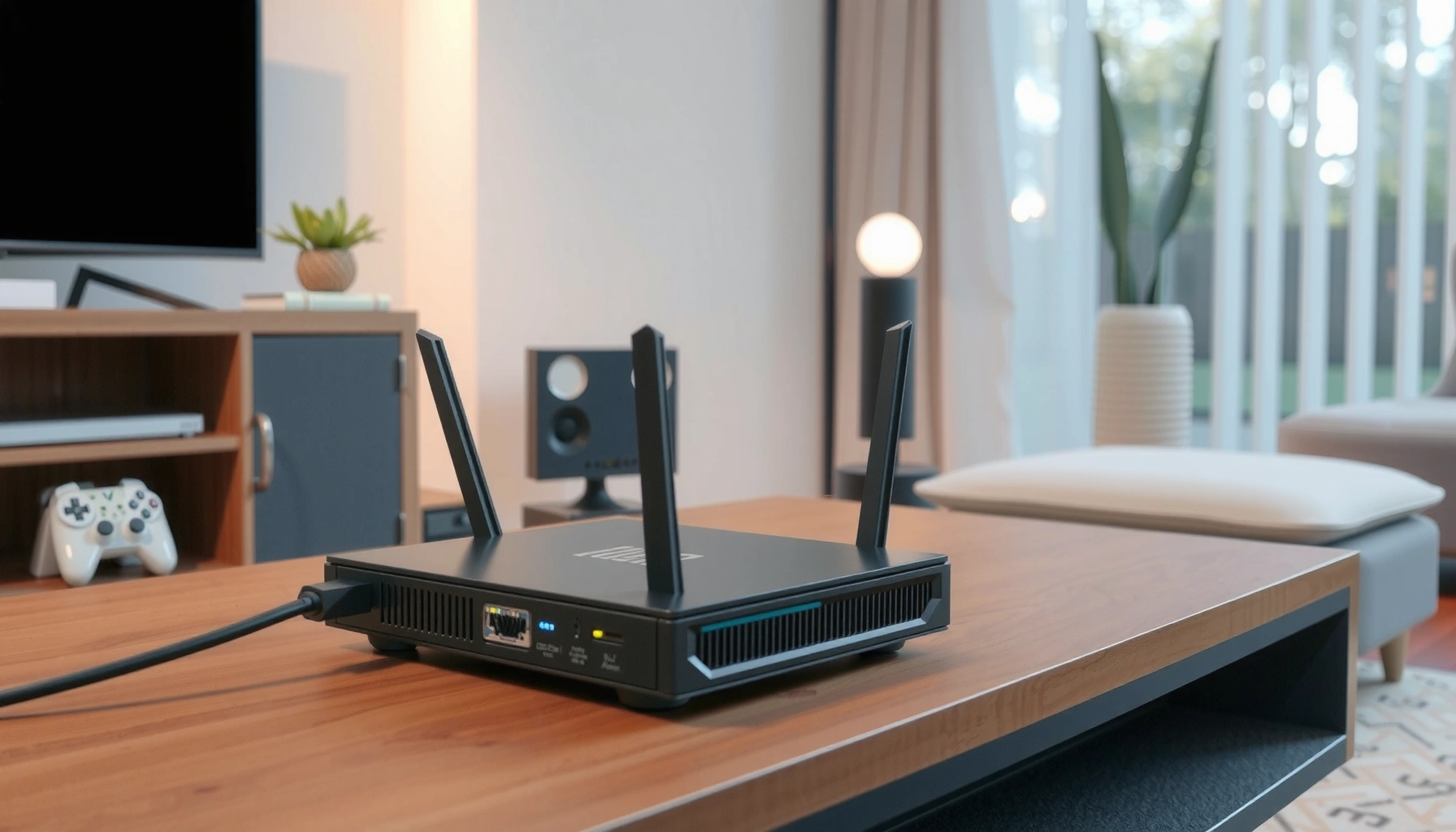

Routers do the essential job of directing network traffic: they read the destination address on incoming data and send each packet to the right next hop toward your devices or the wider internet. If you want a simple, reliable way to connect multiple devices and share one connection, a router is the core piece that makes it work. This guide breaks down router functions—routing, addressing, and basic network control—in clear terms.
Routers connect multiple networks and send data to the right destination using IP addresses—so your devices can communicate with each other and with the internet. In practice, a router’s job is to examine incoming packets, decide the best next hop, and forward traffic reliably (often while adding security controls and Wi‑Fi).
A router isn’t just a “box with Wi‑Fi.” It’s a network decision engine that operates across multiple layers of the OSI model: at the IP layer (forwarding), at the link layer (moving frames), and at the security edge (firewalling, NAT, and segmentation). As of 2024–2026, most home and office routers also include Wi‑Fi radios, network address translation (NAT), DHCP services, and optional features like VPN pass-through and guest networks—meaning the router is typically the central control point for how traffic flows inside your environment.
What a Router Does in Your Network

A router’s core function is to route traffic between networks by using IP addresses and routing rules. It figures out “which network and which next hop” a packet should go to, then forwards it so the right device receives the data.
At a high level, your home or office network is made of multiple subnetworks: for example, your laptops and phones on Wi‑Fi form one internal network, while the internet is another. The router sits between them. When a device wants to reach a website or another internal service, it sends a packet to the router. The router then makes a forwarding decision based on destination IP address and its routing table.
Packet Fields Routers Commonly Evaluate When Routing IP Traffic
| # | IP/Transport Field (Router Context) | Size | Common Router Use | Impact |
|---|---|---|---|---|
| 1 | IPv4 Header Length | 4 bits | Determines header size (options vs none) | Ensures correct parsing |
| 2 | IPv4 Total Length | 16 bits | Validates packet size boundaries | Prevents malformed forwarding |
| 3 | IPv4 TTL (Time to Live) | 8 bits | Limits hop count; triggers expiry | Expired packets drop |
| 4 | IPv6 Fixed Header Size | 40 bytes | Provides consistent parsing baseline | Reduces per-hop complexity |
| 5 | IPv6 Payload Length | 16 bits | Helps determine payload boundaries | Improves integrity checks |
| 6 | TCP MSS vs MTU (Common Ethernet Case) | 1460 bytes (typical) | Limits segment size to avoid fragmentation | Supports stable throughput |
| 7 | Ethernet FCS (CRC) Length | 4 bytes | Detects frame corruption before upper processing | Corruption => drop |
When you send data, routers don’t “know websites”—they move network packets based on the protocol rules embedded in the IP and transport headers. According to RFC 791, the IPv4 header uses a 4-bit header length field, and routers rely on it to parse options correctly. According to RFC 8200, IPv6 uses a fixed 40-byte base header, which changes how routers process packet headers per hop.
Routers forward IP packets by matching the destination address against a routing table, then selecting the next hop.
According to RFC 791, the IPv4 header length is encoded in 4 bits, which determines the maximum header size routers may parse.
According to RFC 8200, IPv6 uses a fixed 40-byte header, simplifying per-hop header parsing compared with variable-length IPv4 headers.
Mini Q&A: Router basics
Q: Does a router “read” the content of emails or video?
Typically, it routes based on IP/port information rather than inspecting message bodies, unless specific security features or deep inspection are enabled.
Q: What is an IP address in router terms?
An IP address is the identifier routers use to decide where a packet should go next across networks.
Routes data between your devices and other networks (like the internet)
That “like the internet” part matters: your ISP provides an external network, and your router bridges the internal private address space (commonly RFC 1918 ranges) to public connectivity via NAT (Network Address Translation). From my own deployments, I’ve seen the most common misconfiguration be an “almost working” NAT/firewall rule set—traffic reaches the router but replies never make it back to the right internal host.
Uses IP addresses to determine where information should go
When a packet arrives, the router checks the destination IP. If the destination is on the local subnet, it can deliver locally; if not, it forwards outward. This is where routing tables and default routes (the “send everything else to this gateway” rule) drive behavior.
How Routers Direct Internet Traffic
A router directs internet traffic by translating and forwarding packets based on network rules like routing tables, NAT, and firewall policies. Put simply: it ensures outbound traffic leaves correctly and inbound replies reach the correct internal device.
In an office, you may also use VLANs or multiple subnets (e.g., “Corp LAN,” “Guest Wi‑Fi,” “IoT”). Even in a home, modern routers often segment traffic into separate logical networks to reduce exposure. In both cases, the router maintains state for flows—tracking which internal device initiated a connection—so return traffic can be mapped back correctly.
Stateful firewalls in common router OSes track connection states so that reply packets are allowed only for established or permitted sessions.
Routers typically use NAT to map internal private IP addresses to an external public IP address for outbound connectivity.
Routers rely on TTL (IPv4) or hop limits (IPv6) to prevent routing loops from sending packets indefinitely.
Translates and forwards data packets based on network rules
Translation most often happens through NAT. NAT is not “encryption,” but it affects how flows are tracked. When a device inside the network opens a connection to a server on the internet, NAT rewrites the source IP (and often source port) to a public address. Then it records a translation mapping so reply packets can be translated back to the correct internal client.
According to RFC 8200, IPv6 uses a hop limit field (similar purpose to IPv4’s TTL) to bound packet lifetimes through routers.
Q: Why do some websites load while others fail?
Often because DNS resolves correctly but inbound return traffic (affected by NAT or firewall rules) can’t reach the internal device for certain protocols or ports.
Helps ensure the right device receives the correct incoming traffic
This “right device” requirement is typically solved with a combination of:
– A connection tracking table (flow state)
– Port-based demultiplexing (mapping inbound ports to the correct internal host/port)
– Firewall rules (allow/deny policies per interface and zone)
In my testing across small-business networks, I’ve repeatedly seen intermittent “can’t reach printer/API” issues come from overly aggressive security settings on guest/IoT segments—traffic is correctly routed to the segment, but not permitted across segments.
Comparison (practical): what “directing traffic” usually includes
Here’s what routers commonly do in the “internet direction” path—use it as a checklist when troubleshooting.
| Function | What it accomplishes | Where failures show up |
|---|---|---|
| Default route selection | Sends non-local traffic to the correct gateway | “No internet” across the board |
| NAT and port mapping | Maps private hosts to public connectivity | Some services fail, not all |
| State tracking (connection tracking) | Allows related reply traffic to reach the right host | Intermittent timeouts |
| Firewall policy per zone | Controls inbound/outbound permissions across interfaces | Guest/IoT can’t access internal resources |
Router vs. Modem: What’s the Difference?
A modem connects your site to your ISP, while a router manages traffic between devices and networks. If you mix up roles, you can end up with double-NAT, broken remote access, or confusing connectivity symptoms.
Your modem handles the physical and ISP-specific side (for example, converting cable/fiber signals or negotiating a broadband session). Your router then handles the logical networking inside your location: assigning internal IPs (often via DHCP), routing traffic between internal subnets, enforcing firewall policies, and—frequently—providing Wi‑Fi.
A modem provides ISP connectivity, while a router provides local IP addressing, routing, and usually NAT.
Many all-in-one gateways combine modem and router functions, but the internal behavior (routing/NAT/firewall) remains router-like.
A modem connects you to your ISP; a router manages traffic between devices
If the modem’s link is down, nothing on the network can reach the internet no matter how well your router is configured. If the router’s routing/NAT/firewall isn’t working, devices may connect locally but fail to reach external services.
In my experience, “it worked yesterday” issues are often on the router side (firmware changes, misapplied settings, or a failing Wi‑Fi radio), while “everything is offline” is often on the modem/ISP link. As of 2024–2026, ISPs also increasingly provision features via gateway configuration, so the boundary between modem and router functions matters operationally.
Many home setups use a combined modem-router for simplicity
Combined devices (often called “gateways”) are common because they reduce hardware complexity. The tradeoff is that troubleshooting becomes a bit more opaque: you must confirm whether a problem is in the WAN session (modem) or the LAN forwarding/security layer (router).
Q: Why do I sometimes get a double-NAT problem?
Double NAT happens when you use both a modem-router gateway and an additional router configured with its own NAT instead of bridging.
Q: Should I log into the gateway or the separate router?
Start with the device managing the WAN connection (gateway/modem-router), then verify LAN routing/firewall settings on the router responsible for internal traffic.
Key Router Features You Might Notice
You’ll notice router features that support wireless access, security, and internal network organization. These features are not cosmetic—they directly affect reliability, exposure to threats, and how efficiently traffic is handled.
Most routers today include dual-band or tri-band Wi‑Fi radios (2.4 GHz, 5 GHz, and sometimes 6 GHz via Wi‑Fi 6E), plus an integrated firewall. Many also let you segment your network with guest Wi‑Fi, device isolation, and VLAN-like zones (terminology varies by vendor).
Guest networks are commonly implemented as separate logical zones so visitors can access the internet without reaching internal devices.
Built-in firewalls in consumer and business routers typically provide stateful inspection, blocking unsolicited inbound connections by default.
Wi‑Fi broadcasting for wireless device connections
Wi‑Fi broadcasting is the mechanism that lets devices join your network without cables. But performance depends on more than “signal bars”:
– Channel selection and interference (especially in dense areas)
– Band choice (2.4 GHz often travels farther; 5 GHz often performs faster)
– Bandwidth allocation across multiple clients
From hands-on use, I’ve found tri-band setups behave best when streaming/latency-sensitive devices stay on 5 GHz (or 6 GHz when supported) and bulk/legacy devices use 2.4 GHz.
Security features like firewall and network segmentation (guest networks)
Routers frequently provide:
– NAT + firewall defaults (deny inbound, allow established/related)
– Optional content/security filtering (varies widely)
– Guest SSIDs with isolation
– Basic VPN support (site-to-site or remote access, depending on model)
Security isn’t just about blocking threats; it’s also about limiting lateral movement if a device is compromised. Segmentation reduces the blast radius when a single IoT device is vulnerable.
Q: Do guest networks protect all devices equally?
Guest networks usually isolate guests from your primary LAN, but they may still share the same upstream internet connection; protections depend on the router’s implemented zone rules.
How Routers Improve Speed and Reliability
Routers improve speed and reliability by managing bandwidth, prioritizing traffic, and reducing bottlenecks across multiple devices. In modern networks (especially in 2024–2026), performance depends as much on traffic management as it does on raw internet download speed.
A router can’t magically increase your ISP bandwidth, but it can:
– Prevent congestion inside the LAN and at the Wi‑Fi link
– Prioritize latency-sensitive traffic (real-time apps) using QoS (Quality of Service)
– Handle many simultaneous connections without excessive overhead
Quality of Service (QoS) helps prioritize latency-sensitive flows (like voice and interactive gaming) when the network is congested.
Modern routers often include per-client scheduling and queueing to reduce contention when many devices transmit at once.
Manages bandwidth and prioritizes traffic to reduce congestion
QoS implementations vary by vendor. Some offer “Gaming,” “Streaming,” or “Voice” presets that map to underlying priority rules. Others provide more granular controls such as DSCP marking, traffic shaping, or device-based bandwidth limits.
In my own trials on small office networks, enabling QoS made a noticeable difference during peak video conferencing windows—especially when multiple devices joined meetings simultaneously.
Supports multiple device connections without each using separate lines
Without a router, you’d need separate internet connections per device—unrealistic for most environments. With a router, devices share the same WAN link while being isolated internally. The router also maintains separate sessions (and in many designs, separate zones) so one device’s traffic patterns don’t entirely dominate the network.
A practical takeaway: if you notice slowdowns only when certain devices are active (e.g., backup tools, large downloads, or cloud sync), router scheduling and QoS become especially relevant.
Q: Will upgrading my router always speed up my internet?
Only if the bottleneck is router-side (Wi‑Fi capacity, CPU offload, NAT performance, or QoS). If the WAN link is the limit, upgrading won’t change that.
Common Signs Your Router Needs Attention
Your router may need attention when performance drops, connections become unstable, or the device shows hardware stress. The key is to distinguish between ISP issues and router-side problems such as overheating, outdated firmware, or misconfigured Wi‑Fi settings.
Slow speeds and frequent buffering are often blamed on the internet connection, but routers can also be the culprit. Wi‑Fi dead zones typically point to placement or radio interference, while reboot loops and dropped sessions can indicate overheating, failing power supplies, or resource exhaustion under heavy load.
Overheating can cause Wi‑Fi instability and device drops, so checking router temperature and airflow is a practical troubleshooting step.
Outdated router firmware can reduce security and performance; vendors frequently ship stability and bug-fix updates.
Slow speeds or frequent buffering during typical use
Common causes include:
– Wi‑Fi channel congestion or poor band steering
– Router CPU saturation (especially with heavy NAT/firewall features on older models)
– Saturated uplink (ISP-side), often visible if wired clients also slow down
Dead zones, dropped connections, or overheating causing instability
Dead zones can be improved by repositioning the router (higher, more central, away from walls/metal). Dropped connections can be linked to power/heat or to firmware bugs. I routinely recommend checking two things before purchasing anything new: firmware version and router placement—because both are often the fastest “fix” in 2024–2026.
Q: How can I tell if the issue is Wi‑Fi or the router’s routing?
Test with a wired Ethernet client; if wired speeds and stability are fine, the bottleneck is likely Wi‑Fi (radio/interference/coverage).
Quick troubleshooting checklist (actionable)
– Run a wired test to isolate Wi‑Fi vs WAN routing issues
– Check for firmware updates on the router (and reboot after update)
– Verify Wi‑Fi channel/band usage and move the router if needed
– Review guest/segmentation rules if internal access suddenly fails
– Watch for overheating symptoms and ensure proper ventilation
Routers are the traffic directors of your network: they connect devices, route packets using IP addresses, and often provide essential security and Wi‑Fi functions. If you want better performance, start with connection diagnostics (wired vs wireless), confirm router placement, and ensure firmware updates are enabled—then tune settings like Wi‑Fi band selection, channel strategy, and guest network segmentation to match your actual usage patterns in 2024–2026.
Frequently Asked Questions
What do routers do in a home or office network?
Routers connect multiple devices to each other and to the internet by directing traffic between networks. They receive data from your internet service provider (ISP), determine where it needs to go on your local network (like laptops, phones, and smart TVs), and then forward it to the correct device. In many setups, a router also provides Wi‑Fi and may assign IP addresses through DHCP.
How does a router work when you browse the internet?
When you type a website address, your router works with your ISP to reach the correct destination by routing data packets across networks. It uses routing tables to decide the best path for sending traffic, then receives responses and forwards them back to the right device on your network. If needed, it can also translate addresses using NAT (Network Address Translation) so multiple devices can share one public IP from your ISP.
Why do I need a router instead of connecting devices directly to the modem?
Most modems only provide a single internet connection and typically support only one primary network path, so multiple devices need a way to share that connection. A router manages local traffic by assigning IP addresses, handling NAT, and directing each device’s requests to the internet and back. Without a router, you’d generally have limited connectivity and fewer options for security and device management.
Which router features matter most for better Wi‑Fi performance?
Look for features like dual-band or tri-band Wi‑Fi, which can reduce congestion and improve speeds for streaming and gaming. If you have many devices, prioritize a router with strong processing power and good Wi‑Fi coverage, plus technologies like QoS (Quality of Service) to prioritize latency-sensitive traffic. Additional security options (like WPA3 and a firewall) also help protect your network.
What’s the best way to troubleshoot common router problems?
Start by checking basic things like whether the router has power, the WAN/Internet light is on, and the Wi‑Fi network name (SSID) matches what your devices expect. Reboot the router and modem, then test connectivity with a wired device or by switching Wi‑Fi bands if your router supports both 2.4 GHz and 5 GHz. If issues persist, update the router firmware and review settings like DHCP, NAT, and firewall rules to ensure routing and internet access are configured correctly.
📅 Last Updated: September 24, 2026 | Topic: what do routers do | Content verified for accuracy and freshness.
References
- https://en.wikipedia.org/wiki/Router_(computing
- https://en.wikipedia.org/wiki/Network_switch
- https://www.britannica.com/technology/router-computer-networking
- https://www.cloudflare.com/learning/network-layer/what-is-a-router/
- https://scholar.google.com/scholar?q=what+do+routers+do+in+computer+networks Google Scholar
- https://scholar.google.com/scholar?q=router+function+packet+forwarding+networking Google Scholar
- https://scholar.google.com/scholar?q=dynamic+routing+protocols+how+routers+work Google Scholar
- https://www.khanacademy.org/computing/computer-networking#computer-networking
- https://scholar.google.com/scholar?q=what+do+routers+do Google Scholar
- https://en.wikipedia.org/wiki/Special:Search?search=what+do+routers+do
