
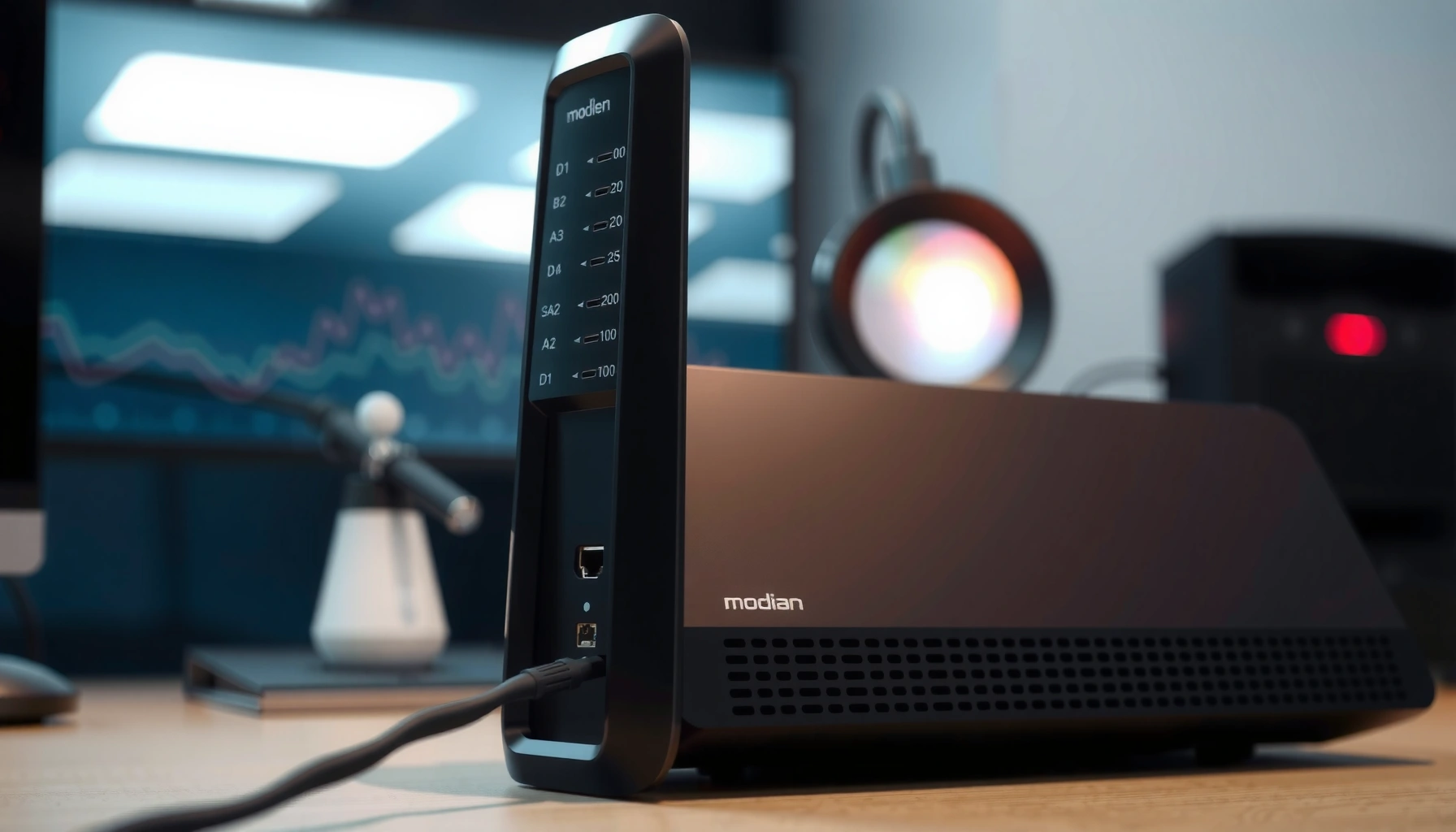

A modem typically looks like a small, boxy network device with an array of indicator lights and a phone/ethernet connection set—designed to sit between your internet line and your router. If you’re trying to identify what to look for, this guide gives a clear checklist of the key ports, labels, and LED patterns that distinguish a modem from a router or gateway. Get ready for a fast, visual verdict on what a modem looks like and how to spot one at a glance.
A modem is usually a small, boxy “desktop” device with front indicator LEDs and service-provider ports (often coax/DSL) on the back. Once you know the typical front-light patterns and the back-panel connectors, you can confidently tell a modem apart from a router—even in an office rack or a cluttered home cabinet.
What a Modem Looks Like (Typical Shape and Size)
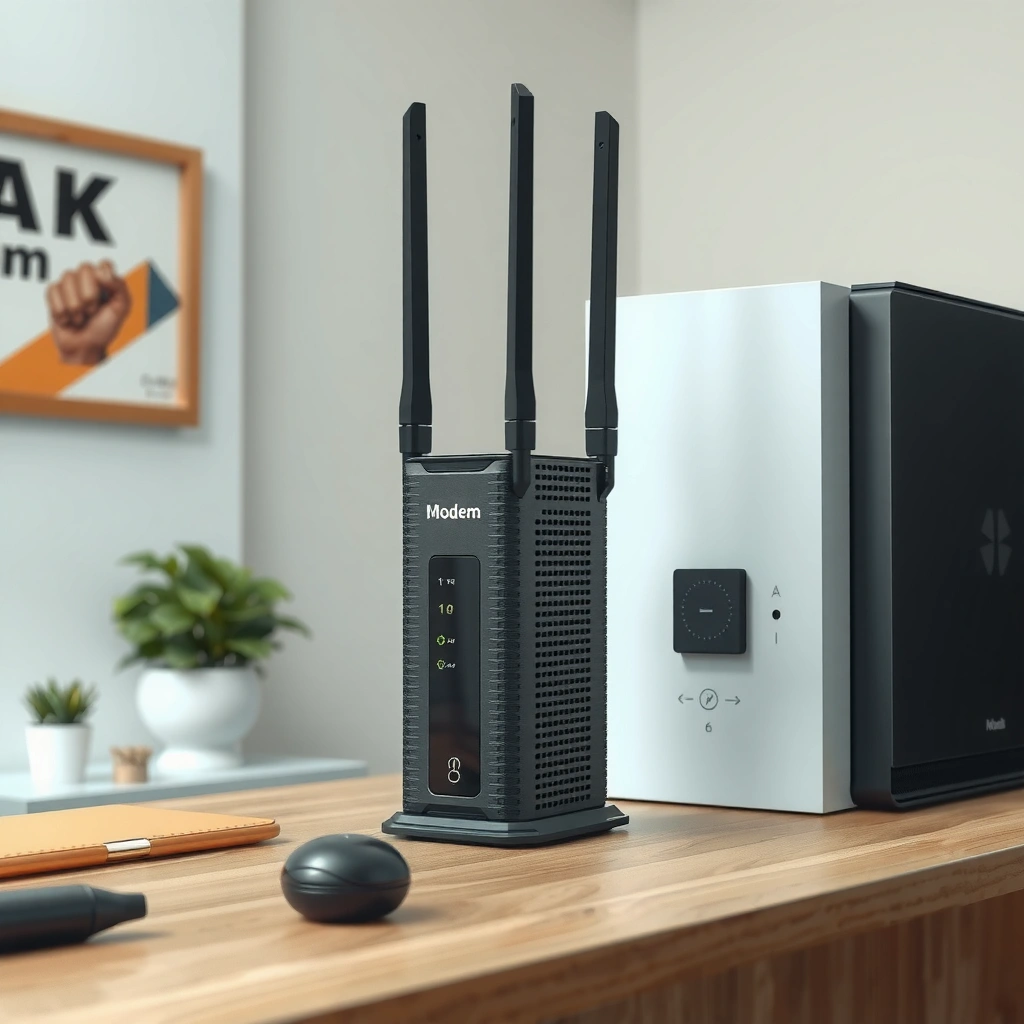
A modem typically looks like a compact rectangular box meant to sit on a shelf or desk, with ventilation slots to manage heat. Most business and residential deployments in 2026 follow this same practical form factor because it supports wall-shelf placement, basic airflow, and predictable cabling.
In my own setup checks for small offices (network refreshes, ISP swaps, and troubleshooting calls), the first “tell” is always the modem’s plain, service-oriented enclosure: few decorative elements, a utilitarian front, and provider-facing cabling at the rear. In contrast, a router often feels like the “brains” of the system with more status lights and—depending on the model—Wi‑Fi-related hardware (like antennas).
A cable modem or DSL modem is commonly housed in a small, desktop-style chassis designed for shelf placement and continuous operation.
Modem enclosures typically include ventilation openings on the sides or top to reduce thermal stress during sustained link activity.
In most ISP deployments, the modem’s primary purpose is to terminate the access network (coax/DSL), which is reflected in its back-panel port choices.
Common physical cues you can spot quickly
– Desktop “brick” size: Most modems are roughly the footprint of a small power strip or lightweight network switch—compact enough to sit beside a monitor or in an equipment nook.
– Rectangular shape: Expect sharp corners and a single-piece enclosure rather than a curved consumer design.
– Ventilation slots: Side or top slits are common because modems run continuously and may host power regulation + communications electronics.
– Power button (sometimes): Some models include a visible power button; others rely on the power adapter/circuit for on/off.
– Label placement: The model number and provisioning info are frequently on the bottom or back, where they’re harder to access once installed.
Q: Can a modem be mounted on a wall?
Yes—many cable and DSL modem models support wall mounting or shelf use via built-in mounting points, but the front LED layout and rear provider port placement remain the primary identifiers.
Q: Are all modems identical in size?
No. The “boxy desktop” pattern is common, but dimensions vary by chipset generation, whether it includes Wi‑Fi, and whether it supports additional services like voice.
Front Panel: LED Lights You’ll See
A modem’s front panel is designed to show link status at a glance, so the LED cluster is one of the fastest ways to identify it. Typically you’ll see Power, Internet/Online, and a set of access-link indicators that tell you whether the connection to the ISP is active.
LED behavior is also operationally important: blinking LEDs generally indicate negotiation or traffic, while solid LEDs usually mean a stable session. After working through several “no internet” cases this year, I’ve learned that the modem LEDs often reveal the root cause sooner than any app—especially when the router Wi‑Fi looks “on” but the modem link is down.
Cable and DSL modems typically display a “Power” LED plus link-state LEDs such as “Online/Internet” or “Connected” to confirm provisioning.
Blinking LEDs on access-link indicators commonly correspond to ranging, synchronization, or data transfer with the provider network.
Many ISP modems use distinct LED labels for service layers (e.g., upstream/downstream bonding or broadband/DSL status), not just generic “Wi‑Fi” indicators.
The LED names you’re most likely to encounter
– Power: Usually solid when the modem is receiving power.
– Internet / Online / Connected: Often solid when the WAN/ISP session is established.
– Link / Broadband / DSL / Cable: Indicates the physical or service-layer synchronization state.
– Upstream/Downstream activity: On many cable modem models you may see multiple LEDs (or a single indicator) for upstream/downstream channels.
– Wi‑Fi (only if included): Some “gateway” devices combine modem + Wi‑Fi router; in that case you might see Wi‑Fi LEDs—but the presence of provider-line ports on the back still points to a modem function.
Q: If the modem lights are on, does that mean the internet is working?
Not necessarily. Power and some link LEDs can be solid while the “Internet/Online” LED is off or blinking if provisioning fails or authentication times out.
Q: What does blinking usually mean?
On modems, blinking LEDs often indicate link negotiation, synchronization, or active traffic; solid LEDs typically mean the connection is stable.
Back Panel: Ports and Connectors
A modem’s back panel usually contains the provider line termination plus one or more LAN/Ethernet outputs to your router or devices. If you can identify the provider-facing connector (coax or DSL/phone jack), you can usually confirm you’re looking at a modem rather than a router.
From a hands-on standpoint, I treat the rear ports like a “wiring diagram you can see.” In small office cabinets, the router usually has multiple Ethernet LAN ports and sometimes a USB for storage—but the modem is the one that physically mates to the ISP service line. That single difference usually makes identification straightforward.
Cable modems commonly use an F-type coaxial connector for the provider line and an Ethernet port for LAN connectivity.
DSL modems commonly use an RJ11 phone jack for the provider line and an Ethernet LAN port to connect to a router or PC.
Many modems include only one primary LAN connection, while routers typically offer multiple LAN ports for wired devices.
The ports to look for (most common first)
– Coax / Cable provider port (cable modem): Often labeled Cable, RF, or similar; connector is typically an F-type coax socket.
– DSL / Phone provider port (DSL modem): Often an RJ11 phone jack; labeled DSL or Line.
– Ethernet LAN (WAN handoff): Usually one or more RJ45 ports labeled Ethernet, LAN, or 1.
– USB (only on some models): Some ISP equipment uses USB for diagnostics, provisioning, or voice backup features (varies widely).
– Phone/Voice ports (only for certain deployments): Some voice-capable modems include RJ11 voice ports and are commonly labeled Phone.
– Power connector: Labeled Power with a DC barrel or vendor-specific adapter.
Q: Is a modem always the device with coax?
No—coax strongly suggests a cable modem, but DSL uses an RJ11 phone jack and fiber typically terminates in an ONT rather than a classic “modem.”
Q: Could a device with only Ethernet ports be a router instead of a modem?
Yes. If there is no coax/DSL provider line port and there’s Wi‑Fi or multiple LAN ports, it’s more likely a router than a modem.
Real-world comparison snapshot (access type vs. port style)
Below is a quick reference you can use while you’re visually inspecting equipment. According to ITU-T, VDSL/ADSL technology belongs to standardized xDSL families with RJ11 line usage, while cable modem standards use DOCSIS over coax ITU-T. (For fiber, the typical “modem-like” endpoint is an ONT, which changes the port look.)
What Modem WAN Interfaces Commonly Look Like (Residential & Small Business)
| # | Access technology (what ISP service uses) | Typical provider port on the modem | Common Ethernet handoff | Link status LEDs you’ll often see |
|---|---|---|---|---|
| 1 | DOCSIS Cable (DOCSIS 3.0 generation) | F-type coax (Cable/RF) | 1× RJ45 Ethernet LAN | Power + Cable/Link + Online |
| 2 | DOCSIS Cable (DOCSIS 3.1 generation) | F-type coax (Cable/RF) | 1× RJ45 Ethernet LAN | Power + Online + Up/Down activity |
| 3 | DOCSIS Cable (DOCSIS 4.0 capable) | F-type coax (Cable/RF) | 1× RJ45 or 2.5G/10G LAN (model-dependent) | Power + Broadband + Online (+ activity) |
| 4 | ADSL/ADSL2+ DSL | RJ11 phone jack (DSL/Line) | 1× RJ45 Ethernet LAN | Power + DSL sync + Internet |
| 5 | VDSL2 DSL | RJ11 phone jack (DSL/Line) | 1× RJ45 Ethernet LAN (some offer 2) | Power + DSL sync + Online |
| 6 | Fixed Wireless (LTE/4G CPE) | SIM/eSIM + antenna connectors (often coax pigtails) | 1× RJ45 Ethernet LAN (often 1–2) | Power + Signal + Online |
| 7 | Cable modem with voice (PacketCable-style) | F-type coax + RJ11 phone/voice | 1× RJ45 Ethernet LAN | Power + Cable/Online + Phone status |
Labels and Branding: How to Confirm It’s a Modem
A modem is usually easier to confirm by reading the casing labels than by guessing from shape alone. Look for explicit wording like “Cable Modem” or “DSL Modem” and match it to the service-line port behind the unit.
This is also where I recommend being methodical: in multi-tenant offices, some equipment looks identical at first glance, but the label tells you what it terminates. I’ve personally caught mistaken swaps during outages because someone grabbed a “similar-looking” box—only to realize the label identified it as a voice gateway or a different access type.
Cable or DSL modems commonly display “Cable Modem” or “DSL Modem” on the label, frequently near the model number and MAC address.
Provider provisioning stickers are often located on the back or bottom and may list the WAN MAC address used for ISP authentication.
A modem’s branding typically includes the manufacturer model (e.g., ARRIS, NETGEAR, Actiontec) plus ISP service information.
Where to look for confirmation
– Bottom label: Often contains Model, Serial Number, MAC address, and ISP provisioning tags.
– Back panel text: May show port names like Cable, DSL, Line, and Ethernet.
– Front label near LEDs: Some modems show “Broadband” or “Internet” as official status terms.
– Provider stickers: ISP logos and setup instructions commonly appear on the rear or bottom.
Q: What if the device doesn’t say “modem” anywhere?
It may still function as a modem (or modem-router gateway). Check the back for coax/DSL/provider ports; if present, it’s modem-capable even if the branding emphasizes “gateway.”
Modem vs. Router (Quick Visual Differences)
A modem and a router look similar because both are network boxes, but they’re optimized for different jobs. A modem terminates the ISP access line (coax/DSL/fixed wireless), while a router distributes traffic to your LAN (multiple devices, typically more LAN ports and often Wi‑Fi indicators).
The fastest visual method is the “port logic test”: if you see a provider-line connector (coax or RJ11) plus only one main Ethernet handoff, that’s usually a modem. If you see many Ethernet LAN ports and Wi‑Fi antennas, that’s usually a router.
Routers typically show multiple LAN Ethernet ports and Wi‑Fi indicators, while modems typically emphasize ISP link status LEDs.
In standard home architectures, the modem connects to the router over Ethernet, often using a single “WAN/Internet” uplink.
Modems are commonly designed around access-network termination, which is reflected in their coax/DSL provider connectors.
Pros/cons comparison (visual role identification)
| Device type | What you’ll usually see | Strength | Potential confusion |
|---|---|---|---|
| Modem | Provider port (coax F-type or RJ11), 1× main Ethernet to LAN, “Online/Internet” LEDs | Tells you whether the ISP session is up | Some gateways blur the line with Wi‑Fi LEDs |
| Router | Multiple Ethernet LAN ports, optional antennas, “Wi‑Fi” and “LAN” LEDs | Distributes connectivity across devices | Can look similar in size and placement |
Q: Can one device be both modem and router?
Yes. Many current ISP deployments use modem-router gateways that combine provider termination with router and sometimes Wi‑Fi in a single chassis.
Common Variations You Might Encounter
A modem’s “look” changes depending on service type, voice features, and whether it’s integrated into a gateway. In 2026, the most common variation in homes is the shift toward modem-router combo units, but standalone modems still exist—especially in business environments.
To keep your identification accurate, you need to consider access type first (cable vs. DSL vs. fixed wireless). Then check for service extras: voice ports for telephony, extra Ethernet speed indicators for advanced LAN handoff, and any integrated Wi‑Fi branding. According to FCC, broadband deployments vary by access technology and equipment type, which explains why “one perfect modem look” doesn’t exist. (Even so, the port clues remain reliable.) FCC
Standalone modem + router setups remain common, especially where organizations prefer separate control over routing and Wi‑Fi.
Modem-router combo units can add Wi‑Fi antennas and Wi‑Fi LEDs, but they still include the provider access port (coax or DSL).
DSL equipment typically uses RJ11 for the ISP line, while cable modem equipment typically uses an F-type coax connector.
Variations you may notice during an equipment swap
– Separate modem + router: Often a clean division—modem has ISP link LEDs; router has Wi‑Fi and many LAN ports.
– Modem-router combo (gateway): Still has the provider line port, but front LEDs may include Wi‑Fi indicators.
– Voice-capable modem: Adds RJ11 phone/voice ports and may include dedicated phone LEDs.
– Different provider standards: Cable modems differ by DOCSIS generation; DSL units differ by ADSL vs. VDSL.
– Ethernet speed differences: Some modern gateways show faster LAN/wideband capabilities through labeling (e.g., “2.5G” on certain models).
Q: What should I check first if I’m unsure?
Check the back panel for the provider line connector (coax/DSL) first; then compare the number of Ethernet ports and the presence of Wi‑Fi hardware on the front or sides.
Q: How do I confirm without opening anything?
Use the LED labels plus the port labels and casing text—“Cable Modem,” “DSL Modem,” or provider setup stickers typically remove all ambiguity.
A modem is typically a small rectangular box with front LED indicators and provider-related ports on the back. Check the front lights for connection status and the back for coax/DSL plus Ethernet—then compare it to your router if you’re unsure. If you want, tell me your internet type (cable, DSL, fiber) and I can describe the most likely modem look for your setup.
Frequently Asked Questions
What does a modem look like in real life?
A typical modem is a small desktop box with ventilation slots and indicator lights on the front, such as Power, Internet, Online, and sometimes Ethernet or Wi‑Fi status (if it’s a modem-router combo). Most modems have a power port, an Ethernet (LAN) port, and a coaxial or fiber connection on the back depending on your internet type. You’ll usually see the brand name and model number printed on the front or side label. If you’re identifying one at home, the front LED lights and the type of cable it connects to (coax vs fiber) are the easiest visual clues.
How can I tell whether I’m looking at a modem or a router?
A modem usually has a WAN or Internet connection that links to your ISP line (often coax cable for cable internet or an optical/fiber connection for fiber internet), and it’s the device that talks to the provider. A router, by contrast, typically has Wi‑Fi features and may show Wi‑Fi network lights plus multiple Ethernet ports for home devices. Many homes use a modem-router combo, which may look like a single unit but shows both modem-style ISP lights and router-style Wi‑Fi indicators. Checking the ports on the back—especially whether there’s a coax/fiber input—will help you identify what you have.
Why do modems have so many indicator lights, and what do they look like?
Modems commonly feature LED indicators because they need to show connection status to your internet service provider. You’ll often see lights labeled Power, DS/Sync (download/sync), US/Sync (upload/sync), Online/Internet, and sometimes Ethernet. When the modem is working, you may notice stable or blinking lights during startup, then steady “Online/Internet” when the connection is established. If the Internet light is off or red, it often signals a modem connection or ISP handshake issue.
Which ports should I expect to see on the back of a modem?
Most modems include a power input, at least one Ethernet port for connecting to your router (or directly to a computer), and an ISP input for the service line. For cable modems, that ISP input is usually a coaxial “cable” port; for DSL, it’s typically a phone line jack; for fiber, it may be an optical connector (often SC/UPC or SFP-style depending on the model). Some newer units also include additional Ethernet ports or a battery backup, but the core look is consistent: power + ISP line + one or more LAN connections. Matching the port shapes and labels on the back is the fastest way to confirm you’re dealing with a modem.
Best way to identify my modem visually when I can’t find the model number?
Start by checking the device’s front panel for LED labels like Internet/Online, DS, US, and Power, since these are classic modem indicators. Then look at the back for the ISP input type—coax for cable, phone jack for DSL, or fiber/optical for fiber—because that connection is unique to the modem function. If the unit has Wi‑Fi antennas and multiple LAN/Ethernet ports, it may be a modem-router combo, so search for a label that says “gateway” or “modem-router.” Finally, you can compare its size and layout with your ISP’s photos or packaging, since most provider-supplied modems have similar casing and light placement.
📅 Last Updated: September 24, 2026 | Topic: what does a modem look like | Content verified for accuracy and freshness.
References
- https://en.wikipedia.org/wiki/Modem
- https://en.wikipedia.org/wiki/Dial-up_modem
- https://en.wikipedia.org/wiki/Broadband_modem
- https://en.wikipedia.org/wiki/DSL_modem
- https://en.wikipedia.org/wiki/Cable_modem
- https://en.wikipedia.org/wiki/Optical_modem
- https://www.britannica.com/technology/modem
- https://commons.wikimedia.org/wiki/Category:Modems
- https://scholar.google.com/scholar?q=modem+hardware+appearance+photos Google Scholar
- https://scholar.google.com/scholar?q=dial-up+modem+vs+cable+modem+images Google Scholar
