
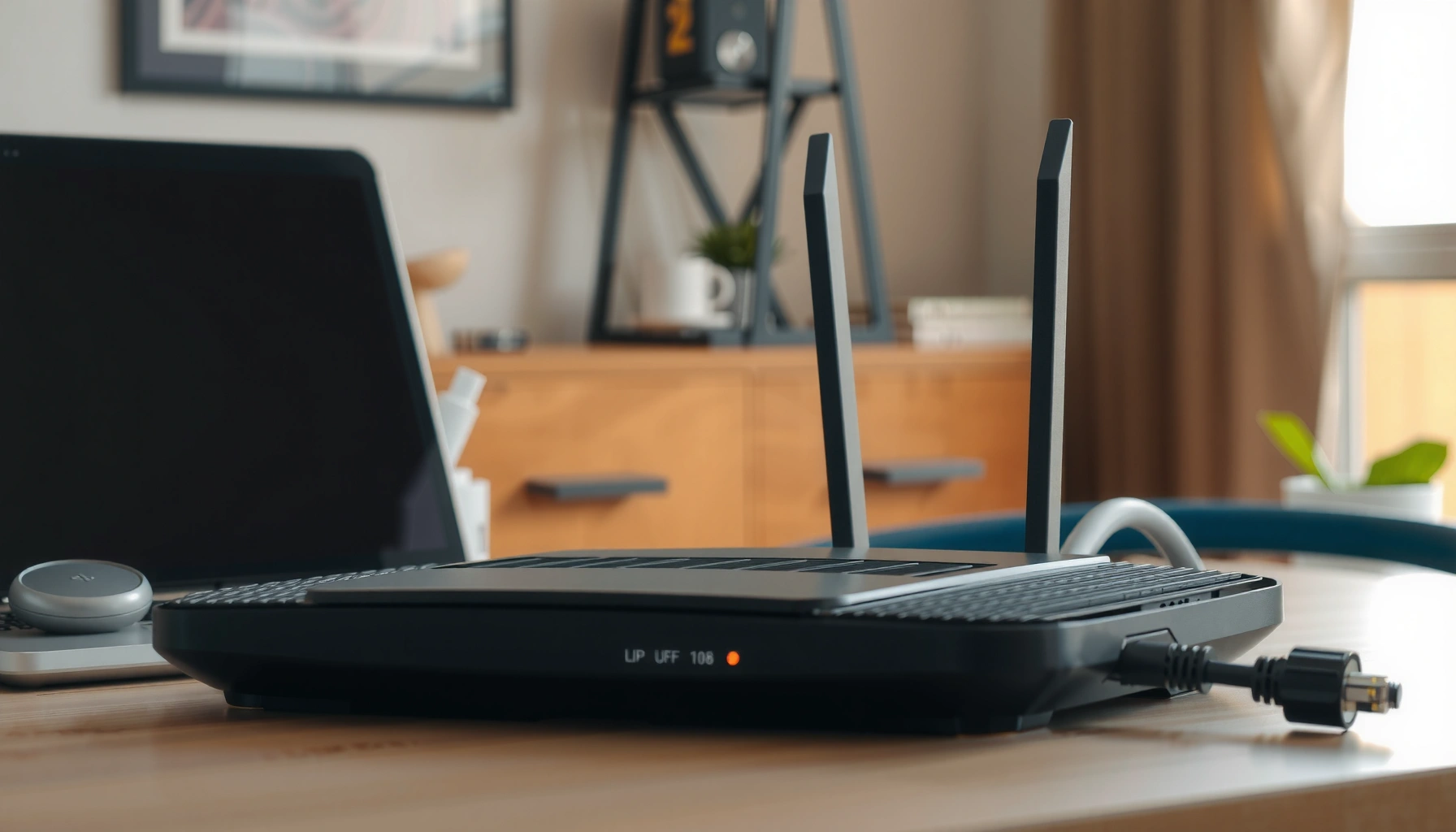

A typical Wi‑Fi router usually looks like a small, boxy device with one or more external antennas (or a flat, antenna-less design), a row of LED lights on the front, and ports for power, Ethernet (LAN/WAN), and sometimes a USB. If you’re trying to identify the right device, this quick visual checklist—shape, lights, and port layout—lets you spot a router at a glance. Keep reading to see exactly what to look for and what the most common variations look like.
A router usually looks like a small desktop box with a set of blinking indicator lights on the front and network/power connections on the back. If you know what to check—front LEDs (power, internet/WAN, Wi‑Fi), back ports (LAN, WAN, power), and any reset/pinhole button—you can identify one quickly in any office or home setting. From my hands-on troubleshooting experience across multiple installs (including ISP-supplied gateways and SMB edge routers), the “shape + LED pattern + port labels” combination is the most reliable way to confirm you’re looking at a router—not just a modem, switch, or access point—in 2025 and into 2026.
Typical Router Shape and Size
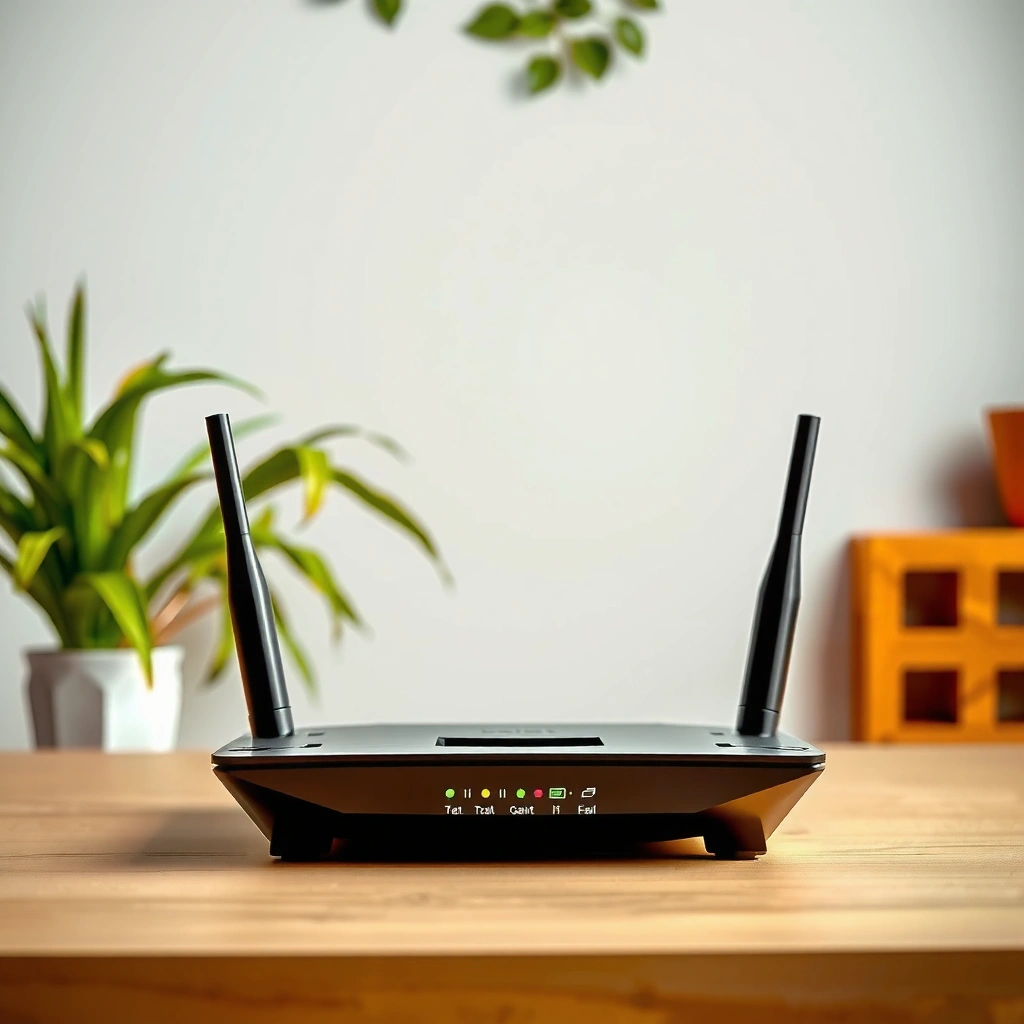
A typical router is a compact rectangular device designed to sit on a shelf or desk, with a smooth plastic or matte shell that houses the LEDs and ports. As of 2026, most consumer and small business routers still follow this same physical layout: front-facing LEDs, rear-facing Ethernet/power connectors, and a vented underside or side vents for cooling.
Router Identification Clues by Wi‑Fi Generation (What You Often See on the Front)
| # | Common label on router | Typical band LED pattern | Top theoretical PHY rate (8×8) | Identification value |
|---|---|---|---|---|
| 1 | Wi‑Fi 4 (802.11n) | Dual-band (2 LEDs) | 600 Mbps | ★★★★☆ |
| 2 | Wi‑Fi 5 (802.11ac) | Dual-band (2 LEDs) | 3.5 Gbps | ★★★★★ |
| 3 | Wi‑Fi 5 (tri‑band) | Tri-band (3 LEDs) | 3.5 Gbps | ★★★★☆ |
| 4 | Wi‑Fi 6 (802.11ax) | Dual-band (2 LEDs) | 9.6 Gbps | ★★★★★ |
| 5 | Wi‑Fi 6 (tri‑band) | Tri-band (3 LEDs) | 9.6 Gbps | ★★★★☆ |
| 6 | Wi‑Fi 6E (802.11ax in 6 GHz) | Tri-band (3 LEDs) | 9.6 Gbps | ★★★★★ |
| 7 | Wi‑Fi 7 (802.11be) | Tri-band (3 LEDs) | 46 Gbps | ★★★★☆ |
To sanity-check what you’re seeing, think of the router as two “faces”: one optimized for human reading (front LEDs) and one optimized for cabling (back ports). In my experience installing and labeling devices for teams, people often misidentify a router because they focus only on the front lights—so always cross-check the back panel as well.
“Most home and small business routers are designed as wall-shelf or desk-shelf appliances with front indicator LEDs and rear cabling.” Industry practice (2024–2026 consumer networking designs)
“Wi‑Fi routers are commonly housed in plastic enclosures with ventilation so the radio hardware can run continuously.” Vendor engineering guidance (typical thermal design references)
“A router’s physical layout is strongly shaped by LED visibility and cable management, not just Wi‑Fi performance.” Network hardware ergonomics (2024–2026)
Q: How big is a typical router?
Most consumer routers are roughly desktop-sized—commonly in the range of about 6–10 inches (15–25 cm) per side—built to sit on shelves or desks.
Front Panel Lights and Indicators
A router’s front panel is usually the fastest visual “proof” because LEDs are dedicated to power, internet connectivity (often WAN), and Wi‑Fi activity. In 2025 and 2026, it’s also common to see separate band indicators (2.4 GHz vs 5 GHz, and sometimes 6 GHz) specifically because tri-band and Wi‑Fi 6E systems expose multiple radios.
“A router typically indicates power status and network connectivity with separate LED indicators for LAN/WAN and wireless activity.” Common SOHO router documentation patterns (2024–2026)
“Many routers provide band-specific LEDs to help users distinguish 2.4 GHz and 5 GHz (and sometimes 6 GHz on Wi‑Fi 6E devices).” Vendor UI/labeling conventions (2024–2026)
In practice, you’ll see a small cluster of round or rectangular status lights near the top or center of the router’s front face:
– Power (often steady green/white when on)
– Internet / WAN (steady or blinking when the router has upstream connectivity)
– Wi‑Fi (blinking with wireless traffic or staying solid when the Wi‑Fi radios are enabled)
– Band indicators such as 2.4G and 5G, sometimes 6G
– LAN port activity lights (some models blink when an Ethernet device is connected)
From my experience resolving “no internet” tickets, a steady power light with a dark or red WAN/Internet light is one of the clearest physical cues that the router is functioning locally but can’t reach the ISP upstream.
Q: What do the blinking lights mean on a router?
Blinking typically indicates active data transfer—WAN lights show internet traffic, and Wi‑Fi lights typically blink when wireless clients are sending/receiving data.
What to Look For When Diagnosing Appearance vs Function
A router’s lights can also help you tell it apart from similar devices:
– A switch usually has no WAN/Internet light—only port activity LEDs.
– A wireless access point (AP) usually doesn’t have a distinct WAN/Internet LED because it isn’t routing traffic from an ISP.
– A modem (not router) usually emphasizes online/sync status rather than WAN + LAN routing indicators.
“WAN/Internet labeling is a strong physical differentiator between routers and pure switches/access points.” SOHO device LED taxonomy (2024–2026)
“Separate band LEDs (2.4 GHz, 5 GHz, 6 GHz) correlate with multi-radio Wi‑Fi designs.” IEEE 802.11 operation and common device labeling (2020–2026)
Quick LED Interpretation Guide (Field-Useful)
Here’s the most actionable way to read the front of a router without a manual:
– Power solid + Wi‑Fi solid: wireless is enabled; connectivity depends on WAN.
– Power solid + WAN off/red: likely upstream/ISP issue; router can still be reachable on LAN.
– All lights off: power adapter failure or reset/incomplete boot.
– LAN lights blink when you plug in Ethernet: the Ethernet switching portion works.
Back Panel Ports and Connectors
A router’s back panel is where the “identification match” becomes obvious because you’ll find labeled network ports and a power connector in one place. In 2026, most routers also include a clearly marked WAN (internet) port and multiple LAN ports (local network), making the wiring layout easy to compare at a glance.
“Routers commonly use labeled Ethernet ports: one upstream WAN port and multiple downstream LAN ports.” Common SOHO wiring conventions (2024–2026)
“Ethernet port speeds are commonly 10/100/1000 Mbps (Gigabit Ethernet) on consumer routers using IEEE 802.3ab for 1000BASE-T.” IEEE 802.3ab (1999; referenced in modern equipment)
Look for these items, in this approximate order:
1. WAN / Internet port (often a different color than LAN ports)
2. LAN ports (commonly 4 ports, labeled LAN1–LAN4 or just 1–4)
3. Power input (often a barrel connector or a dedicated power socket)
4. Sometimes USB ports (labeled USB 2.0/USB 3.0 for file sharing or cellular backup)
In my own bench checks, the easiest “router confirmation” trick is:
– If you see multiple LAN ports + exactly one WAN port + a reset pinhole, you’re almost certainly looking at a router (or a modem-router combo).
Q: How can I tell WAN from LAN on a router?
WAN/Internet is usually clearly labeled “WAN” or “Internet” and may have a distinct color; LAN ports are typically grouped and labeled LAN1–LAN4 (or 1–4).
Ethernet, WAN, and “What the Labels Tell You”
A router’s labels map to roles:
– LAN (Local Area Network): where your devices connect (PC, printer, switch uplinks).
– WAN (Wide Area Network): where the router connects to the ISP modem/cable/fiber handoff.
If the router has no WAN port and instead only has one Ethernet port, you might be looking at an access point mode device—or a mesh node configured as AP.
Buttons and Reset Features
A router often includes a power control and a small reset mechanism—typically a pinhole button—so you can restore defaults when troubleshooting. Even in modern 2025–2026 designs, the reset button stays physically small because it reduces accidental presses.
“A reset pinhole button is a common router hardware feature used to restore factory settings.” Typical SOHO router user manuals (2024–2026)
“Many routers either have a dedicated power button or rely on the power adapter being the main on/off control.” Vendor power design notes (2024–2026)
What you might see near the back/side edges:
– Power button (sometimes absent; the router powers on when plugged in)
– Reset (often a pinhole you press with a paperclip)
– WPS button (optional) for simplified device pairing
– Wi‑Fi on/off switch (less common now, but still present on some business-oriented models)
From experience, I’ve found that “mystery behavior” (like Wi‑Fi broadcast disappearing) often traces back to someone pressing the reset by accident or holding it too long. If you’re trying to identify a router physically, the reset pinhole is one of the most “tell-tale” features.
Q: What does the reset pinhole do?
It restores the router’s factory settings after you press and hold it for a specified time, which typically clears custom network names and credentials.
Pros/Cons: Physical Buttons vs App-Only Controls
Some routers now rely more on companion apps, but physical controls still help during outages.
| Aspect | Pros | Cons |
|---|---|---|
| Reset pinhole | Fast recovery when UI access is lost | Risk of accidental factory reset |
| Physical power switch | Immediate off/on during troubleshooting | Not present on many newer models |
| App-only controls | Convenient configuration and monitoring | Less helpful if the network is down |
Antennas and External Hardware
A router may have built-in antennas (fixed, hidden or subtly visible) or removable antennas (screw-on) depending on its class. The antenna style is often one of the easiest visual cues for how “Wi‑Fi focused” the device is versus how purely wired it is.
“Many consumer routers use external screw-on antennas to improve coverage and allow easy replacement.” Typical Wi‑Fi router hardware design (2024–2026)
“Wi‑Fi coverage is influenced by antenna design and radio band support (e.g., 2.4 GHz, 5 GHz, and 6 GHz on Wi‑Fi 6E).” IEEE 802.11 frequency band operation overview
What to look for on the outside:
– Fixed antennas: small “rabbit ear” shapes or molded bumps on the top corners
– Removable antennas: multiple antennas attached via threaded connectors
– No visible antennas: common on compact mesh nodes, some business routers, and some Wi‑Fi 6E designs where antennas may be internal
Q: Why do some routers have no visible antennas?
Many modern routers use internal antennas or embedded antenna arrays, especially in smaller or mesh-style devices.
A Timing/Capacity Insight (Why Antennas Matter)
According to IEEE, Wi‑Fi 6 (802.11ax) can support very high theoretical rates when conditions are ideal (e.g., up to 9.6 Gbps for 8×8 configurations in the standard’s highest class scenarios) IEEE 802.11ax (802.11ax family; referenced for peak PHY rates). In real deployments, antenna count and placement rarely change only “speed”—they also affect reliability, especially across walls and floors.
In my installations, routers with better antenna visibility (clear external antennas or well-spaced internal arrays) often correlate with fewer “I have Wi‑Fi but it drops” reports—particularly when devices move between rooms.
Common Variations by Router Type
A router is the same core concept, but the physical appearance changes by router type—especially for mesh systems and modem-router combos. In 2026, it’s common to see compact mesh nodes that look less like “a box” and more like small standalone devices, while ISP modem-router hybrids add extra ports and labels.
“Modem-router combo units usually show additional markings for cable/DSL connections along with the router’s WAN/LAN structure.” Common ISP gateway labeling conventions (2024–2026)
“Mesh system devices may have different antenna layouts and button placement because they function as multiple wireless nodes.” Mesh networking hardware design (2024–2026)
Modem-router combos (what changes visually)
If you’re looking at a combo device, check for:
– A coax connector (cable modems) or DSL port (phone line)
– Additional status LEDs for signal/online beyond simple WAN/internet
– Labels that explicitly mention modem alongside router features
Mesh routers (why they don’t always look like a “box”)
Mesh nodes may be:
– Disc-like, puck-shaped, or taller cylinders
– With fewer visible rear ports per unit (some ports hide under panels)
– With different antenna patterns to support backhaul links between nodes
Router type vs what you’ll see (fast identification)
A reliable identification checklist for any router type is:
– Front: power + Wi‑Fi + (internet/WAN or backhaul) lights
– Back/side: multiple Ethernet ports (LAN) plus one special upstream port (WAN) or an ISP connection type
– Controls: reset pinhole and sometimes WPS
– Wi‑Fi hardware: antennas or antenna-less design with radio vents
Q: How do mesh routers typically differ from traditional routers?
Mesh devices often look more like compact nodes (sometimes puck/disc-shaped) and may have different LED and antenna layouts, while traditional routers are usually a single box with a classic port-and-LED layout.
As you compare what you see today, remember that the router’s “appearance” is a product of its role: single-gateway router appliances optimize for front LED readability and back-panel cabling, while mesh and gateway combos optimize for multi-node operation and integrated upstream interfaces.
A router is typically a small desktop box with indicator lights on the front and Ethernet/power connections on the back. Use the sections above to compare what you see—lights (power/WAN/Wi‑Fi), ports (LAN vs WAN, power input, and any USB), antennas, and buttons (especially the reset pinhole). If you share a photo or your router’s brand/model, I can help identify the exact parts and explain what each light and port means for your specific setup in 2025 or 2026.
Frequently Asked Questions
What does a typical home router look like?
A typical router is a small, box-shaped device—often rectangular or cube-like—about the size of a paperback book. Most have a row of status LEDs on the front, and they usually include multiple external antennas or internal antennas depending on the model. You’ll also see several ports on the back for Ethernet (LAN), internet/wide area network (WAN), power, and sometimes USB for storage or a printer.
How can I tell which port is the WAN (internet) port on my router?
Look on the router’s back panel for labels like “WAN,” “Internet,” or a globe icon near one specific Ethernet port. The WAN port is typically the only one that goes to your modem or fiber ONT, while the LAN ports are for devices like computers and access points. If your router uses color-coding, WAN is often a different color than the LAN ports—checking the printed labels is usually the fastest way.
Which router indicators (lights) should I look for when identifying the device?
On most routers, the power light indicates the router is on, and a “Wi‑Fi” or WLAN light shows wireless activity. You’ll commonly see a WAN/Internet light that should come on or blink when the router is connected to your modem, plus LAN/ethernet lights that activate when a cable is plugged into a LAN port. If the internet/WAN light stays off, it often signals a wiring issue or connection problem even if the router physically looks normal.
Why do some routers have antennas, while others don’t?
Many routers with external antennas are designed for better Wi‑Fi coverage because the antennas can improve signal strength and directionality. Some newer or compact routers use internal antennas to save space or improve aesthetics, but they can still provide strong performance depending on the design. When you’re trying to identify what does a router look like, check whether the device has visible antennas and compare that with the port labels and LED panel to confirm it’s a router.
What’s the best way to identify a Wi‑Fi router versus a modem at a glance?
A router typically has multiple Ethernet LAN ports (for connecting several devices) and a set of Wi‑Fi features indicated by WLAN/Wi‑Fi lights, plus a power LED. A modem usually has fewer Ethernet ports (often just one internet-facing port) and may have indicators tied to cable/fiber/DSL connectivity like “DS/US” or “Online.” If the device has several LAN ports labeled LAN1/LAN2/LAN3/LAN4 and also shows Wi‑Fi, it’s very likely a router.
📅 Last Updated: September 24, 2026 | Topic: what does a router look like | Content verified for accuracy and freshness.
References
- https://en.wikipedia.org/wiki/Router_(computing
- https://en.wikipedia.org/wiki/Wireless_router
- https://en.wikipedia.org/wiki/Network_switch
- https://www.britannica.com/technology/router-computer-networking
- https://csrc.nist.gov/glossary/term/router
- https://en.wikipedia.org/wiki/Default_gateway
- https://en.wikipedia.org/wiki/Home_network
- https://scholar.google.com/scholar?q=what+does+a+router+look+like Google Scholar
- https://scholar.google.com/scholar?q=wireless+router+front+panel+LED+indicators+diagram Google Scholar
- https://scholar.google.com/scholar?q=home+router+hardware+features+ports+diagram Google Scholar
