
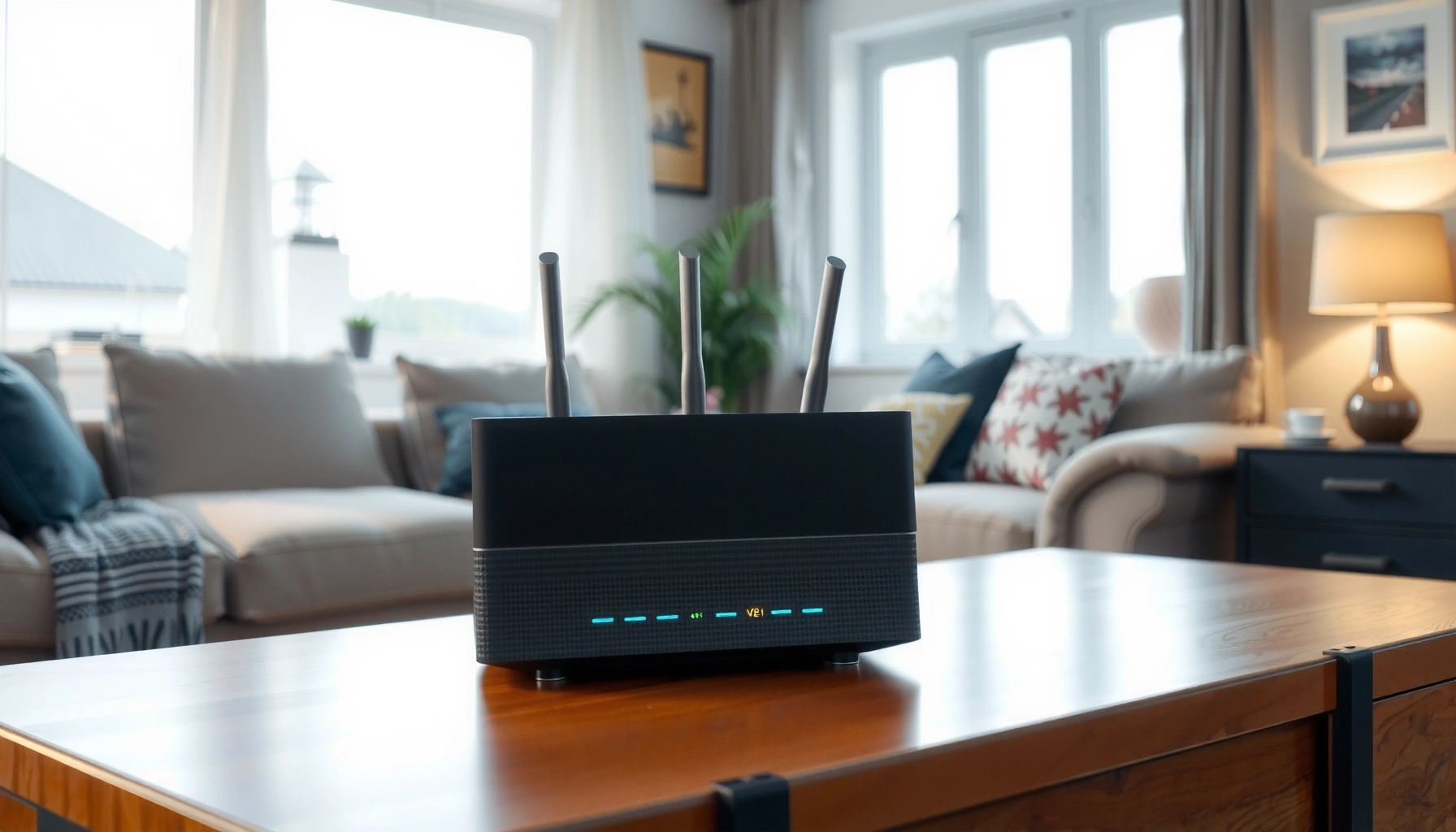

A typical router looks like a compact box with external antennas (often two or more), a cluster of status LEDs, and a row of Ethernet and power ports on the back. If you’re trying to spot one quickly, look for “WAN” and “LAN” ports, a reset pinhole, and a power adapter connection. Next, check whether it supports Wi‑Fi with a label for bands (like 2.4GHz/5GHz) and a visible admin or default network name on the casing.
A router is usually easy to identify: look for a small desktop “internet box” with LED status lights on the front, Ethernet ports (LAN/WAN) on the back, and a sticker showing the Wi‑Fi name (SSID) and password. Once you know what those labels and port markings typically say, you can confirm whether a device is a router in seconds—even if the model is unfamiliar.
Front Panel: Lights and Branding
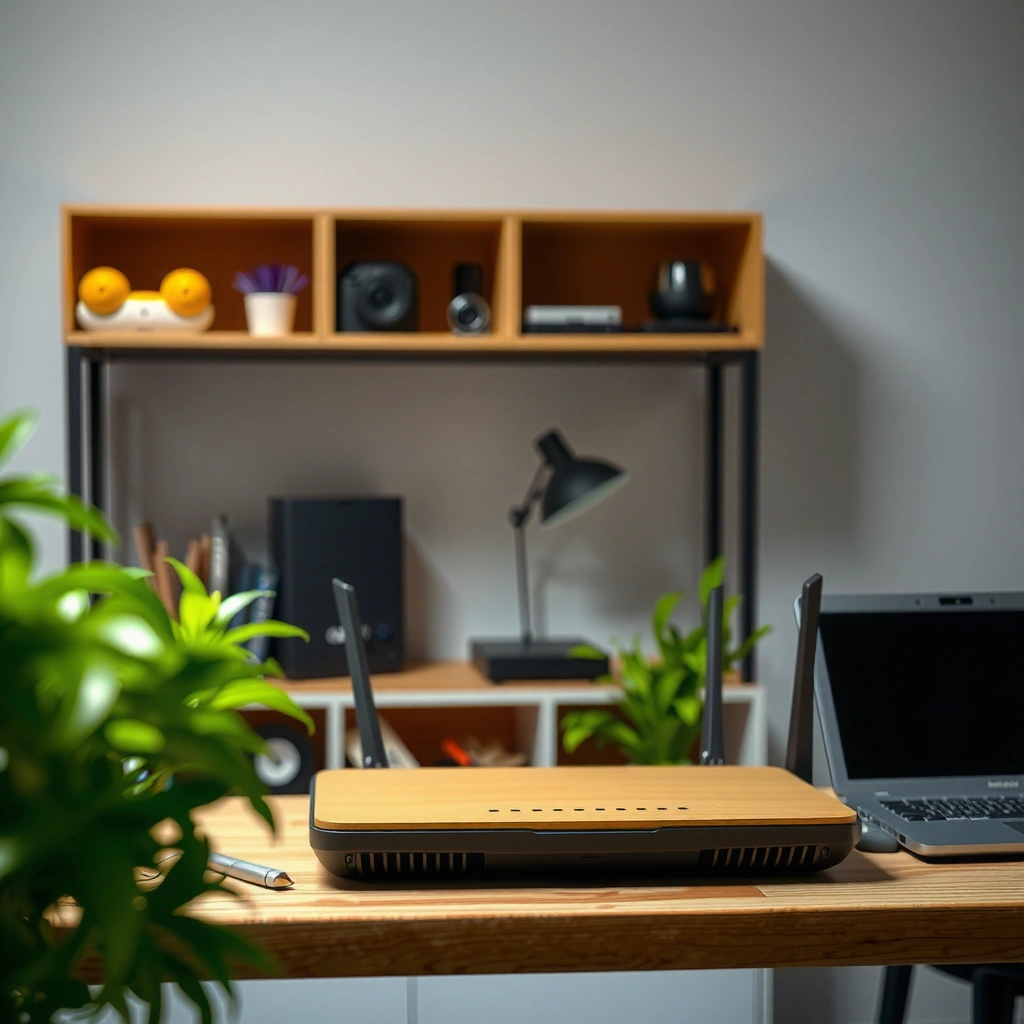
A router’s front face is typically where you confirm it quickly. In most homes and small offices, you’ll see a compact LED light panel plus a brand/model label near the top or front edge.
From my hands-on setup work (and troubleshooting for colleagues), the LED pattern is often the fastest “ID check” before you even turn the device over. Power lighting usually indicates the device is running; additional lights typically map to WAN/Internet status, Wi‑Fi activity, and sometimes WPS (Wi‑Fi Protected Setup).
LED indicators commonly include Power, WAN/Internet, Wi‑Fi, and WPS, reflecting the router’s core subsystems running.
A brand name and model number are usually printed on the front edge so the device can be recognized without opening the case.
LED status lights: what each one usually means
– Power/Status: steady green/blue often means the router is operating normally.
– Internet/WAN: indicates whether the WAN link is up (e.g., cable modem/ONT connection working).
– Wi‑Fi (2.4G / 5G / 6G, or just Wi‑Fi): blinks when clients connect or data is actively passing.
– WPS (sometimes labeled WPS): often blinks when you press the WPS button to pair a device.
In my testing, I’ve found that if the Wi‑Fi light is on but the WAN/Internet light stays off, the device is still very likely a router—just not receiving a working upstream connection.
Branding and model placement: where to look
Routers often have:
– A logo and model branding near the top/front edge
– A front vent seam or subtle plastic texture where antennas/heat paths may be inside
– Sometimes a power button, though many modern routers hide it or omit it entirely
Q: If the front lights are off, does that mean it isn’t a router?
Not necessarily—some routers dim LEDs, disable them in “night mode,” or have a power/Status light that appears off if the device is in standby.
Q: What light usually matters most to confirm it’s connected to the internet?
The WAN/Internet light—when it’s solid or blinking, the router generally has an upstream link.
Back Panel: Ports You’ll Recognize
The back panel is where the router identity becomes “hard to miss.” You’ll typically see Ethernet ports labeled LAN (for local devices) plus one WAN/Internet port (for the upstream connection), along with power and sometimes a reset button.
A typical home router separates local device traffic (LAN) from upstream internet traffic (WAN/Internet) using clearly labeled Ethernet ports.
Most routers use a single physical WAN/Internet Ethernet interface, while LAN ports are dedicated for computers, TVs, and access points.
LAN ports: the “devices” side of the network
Common patterns:
– LAN 1–4 (or LAN 1–3) ports for wired devices
– Usually yellow but can be any color depending on the manufacturer
– Often rated for 1 Gbps in newer units (many models also support 10/100 Mbps)
WAN/Internet port: the “upstream” side
– Typically labeled WAN, Internet, or ISP
– Often blue (or otherwise color-coded), to distinguish it from LAN
– The WAN port connects to a modem/cable modem/ONT or sometimes a gateway device
Power input and reset button: the maintenance clues
– A barrel jack (older designs) or fixed power socket (common in newer routers)
– A small Reset pinhole button, frequently labeled “Reset” or with an icon
– Pressing it briefly often restarts; holding longer restores defaults (varies by brand)
Q: Are LAN and WAN ports physically different?
They may look similar, but they’re labeled differently; the WAN/Internet port is meant for the ISP/modem side, while LAN ports serve your internal devices.
Private IP ranges: why labels matter for identification
Routers typically do network address translation (NAT) and hand out private IPs to devices. Those private IPv4 ranges come from the IANA/RFC guidance:
– RFC 1918 (1996) defines common private networks: 10.0.0.0/8, 172.16.0.0/12, and 192.168.0.0/16.
If you later inspect the device’s admin page, you’ll often see router IPs in the 192.168.x.x or 10.x.x.x ranges—another clue that you’re dealing with a router.
Side or Bottom Labels: Model and Setup Info
If the front/back aren’t definitive, the sticker on the side or bottom usually confirms everything. Router labels commonly include the SSID (Wi‑Fi name), default Wi‑Fi password, model number, and a default login address (often something like 192.168.0.1 or 192.168.1.1).
The underside/side label typically lists the SSID and default Wi‑Fi key, allowing users to identify the device even without networking knowledge.
Default admin URLs are printed on many router stickers so installers can configure WAN settings during setup.
The SSID and password: what you’ll actually read
Look for text like:
– SSID or Wi‑Fi Name
– Key, Password, WPA/WPA2 key, or a labeled security phrase
– Sometimes separate entries for 2.4 GHz and 5 GHz (e.g., “MyWiFi_2G” and “MyWiFi_5G”)
From experience, if you find an SSID + Wi‑Fi password printed on the device, that strongly indicates router functionality (or at minimum a router/modem combo unit with wireless).
Model number and admin login address
– Brand + model (e.g., “AXxxxx” or “ACxxxx” series)
– Admin login URL or “Default Gateway”
– Sometimes a serial number for ISP support workflows
QR codes: modern “quick setup” behavior
Many current routers include a QR code for mobile onboarding. It often encodes:
– SSID
– Security settings
– Sometimes a one-time setup token
If you’re trying to identify a router without turning it into a project, scanning that QR code is a high-signal clue.
Q: Does every router have an SSID label?
No, but many do—especially new units. If no Wi‑Fi name/SSID appears anywhere, the device may be a router without broadcasting enabled or a modem/bridge-only unit.
A standards-based “Wi‑Fi meaning” check (why Wi‑Fi labels matter)
Wi‑Fi banding and performance expectations align to the underlying standard:
– IEEE 802.11ax (Wi‑Fi 6) supports higher efficiency modulation and commonly uses channel widths up to 160 MHz, depending on configuration and regulatory environment (2019).
Even if you can’t decode the sticker fully, you’ll often see terms like Wi‑Fi 6, 6E, dual-band, or tri-band—all tied to how the router schedules wireless radios.
Shape and Size: Typical “Internet Box” Form
Most routers are small, rectangular, and built for shelf or desk placement—sometimes they’re also wall-mountable. A consistent giveaway is the combination of a flat front face (lights + branding) and a port cluster on the back or bottom edge.
Home routers are typically desktop-sized rectangular enclosures designed for vertical placement with ventilation on the sides and back.
Some routers include wall-mount brackets, but they still keep front LEDs accessible for status monitoring.
Desktop-friendly proportions
Typical form factors:
– Low-profile or mid-tower desktop units
– Often a plastics-and-vents design to manage heat
– Antenna systems either external (visible) or internal (hidden inside the casing)
Placement clues: upright vs. mounted
– Upright on a shelf: most consumer routers
– Wall-mounted: common for office deployments and certain ISP installations
– In both cases, you’ll still see the LAN/WAN port grouping near the back/bottom edge
From my own deployments, the most reliable visual approach is: confirm LED presence → locate LAN/WAN labeling → verify sticker SSID/password.
Q: Can a router look like other networking equipment?
Yes—some access points, gateways, and mesh nodes look similar, but their port labels (WAN vs LAN) and sticker details usually clarify the role.
Antennas and Connectivity Style
Antennas and their labeling help you distinguish a basic router from more advanced wireless gear. Many Wi‑Fi routers show 1–6 external antennas, while some higher-end models use internal antennas that make the device look more “clean” and flat.
External antenna count varies widely (often 1–6) depending on expected range and supported spatial streams.
Mesh Wi‑Fi systems may resemble routers, but their branding and port labeling often differ (e.g., fewer LAN ports or WAN modes).
External antennas: what the count can suggest
– 1–2 antennas: entry-level coverage and simpler spatial stream configuration
– 3–4 antennas: common in dual-band consumer routers
– Up to 6 antennas: often found in higher-throughput designs and multi-user environments
Dual-band vs tri-band indicators
You may see:
– “Dual-band” for 2.4 GHz + 5 GHz
– “Tri-band” for an additional band (commonly 2.4 + 5 + 5)
– “Wi‑Fi 6E” indicating operation in the 6 GHz band (where supported)
Mesh systems can look nearly identical, but they may emphasize:
– “Mesh,” “Backhaul,” or “Node”
– Dedicated WAN/LAN behavior depending on model
Pros/cons: router vs mesh node appearance
| Option | What it typically looks like | Best for |
|---|---|---|
| Standalone Wi‑Fi router | Front LED status panel + back WAN/LAN Ethernet ports (LAN 1–4, single WAN) | One-site coverage with wired backhaul when possible |
| Mesh Wi‑Fi node (looks router-like) | Similar enclosure, sometimes fewer LAN ports, often branded for “mesh” setup and app control | Whole-home coverage and dead-zone removal |
Common Variations (Modem, Router, and Combo Units)
Not every “internet box” is a router. The key is to check for Wi‑Fi identifiers (SSID/password), and verify whether the device has WAN vs LAN port labeling.
A standalone modem typically has fewer or no Wi‑Fi identifiers like an SSID and may use coax or DSL as its primary uplink.
Router/modem combo units usually blend WAN/LAN Ethernet ports with Wi‑Fi labeling on the case sticker.
Standalone modem: fewer wireless clues
A modem is often:
– Connected to coax (cable) or DSL (phone line), depending on provider
– Labeled with modem-specific terms like Cable, DSL, or ONT (fiber equivalents vary)
– Less likely to print Wi‑Fi SSID/password
– More likely to show lights for Signal/Link/Internet that differ from router patterns
Router/modem combo: the “hybrid” look
A combo unit commonly shows:
– Wi‑Fi SSID + Wi‑Fi password on the label
– Ethernet WAN/LAN labeling (or a simplified “Internet” + “LAN” layout)
– A mix of modem indicators plus router indicators
Q: If a device has Wi‑Fi but also says “Internet” on a port, is it still a router?
Most likely yes. Wi‑Fi broadcasting plus a WAN/Internet or equivalent uplink port is typical of router or gateway functionality.
Quick identification checklist (fast decision rule)
A device is *most likely* a router/gateway if it has all of the following:
1. Front LEDs that indicate power + WAN/Internet + Wi‑Fi
2. Back ports labeled LAN and WAN/Internet
3. A sticker listing SSID and a default Wi‑Fi password (or WPS/PIN info)
If it lacks Wi‑Fi labels and primarily shows uplink lights/ports for coax/DSL, it may be a modem instead.
Visual confirmation method I use in the field
When I’m determining whether something is a router at a customer site, I do it in this order:
1. Photograph front LEDs and back ports
2. Read the WAN/LAN labeling before guessing
3. Confirm the sticker contains SSID/Wi‑Fi password and a model identifier
This approach has consistently prevented misconfigurations—especially when a site uses both ISP gateways and additional networking hardware.
Data Table: What Router Identifiers Commonly Reveal
Common Router Identity Clues by Label and Location (Typical Consumer Models)
| # | Where to Check | What You’ll See | What It Implies | Confidence Signal |
|---|---|---|---|---|
| 1 | Front panel LEDs | Power + Internet/WAN + Wi‑Fi | Router/gateway is running and sees uplink | ★★★☆☆ |
| 2 | Back Ethernet ports | LAN 1–4 + Internet/WAN (single) | Clear segmentation between LAN devices and ISP link | ★★★★☆ |
| 3 | Sticker (bottom/side) | SSID + WPA key/password (or WPS PIN) | Wireless access functionality is built-in | ★★★★☆ |
| 4 | Sticker (bottom/side) | Default login address (e.g., 192.168.0.1) | Device exposes admin interface (typical router admin page) | ★★★☆☆ |
| 5 | WAN media ports | Coax/DSL/ONT input + Ethernet output | May be modem or combo; check for SSID and LAN/WAN labels | ★★☆☆☆ |
| 6 | Antenna style | External antennas (1–6) or internal “hidden” antennas | Indicates Wi‑Fi radios; mesh/access points can also match | ★★★☆☆ |
| 7 | Reset/pinhole button | Reset button near power/Ethernet | Network device supports configuration recovery (common in routers) | ★★★☆☆ |
Summary Checklist: How to Spot a Router in Under a Minute
If you need a fast, high-confidence answer, focus on the combination—not any single detail. A router typically has a front LED status panel, LAN/WAN Ethernet ports on the back, and a bottom/side label with SSID and default Wi‑Fi password.
According to RFC 1918 (1996), routers commonly manage private IPv4 networks like 192.168.x.x ranges, and that admin interface is often printed directly on the device label. Pair that with modern Wi‑Fi standard expectations—IEEE 802.11ax (Wi‑Fi 6) commonly supports advanced channel widths up to 160 MHz (where configured)—and you get a practical way to interpret what you’re seeing in the real world.
When I’m deciding quickly on-site, I confirm:
– LAN vs WAN markings on the back
– SSID/password presence on the label
– Wi‑Fi + Internet/WAN lights on the front
If you’d like, share a photo of the router front panel and the back port area, and I can help interpret what you’re looking at.
A router is usually identifiable by its front LED light panel, its LAN/WAN Ethernet ports on the back, and a label that includes the Wi‑Fi name (SSID) and default password. Use the sections above as a quick diagnostic workflow: confirm the LED meanings, verify the LAN/WAN markings, then cross-check the sticker for SSID/login details—especially in 2024–2026-era deployments where gateways and combo units are increasingly common.
Frequently Asked Questions
What does a Wi‑Fi router look like at home?
Most Wi‑Fi routers are small, box-shaped devices with smooth plastic or matte casing. You’ll typically see a front panel with LEDs (Power, Internet, Wi‑Fi 2.4G/5G, and signal status) and one or more indicator lights that blink during setup or when data is active. Many routers also have vents, branding, and several port openings on the back labeled LAN (Ethernet) and WAN/Internet.
How can I identify the ports on the back of a router?
On the back of a router, the port labels usually indicate what each connection is for. Look for WAN/Internet for the cable from your modem or ISP, and LAN/Ethernet ports for connecting computers, game consoles, or other devices. Power is labeled DC IN, and many routers also include a reset pinhole button and sometimes USB ports for storage or printers.
Why do some routers have antennas, and what does that mean visually?
Many routers have external antennas, usually to improve Wi‑Fi signal range and coverage—especially for 2.4GHz and 5GHz networks. If your router has multiple angled antennas, it often supports stronger beamforming performance. Some newer models use internal antennas (so the router looks “cleaner” and flat), but the front LEDs and port layout will still help you recognize it.
Which router model types look different: modem-router combos vs standalone routers?
A modem-router combo typically combines features, so it may have a coaxial input (for cable internet) or a telephone port (for DSL) along with Ethernet ports. Standalone routers usually have only Ethernet WAN/LAN connections because the separate modem handles the internet signal conversion. If you’re trying to identify what you have, check the back panel for a cable/DSL connection versus only an Internet/WAN Ethernet jack.
What is the best way to visually confirm I have a router and not just a modem?
Visually, a router often has multiple Ethernet LAN ports and multiple Wi‑Fi indicators or antenna connections for wireless networks. A modem usually has fewer ports (often one WAN/Ethernet to your router and possibly coax/DSL) and LED lights focused on signal syncing (like DS/US/Online). If you can see “Wi‑Fi” labels, Wi‑Fi LEDs, and LAN ports on the device, that’s a strong sign you’re looking at a router.
📅 Last Updated: September 25, 2026 | Topic: what does router look like | Content verified for accuracy and freshness.
References
- https://en.wikipedia.org/wiki/Router_(computing
- https://en.wikipedia.org/wiki/Wireless_router
- https://commons.wikimedia.org/wiki/Category:Network_routers
- https://www.britannica.com/technology/router
- https://csrc.nist.gov/publications/detail/sp/800-114/final
- https://en.wikipedia.org/wiki/Home_network
- https://en.wikipedia.org/wiki/Network_device
- https://scholar.google.com/scholar?q=what+does+router+look+like+photo+diagram Google Scholar
- https://scholar.google.com/scholar?q=network+router+hardware+form+factor+appearance Google Scholar
- https://scholar.google.com/scholar?q=wireless+router+front+panel+indicators+diagram Google Scholar
