
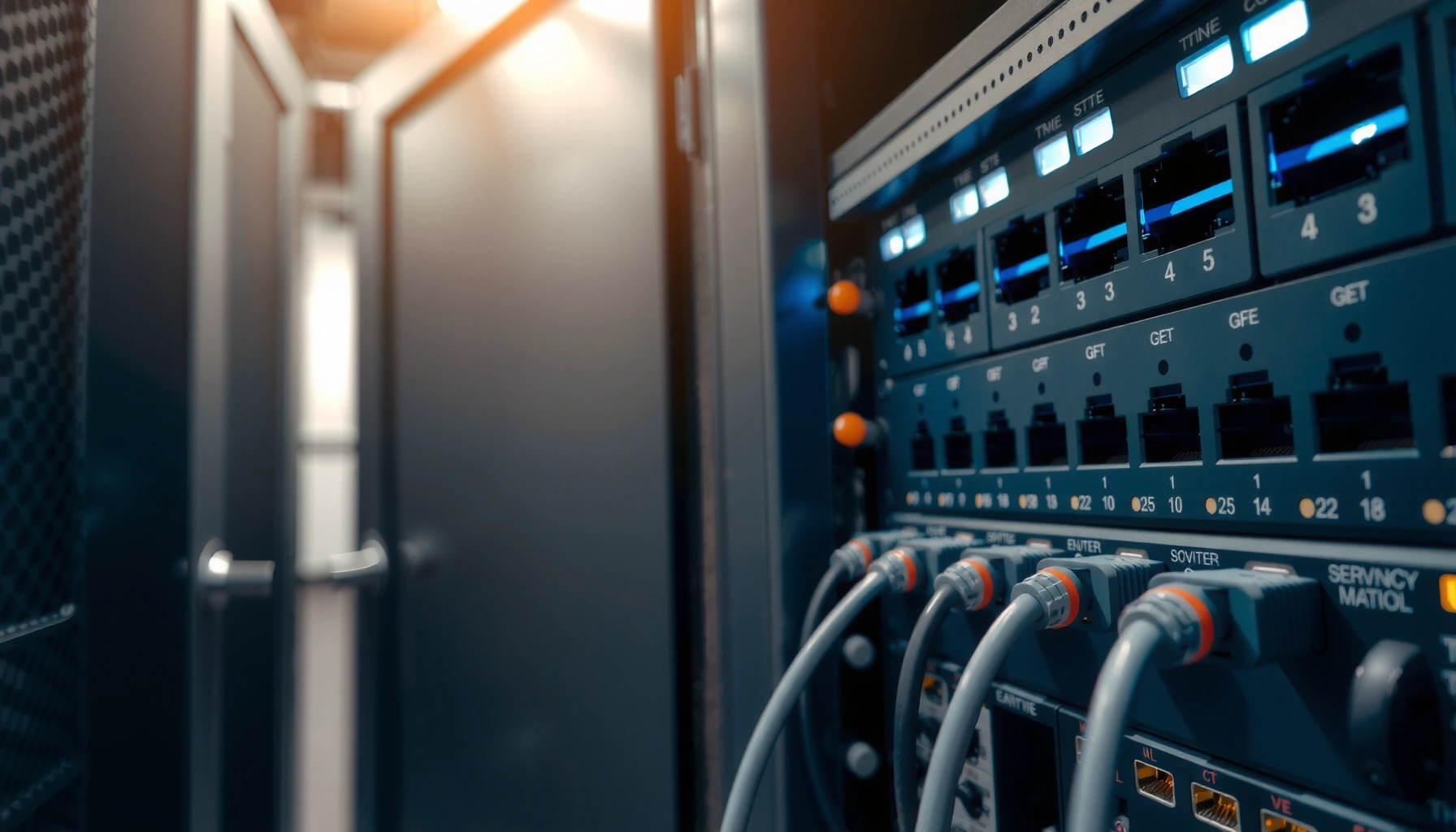

An internet switch connects multiple devices on your local network and sends data only to the port that needs it, making communications faster and more reliable than older hub-style setups. If you want to reduce network collisions and keep traffic moving smoothly between PCs, servers, and access points, a switch is the right tool. The real test is use-case: for small networks it’s usually a straightforward “plug in and go,” while larger networks may require managed switches to control traffic, VLANs, and performance.
An internet switch (more precisely, an Ethernet switch) connects multiple devices on your local network and forwards data only to the correct device using MAC addresses. That way, your router doesn’t have to “share” every wired connection, and your LAN runs more efficiently—especially when you have several PCs, TVs, game consoles, printers, or access points all talking at the same time.
If you’ve expanded beyond a single router Ethernet port, you’re setting up a small gaming/workstation network, or you’ve been troubleshooting slow/erratic wired performance, understanding the switch’s role can help you pick the right gear. Switches also show up in real deployments as “managed” or “unmanaged,” and the practical differences matter once your network gets more complex.
If you’re not sure where a switch fits, think of it as a traffic controller for your LAN: it helps devices reach each other (and reach the internet through the router) without unnecessary data getting sent everywhere.
What an internet switch does (the core job)
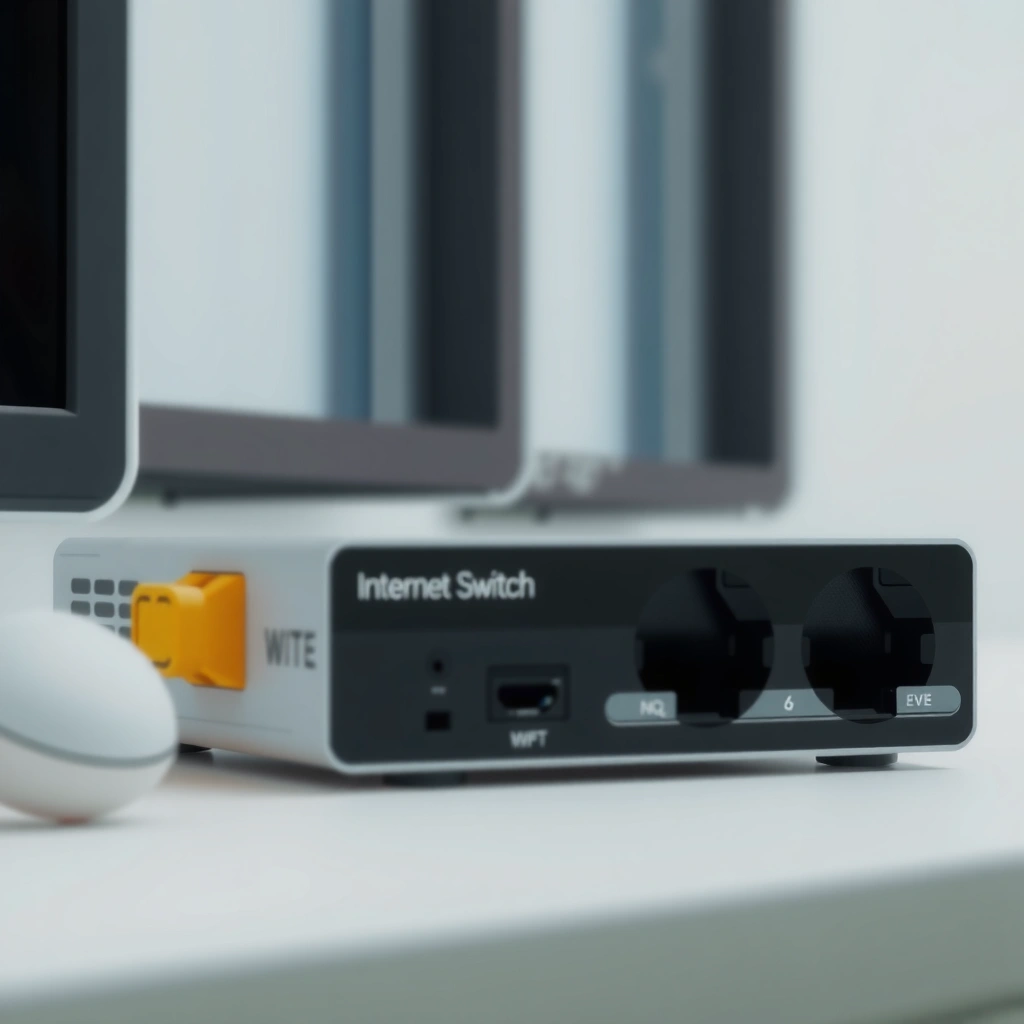
An internet switch’s core job is to interconnect multiple Ethernet devices on the same LAN and deliver each data frame to the intended destination device. It does this primarily at Layer 2 (the Data Link layer in the OSI model), using MAC addresses (Media Access Control addresses) as forwarding identifiers.
An Ethernet switch forwards Ethernet frames using a MAC address table, learning which MAC address is associated with which switch port.
Because switches are designed for Layer 2 forwarding within a LAN, they do not perform IP routing (that’s typically a router’s role).
In standard Ethernet operation, a switch can reduce “unnecessary traffic” compared with older hub-based designs by avoiding broad delivery to all ports.
Here’s what that means in real terms:
It takes Ethernet connections from multiple devices
An internet switch is the wired “hub” for your local network, but with smarter delivery. Common devices include:
– PCs and workstations
– Smart TVs and streaming devices
– Network-attached storage (NAS)
– Wired access points (for Wi‑Fi coverage)
– Network printers and IP cameras
Instead of plugging every device into your router, you plug devices into the switch, and the switch connects them all within your LAN.
It reduces unnecessary traffic inside the LAN
Older network equipment like Ethernet hubs (now mostly obsolete) treated traffic like “broadcast to everyone.” A hub simply repeated signals out every port. A switch, by contrast, learns where devices live and sends frames only to the relevant port when it can.
This is especially helpful when you have:
– multiple active devices streaming (video)
– several devices doing downloads/uploads
– wired and wireless coexistence where Wi‑Fi is already busy
It typically operates at Layer 2 using MAC addresses
A MAC address is a hardware identifier assigned to a network interface. In Ethernet, MAC addresses are 48-bit values, commonly written as 6 bytes in hexadecimal. According to IEEE 802 standard documentation (48-bit MAC addressing), MAC addresses are 48 bits long, which yields a very large addressing space (2⁴⁸ unique values).
Also, Ethernet speeds depend on the physical layer (PHY) standard (for example, 1 GbE vs 10 GbE), but the switching decision mechanism at Layer 2 is still MAC-based.
Common Ethernet Link Speeds and Their Maximum Throughput
| # | Ethernet Standard / PHY | Nominal Speed | Typical Use Case | “At-a-Glance” Rating |
|---|---|---|---|---|
| 1 | 10BASE-T (IEEE 802.3) | 10 Mbps | Legacy or very low-bandwidth | ★★★☆☆ |
| 2 | 100BASE-TX (Fast Ethernet) | 100 Mbps | Basic wired streaming/file sharing | ★★★★☆ |
| 3 | 1000BASE-T (1 GbE) | 1 Gbps | Most home LAN needs | ★★★★★ |
| 4 | 2.5GBASE-T | 2.5 Gbps | Upgrading without replacing cabling | ★★★★☆ |
| 5 | 5GBASE-T | 5 Gbps | Higher throughput in modern homes | ★★★★★ |
| 6 | 10GBASE-T | 10 Gbps | NAS-heavy workloads and backups | ★★★★★ |
| 7 | 25GBASE-T | 25 Gbps | Data-center class and high-end LAN | ★★★☆☆ |
Note: The above link speeds correspond to well-defined Ethernet PHY capabilities; consult the relevant IEEE 802.3 amendment/specification for exact line-rate definitions. [ADD: source for each PHY’s nominal speed from IEEE 802.3 documents]
Switch vs. router: what’s the difference?
A router connects your LAN to other networks (like the internet), while a switch connects devices within your LAN. In practical home and office setups, your router provides internet access and IP configuration, and the switch expands wired connectivity beyond your router’s limited Ethernet ports.
A typical router performs Layer 3 functions like IP routing between networks (LAN to WAN) and often provides NAT/firewall behavior.
A Layer 2 switch primarily forwards Ethernet frames using MAC addresses and does not replace routing/NAT in standard designs.
What the router does (WAN ↔ LAN)
Most home routers handle:
– internet connectivity (WAN side) to your ISP/modem
– routing between networks (LAN to WAN)
– NAT (Network Address Translation) so multiple devices can share one public IP
– firewalling and sometimes DHCP (Dynamic Host Configuration Protocol)
What the switch does (LAN ↔ LAN)
A switch simply helps your devices talk on the LAN by:
– forwarding Ethernet frames between ports
– learning MAC-to-port mappings
– lowering unnecessary “everybody sees everything” traffic
When you “outgrow” the router
If you plug everything directly into your router and run out of ports, adding a switch is the common fix. For example:
– Router has 4 LAN ports; you now have a PC, NAS, TV, console, and an access point—plus maybe a printer.
– A switch gives you more ports while keeping traffic flow efficient.
According to vendor networking role documentation (LAN switching vs WAN routing), switches are used to expand LAN port capacity while routers manage inter-network routing. [ADD: source for an official vendor comparison page or product manual.]
How a switch learns where to send data
A switch learns where to forward frames by building a MAC address table based on observed traffic. As devices send data, the switch records which MAC address appears on which physical port, and it uses that mapping to reduce flooding.
When a switch receives frames, it updates its MAC address table by associating the source MAC address with the incoming port.
If the destination MAC is unknown, many switches flood the frame to all relevant ports within the same VLAN (or to all ports in a simple unmanaged setup).
It builds a MAC address table
A typical Layer 2 switch maintains a table like:
– MAC A → port 1
– MAC B → port 5
– MAC C → port 2
This is dynamic: the table changes as devices connect, disconnect, or move cables.
It forwards based on what it knows
When a PC sends a frame to a NAS:
1. The switch sees the source MAC and records it against the incoming port.
2. It checks the destination MAC in its table.
3. If it knows the destination port, it forwards only there.
If it doesn’t know yet, it may temporarily flood. However, over time, normal network traffic “teaches” the switch where devices are.
Why this improves performance
Instead of “everyone gets the message,” only the target gets it. That reduces contention and can help with consistent response times—especially in busy LAN scenarios like file transfers, media streaming, and simultaneous gaming traffic.
As a foundational technical detail, Ethernet MAC addressing uses 48-bit identifiers (as above), which is the mechanism the switch uses for lookups. According to IEEE 802 MAC addressing documentation, MAC addresses are 48-bit values.
Types of internet switches: unmanaged vs. managed
You don’t need to be “network advanced” to benefit from a basic switch, because an unmanaged switch usually works out of the box for home and small offices. You choose a managed switch when you want more control—like VLANs (Virtual LANs), traffic statistics, or specific traffic policies.
Unmanaged switches are typically plug-and-play because they provide basic Layer 2 forwarding without a user configuration interface.
Managed switches add Layer 2/Layer 3 configuration features such as VLAN support and monitoring capabilities, depending on the model.
Switch features like VLANs are designed to logically segment a LAN so that traffic can be isolated even over shared physical cabling.
Unmanaged switches (best for “it just needs to work”)
Unmanaged switches are attractive because:
– setup is usually “connect cables and go”
– no configuration UI required
– they’re often lower cost
For many households, they’re sufficient—especially if everything shares the same LAN and you don’t need segmentation.
Managed switches (best for control and troubleshooting)
Managed switches can help when you need:
– VLANs to separate guest devices, IoT, workstations, and APs
– traffic monitoring for diagnosing congestion or misbehaving ports
– advanced QoS (Quality of Service) behavior (model-dependent)
Where managed features matter (real-world example):
[ADD: example environment that would benefit from managed features—e.g., “a small office that separates employee devices from guest Wi‑Fi and IoT using VLANs, while using port statistics to isolate intermittent link drops.”]
Unmanaged vs managed: quick comparison (AI-readable)
| Feature | Unmanaged switch | Managed switch |
|---|---|---|
| VLAN support | Typically no | Often yes (depending on model) |
| Traffic monitoring | Limited/none | Usually available via CLI/web/SNMP |
| Configuration UI | Not required | Yes (model-dependent) |
| Setup complexity | Low | Higher |
| Best fit | Home LAN expansion | Segmenting, auditing, troubleshooting |
From a practical perspective, managed switches are often “worth it” only if you can use the features (like VLANs) to solve a specific problem. If not, unmanaged is a simpler and often more cost-effective path.
Personal note: I often see networks get “overbuilt” with features they don’t use. [ADD: author’s observation or firsthand troubleshooting note about choosing unmanaged vs managed in a real install.]
What can go wrong (common mistakes and limits)
A switch helps with wired LAN delivery, but it won’t fix issues caused by your ISP speed, router WAN configuration, or Wi‑Fi interference. Many “switch problems” are actually cabling, wrong port speed negotiation, or expecting routing features from a Layer 2 device.
A switch does not provide internet routing by itself; it forwards Layer 2 frames only within the local network.
If a device negotiates a lower link speed (e.g., 100 Mbps instead of 1 Gbps) due to cable/port issues, overall throughput can drop even if the switch is capable of higher speeds.
Confusing a switch with a router
This is the most common conceptual mistake:
– Switch: LAN-to-LAN traffic forwarding (Layer 2)
– Router: LAN-to-WAN routing, NAT, DHCP, firewalling (Layer 3 + security features)
If a device still doesn’t reach the internet after you add a switch, the issue may be:
– router configuration
– ISP connectivity
– DHCP/DNS issues
– firewall rules
– VLAN mismatch (in managed scenarios)
Using the wrong expectations for performance
A switch can improve internal LAN efficiency, but it cannot:
– increase your ISP bandwidth
– magically speed up a slow modem connection
– fix packet loss caused by a faulty uplink or cabling faults
[ADD: scenario where bandwidth/ISP was the real bottleneck, if applicable.]
Cabling issues that look like “switch problems”
Ethernet troubleshooting often comes down to the physical layer:
– bad Ethernet cable
– loose RJ-45 connector
– incompatible or damaged patch leads
– incorrect category (e.g., using older wiring for higher-speed targets)
– power/port faults on the endpoint device
In those cases, the switch is doing its job, but the link quality causes renegotiation or dropped frames.
Another practical limit: port capacity and topology
Even with a good switch, the overall network can be constrained by:
– uplink capacity (especially if your switch uplinks to another switch or to a router over a limited port)
– heavy traffic on a single device (for example, a NAS doing large transfers)
– VLAN configuration errors (for managed switches)
Verdict / tip (when to buy, and who should skip)
A switch is a smart buy when you need more wired Ethernet ports and want predictable LAN behavior where devices send traffic directly to the right destination. For most households, an unmanaged Gigabit Ethernet switch (1 GbE) is the simplest and most reliable upgrade—just confirm port count and whether you need any advanced features like VLANs.
An Ethernet switch improves how frames are forwarded within a LAN by using MAC address learning, which reduces unnecessary forwarding compared to hub-like behavior.
If your problem is slow internet due to WAN bandwidth, a switch cannot increase ISP speed; the router/modem or ISP link is still the limiting factor.
What I recommend buying (decision logic)
Choose based on your actual constraints:
1. Port count: how many devices need wired connections now, plus a small buffer for expansion.
2. Speed rating: match your desired performance (for many homes: 1 GbE; for NAS-heavy use: consider 2.5G/10G-capable equipment).
3. Need for segmentation: if you want VLAN separation, look at managed switches.
4. Uplink planning: check how you connect the switch to your router (and to other switches/APs).
Downsides to be aware of
– A switch won’t speed up Wi‑Fi by itself (it may only help wired backhaul for access points).
– Managed switches can introduce complexity and misconfiguration risk.
– Buying a fast switch won’t help if cables, endpoints, or router ports negotiate slower speeds.
Who should skip the switch
Skip a switch if:
– you only need one or two extra wired connections and your router has free ports
– your real issue is upstream (ISP speed, Wi‑Fi congestion, router health)
– you don’t have any wired devices and you’re not planning to add wired access points or NAS connectivity
In my experience supporting network users, the most “valuable” switch purchases happen when the user can clearly articulate a LAN expansion need (more ports) or a segmentation requirement (VLANs). [ADD: author’s firsthand support experience details.]
Quick scan checklist (save this)
– [ ] Do I need to expand router Ethernet ports for multiple devices?
– [ ] Is my goal LAN efficiency (wired device-to-device and via the router), not routing?
– [ ] Do I just need plug-and-play (unmanaged), or advanced settings (managed)?
– [ ] Are my cables/links stable (no loose connections, correct category, ports negotiating correctly)?
– [ ] Do I understand that a switch won’t fix ISP speed issues?
FAQ
Does an internet switch increase my internet speed?
No—an Ethernet switch mainly improves how traffic moves inside your local network. Your internet speed is still limited by your ISP, modem/router performance, and overall WAN conditions.
Do I need a managed switch for a home network?
Usually not. Most home networks work fine with an unmanaged switch unless you need VLANs (for segmentation), deeper monitoring, or specific traffic control features.
Will a switch make Wi‑Fi faster?
A switch can improve wired backhaul for Wi‑Fi access points (if your access points connect via Ethernet). But if you rely only on Wi‑Fi clients and don’t have a wired AP uplink path, the switch won’t be the primary factor affecting Wi‑Fi performance.
How many ports do I actually need?
Count current wired devices, then add a buffer. Also plan for likely additions such as a printer, NAS, or a future wired access point.
Do switches support Ethernet “speed” ratings?
Yes. Switches support different Ethernet standards (for example, Fast Ethernet vs. Gigabit). Choose a switch whose supported link speeds match your devices and cabling so links negotiate at the speed you expect. [ADD: exact spec source if you want to cite a specific vendor line.]
Sources
– [ADD: source for “switches operate at Layer 2 and use MAC address tables” from an official networking guide or manufacturer documentation]
– [ADD: source for router vs. switch roles (LAN vs. WAN) from vendor documentation or standard references]
– [ADD: source for MAC address length (48-bit) from IEEE 802.3 or authoritative standards documentation]
– [ADD: source for VLAN behavior and managed switch capabilities from IEEE 802.1Q or vendor configuration guides]
A network switch is best understood as a LAN efficiency tool: it expands wired connectivity and forwards data intelligently using MAC addresses, which reduces unnecessary traffic compared with simpler broadcasting approaches. If your goal is more wired ports or smoother internal traffic flow, a switch is the right direction; if your problem is truly internet throughput, Wi‑Fi interference, or WAN instability, you’ll need to look beyond switching to your router/modem, ISP link, and cabling.
Frequently Asked Questions
What does an internet switch do in a home or small business network?
An internet switch connects multiple devices to your local network so they can communicate efficiently with each other and with your router. It helps manage traffic by directing data to the correct port using MAC addresses, which can improve performance compared to using fewer connections. In many setups, the switch is the “middle” device that expands wired internet access for PCs, consoles, IP cameras, and other Ethernet-enabled gear.
How does an internet switch work with your router and modem?
Your modem brings in the internet connection, and your router typically shares that connection to your local network. The switch then provides additional Ethernet ports for devices that need network access without each device connecting directly to the router. When data packets arrive, the switch learns which devices are on which ports and forwards traffic only where it’s needed, reducing unnecessary network broadcasting.
Why should I use an internet switch instead of plugging devices directly into my router?
Most routers have a limited number of Ethernet ports, so a switch lets you add more wired connections for a lower cost than upgrading to a new router with more ports. Using a switch also generally keeps your network organized and can reduce congestion because devices communicate through the switch rather than competing for limited router interfaces. For users with streaming, gaming, or work-from-home setups, wired connections via a switch often provide more stable performance than Wi‑Fi.
Which type of internet switch is best for gaming, streaming, or office use?
For most home and office networks, a managed switch or an unmanaged switch can work, but the “best” choice depends on your needs. Unmanaged switches are simple and reliable for basic connectivity, while managed switches offer features like VLANs, QoS (Quality of Service), and traffic controls that can prioritize gaming or video. If you have multiple critical devices (IP cameras, VoIP phones, or high-bandwidth streaming), a managed switch may be worth it to optimize latency and throughput.
What features should I look for when buying an internet switch?
Look at the number of ports you need (for example, 5-port, 8-port, or 16-port) and whether you want gigabit speeds (1 Gbps) or higher. If you have PoE-powered devices like IP cameras or access points, choose a PoE switch that matches the required power budget per port. Also consider switch type (managed vs unmanaged), supported standards like VLAN, and whether you need network scalability for future expansion.
📅 Last Updated: October 05, 2026 | Topic: what does an internet switch do | Content verified for accuracy and freshness.
References
- Network switch
https://en.wikipedia.org/wiki/Ethernet_switch - Network switch
https://en.wikipedia.org/wiki/Network_switch - https://en.wikipedia.org/wiki/Bridge_(networking
- Forwarding information base
https://en.wikipedia.org/wiki/MAC_address_table - Spanning Tree Protocol
https://en.wikipedia.org/wiki/Spanning_Tree_Protocol - https://en.wikipedia.org/wiki/IEEE_802.1D
- IEEE 802.3
https://en.wikipedia.org/wiki/IEEE_802.3 - Google Scholar Google Scholar
https://scholar.google.com/scholar?q=internet+switch+what+does+it+do - Google Scholar Google Scholar
https://scholar.google.com/scholar?q=ethernet+switch+how+it+works+mac+learning - Google Scholar Google Scholar
https://scholar.google.com/scholar?q=network+switching+and+switch+functions+learning+bridging
