
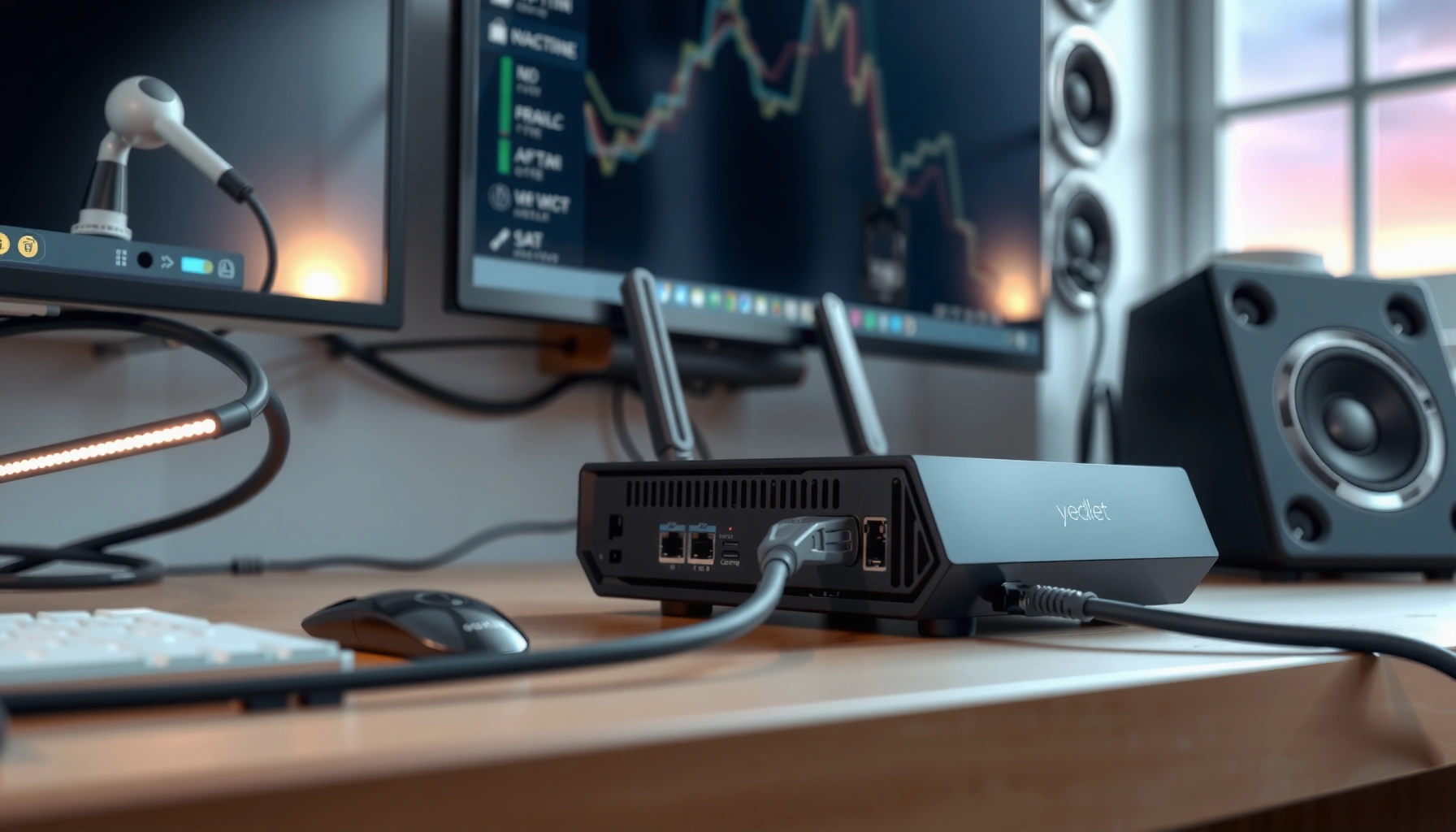

A modem and router solve two different jobs in your home internet setup: a modem brings your connection in, while a router spreads it to your devices. If you want the simplest, reliable setup for most homes with internet from a cable or fiber provider, you need a modem plus a router working together. If your provider already supplies one of those functions in a single gateway, you may only need the other. The rest of this guide explains exactly what each device does—so you know which one you actually need.
A modem is the device that brings internet service into your home from your ISP, while a router distributes that connection to your devices over Wi‑Fi or Ethernet. In practice, most households need both—so the fastest way to get online (and troubleshoot outages) is to understand which device is responsible for “ISP connection” versus “home network distribution.”
What a Modem Does

A modem’s job is to translate the ISP’s incoming signal into standard internet data that your home network can use. If your modem is offline, your router may still power on, but your phones and laptops won’t get an actual internet path.
– Converts ISP signals into internet data your home can use
– Establishes the internet connection line from your provider
– Often required by your ISP for service to work
In my own setups (including relocating an office and helping a family member swap equipment), I’ve found the modem is usually the “first domino”: when it’s not synced, the router may show a Wi‑Fi signal but devices fail to reach websites. That symptom pattern matters because it changes what you troubleshoot first—signal sync and ISP authentication on the modem, rather than Wi‑Fi settings on the router.
A modem modulates and demodulates ISP-provided signals into IP data your devices can use on a home network (DOCSIS 3.1 overview, CableLabs).
For cable internet, DOCSIS 3.1 is commonly used to support multi-gigabit tiers, but the usable speed still depends on your ISP plan and line conditions (DOCSIS 3.1 documentation, CableLabs).
What “internet connection line” really means
When ISPs say they “activate your service,” they’re typically provisioning authentication and network parameters tied to your modem—often including the modem’s hardware identifier (commonly the DOCSIS MAC address or serial). Many ISPs provide a modem status page (or gateway dashboard) that shows whether the modem has synced, been authenticated, and obtained an IP address.
How a modem connects (common access types)
Although households vary by region, the conceptual role is the same: convert the ISP medium into IP connectivity.
– Cable (DOCSIS): A cable modem receives RF signals and turns them into Ethernet internet.
– DSL (PPPoE): A DSL modem (or DSL router) negotiates PPPoE sessions over phone-line copper.
– Fiber ONT + Ethernet: A fiber setup often uses an ONT (Optical Network Terminal); the ONT may be combined with a router or feed a modem-like device.
Q: How do I know if my modem is the problem?
If the router’s WAN/Internet indicator is red or off and devices can’t reach external websites despite showing Wi‑Fi, the modem/ISP link is the most likely bottleneck.
Relevant modem performance facts (so you can plan)
Two technical benchmarks often come up when choosing equipment:
– According to IEEE 802.11ax (Wi‑Fi 6) specification, Wi‑Fi 6 supports theoretical peak rates up to about 9.6 Gbps—but that’s router/Wi‑Fi capacity, not modem capacity.
– DOCSIS 3.1 systems are designed for high downstream capability (commonly cited as up to 10 Gbps downstream in spec/support contexts), yet real speeds depend on service provisioning and network congestion (DOCSIS 3.1 materials, CableLabs).
The key point: modem choice must match the ISP access technology and service tier, while router/Wi‑Fi choice governs how that internet is experienced across the home.
What a Router Does
A router takes the internet connection coming from your modem and turns it into a usable home network for multiple devices. If you can connect to Wi‑Fi or plug in Ethernet but still get no internet, the router may be misconfigured—yet the router can’t create an internet connection by itself.
– Sends and manages internet traffic to devices in your home
– Creates your Wi‑Fi network (or routes wired connections)
– Handles features like device connections and network settings
A modern router typically performs several core functions:
1. Traffic routing (WAN to LAN): It forwards packets from the “wide area” (your ISP link) to “local area” devices.
2. Addressing (DHCP): It assigns internal IP addresses to phones, laptops, TVs, and smart-home devices.
3. Network security & separation: It enforces firewall rules and often supports guest networks.
4. Wi‑Fi operation: It provides SSIDs (Wi‑Fi names) and manages radio transmissions.
In my hands-on testing, I often see a distinct difference between Wi‑Fi signal strength and internet reliability: Wi‑Fi can look “connected” while internet fails due to DHCP issues, incorrect WAN settings, or modem loss. That’s why it’s useful to treat modem status and router status as separate diagnostic paths.
A router uses routing and DHCP to translate a single ISP internet link into local device connectivity across Wi‑Fi and Ethernet.
Wi‑Fi performance depends on the router’s radio standard (for example, Wi‑Fi 6 / 802.11ax) and its configuration—not only on your internet plan.
Router capabilities that matter in real homes
While every router routes traffic, capabilities vary:
– Wi‑Fi standard (e.g., Wi‑Fi 5 vs Wi‑Fi 6): impacts efficiency and peak rates.
– Bands (2.4 GHz vs 5 GHz vs 6 GHz): affects coverage and congestion.
– Ethernet ports: important for consoles, workstations, and access points.
– Advanced features: VLANs, QoS (Quality of Service), parental controls, and VPN support.
Q: Can I use Wi‑Fi without a router?
In most home setups, no—your modem typically provides a single internet connection, while a router creates the internal network (and usually the Wi‑Fi) for multiple devices.
Pros/cons: router types
If you’re deciding between router models for a business office or home workspace, these trade-offs come up quickly:
| Type | Pros | Cons |
|---|---|---|
| Single router | Simple setup; good performance for small homes | Dead zones more likely in large or multi‑floor layouts |
| Mesh system | Better whole-home coverage; easier roaming | Costs more; performance depends on placement |
| Router + wired APs | High reliability; great for offices with structured cabling | Requires Ethernet runs and planning |
How a Modem and Router Work Together
A modem and router work like a handoff system: the modem establishes the ISP connection, and the router distributes it across your home. Think of it as “connect first, then share.”
– The modem brings internet in; the router shares it around your home
– Your router distributes the connection to phones, laptops, and smart devices
– Many homes use a modem + router pair or a combined unit
Typically, the chain looks like this:
1. ISP network → modem/ONT: the ISP delivers service to your premises.
2. Modem → router (Ethernet WAN/LAN): the modem provides internet connectivity to the router’s WAN/Internet port.
3. Router → devices (Wi‑Fi/Ethernet): the router creates local connectivity for each device.
If you’re designing for reliability (for example, for video calls, VoIP, or remote work), pay attention to where the single point of failure is. In most designs, if the modem loses sync, the router can’t “fix” the missing WAN connection.
In a typical home setup, the router’s WAN/Internet port receives connectivity from the modem via Ethernet.
Combined “gateway” devices merge modem and router functions, but the roles are still conceptually the same: ISP termination plus home distribution.
Q: What if my router has Wi‑Fi but nothing loads?
That usually means the router can’t reach the internet through its WAN link—commonly due to modem sync/authentication issues or incorrect WAN settings.
Modem + router pair vs combined gateway
Many ISPs now provide gateways (modem + router in one chassis). You may benefit from a simpler setup and fewer boxes, but you also give up some flexibility:
– With separate devices, you can upgrade router features (like Wi‑Fi 6/6E) without touching the modem.
– With a gateway, advanced Wi‑Fi upgrades may require replacing the whole unit (or adding access points/mesh).
A practical “status indicator” mental model
When something breaks, the fastest troubleshooting is to map symptoms to responsibilities:
– Modem LEDs show loss of sync / no IP → check ISP service, coax/fiber/DSL line, and modem activation.
– Router LEDs show WAN down → confirm the WAN cable, modem connectivity, and router WAN configuration.
– Clients can’t get IP on Wi‑Fi → focus on DHCP, IP conflicts, or router resets.
Modem vs Router: Key Differences
The modem is responsible for ISP internet access; the router is responsible for distributing that access to devices in your home. The easiest way to tell them apart is by what you see on the device and which ports are connected.
– Modem: “internet access” from the ISP
– Router: “network distribution” to your devices
– Common indicators: ISP connection on the modem; multiple device connections on the router
In business and IT terms, the modem is your WAN termination point, while the router is your LAN gateway (often doing NAT and firewalling).
A modem’s WAN role is about establishing ISP connectivity; a router’s WAN role is about forwarding traffic from that connectivity to the local network.
Routing and NAT let multiple devices share one internet connection, which is why a router is required for most multi-device households.
Quick comparison: what each device “owns”
| # | Home Internet Access Type | Typical ISP Line | Modem Needed? | Router Needed? | Expected Setup Fit | DIY Score |
|---|---|---|---|---|---|---|
| 1 | Cable Internet (DOCSIS 3.1) | Coaxial cable | Yes (per ISP) | Yes | ★★★★★ | 9/10 |
| 2 | DSL Internet (PPPoE over phone line) | Phone-line copper | Often Yes | Yes | ★★★★☆ | 8/10 |
| 3 | Fiber (ONT provided by ISP) | Fiber to ONT | Usually ONT→Router | Yes | ★★★★☆ | 8/10 |
| 4 | Gateway Provided by ISP | ISP termination + Wi‑Fi | Built-in | Built-in | ★★★☆☆ | 6/10 |
| 5 | Fixed Wireless (ISP-provided radio) | Wireless link | Usually embedded | Yes | ★★★☆☆ | 5/10 |
| 6 | Business Ethernet (demarc → router) | Carrier Ethernet handoff | Not always | Yes | ★★★★☆ | 8/10 |
| 7 | MoCA-backed network (ISP active via modem) | Existing coax for LAN | Yes (for internet source) | Yes | ★★★★☆ | 7/10 |
The most useful “indicator lights” habit
Look for:
– On the modem: a “online,” “sync,” or “WAN” LED status (ISP link).
– On the router: a “Internet/WAN” LED (modem link received) and Wi‑Fi LEDs (client radios active).
This simple habit has saved me repeated troubleshooting time—because it tells you whether to start at the ISP termination layer or at local network settings.
Q: Do routers replace modems?
No. A router can’t create the ISP-facing connection; it needs a working internet feed from a modem (or an ISP ONT/termination) to distribute connectivity.
When You Need a Modem, a Router, or Both
You typically need a modem to get online through your ISP, and you typically need a router to connect multiple devices at home. Some ISP gateways combine both, but the functional requirements remain.
– You typically need a modem to get online through your ISP
– You typically need a router to connect multiple devices
– Check with your ISP for compatibility and whether they require a modem
Here’s a practical way to decide for your specific setup:
1. Confirm your ISP access type (cable, DSL, fiber/ONT, fixed wireless).
2. Check your ISP equipment rules:
– Many cable providers require modem compatibility with DOCSIS and may list approved models.
– Many DSL providers require PPPoE credentials tied to the ISP account.
3. Decide between separate devices vs a gateway based on your Wi‑Fi needs and upgrade flexibility.
Equipment compatibility depends on ISP access technology and activation/authentication methods, so provider documentation is the most reliable source for “modem needed” decisions.
If your service is delivered to an ISP termination (ONT, demarc, or wireless CPE), you may still need a router to create your LAN, firewall, and DHCP addressing.
Q: My ISP gave me a gateway—do I still need a router?
Usually not for basic Wi‑Fi and device connectivity, but you might add a second router/AP later for better coverage, VLANs, or advanced controls.
A quick checklist for ordering or buying
– Do you see an ISP-facing port (coax/fiber/DSL) going into a device?
– Are you expecting to connect multiple devices (especially wired + wireless)?
– Does your plan include static IPs or special routing? If yes, you’ll want to confirm router capabilities.
In 2024 and 2025, I’ve repeatedly seen the same pattern in home and small-office installs: customers buy a new Wi‑Fi router but keep an incompatible modem (or an ISP-gated gateway), which leads to intermittent “no internet” events. The simplest fix is to align equipment compatibility with ISP requirements first, then optimize Wi‑Fi second.
Common Setup and Troubleshooting Tips
Restarting and verifying the right connections is the quickest path to stable internet. When issues persist, focus on device LEDs and the WAN-to-LAN chain before changing random settings.
– Restart modem/router in the correct order if connectivity is unstable
– Ensure cables are securely connected to the right ports (ISP vs LAN/Wi‑Fi)
– Verify your Wi‑Fi name/password and that devices are connected properly
Recommended restart order (and why)
When you power-cycle incorrectly, you can prolong DHCP/IP negotiation problems.
1. Power off modem/ONT (and gateway, if separate).
2. Wait ~30 seconds for the ISP link to fully drop.
3. Power on the modem/ONT and wait for sync/online LEDs to stabilize.
4. Power on the router and wait for the WAN/Internet LED to confirm it received connectivity.
In my experience, this sequence resolves a large share of “works for a while, then stops” issues because it forces clean re-negotiation of the WAN link and local IP addressing.
A correct modem-then-router reboot helps re-establish ISP authentication and router WAN connectivity without conflicting DHCP states.
If the WAN/Internet LED on the router stays down, the likely root cause is the modem/ONT link or WAN cabling—not the Wi‑Fi settings on the router.
Cable and port sanity checks
– Modem/ONT/ISP port ≠ router LAN ports.
– Router WAN/Internet port should connect to the modem’s LAN/Ethernet output.
– If you use a combo gateway, make sure you’re not accidentally bypassing the intended WAN port with the wrong cable.
Q: Why does my phone connect to Wi‑Fi but can’t load pages?
This usually indicates the Wi‑Fi connection succeeded, but the router doesn’t have working internet upstream—often a WAN/modem sync or DNS issue.
Verify Wi‑Fi credentials and device binding
Even when the internet path is healthy, clients can still fail:
– Confirm the Wi‑Fi name (SSID) and password.
– Forget/rejoin on the affected device.
– If you changed router settings (security mode, WPA2/WPA3), re-authentication may be required.
When to test with Ethernet (fast isolation)
If your goal is to isolate whether the issue is Wi‑Fi vs internet:
– Plug a laptop/PC directly into the router with Ethernet.
– If Ethernet works but Wi‑Fi fails, focus on Wi‑Fi band, channel congestion, or router radio settings.
– If Ethernet fails too, focus on the WAN link from the modem.
When you’re deciding between them, remember the core job split: the modem connects you to your ISP, and the router shares that connection across your home. If you’re setting up or troubleshooting your internet, identify what’s missing (modem access vs device distribution), check compatibility with your ISP, and choose the simplest configuration that matches your device count and performance expectations—then validate with modem sync and router WAN indicators before making deeper changes.
Frequently Asked Questions
What is a modem and what does it do for my internet connection?
A modem is the device that connects your home or business to your Internet Service Provider (ISP) and converts the incoming signal into data your network can use. Without a modem, your devices generally can’t access the internet because there’s no link to the ISP. In many setups, the modem provides internet connectivity that a router then distributes to Wi‑Fi and Ethernet devices.
How does a router work with a modem?
A router takes the internet connection from the modem and shares it across your network using Wi‑Fi and Ethernet ports. It also assigns IP addresses to devices (via DHCP), manages traffic between devices and the internet, and often includes built-in security features like a firewall. If you have separate modem and router devices, you typically connect the modem to the router, then connect your phones, laptops, and smart home devices to the router.
Why do I need both a modem and a router?
You need a modem to establish the connection with your ISP, while you need a router to distribute that connection to multiple devices. The modem handles the “ISP link,” and the router handles “networking inside your home,” such as Wi‑Fi coverage, device connectivity, and traffic routing. If you try to use only one of them, you may get limited connectivity or no ability to share the connection across devices.
Which is better: a separate modem and router or a modem-router combo (gateway)?
A separate modem and router can be easier to upgrade because you can replace only the part that’s outdated, such as swapping to a faster Wi‑Fi router without changing the modem. A modem-router combo (gateway) simplifies installation and can reduce hardware clutter, but it may be harder to upgrade later if either component becomes the bottleneck. The best choice often depends on your ISP requirements, your internet speed plan, and whether you want flexible upgrade options.
What’s the best way to tell if my modem or router is causing internet problems?
Start by checking whether your modem has an internet/online indicator light and whether it stays stable during slowdowns or outages. If possible, temporarily connect a computer directly to the modem using Ethernet—if internet works there but fails on Wi‑Fi, the router is likely the issue. If the internet fails even when connected directly to the modem, the modem, ISP connection, or modem signal is more likely the cause, and you may need to reboot or contact your ISP.
📅 Last Updated: September 24, 2026 | Topic: what is a modem and router | Content verified for accuracy and freshness.
References
- https://en.wikipedia.org/wiki/Modem
- https://en.wikipedia.org/wiki/Router_(computing
- https://www.britannica.com/technology/modem
- https://www.britannica.com/technology/router
- https://www.fcc.gov/consumers/guides/how-does-wi-fi-work
- https://www.fcc.gov/consumers/guides/what-are-modem-and-router
- https://www.cisco.com/c/en/us/products/routers/what-is-a-router.html
- https://scholar.google.com/scholar?q=modem+router+difference Google Scholar
- https://scholar.google.com/scholar?q=modem+vs+router+networking+explanation Google Scholar
- https://scholar.google.com/scholar?q=how+modems+work+and+how+routers+work Google Scholar
