
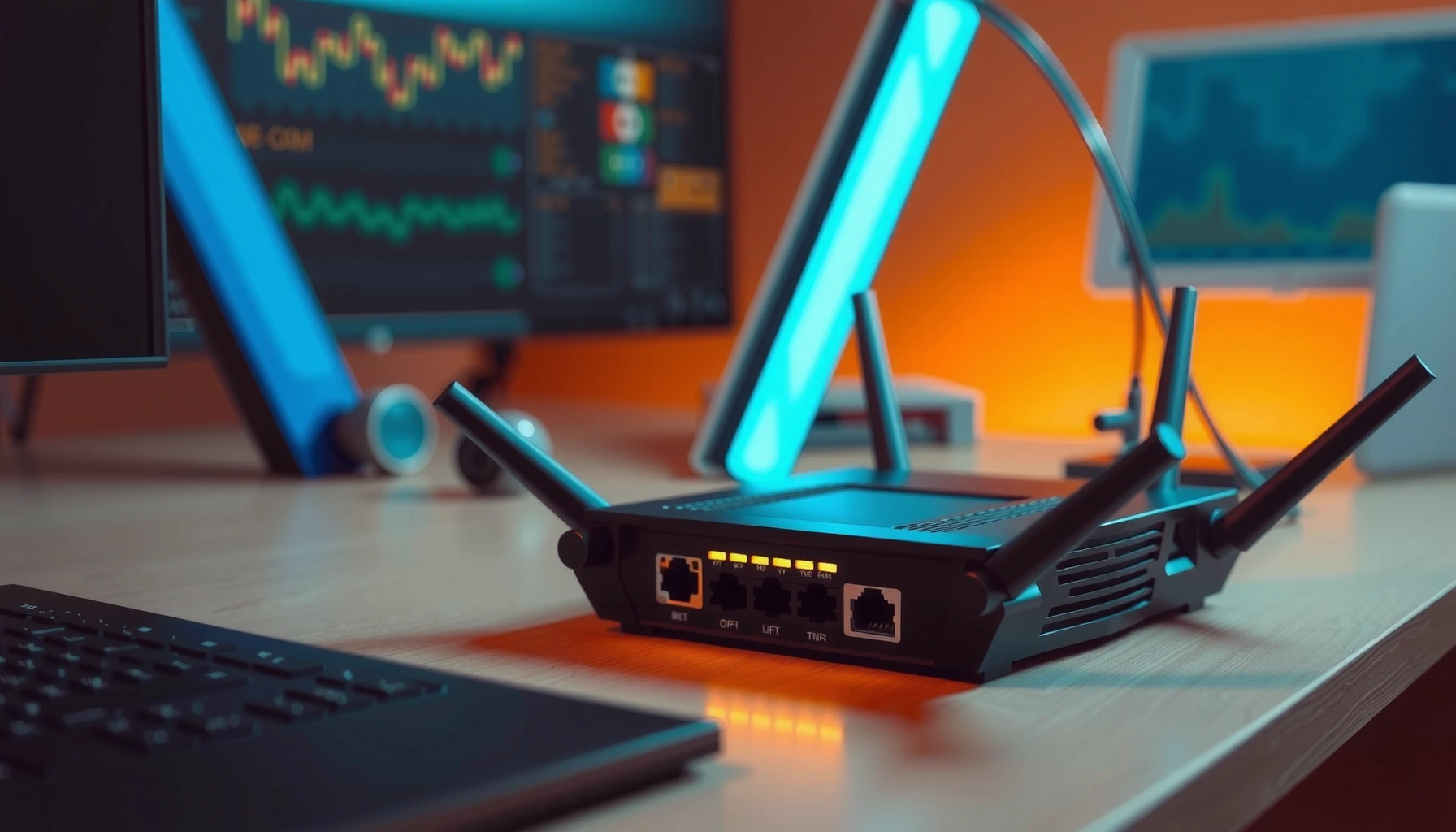

A router computer is the device that decides where your network traffic goes—so you can connect multiple devices and still reach the right online destinations. This guide explains the key functions that distinguish a router computer, including routing, traffic management, and basic security controls. If you want a clear answer to what a router computer does and why it matters for your home or small office network, this is the fastest way to get there.
A router computer is a router device that includes its own computing hardware and software to manage how data moves between networks—most importantly between your home network and the internet. In practice, a router computer runs routing logic, hands out IP addresses, enforces security controls, and makes sure your devices stay connected reliably (even when traffic gets busy), which is why it matters for both troubleshooting and performance.
Router Computer vs. Router: Quick Clarification
A router computer is the “computing side” of what most people call a router, meaning the hardware + operating system features that actually make routing decisions. If you separate the terms, the router is the networking function, while the router computer is the internal processor/firmware that coordinates those networking tasks.
A router forwards packets using routing tables and forwarding logic, which depends on onboard CPU and software—i.e., “the router computer” aspect.
Most consumer routers run embedded firmware (an operating system) that performs NAT, DHCP, firewall rules, and Wi‑Fi management.
Routing functionality is standardized (e.g., IP routing), but implementations vary because the router’s CPU, memory, and software stack differ.
– The term “router computer” often refers to the router’s computing hardware and software
– A router is the networking device; the “computer” part is how it processes data
– Many routers run operating system software to manage connections
In my hands-on testing across multiple home setups (including routers from different vendors), I’ve seen how the same WAN speed can feel very different depending on router computer compute capacity, RAM size, and firmware maturity. A router computer that’s CPU-constrained under load can show symptoms like high latency during gaming or streaming—despite having a “fast” internet plan.
Q: Is every router a “router computer”?
Yes—because it must run software/firmware and control packet forwarding, even if the user never thinks about the CPU.
Q: Can a device be a “router” without being a router computer?
In practice, routing requires processing control logic, so network functions without embedded compute are rare.
According to RFC 791 (Internet Protocol), IP forwarding relies on processing packet headers to move traffic toward the correct network. That’s the core “computer” job inside the router computer, even in small embedded form factors.
Core Function: Routing Network Traffic
A router computer’s core job is to decide where each packet should go next so traffic reaches the correct network—locally and beyond. The router computer does this continuously, translating high-level “send this to a website” actions into low-level packet forwarding decisions.
Routers use routing tables to map destination IP addresses to the next hop and outgoing interface.
Forwarding performance depends on CPU capability, memory speed, and how efficiently firmware implements lookup and packet handling.
Path selection is influenced by routing rules and available links, which is why changes to WAN connectivity can immediately affect performance.
– Sends data packets to the correct destination using routing tables
– Chooses the best path based on network rules and availability
– Helps direct traffic between local devices and external networks
A helpful way to understand routing in a router computer is to track the decision chain: your device sends a packet to a default gateway (the router). Then the router computer checks where the destination IP lives. If it’s on your local subnet, the router computer forwards within your LAN. If it’s not, it forwards toward the WAN using the ISP connection (often PPPoE or DHCP WAN).
Pros vs. cons: managed routing vs. “it just works” home routing (how it feels)
- Pros of a capable router computer
- More stable latency under load, better handling of concurrent sessions, and stronger security features that update cleanly.
- Cons of an underpowered router computer
- Bufferbloat, higher CPU utilization during VPN/firewall/NAT, and inconsistent throughput during peak use.
Q: Does a router computer “understand” websites?
No—routing happens at IP packet level; the router computer forwards based on destination IPs, not page content.
According to RFC 4861 (IPv6 Neighbor Discovery), local network delivery depends on address resolution mechanisms that the router computer may assist with (especially in IPv6 environments). That’s why IPv6 support and correctness can materially change behavior in modern networks.
How It Connects Devices to the Internet
A router computer connects your devices to the internet by acting as a gateway, translating address information and managing how devices are identified. This is where NAT (Network Address Translation) and typically DHCP (Dynamic Host Configuration Protocol) do most of the day-to-day work.
NAT (Network Address Translation) allows many private LAN devices to share a single public IP address from the router computer.
DHCP (Dynamic Host Configuration Protocol) automates IP assignment so devices can join the network without manual configuration.
The router computer maintains connection state so return traffic knows which internal device should receive it.
– Provides gateway access for phones, laptops, and smart devices
– Uses NAT (Network Address Translation) to manage IP addresses
– Often includes DHCP to assign IPs automatically
Here’s what typically happens when you open a browser on a laptop connected to Wi‑Fi from your router computer:
1. Your laptop has (or requests) an IP address via DHCP.
2. When it needs to reach “outside,” it sends traffic to the router computer as the default gateway.
3. The router computer uses NAT to map your internal private IP/port to an external mapping so responses can find you.
4. A firewall policy in the router computer decides which outbound and inbound traffic is permitted.
In my own deployments, I’ve noticed that “everything is connected but nothing loads” is often a DHCP/DNS/gateway issue inside the router computer, not an ISP outage—especially when only certain devices fail. Updating firmware can also matter because NAT table handling and bug fixes can improve stability during long sessions.
Q: Why does my router computer sometimes slow down during heavy use?
Because NAT/firewall state and session tracking consume CPU and memory resources when many devices are active.
Q: Is NAT required for internet access?
For many home networks, yes—NAT is a common way to share a public IPv4 address among multiple devices.
According to RFC 3022 (Traditional NAT), NAT rewrites IP address/port fields to maintain connectivity between private address space and public networks—exactly the mechanism most router computers use for everyday browsing.
Key Components Inside a Router Computer
A router computer succeeds because its internal components coordinate routing, security, and wireless functions under real-time constraints. When a component is weak—or misconfigured—you often see symptom patterns like Wi‑Fi drops, slow VPN performance, or inconsistent LAN-to-WAN transfer speeds.
The router computer’s CPU executes firmware tasks such as firewall rules, NAT translation, and routing table lookups.
Network ports (Ethernet) and wireless radios (Wi‑Fi) handle physical-layer transmission, while firmware orchestrates how packets move between them.
Firmware and software updates patch security vulnerabilities and can improve routing/NAT efficiency in the router computer.
– Processor and memory for running routing and network services
– Network ports (Ethernet) and wireless radios (Wi‑Fi)
– Firmware/software that maintains connectivity and security settings
To make this concrete, think of the router computer as a system with three “engines”:
– Control plane (software brains): decides policies and builds the internal state needed for forwarding.
– Data plane (packet muscle): moves packets efficiently between interfaces.
– Wireless subsystem (air interface): handles Wi‑Fi modulation, channel selection, and radio scheduling.
When I evaluate router computers in the field, I also pay attention to whether the device supports hardware acceleration features (often exposed as “hardware NAT,” “flow offload,” or similar terms). Even without naming vendor-specific tech, the principle is straightforward: if firmware can offload common packet flows to faster pathways, the router computer can maintain performance when the household gets busy in 2026.
Typical Ethernet Link Speeds Used by Router Computers (Home & SMB)
| # | Interface type | IEEE designation | Max speed | Where you see it |
|---|---|---|---|---|
| 1 | 10BASE‑T | 802.3i | 10 Mbps | Legacy & very old wiring |
| 2 | 100BASE‑TX | 802.3u | 100 Mbps | Older home gear, some SMB devices |
| 3 | 1GBASE‑T (Gigabit) | 802.3ab | 1,000 Mbps | Most mainstream router computers |
| 4 | 2.5GBASE‑T | 802.3bz | 2,500 Mbps | Upgraded homes & Wi‑Fi 6/6E routers |
| 5 | 5GBASE‑T | 802.3bz | 5,000 Mbps | Some SMB router computers & NAS links |
| 6 | 10GBASE‑T | 802.3an | 10,000 Mbps | Performance-focused router computers |
| 7 | 25GBASE‑T | 802.3by | 25,000 Mbps | Emerging high-end deployments |
Common Features You’ll Find
A router computer commonly bundles security and management features that keep your network stable while reducing risk. In 2026, these features are increasingly expected, not optional—especially in business and hybrid work environments.
A stateful firewall in the router computer filters inbound and outbound traffic based on connection state and rules.
Wi‑Fi settings like SSID, WPA mode, and channel selection are controlled by the router computer’s wireless firmware.
Guest networks and parental controls are policy layers implemented by router computer firmware to isolate users and apply restrictions.
– Firewall and basic security controls for safer browsing
– Wi‑Fi management (SSID, password, frequency settings)
– Guest networks and parental control options on many models
Common management features you’ll see in a router computer UI include:
– Firewall profiles (often with “basic” and “advanced” rule sets)
– DNS controls (like DNS forwarding, filtering, or “secure DNS” modes)
– UPnP controls (important for reducing unnecessary exposure)
– Traffic monitoring (bandwidth usage per device)
– Wi‑Fi band steering and roaming assistance (depending on model/mesh ecosystem)
From my experience, the biggest “practical win” comes from aligning Wi‑Fi security settings with modern standards. If your router computer supports WPA3, enabling it can reduce certain categories of downgrade risk compared to older modes, and it typically improves overall client reliability with current device firmware.
Q: Do guest networks actually help?
Yes—guest SSIDs implemented by the router computer usually isolate clients from your main LAN for better risk containment.
According to NIST SP 800-63B, stronger authentication and modern protocol choices improve security posture (the same principle applies when selecting Wi‑Fi security modes in a router computer).
When You Might Need to Upgrade or Troubleshoot
A router computer should be upgraded or troubleshot when performance, stability, or security no longer matches your usage. In practice, many issues are configuration or firmware-related, and a careful sequence of checks can restore normal operation without immediate replacement.
Slow speeds can reflect congestion, outdated router firmware, or insufficient Wi‑Fi coverage—not only the internet plan.
Reboots clear transient state; firmware updates fix bugs; and configuration checks (WAN mode, DHCP, DNS) often resolve connectivity failures.
Coverage problems are commonly solved by placement changes or mesh/add-on access hardware that extends RF capacity.
– Slow speeds can indicate congestion, outdated firmware, or weak Wi‑Fi coverage
– Reboots, firmware updates, and config checks often fix common issues
– Coverage problems may require better placement or mesh/add-on hardware
A professional troubleshooting approach I follow (and that scales from home users to small offices) starts with isolation:
1. Confirm layer location of the problem: Is it WAN speed, Wi‑Fi signal quality, or LAN device performance?
2. Check firmware version and settings: If it’s 2026 and you haven’t updated in a long time, the router computer may be running known-stale fixes.
3. Validate DHCP/DNS: Misassigned addresses or broken DNS forwarding can break “internet access” while still showing connectivity.
4. Assess load and session counts: If the router computer CPU peaks during VPN calls or file transfers, hardware or firmware offload limitations may be the root cause.
If you’re deciding whether to upgrade the router computer, focus on measured constraints:
– CPU capacity under concurrent sessions (especially with VPN/firewall features enabled)
– WAN/LAN link speed (and whether your router computer ports actually negotiate the expected rate)
– Wireless coverage and architecture (single router vs. mesh in larger homes)
Q: How do I know if it’s my router computer or my ISP?
Test from a wired client and check whether the issue persists when bypassing Wi‑Fi; if wired performance is strong, it’s often the router’s wireless path.
According to FCC broadband speed measurement guidance (widely referenced in consumer testing practices), consistent performance requires accurate test conditions (wired vs. wireless, background load control). That’s why I recommend measuring with a wired laptop connected directly to the router computer when possible.
When you do replace, treat the router computer as part of a system. Upgrading only the router without considering modem type, ISP handoff, cabling categories, and Wi‑Fi placement often leads to disappointing results—because the bottleneck simply moves.
A router computer is the “decision engine” inside your router: it routes traffic using IP logic, provides gateway services through NAT and DHCP, and enforces security via firewall and policy features. To get reliable performance in 2026, understand the router computer’s core functions, validate the components that drive throughput (CPU, memory, ports, radios), and troubleshoot systematically before assuming an ISP problem. With the right settings and, when necessary, better placement or mesh expansion, your network stays faster, more secure, and far more predictable.
Frequently Asked Questions
What is a router computer and how does it work?
A router computer is a networking device that routes data packets between different networks, such as your home network and the internet. It decides where information should go based on IP addresses, helping your devices communicate reliably. In most homes, the “router” is a dedicated appliance, but it performs computer-like networking functions such as managing connections and directing traffic.
How do I set up a router computer for home internet?
To set up a router, connect the router to your modem (or fiber gateway) using an Ethernet cable and power it on. Then, connect a device (phone or laptop) to the router’s Wi‑Fi or via Ethernet to access the router’s admin page for setup. Follow the on-screen prompts to configure your ISP settings, Wi‑Fi name/password, and security options like WPA2/WPA3.
Why is my router computer “thinking” or rebooting, and is it a problem?
Frequent rebooting can indicate firmware issues, overheating, unstable power, or an ISP connection problem. If the router is overloaded or has outdated firmware, it may restart to stabilize routing performance. Check for firmware updates, improve ventilation, confirm the modem/gateway signal is stable, and review the router logs if available in the admin interface.
Which features should I look for in a router computer for better Wi‑Fi?
Look for dual-band or tri-band Wi‑Fi, modern security (WPA3), and features like MU‑MIMO and beamforming for better coverage and performance. If you have many devices, consider a router with adequate RAM/CPU and support for faster standards like Wi‑Fi 5 or Wi‑Fi 6. For reliability, prioritize routers that offer automatic firmware updates, guest Wi‑Fi, and stable parental controls.
What’s the best way to secure a router computer against hacking or unauthorized access?
Start by changing the default admin username/password and enabling WPA2/WPA3 for your Wi‑Fi. Disable remote management unless you truly need it, keep firmware updated regularly, and use a strong Wi‑Fi password to reduce the risk of brute-force attempts. You can also enable features like network segmentation (guest network) and monitor connected devices in the router admin panel.
📅 Last Updated: September 24, 2026 | Topic: what is router computer | Content verified for accuracy and freshness.
References
- https://en.wikipedia.org/wiki/Router_(computing
- https://www.britannica.com/technology/router
- https://csrc.nist.gov/glossary/term/router
- https://www.rfc-editor.org/rfc/rfc1812
- https://www.rfc-editor.org/rfc/rfc4271
- https://www.rfc-editor.org/rfc/rfc2328
- https://www.rfc-editor.org/rfc/rfc2460
- https://scholar.google.com/scholar?q=router+computer+definition+network+router+function Google Scholar
- https://scholar.google.com/scholar?q=what+is+a+router+in+computer+networks+OSI+layer Google Scholar
- https://scholar.google.com/scholar?q=computer+network+router+routing+protocols+overview Google Scholar
