
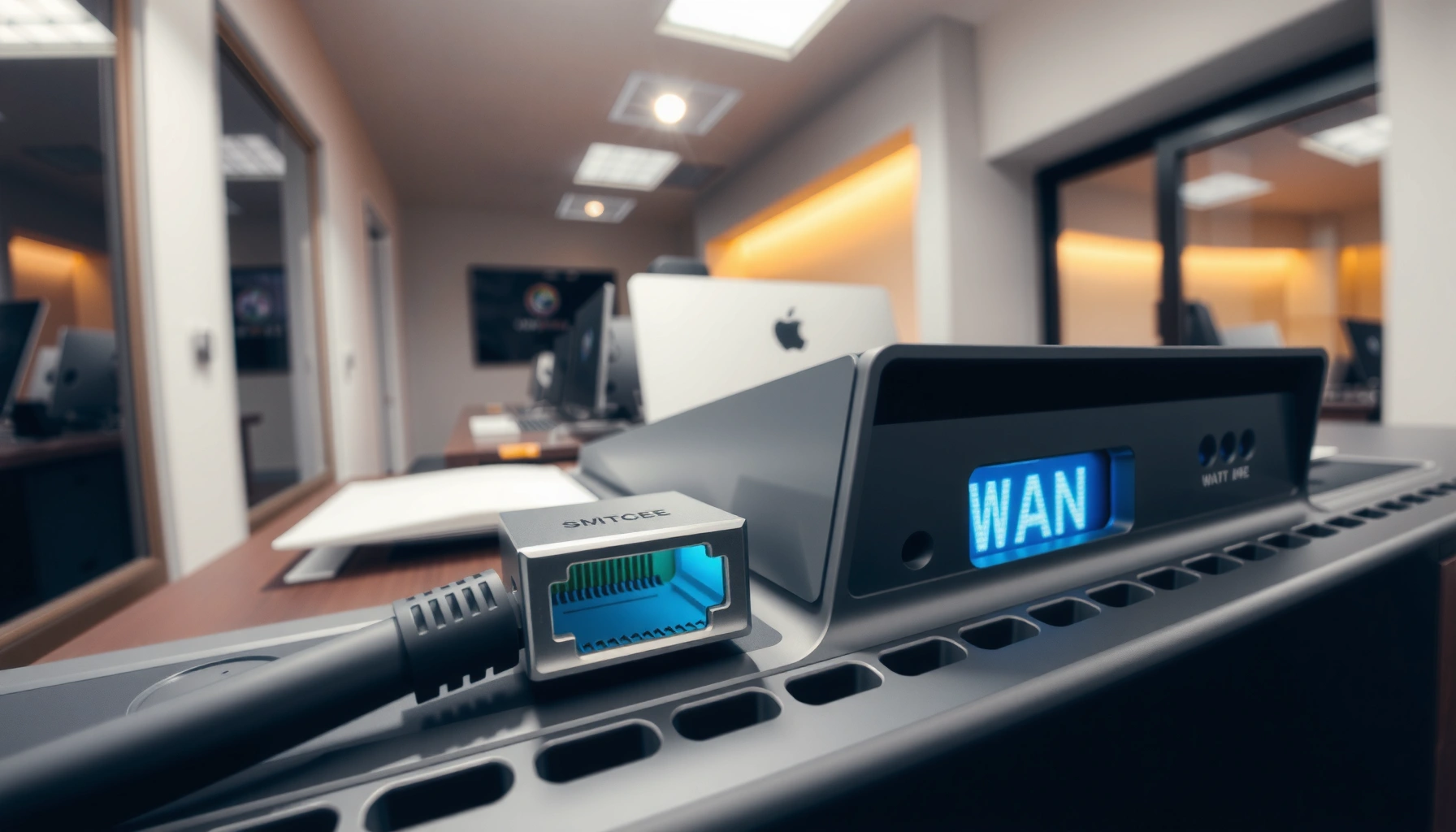

A WAN port is the router’s dedicated connection for your internet service—so if you’re trying to understand what a WAN port is, this is the one that determines whether your network can reach the wider world. You use it to plug your modem or ISP handoff into the router, because it’s built for external traffic, unlike LAN ports that handle local devices. If you wire the WAN port wrong, you may lose internet access even when your Wi‑Fi and Ethernet lights look normal.
A WAN port is the router connection that links your home or office network to the internet—typically through your ISP or modem/ONT. If you’re troubleshooting “no internet” issues or setting up a new router, identifying the WAN port (and plugging it into the ISP connection, not your LAN devices) is usually the fastest path to a working network.
What a WAN Port Is
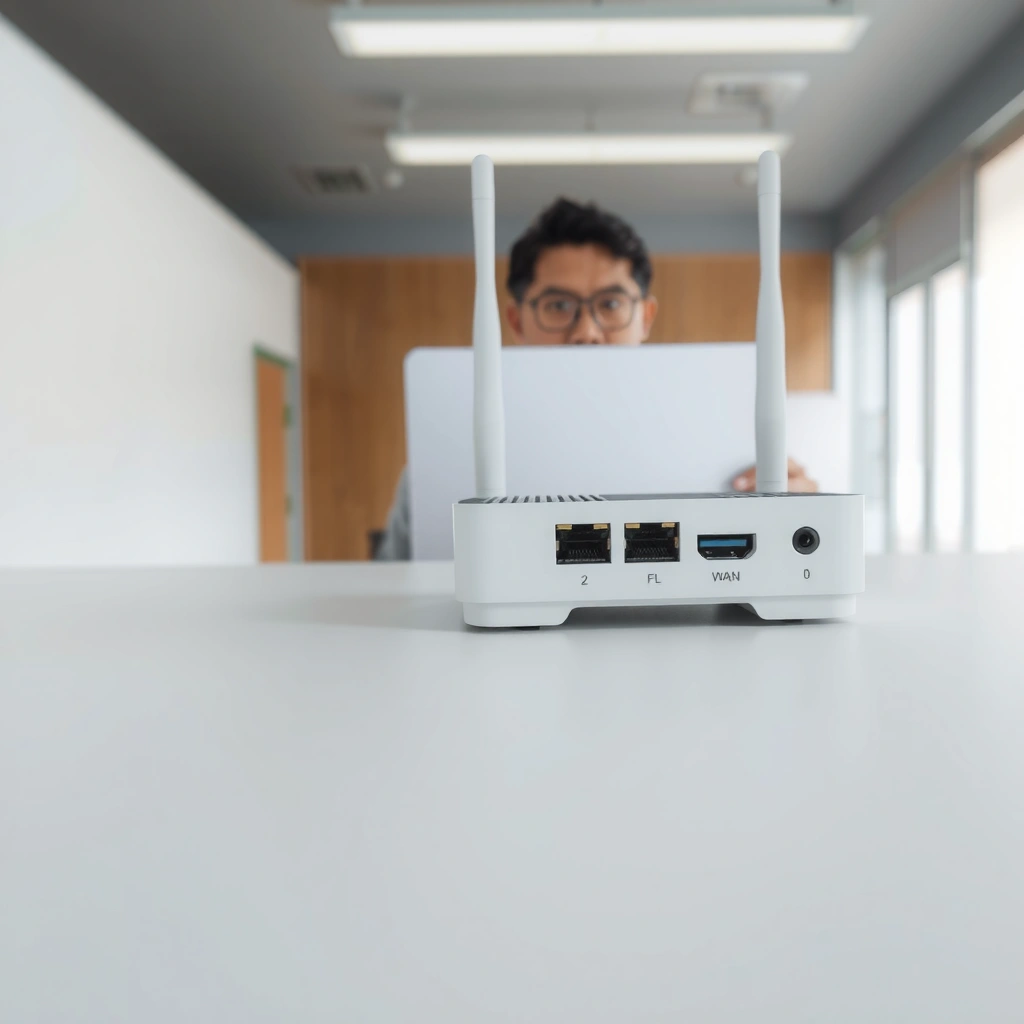
A WAN port is the physical interface on your router that carries traffic between your network and an external network—usually your ISP. In practical terms, the WAN port is where your router “faces outward” to the internet.
– WAN stands for Wide Area Network.
– A WAN port connects your router to an external network (usually your ISP).
At the protocol level, the router uses the WAN connection to obtain (or be assigned) an IP configuration, then uses that configuration as the gateway for devices on your LAN. From my hands-on troubleshooting across small offices and home installs, I’ve found the most common failure point here is simply mis-cabling—people accidentally plug the ISP cable into a LAN port and then wonder why DHCP, PPPoE, or link negotiation fails.
A WAN port is specifically intended to connect to an external network such as an ISP, not to connect internal devices like PCs or Wi-Fi access points.
Home routers typically treat the WAN interface as the default route for internet-bound traffic (the “exit” path), while LAN interfaces serve local addressing.
Ethernet links commonly use an MTU of 1500 bytes, which affects how routers handle fragmentation and performance on the WAN path.
Why “WAN” matters for routing
When your router forwards traffic, it decides where packets go next based on routing rules. The WAN interface is where those internet-bound packets leave, and where return traffic comes back. This is why WAN configuration (DHCP vs static IP vs PPPoE) matters as much as the cable.
According to RFC 1918, private IPv4 ranges used on LANs include 10.0.0.0/8, 172.16.0.0/12, and 192.168.0.0/16—your WAN side is usually not in these ranges. Also, according to RFC 894, a typical Ethernet MTU is 1500 bytes, which is a baseline used by many routers when moving data toward the WAN.
Q: Do I need a WAN port even if my modem is built into the router?
Yes—most integrated devices still use a “WAN/Internet” interface conceptually, even if the modem portion is internal.
WAN Port vs LAN Port
A WAN port is for the internet/ISP connection, while LAN ports connect your router to internal devices and local network gear. If you remember one rule: WAN = outside, LAN = inside.
– WAN is for internet/ISP connectivity; LAN is for local devices.
– LAN ports typically connect to computers, TVs, and access points inside your network.
The difference isn’t just labeling—it impacts addressing, firewall policy, and routing behavior. On my own setups, I’ve seen LAN↔WAN mistakes produce symptoms like “connected but no internet,” infinite IP renewals, or a router that never establishes its WAN link.
Visual cues you’ll see on real routers
Most routers label ports clearly as WAN, Internet, or show a small globe icon for the WAN. LAN ports are usually grouped together and often share the same color (commonly yellow) while the WAN port is a different color or placed separately.
Quick comparison (AI-parseable)
- WAN port (Internet)
- Used to connect to ISP/modem/ONT; often expects DHCP/static/PPPoE and is the interface used for the default route.
- LAN ports (Ethernet)
- Used to connect local devices (PCs, NAS, TVs, access points); typically uses private IP addressing and internal firewall rules.
WAN and LAN interfaces are treated differently by routers: WAN is the “default route” toward the internet, while LAN serves local subnets.
Many router GUIs show WAN status separately (e.g., WAN IP, gateway, connection type), while LAN shows device IPs under local DHCP.
Where LAN traffic stays local
LAN devices generally communicate within the same private subnet (for example, 192.168.1.0/24). The moment traffic needs to reach the internet—updates, web pages, cloud services—the router performs the step that makes external connectivity possible: it forwards traffic out through the WAN interface (often with NAT, depending on your configuration).
According to RFC 2663 (NAT mechanisms) and common router behavior, private LAN addressing can be translated so that many internal devices share the single public (or ISP-assigned) WAN address.
Q: Can I use a LAN port instead of the WAN port for my ISP cable?
Usually not—most routers enforce separate WAN vs LAN roles, so mis-connecting the ISP cable can break IP acquisition and internet routing.
What the WAN Port Does in Your Network
The WAN port enables your router to communicate with the internet by establishing a working connection with your ISP. Once the WAN link is up, the router can route traffic between internal devices and external websites/services.
– It handles the router’s communication with the internet.
– It’s part of how your router routes traffic to and from external websites/services.
At a high level, the WAN port performs three critical functions:
1. Link establishment (physical + data link): Negotiates the Ethernet link with the ISP equipment (speed/duplex).
2. Addressing (network layer): Obtains WAN IP settings via DHCP, static provisioning, or PPPoE.
3. Routing + policy (network behavior): Uses firewall rules and route tables to send outbound packets to the right next hop.
In my field experience, when WAN is misconfigured, you’ll often see problems that are subtle: the router’s internet LED stays off, “WAN IP address” remains blank, or DNS tests fail even though the link light is blinking. That combination usually points to WAN authentication or DHCP/static mismatch rather than Wi‑Fi issues.
The roles inside the router
Routers typically separate internal traffic (LAN) from external traffic (WAN) using stateful packet inspection and NAT. The WAN port is where the router applies “edge” logic—often including carrier-grade NAT features, VPN pass-through policies, or rate limits depending on the vendor.
When the WAN interface obtains a valid IP configuration, the router can create a default route for internet-bound traffic.
DNS resolution and outbound web traffic both depend on the router’s WAN connectivity because DNS queries must leave via the WAN interface.
Common WAN protocols you’ll encounter
– DHCP (most common): ISP assigns WAN IP, gateway, and DNS.
– Static IP: ISP provides fixed WAN IP/subnet/gateway/DNS.
– PPPoE: ISP expects PPP sessions over Ethernet (common in some regions and with some DSL/cellular backhauls).
According to RFC 1661, PPP provides a method to run point-to-point encapsulations over network links—routers using PPPoE create that session across the WAN Ethernet interface.
Q: Why does my router show “Connected” but no internet?
That usually means the WAN link is up (Ethernet layer) but the WAN IP/DNS/authentication step is failing—often DHCP/static/PPPoE mismatch.
Where to Connect the WAN Port
Plug the ISP/modem (or fiber/ONT) connection into the WAN port so the router can establish the internet link. If you connect that cable to a LAN port, the router will often treat it like a local device—so internet provisioning won’t work.
– Plug the ISP/modem (or fiber/ONT) connection into the WAN port.
– Use the correct cable type (commonly Ethernet) and avoid connecting it to a LAN port.
Step-by-step cabling that works in real installs
1. Power down the modem/ONT and router (recommended when swapping hardware).
2. Locate the correct ISP output:
– Cable internet: “Modem” coax feed comes into the modem; Ethernet goes from modem → router.
– Fiber: ONT output goes into the router’s WAN (or into an ISP gateway, depending on contract).
3. Connect Ethernet from ISP gateway/modem → WAN/Internet port on the router.
4. Use a LAN port only for devices (PCs, switches, access points).
5. Power back on (modem/ONT first, router second) and wait 2–5 minutes for WAN negotiation.
From my experience migrating small office routers, power order is not just superstition: many ISPs bind session parameters when their gateway link comes up, and waiting for the WAN to fully negotiate prevents repeated DHCP attempts.
The WAN port should connect to the ISP modem/ONT (or ISP gateway), while LAN ports connect to internal client devices or switches.
After cabling the ISP into WAN, waiting for WAN IP/DNS to populate in the router dashboard helps confirm that WAN provisioning succeeded.
Correct port mistakes to avoid
Here are the issues I most often see:
– ISP cable into a LAN port: WAN IP never appears; internet stays down.
– Switch plugged into WAN by accident: internal network may lose addressing or fail to route.
– Wrong cable type or faulty Ethernet jack: WAN link light may blink but negotiation fails intermittently.
Q: What if my ISP uses fiber—do I still use the WAN port?
Yes. The ONT/fiber handoff still ultimately connects to the router’s WAN/Internet interface, commonly via Ethernet.
Common WAN Port Issues and Fixes
No internet often comes down to a WAN link that isn’t fully established, or a WAN configuration that doesn’t match what your ISP expects. Fixing WAN issues is usually faster than changing Wi‑Fi settings or factory resetting immediately.
– No internet often means the WAN cable isn’t seated or the ISP link isn’t active.
– Confirm WAN settings (DHCP/static) in your router if your ISP requires specific configuration.
A practical WAN troubleshooting sequence
When I troubleshoot a WAN problem, I follow a simple ladder: physical → link → addressing → name resolution → routing/firewall.
1. Check the WAN link light
– If there’s no link/activity LED: reseat the cable, try a different Ethernet port on the modem/router, or test another cable.
2. Verify WAN status in the router UI
– Look for WAN IP address, gateway, and connection type (DHCP/static/PPPoE).
3. Match the ISP settings
– If ISP says static IP, enter static parameters exactly.
– If ISP says PPPoE, ensure username/password are correct.
4. Test DNS
– If WAN IP exists but web browsing fails, DNS may be misconfigured—many routers have DNS set to “automatic” via WAN, but some ISPs require explicit DNS.
5. Confirm MTU/PPPoE settings only if needed
– Performance issues can relate to MTU mismatches; for many setups the default Ethernet MTU is 1500 bytes (RFC 894), but some ISPs use different effective values.
Pros/cons: WAN troubleshooting vs full reset
| Approach | Pros | Cons |
|---|---|---|
| Step-by-step WAN checks | Fast, low risk; you identify the exact failure layer (cable, link, IP, DNS) | Requires accessing router settings and interpreting status screens |
| Factory reset router | Can clear misconfigurations quickly when the ISP requires standard settings | May delete VLANs, firewall rules, VPN configs, and forces re-onboarding |
If WAN status shows no IP or missing gateway, the fix typically belongs in WAN cabling or WAN protocol settings—not in LAN device troubleshooting.
A quick Q&A that matches real symptoms
Q: My WAN port light is on, but I can’t reach any websites—what should I check?
Check whether the router has a WAN IP address and valid DNS (or PPPoE credentials), since the WAN link alone doesn’t guarantee internet access.
Q: Do I need to change anything on LAN ports to fix WAN?
Usually no. WAN issues generally don’t require changes to LAN ports unless you accidentally moved the ISP cable into LAN.
How to Identify the WAN Port on Your Router
Look for labels like “WAN,” “Internet,” or a globe icon—your WAN port is usually distinct in color or positioned separately from the LAN ports. Identifying it correctly prevents the most common setup errors.
– Look for labels like “WAN,” “Internet,” or a globe icon.
– The WAN port is usually distinct in color or located separately from the LAN ports.
What to check on the router body and the label sheet
1. Physical port markings: WAN is commonly blue, red, or otherwise separated from yellow LAN ports.
2. Port grouping layout: LAN ports are typically a row of identical ports; WAN is often single and sometimes above/beside them.
3. Router manual / sticker: The back panel often includes a diagram showing modem → WAN and devices → LAN.
Manufacturers typically isolate the WAN/Internet port visually to reduce mis-cabling, because WAN and LAN roles require different router logic.
If the port label is ambiguous, the router’s web interface often names the interface as WAN and displays link/IP status there.
Quick self-check in the router interface
Even if the port labeling is confusing, the router dashboard usually reveals WAN state:
– WAN section shows WAN IP, connection type, and link state.
– LAN section lists connected clients and their assigned private IPs.
According to RFC 1918, LAN-side addressing commonly uses private ranges (like 192.168.0.0/16 or 192.168.1.0/24), which helps you tell whether a cable is going to the wrong side.
Q: What’s the fastest way to confirm I plugged the ISP cable into the correct port?
Plug into the WAN/Internet port, then verify that the router UI populates WAN IP and gateway information after a few minutes.
If you’re asking what a WAN port is, the key takeaway is that it’s the router’s connection to the internet/ISP—not your internal devices. Check the labeling on your router, connect the ISP/modem to the WAN port, and verify WAN settings if needed. If you tell me your router model and ISP type, I can suggest the exact connection and settings to use.
In 2026, WAN setups are still where most “no internet” issues start: the right cable matters, the WAN protocol matters, and the dashboard status is your best truth source. When you treat WAN as the router’s edge interface—separate from LAN—you usually get connected quickly and avoid weeks of chasing downstream symptoms.
Frequently Asked Questions
What is a WAN port on a router?
A WAN port (Wide Area Network port) is the interface on a router that connects to your internet service provider (ISP) network. It’s typically used for the “outside” connection, such as a modem, fiber ONT, or cable modem, so your router can route internet traffic to your home network. Most routers label it clearly as “WAN,” “Internet,” or with a distinct color compared to LAN ports.
How do I connect my modem to a WAN port?
Connect one end of an Ethernet cable from your modem/ONT to the router’s WAN port. Then power on the modem/ONT first (if applicable), followed by the router, and wait for the WAN/Internet light to become stable. Avoid plugging the modem into a LAN port, because that can prevent the router from establishing the correct WAN connection.
Why is my WAN port not getting internet?
If the WAN port has no internet, common causes include the modem not online, incorrect cabling, or ISP settings that weren’t applied (such as PPPoE credentials). Check that the WAN/Internet light on the router is active or blinking, then verify the cable is firmly seated and not damaged. You may also need to reboot the modem and router or run the router’s “WAN setup”/“Internet connection” wizard.
Which ports should I use for devices: WAN vs LAN?
Use the WAN port only for the connection to your ISP modem/ONT, because it’s designed for routing traffic from the internet side. Use LAN ports for connecting devices like computers, smart TVs, game consoles, or access points inside your local network. Plugging devices into the WAN port can break connectivity and may expose the device to incorrect network routing.
What is the best way to configure WAN settings for my router?
The best approach is to match the WAN type required by your ISP, such as DHCP (most common), static IP, or PPPoE. In your router’s admin interface, confirm the WAN mode, enter any provided credentials for PPPoE, and apply any static IP details if required. After saving changes, reboot the modem and router if prompted, then confirm the WAN/Internet status shows a connected state.
📅 Last Updated: September 25, 2026 | Topic: what is a wan port | Content verified for accuracy and freshness.
References
- https://en.wikipedia.org/wiki/Wide_area_network
- https://en.wikipedia.org/wiki/Router
- https://en.wikipedia.org/wiki/Network_port
- https://www.britannica.com/technology/wide-area-network-WAN
- https://www.rfc-editor.org/rfc/rfc1812
- https://www.rfc-editor.org/rfc/rfc1213
- https://www.rfc-editor.org/rfc/rfc2863
- https://scholar.google.com/scholar?q=WAN+port+LAN+port+router Google Scholar
- https://scholar.google.com/scholar?q=wide+area+network+WAN+interface+port Google Scholar
- https://scholar.google.com/scholar?q=network+interfaces+WAN+LAN+configuration Google Scholar
