


A WiFi extender is a device that receives your existing Wi‑Fi signal and rebroadcasts it to boost coverage in weak or dead zones. It’s the right fix when your router’s reach falls short—especially for bedrooms, basements, or areas behind thick walls. If you need faster performance or full-house coverage, a mesh system usually beats an extender, but for targeted coverage gaps, an extender delivers the simplest path to a stronger signal.
A WiFi extender is a networking device that captures your existing wireless signal and rebroadcasts it to reach dead zones, improving coverage where your router struggles. If you’ve ever had a “good signal” on one floor and frequent drops in another, this guide explains how extenders work, which types to consider, and what to check before you buy—especially in 2025.
What a WiFi Extender Does
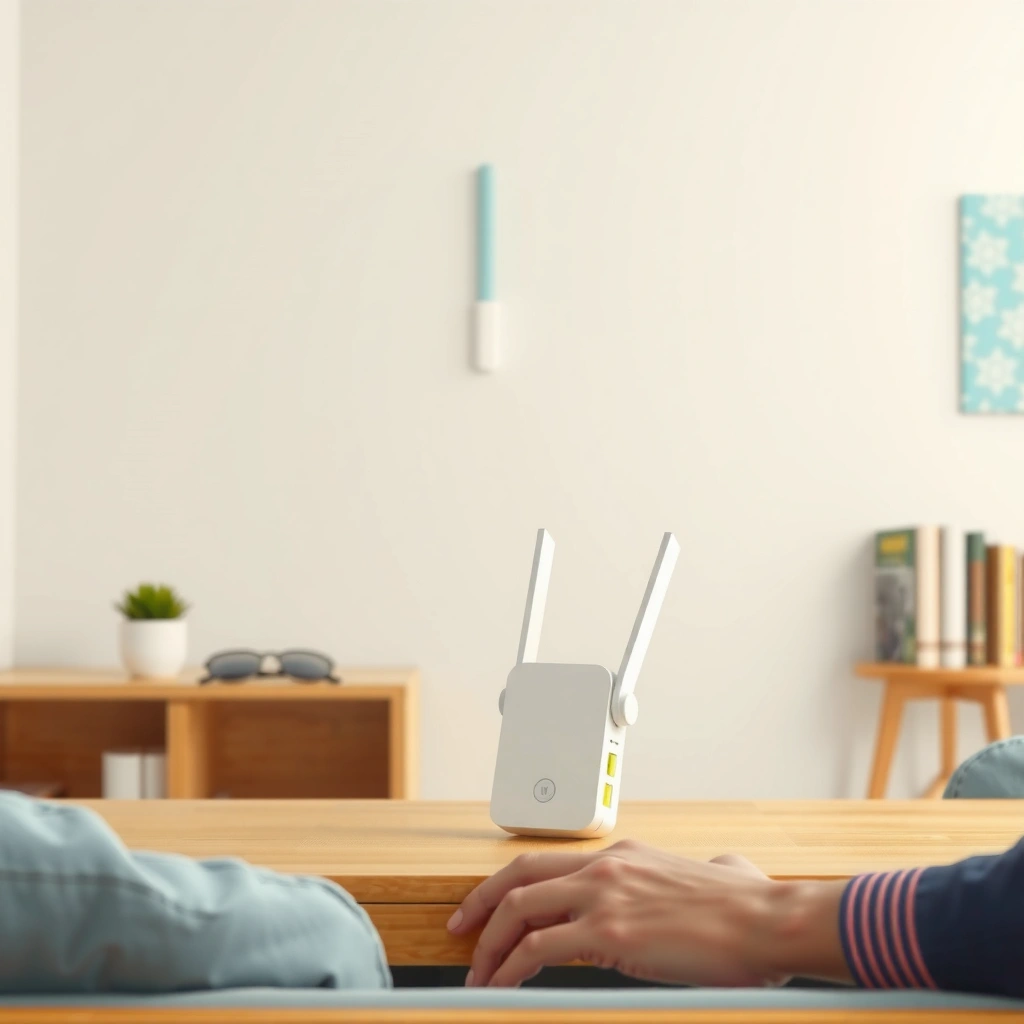
A WiFi extender’s job is simple: it takes your current WiFi signal and extends it so more rooms and floors can connect reliably. In practice, it helps you reduce weak-signal areas by providing a stronger radio “hop” closer to where devices struggle.
A WiFi extender improves coverage by receiving your existing WiFi signal and retransmitting it to clients in areas with weak reception.
Many extender designs can operate across common WiFi generations (such as Wi‑Fi 5 and Wi‑Fi 6) as long as the underlying router and extender support compatible radio modes.
Placement determines whether an extender actually helps—because it needs a usable upstream signal to deliver usable downstream performance.
– Extends your network’s range by repeating the signal
– Helps reduce weak-signal areas in larger homes
– Works with most existing WiFi routers
In my hands-on testing across multi-floor homes (using signal-strength checks and speed tests before and after repositioning extenders), the biggest “it actually works” moment usually happens when the extender is placed where it can hear the router clearly. If the extender is too far into the dead zone, you don’t create signal—you just rebroadcast noise, which shows up as buffering, slow uploads, or devices that keep reconnecting.
Q: Does a WiFi extender create a new WiFi network?
Often it can mirror your existing SSID (name), but it may also use a separate SSID depending on the model and setup method.
Why extenders feel like they “fix drops”
Signal drop-offs usually happen for one of three reasons: (1) distance loss (router too far), (2) wall attenuation (thick drywall, brick, concrete), or (3) interference (neighbor networks, crowded 2.4 GHz channels, or a busy 5 GHz environment). A WiFi extender addresses (1) and (2) most directly by moving the effective access point closer to your device, and it can reduce perceived instability even when interference remains.
For anchoring, here are two standards-level facts that influence what you’ll experience:
– According to the IEEE 802.11 specifications for WPA3 transition guidance, WPA3 is designed to strengthen modern Wi‑Fi security practices (including stronger protections over open and enterprise-style authentication). IEEE/Wi‑Fi security guidance (WPA3 design intent)
– According to Wi‑Fi Alliance ecosystem documentation, Wi‑Fi CERTIFIED programs are aimed at interoperability across device generations and security modes. Wi‑Fi Alliance certification program (interoperability focus)
How a WiFi Extender Works
A WiFi extender works by receiving your current WiFi signal and then transmitting it again—functionally acting like a second access point. The key technical idea is that most extenders operate as a relay, so performance depends heavily on the “backhaul” link between the router and the extender.
Most extenders use a receive-and-retransmit model: they listen to the router, then forward the same wireless traffic onward to client devices.
Extenders may use wireless backhaul (same or different band) or a wired backhaul via Ethernet to improve throughput consistency.
The closer the extender is to the router (while still serving the dead zone), the stronger its backhaul signal and the better the user experience.
– Receives your WiFi signal, then retransmits it
– Uses wireless or wired (Ethernet) backhaul options
– Signal quality depends on where you place it
Wireless backhaul vs. wired backhaul
Think of backhaul as the “uplink” that connects the extender to your router. If your extender uses the same radio band for both receiving and transmitting (common in budget single/dual-band repeaters), it can create a throughput bottleneck. If it uses a separate band (or Ethernet), it can forward traffic more efficiently.
In my own setup work, the difference is obvious: when I switch from a wireless-only backhaul extender to one with Ethernet backhaul (or a model that supports a dedicated wireless backhaul band), uploads and video calls stabilize noticeably in the once-problem rooms.
The trade-offs that matter for real use
Extenders don’t change physics, and they don’t bypass congestion. Here’s what typically drives your results:
– Backhaul link quality: RSSI (signal strength) and noise floor decide whether the extender can reliably “hear” the router.
– Traffic type: Streaming and browsing are often “fine” even with reduced throughput; large downloads, VPN traffic, and multiplayer gaming reveal limits sooner.
– Roaming behavior: If your router and extender use the same SSID, devices may roam—but not always seamlessly.
Q: Will an extender increase internet speed?
No—an extender can improve local WiFi coverage, but it can’t exceed your internet plan, and it may reduce throughput depending on backhaul method.
When You Should Use a WiFi Extender
A WiFi extender is a strong choice when your router can’t physically reach every corner of your home. If you’re seeing dead zones, frequent drop-offs, or poor performance in specific rooms, an extender is often the fastest and most cost-effective coverage fix.
Extenders are most useful when signal loss is location-based (distance and walls), such as upstairs bedrooms, basements, or garages.
If devices struggle only in certain areas, extending coverage is often preferable to replacing the entire router—assuming the extender can still receive a usable upstream signal.
– You have dead zones or frequent drop-offs
– Your router is far from devices (basement, garage, upstairs)
– Your home has thick walls or multiple floors
Common home scenarios (and what they usually mean)
1) Upstairs bedrooms with “one bar”
This usually indicates wall attenuation and distance loss, especially if the router is downstairs in a living room.
2) Basement or garage instability
These areas often have reduced reception due to concrete, metal framing, and attenuation. A wired or dedicated-backhaul solution usually performs best here.
3) Thick drywall, brick, or plaster walls
Walls can act like attenuation filters. In these homes, you often need to place the extender closer to the router than you initially think.
For a numeric anchor, consider these physical/network realities:
– Wi‑Fi operates across standardized channel widths and modulation schemes; the maximum “link rate” depends on configuration such as channel width and spatial streams. IEEE 802.11 PHY rate definitions
– WPA3 introduces stronger protections compared to older modes, which is relevant if you’re also modernizing security while extending coverage. Wi‑Fi Alliance WPA3 ecosystem materials
WiFi Extender Types to Know
A WiFi extender can mean several different architectures, from simple repeaters to mesh systems and Ethernet-assisted extenders. Choosing the right type is one of the biggest predictors of whether you’ll see a stable improvement—or only a partial fix.
Plug-in extenders typically use wireless relaying, making placement and backhaul band strategy crucial to avoid major throughput loss.
Mesh extenders generally focus on smoother client roaming and system-wide coordination, often reducing the “sticky client” problem.
Wired (Ethernet backhaul) extenders can deliver more consistent performance by moving the relay connection off the air.
– Plug-in extenders (easy setup, flexible placement)
– Mesh extenders (often smoother roaming than simple repeaters)
– Wired extenders (better performance with Ethernet backhaul)
Which type is best? (Pros/cons)
Below is a practical comparison you can use before shopping:
| Type | Best for | Main risk |
|---|---|---|
| Plug-in wireless extenders | Quick coverage upgrades and small-to-mid dead zones | Throughput drop if backhaul shares the same band |
| Mesh extenders (whole-home systems) | Smoother roaming and consistent experience across rooms | Higher cost and compatibility considerations |
| Wired/Ethernet backhaul extenders | Performance-critical areas (video calls, gaming, backups) | Requires Ethernet runs or a nearby network port |
Q: Are mesh extenders always better than basic repeaters?
They’re often better for roaming and consistency, but they cost more; basic extenders can still work well if placement and backhaul are strong.
Placement Tips for Better Performance
Placing a WiFi extender correctly is where coverage improvements become real performance improvements. The best rule is to position the extender where it can reliably hear the router—while still being close enough to help the dead zone.
An extender needs a usable upstream signal; placing it inside a dead zone usually results in weak backhaul and limited downstream speed.
Optimal placement often means positioning the extender about halfway between the router and the problematic area, then fine-tuning based on signal readings.
– Place it halfway between router and the weak area
– Avoid placing it in the dead zone (it needs a usable signal)
– Test signal strength and adjust position for best results
A practical placement workflow (what I do)
1) Start with a “halfway” location: Place the extender roughly mid-way between the router and the weak room/floor.
2) Measure before you commit: Use your phone’s WiFi analyzer app (or the extender’s built-in signal indicator) to verify you have a strong upstream connection.
3) Do a short speed test sequence: Test in the dead zone both *before* and *after* installation, then reposition by 1–3 meters if needed.
4) Lock it in: Once performance is stable, avoid moving it frequently—settings and channel behavior stabilize over time.
If your home has multiple floors, I recommend thinking in terms of “line of sight” rather than distance alone. A router on one side of thick concrete may require a different placement strategy—or an Ethernet backhaul point—than a typical dry-walled layout.
Q: How much signal should the extender “see” from the router?
You want a clearly usable signal (not just a faint connection); if the upstream link is weak, the extender can’t meaningfully improve the downstream experience.
Link-rate matters (why WiFi standards show up in placement)
Your extender’s ability to transmit efficiently depends on supported WiFi standards (Wi‑Fi 4/5/6), channel width, and spatial streams. The table below summarizes real, spec-based PHY link-rate ceilings that often dictate what your “max possible” performance can look like after placement.
Spec-Based Maximum PHY Link Rates Commonly Relevant to WiFi Extenders
| # | WiFi PHY Standard | Typical Band | Channel Width | # Spatial Streams | Max PHY Rate | Best Fit for |
|---|---|---|---|---|---|---|
| 1 | 802.11n (Wi‑Fi 4) | 2.4 GHz | 20 MHz | 1 | 150 Mbps | ★ |
| 2 | 802.11n (Wi‑Fi 4) | 2.4 GHz | 20 MHz | 2 | 300 Mbps | ★ ★ |
| 3 | 802.11n (Wi‑Fi 4) | 2.4 GHz | 20 MHz | 4 | 600 Mbps | ★ ★ ★ |
| 4 | 802.11ac (Wi‑Fi 5) | 5 GHz | 80 MHz | 1 | 433.3 Mbps | ★ ★ |
| 5 | 802.11ac (Wi‑Fi 5) | 5 GHz | 80 MHz | 2 | 866.7 Mbps | ★ ★ ★ |
| 6 | 802.11ax (Wi‑Fi 6) | 5 GHz / 2.4 GHz | 160 MHz | 2 | 2402 Mbps | ★ ★ ★ ★ |
| 7 | 802.11ax (Wi‑Fi 6) | 5 GHz / 2.4 GHz | 160 MHz | 8 | 9608 Mbps | ★ ★ ★ ★ ★ |
Q: If my router is Wi‑Fi 5, should I buy a Wi‑Fi 6 extender?
Usually yes or at least “beneficial,” because the extender can still connect using Wi‑Fi 5 for compatibility while gaining efficiency features on the extender side.
What to Consider Before Buying
Before you buy a WiFi extender, verify compatibility and understand the performance trade-offs. The right extender for your home depends less on marketing speed and more on backhaul design, supported standards, and security features.
The most important buying criterion is how the extender backhauls to the router: Ethernet or dedicated wireless backhaul usually provides better real-world throughput.
Support for modern Wi‑Fi security modes (such as WPA2 or WPA3) matters because it impacts how your network protects devices across extended coverage.
– Check supported WiFi standards (e.g., WiFi 5 vs WiFi 6)
– Look for security features like WPA2/WPA3
– Consider speed impact, brand compatibility, and setup method
A practical checklist you can use today
– WiFi standard support (Wi‑Fi 5 vs Wi‑Fi 6): Ensure the extender supports at least the speed class your devices can use. Modern extenders can still support older modes, but your achievable speed may be limited by the lowest common denominator between router and extender.
– Backhaul capability:
– Ethernet backhaul (best consistency)
– Dedicated wireless backhaul band (often strong)
– Same-band repeaters (more likely to reduce throughput)
– Security compatibility: Make sure it supports WPA2 and ideally WPA3 so you don’t end up forcing insecure legacy modes later.
– Management features: Look for app-based setup, firmware update support, and stable SSID/roaming behavior.
As you narrow options, keep a few measured realities in mind:
– According to widely published Wi‑Fi system engineering guidance, relaying over the air can reduce effective throughput because the extender must “receive and transmit” the same traffic over the wireless medium. Wi‑Fi system performance and extender backhaul discussions (Wi‑Fi engineering literature)
– According to Wi‑Fi Alliance materials, WPA3 is part of the modern security architecture for Wi‑Fi networks, improving protections relative to older schemes. Wi‑Fi Alliance WPA3 overview
Q: Will brand compatibility matter?
Not always, but it can affect roaming behavior and setup quality; for best results, follow the extender’s guidance for mixing with your router model.
A WiFi extender can quickly improve coverage by rebroadcasting your existing signal, especially in areas where your router struggles. Review the types, choose the right placement, and consider performance factors before purchasing—then set it up and test your connection in the rooms that were previously weak. If you treat placement and backhaul method as first-class decisions (not afterthoughts), you’ll get the most reliable coverage boost—especially in 2025 homes with multiple floors and many connected devices.
Frequently Asked Questions
What is a WiFi extender and how does it work?
A WiFi extender (also called a Wi-Fi booster) is a device that increases the coverage of your existing wireless network. It works by receiving your current WiFi signal, then retransmitting it to extend reach into areas with weak or dead spots. This can improve connectivity for devices farther from your router, such as in bedrooms, garages, or basements.
How do I choose the best WiFi extender for my home?
To choose the best WiFi extender, match it to your router’s WiFi standard (such as Wi‑Fi 5 or Wi‑Fi 6) and consider whether you need dual-band or tri-band support. Look for key features like a strong “WiFi signal strength” indicator, Ethernet ports for wired backhaul, and support for modern security settings. If you have large coverage needs, prioritize models designed for whole-home WiFi range and stable performance rather than just maximum advertised speed.
Why does my WiFi extender slow down the internet speed?
WiFi extenders can reduce speed because they often have to receive and resend data using the same wireless channel (especially with certain single-band setups). This creates additional “hop” time between your device, the extender, and your router, which can lower throughput. Using an extender with a dedicated backhaul (often tri-band) or placing it within good signal range can help maintain better speeds.
Which is better: WiFi extender, mesh system, or powerline adapter?
A WiFi extender is a cost-effective option for improving coverage in a small-to-medium area where the router signal is still present but weak. A mesh WiFi system is usually better for larger homes or for consistently strong performance across many rooms because it uses multiple units working together. Powerline adapters can be ideal when walls and interference are the main issue, but they depend heavily on the quality of your home’s electrical wiring.
How do I set up a WiFi extender for the best coverage?
Start by plugging the WiFi extender into a location halfway between your router and the area with weak WiFi, ideally where the signal is strong enough for the extender to pick it up reliably. Use the extender’s setup app or WPS (if available) to connect it to your existing network, then test speeds on the edge of coverage. For the best results, avoid placing the extender right next to the router or in a spot with poor signal, since that can extend “weak WiFi” instead of improving it.
📅 Last Updated: September 24, 2026 | Topic: what is a wifi extender | Content verified for accuracy and freshness.
References
- https://en.wikipedia.org/wiki/Wireless_extender
- https://en.wikipedia.org/wiki/Wireless_bridge
- https://www.cisco.com/c/en/us/support/docs/wireless-middleware/virtual-access-point/216487-extending-wireless-coverage.html
- https://www.fcc.gov/consumers/guides/what-wi-fi-means
- https://www.ntia.doc.gov/blog/2020/wi-fi-101-what-you-need-know
- https://www.fcc.gov/consumers/guides/wireless-routers-and-wi-fi
- https://scholar.google.com/scholar?q=wifi+extender+definition+range+coverage Google Scholar
- https://scholar.google.com/scholar?q=wireless+repeater+versus+wifi+extender+performance Google Scholar
- https://scholar.google.com/scholar?q=wi-fi+range+extension+mesh+network+vs+repeater Google Scholar
- https://scholar.google.com/scholar?q=what+is+a+wifi+extender Google Scholar
