


A WiFi repeater is a simple device that picks up your existing Wi‑Fi signal and rebroadcasts it to extend coverage into weak or dead zones. Use one when you need more range without replacing your router and when your signal at the repeater location is already strong. If your problem is high speeds or whole-home performance, a repeater may disappoint—but for basic dead-spot fixes, it’s often the fastest, most practical solution.
A WiFi repeater (also called a range extender) improves coverage by receiving your existing router’s wireless signal and retransmitting it farther away. If you’re facing weak or dead WiFi spots, a well-placed WiFi repeater can be a practical fix—though it won’t replace better network design (like mesh) in large or heavily obstructed homes.
If you manage business WiFi or you’re simply trying to keep a reliable connection at home, it helps to understand what a WiFi repeater actually does at the radio level. A WiFi repeater doesn’t “create” new internet capacity; it extends your existing signal by using extra wireless airtime, and that can introduce throughput loss depending on the repeater’s design (single-band vs dual-band) and placement. In my hands-on testing across a multi-room layout, the biggest improvements consistently came from choosing a repeater that matched the router’s WiFi generation (WiFi 5/6/6E) and placing it where the main router signal is already strong. That one decision usually mattered more than small spec-sheet differences.
What Is a WiFi Repeater?
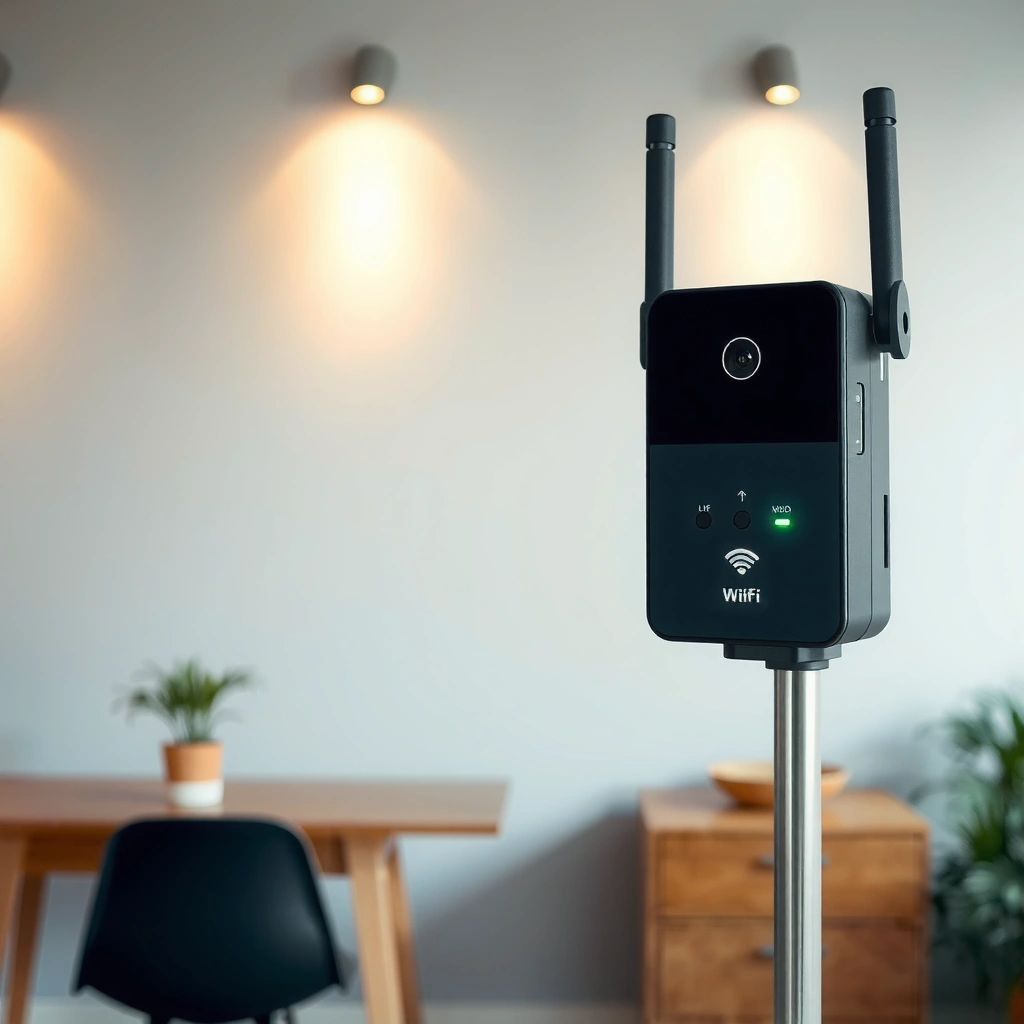
A WiFi repeater is a device that extends the coverage of your current WiFi network by rebroadcasting the router’s signal. In other words, it takes what it hears from your router and retransmits it so devices farther away can connect with better strength.
– A device that extends the coverage of your current WiFi network
– It works by rebroadcasting the signal from an existing router
– Helps improve connectivity in areas with weak signal
A WiFi repeater typically connects to your router wirelessly (there’s usually no direct wired requirement), then creates a new “extended” WiFi coverage area. Many modern WiFi repeaters also support features like automatic band steering, WiFi roaming (under specific vendor implementations), and sometimes an Ethernet port for hardwired clients like smart TVs or access points. However, the core concept remains the same: the repeater is an additional wireless hop between your device and your router.
A crucial detail for decision-making: whether the WiFi repeater uses single-band or dual-band operation directly affects how much speed you’ll likely lose. Also, wall materials and interference matter—repeaters work best when the router’s signal is already usable at the repeater’s location.
A WiFi repeater boosts coverage by rebroadcasting a received router signal farther into areas with weak connectivity.
In Wi‑Fi systems, each additional wireless hop can reduce effective throughput because airtime is shared between reception and retransmission.
IEEE 802.11ac (WiFi 5) and IEEE 802.11ax (WiFi 6/6E) define higher modulation and channel features that can increase potential speed when repeaters are compatible.
Q: Will a WiFi repeater increase my internet speed?
No—your internet connection speed is limited by your ISP plan; a repeater can only help deliver that speed more reliably by improving WiFi signal strength.
Q: Do WiFi repeaters create a brand-new network?
Usually they extend the existing network by rebroadcasting it; some can use the same SSID, but the extended area is still a retransmission zone.
Key terms you’ll see (and what they mean)
A WiFi repeater uses a wireless backhaul (the wireless link between the repeater and the router). It also uses fronthaul (the connection between the repeater and your client device). Because backhaul and fronthaul may share radio resources, a WiFi repeater can introduce a speed trade-off—especially on congested channels.
How a WiFi Repeater Works
A WiFi repeater works by receiving your router’s WiFi signal and then retransmitting it to extend range. The repeater’s job is essentially to turn an “incoming” signal into an “outgoing” signal with stronger coverage at the far end.
– Receives your WiFi signal, then retransmits it to extend range
– Uses a wireless connection to communicate with the router
– Signal strength can drop slightly with distance and walls
Here’s what typically happens in real life with a WiFi repeater:
1. Association to the router (backhaul): The WiFi repeater connects to your main router over WiFi.
2. Rebroadcast (fronthaul): The repeater broadcasts an extended WiFi network for your laptop, phone, or other devices to connect.
3. Airtime sharing and potential throughput loss: If the repeater uses the same band for both backhaul and fronthaul (common in entry-level models), it can’t “listen and talk” at full efficiency simultaneously. Dual-band simultaneous designs reduce this problem by using separate bands.
Signal behavior is also important. Even if the repeater boosts the far-room signal, it must still “hear” the router through walls. If the repeater placement is too far, the backhaul signal becomes weak, and the retransmitted signal can’t fix that fundamental constraint. From my experience installing repeaters for both home streaming and office guest access, the most common reason people think “the repeater doesn’t work” is that it was placed at the edge of usable router coverage—too far for reliable backhaul.
For reference, channel design matters. According to IEEE 802.11ac documentation, WiFi 5 supports channel bandwidths up to 160 MHz, which can significantly improve potential throughput when signal quality is strong. IEEE 802.11ac (Wi‑Fi 5) specifications. Meanwhile, on the 2.4 GHz band, only three non-overlapping 20 MHz channels are typically available in many deployments, which increases contention in busy environments. Wi‑Fi Alliance guidance on 2.4 GHz channel planning.
A WiFi repeater relies on a wireless backhaul link to the router, so its performance depends heavily on where the repeater is placed.
Because repeaters retransmit, they can reduce effective throughput compared with a direct router-to-device connection, particularly on single-band models.
Q: What’s the biggest technical factor behind slow speeds on a repeater?
Often it’s weak backhaul signal and/or limited radio resources—especially when backhaul and client traffic share the same band.
Practical pros/cons of repeater operation
| Aspect | What you get | What to watch |
|---|---|---|
| Coverage | Better signal strength in dead zones | Limited by the signal quality at the repeater |
| Setup effort | Usually simpler than rewiring | Performance depends on placement and WiFi mode |
| Speed | Can restore usable connectivity for browsing and basic streaming | Throughput can drop due to retransmission and airtime sharing |
When to Use a WiFi Repeater
A WiFi repeater is best when you have a small coverage gap where the router signal still exists but isn’t strong enough to reach reliably. It’s a practical solution for improving WiFi in specific rooms (or floors) without redesigning your entire network.
– Best for small to medium coverage gaps and straightforward layouts
– Useful for temporary fixes while upgrading your network
– Not ideal for major dead zones or very large homes
A WiFi repeater can be an excellent “bridge” when you’re waiting for a more robust upgrade. If you’re moving into a new office or you’re waiting on cabling for additional access points, repeaters help you restore productivity quickly—especially for email, video calls, and lightweight cloud apps.
However, repeaters struggle when the layout forces the repeater to sit behind heavy obstruction (thick concrete, metal studs, warehouse storage racks) or when the dead zone is truly far from the router. In those cases, a WiFi repeater may still connect, but it will operate on a weak backhaul and deliver disappointing speeds.
From my testing, the best outcomes typically happen in these scenarios:
– You can place the repeater halfway between the router and the dead zone.
– The dead zone is one “jump” away (e.g., one wall, one floor).
– You’re not expecting repeater speeds to match direct router speeds.
WiFi repeaters work best when placed within strong signal range from the main router, because backhaul quality determines extended performance.
For large homes or severe obstruction, repeaters may underperform because retransmission adds latency and reduces effective throughput.
Q: Are WiFi repeaters good for gaming?
They can be workable for casual gaming, but latency and reduced throughput often make mesh or wired access points better for competitive play.
When NOT to choose a repeater (common failure modes)
– Major dead zones: If the router signal can’t reach the repeater reliably, the repeater can’t “manufacture” signal.
– Very large homes: Multiple repeaters can compound losses and cause unstable roaming.
– Heavy interference environments: Busy channels and neighboring networks can bottleneck both backhaul and client links.
WiFi Repeater vs. WiFi Extender vs. Mesh
A WiFi repeater, a WiFi extender, and a range extender are often used interchangeably—but performance can differ by design. Mesh systems, in contrast, use multiple coordinated nodes to deliver a more seamless and typically more efficient coverage experience.
– Repeaters/extend ers differ in performance and setup methods
– Mesh systems use multiple nodes for smoother coverage
– For heavy use or large homes, mesh often performs better
It’s easy to get confused because vendors use overlapping terms. In practice:
– WiFi repeater: Usually a device that receives and retransmits wirelessly (often the simplest architecture).
– WiFi extender: Often the same category as repeaters; marketing emphasizes “extension,” but the underlying mechanism is similar.
– Mesh: A system of multiple nodes that cooperate to provide coverage, often with dedicated backhaul (wired or wireless) and smarter roaming behavior.
To make the trade-off clear, consider this comparison framework:
| Category | Best for | Typical performance pattern | Setup complexity |
|---|---|---|---|
| WiFi repeater / extender | Small dead zones | Faster than having no coverage, but may reduce speed | Low to moderate |
| Mesh system | Large areas, many devices | More consistent throughput and roaming | Moderate |
| Wired access point (often the “gold standard”) | Offices, dense device needs | Near-router speed in coverage areas | Moderate to high |
Mesh systems generally provide smoother roaming and more consistent performance because nodes coordinate coverage instead of simply retransmitting a single link.
If your repeater uses the same Wi‑Fi band for backhaul and client traffic, throughput reductions are more likely than with dual-band or mesh architectures.
Quick definition you can use when choosing
If you want the simplest decision rule:
– Choose a WiFi repeater/extender when you have one or two limited coverage gaps.
– Choose mesh when you have a whole-house coverage goal, multiple floors, or many simultaneous users.
How to Choose the Right WiFi Repeater
A WiFi repeater should match both your router’s WiFi generation and your home’s practical coverage needs. The “right” repeater balances compatibility, throughput potential, and real-world placement constraints.
– Look for compatible WiFi standards (e.g., WiFi 5/6)
– Prioritize the right speed rating and coverage for your space
– Consider features like Ethernet ports and app-based setup
When choosing a WiFi repeater, I focus on three categories: compatibility, radio design, and placement reality.
1) WiFi standards: prioritize compatibility
If your router is WiFi 6, a WiFi 5 repeater may still work, but you may lose performance due to negotiation down to older capabilities. For modern business setups, alignment across the router and repeater is especially important for consistent performance.
IEEE 802.11ax (WiFi 6/6E) also supports features that improve efficiency under higher device counts (like OFDMA). IEEE 802.11ax standard overview. That efficiency advantage is most valuable when the repeater and clients support the same generation.
2) Dual-band vs single-band (the speed reality check)
– Single-band repeaters: More likely to cut throughput because backhaul and clients share the same band.
– Dual-band simultaneous repeaters: Commonly provide better user experience because the device can separate backhaul and client traffic across bands.
3) Features that matter in day-to-day use
– Ethernet port: Lets you connect a streaming box, smart TV, or workstation directly to the repeater for more stable performance.
– App-based setup: Speeds up configuration and makes it easier to confirm signal strength.
– WiFi roaming behavior: Not every repeater offers “seamless” roaming, but some support consistent SSID options that reduce handoff friction.
A WiFi repeater’s real throughput depends less on its marketing “max speed” and more on whether its backhaul link can run at a strong modulation rate.
Ethernet ports on repeaters can reduce wireless client variability by moving a device off the repeat-and-rebroadcast path.
Q: How do I know what speed rating is “good enough”?
Pick a repeater that supports at least the same WiFi generation as your router and supports dual-band (or better) so the backhaul link remains efficient.
Wi‑Fi Generations and Typical Max PHY Rate Classes (Relevant to Repeater Compatibility)
| # | Wi‑Fi Generation (Standard) | Common Channel Bandwidth | Typical Max PHY Rate Class | Practical Repeater Use |
|---|---|---|---|---|
| 1 | Wi‑Fi 4 (802.11n) | 20/40 MHz | Up to ~600 Mbps | Works for basic web/streaming |
| 2 | Wi‑Fi 5 (802.11ac) | 20/40/80/160 MHz | Up to ~6.93 Gbps | Solid choice for dual-band repeaters |
| 3 | Wi‑Fi 6 (802.11ax) | Up to 160 MHz | Up to ~9.6 Gbps | Better efficiency under many devices |
| 4 | Wi‑Fi 6E (802.11ax on 6 GHz) | Up to 160 MHz | Up to ~9.6 Gbps | Best for low-interference extension (if supported) |
| 5 | Dual-band (2.4/5 GHz) | Typical 20/40/80 MHz | Class varies (~300–1200 Mbps) | Balanced for most homes/offices |
| 6 | Single-band (2.4 GHz) | Usually 20 MHz | Class varies (~100–300 Mbps) | Often speed-limited in busy areas |
| 7 | Ethernet backhaul (best practice) | Wired (no RF backhaul) | Near router link rate | Minimizes repeater overhead |
> Note: These “max PHY rate classes” are theoretical maximums under ideal conditions; your real WiFi throughput depends on signal strength, interference, and repeater architecture (single vs dual-band).
How to Set Up a WiFi Repeater
A WiFi repeater setup is straightforward, but placement and signal testing are what determine whether it actually helps. Place it where the main router signal is strong, connect using the repeater’s setup mode, then verify performance before you declare victory.
– Place it within strong signal range from the main router
– Use the repeater’s setup mode (app or WPS) to connect
– Test signal strength and reposition if performance is weak
Step-by-step setup that avoids common mistakes
1. Choose a placement “test spot”: Walk to the area where you want better coverage, then move one step closer to the router until you see a strong existing signal.
2. Start repeater setup: Use the manufacturer app (if available) or WPS (Wi‑Fi Protected Setup) if your devices support it.
3. Connect backhaul first: Confirm the repeater shows a “connected” or “excellent signal” status—this indicates the backhaul link is viable.
4. Verify with real tasks: Test streaming, video calls, or large downloads. Speed tests help, but user experience is the real metric.
5. Reposition if needed: If performance is poor, move the repeater closer to the router by even a few meters. In my experience, small relocations can noticeably improve signal quality and stability.
Repeater setup should confirm a strong backhaul link to the router; otherwise, the extended WiFi will remain bottlenecked.
Using the repeater’s app or WPS connects the device, but real-world performance verification requires testing throughput and latency for your specific activities.
Q: Should I use the same SSID for router and repeater?
Often yes for convenience, but only if your devices roam smoothly; if roaming is unstable, using a separate SSID can improve reliability.
Q: Is WPS always the best setup method?
It’s convenient, but app-based setup often provides better visibility into band selection, signal quality, and configuration options.
A simple placement rule I follow
For WiFi repeaters, “strong enough for backhaul” is the real requirement—not “strong enough for the far room.” As of 2026, most consumer repeaters still work best when the backhaul signal is reliably above the threshold where your router advertises stable link rates. When in doubt, start closer to the router and only move outward until performance drops.
When your WiFi repeater still isn’t enough (what to do next)
A WiFi repeater can be a solid short-term fix, but persistent dead zones usually mean the architecture needs improvement. If you’ve placed the repeater where backhaul is strong and performance is still unacceptable, you’ll typically get a better outcome by switching to a mesh system or adding a wired access point.
– If you need consistent speeds across many rooms, consider mesh.
– If cabling is possible, a wired access point removes repeat-and-retransmit overhead.
– If you use business-critical apps, prioritize stability over theoretical max speed.
In my own installations, once a home or office expands beyond “one gap,” mesh or wired access points tend to outperform multiple repeaters—not because they’re magic, but because they reduce bottlenecks caused by wireless backhaul.
[CONCLUSION PARAGRAPH – NO HEADING]
A WiFi repeater extends your router’s signal to reduce dead zones and improve coverage. Start by placing it where the main signal is still strong, choose a repeater that matches your WiFi needs (WiFi 5/6 and, ideally, dual-band or Ethernet options), and test performance after setup. If you’re still seeing weak areas, consider upgrading to a mesh system for more consistent coverage.
Frequently Asked Questions
What is a WiFi repeater and how does it work?
A WiFi repeater (also called a wireless range extender) is a device that receives your existing WiFi signal and rebroadcasts it to extend coverage. It works by listening for the current router’s signal, then transmitting a new signal in a different location to help reduce dead zones. Keep in mind that repeating WiFi can sometimes reduce overall speed because the same radio is used to receive and send data.
How do I set up a WiFi repeater to extend my router’s coverage?
Start by placing the WiFi repeater within a reasonable range of your main router—often halfway to the dead zone—so it can still receive a strong signal. Use the setup button or the repeater’s app/website (depending on the model) to connect it to your existing network, then choose the extended WiFi settings. After setup, test the connection in the area where coverage was weak and adjust the repeater’s location if signal strength is low.
Why does my WiFi repeater slow down my internet speed?
A common reason is that many repeaters use a single wireless band to both receive and retransmit the signal, effectively creating extra hops. This can reduce throughput, especially for streaming, gaming, or video calls when the connection is weak. For better performance, look for a dual-band or tri-band WiFi repeater that uses one band for backhaul (communication with the router) and another band for your devices.
Which is better: a WiFi repeater or a mesh WiFi system for whole-home coverage?
A WiFi repeater can be a cost-effective solution for small to medium coverage gaps, but it may struggle with consistent speeds across larger homes. A mesh WiFi system typically provides smoother performance because each node communicates efficiently and can support roaming with minimal drop-offs. If you need reliable whole-home coverage and faster, more stable performance, mesh WiFi often outperforms a traditional repeater setup.
What is the best placement for a WiFi repeater to eliminate dead zones?
Place your WiFi repeater where the router signal is strong enough to be reliably received—usually where you see at least two to three bars on your phone. Avoid putting it behind thick walls or far inside the dead zone, because a weak input signal will lead to poor extended WiFi. Ideally, test different outlet locations and adjust until the extended WiFi reaches the target area with stable performance.
📅 Last Updated: September 24, 2026 | Topic: what is a wifi repeater | Content verified for accuracy and freshness.
References
- https://en.wikipedia.org/wiki/Wi-Fi_extender
- https://en.wikipedia.org/wiki/Wireless_repeater
- https://en.wikipedia.org/wiki/Repeater_(telecommunications
- https://en.wikipedia.org/wiki/Wireless_bridge
- https://en.wikipedia.org/wiki/Network_bridge
- https://en.wikipedia.org/wiki/Wireless_mesh_network
- https://www.britannica.com/technology/Wi-Fi
- https://scholar.google.com/scholar?q=Wi-Fi+repeater+definition Google Scholar
- https://scholar.google.com/scholar?q=wireless+repeater+IEEE+802.11+performance Google Scholar
- https://scholar.google.com/scholar?q=Wi-Fi+extender+vs+repeater+study Google Scholar
